Navigating with confidence is one of the key benefits of driving a modern SUV like the Jeep Compass. Whether you’re heading across town or taking a road trip, the built-in navigation system helps you reach your destination safely and efficiently.
For many drivers, though, using all the navigation features can feel confusing at first. This guide will walk you through the basics and advanced tips for using navigation in your Jeep Compass, making sure you get the most from every journey.
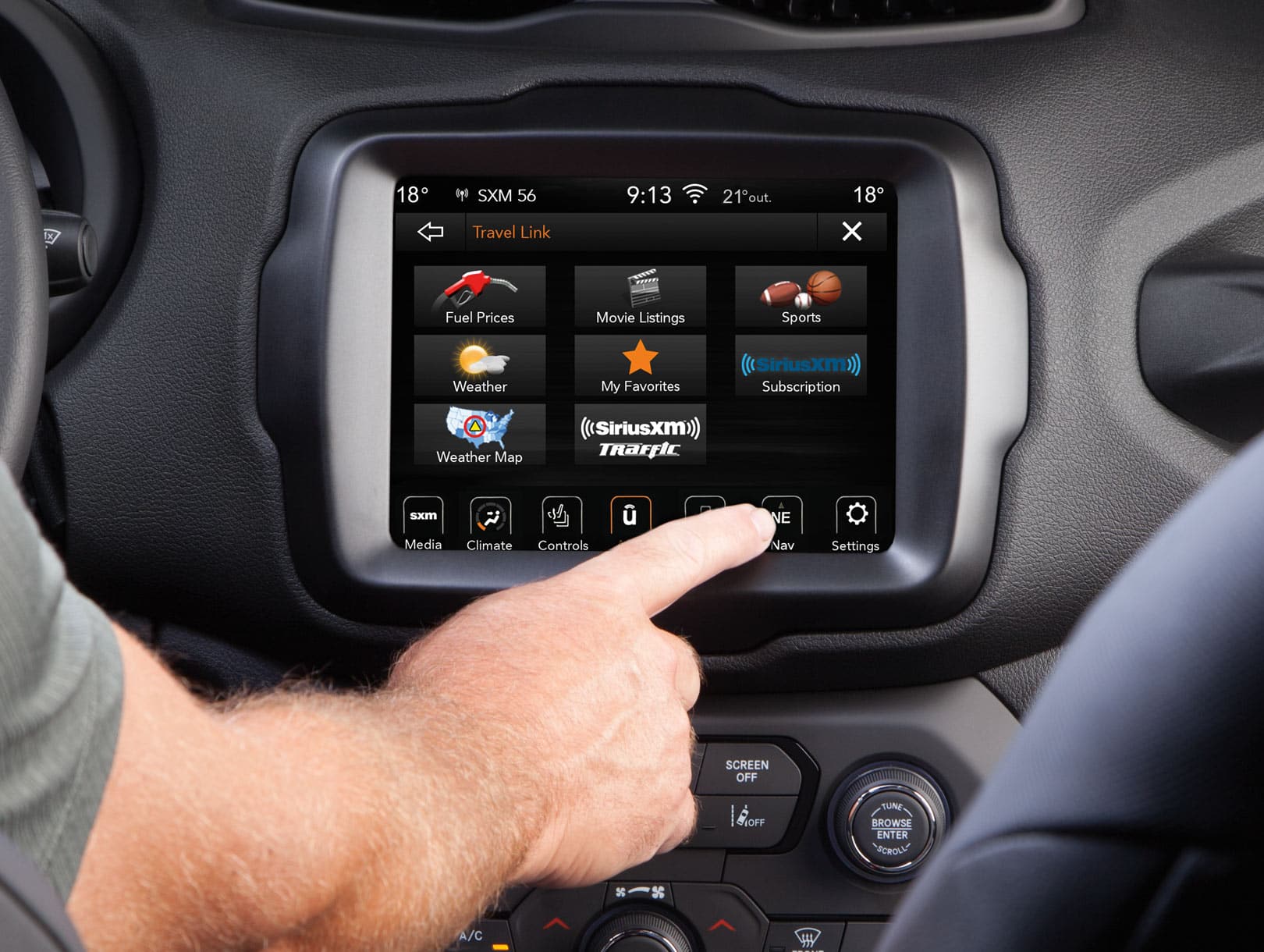
The Jeep Compass comes with a touchscreen infotainment system, often known as Uconnect. Most recent models include built-in navigation, though some trims may require you to connect your smartphone for navigation.
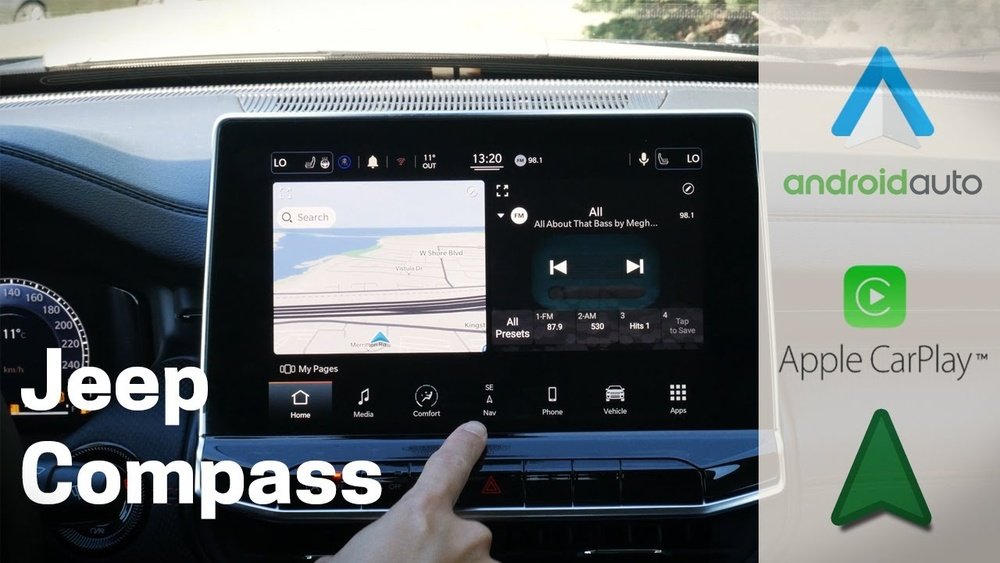
Before you start, make sure your car is parked. Operating the touchscreen while driving is dangerous and can be restricted when the vehicle is moving.
To turn on navigation:
- Press the ‘Nav’ or ‘Map’ button on your Uconnect display.
- Wait for the navigation screen to load.
- You should see your current location, a map, and several menu options.
If your model supports Android Auto or Apple CarPlay, plug in your phone to access navigation apps like Google Maps or Apple Maps on the main screen.
Entering A Destination
Finding your destination is easy, but each method has its own advantages.
Using The Touchscreen
- Tap ‘Where To?’ or ‘Search’ on the navigation menu.
- Type in the address, point of interest, or business name using the on-screen keyboard.
- As you type, suggestions appear. Select the correct one.
- Tap ‘Go’ to start navigation.
Voice Command
You can use voice commands to keep your hands on the wheel:
- Press the voice button on your steering wheel.
- Wait for the beep, then say, “Navigate to [destination].”
- The system will confirm and start the route.
Voice input saves time, especially when you’re driving alone.
The Jeep Compass navigation screen shows helpful data while you drive.
| Display Element | What It Shows |
|---|---|
| Current Location | Your real-time position on the map |
| Route Line | Blue or highlighted path to follow |
| Turn-by-Turn Directions | Next street or maneuver, with distance |
| ETA (Estimated Time of Arrival) | Time you will reach your destination |
| Speed Limit | Shows the current road’s speed limit |
Two useful insights:
- You can zoom in or out on the map using the ‘+’ and ‘-’ buttons for more detail or a wider view.
- The display often switches to a split-screen view at complex junctions, making it easier to see the next step.
Adjusting Route Preferences
Not every driver wants the fastest route. The Jeep Compass lets you adjust settings for your preferences:
- Tap ‘Menu’ or ‘Settings’ on the navigation screen.
- Choose ‘Route Preferences’.
- Select options like:
- Avoid toll roads
- Avoid highways
- Shortest or fastest route
- Save your choices before starting navigation.
Changing these settings can help you avoid traffic jams or enjoy a more scenic drive.

Using Points Of Interest And Favorites
Jeep Compass navigation makes it easy to find points of interest (POI). These include gas stations, restaurants, hotels, and parking lots.
- Tap ‘Where To?’ then select a category like ‘Fuel’ or ‘Food’.
- You will see a list sorted by distance.
- Tap the location to see details, then ‘Go’ to navigate.
To save a frequent destination:
- After entering an address, tap ‘Save’ or ‘Add to Favorites’.
- Access all favorites from the main navigation menu for fast routing later.
This feature is useful for quick access to your home, workplace, or favorite spots.
Real-time Traffic And Map Updates
Most Jeep Compass models with navigation include real-time traffic updates. This helps you avoid delays and select better routes.
- Look for colored lines on roads: Red means heavy traffic, yellow means moderate, and green means clear.
- If a faster route is available, the system often suggests it automatically.
Keeping maps updated is important for accuracy. Visit your dealer or the official Jeep website to check for the latest map updates.
Some updates may be free for a certain period, so check your warranty or owner’s package.

Many Jeep Compass owners wonder if they should use the built-in system or connect their smartphone. Here’s a quick comparison:
| Feature | Built-in Navigation | Smartphone Apps |
|---|---|---|
| Works without cell signal | Yes | No (usually needs data) |
| Real-time traffic | Yes (if activated) | Yes |
| Voice command | Yes | Yes |
| Map updates | Manual | Automatic |
For long trips in remote areas, built-in navigation may be more reliable. For city driving, smartphone apps often have fresher data.
Even experienced drivers can miss some features or make errors when using navigation. Here are some tips to help you avoid common mistakes:
- Set your destination before driving. Entering addresses while moving is unsafe and often restricted.
- Check your route before you start. Sometimes, the fastest route may not be the best if you prefer scenic drives or want to avoid highways.
- Update maps at least once a year. Roads change, and old maps can lead to wrong turns.
- Learn to use the ‘Home’ button. Setting your home address allows one-tap navigation at the end of a long day.
- Don’t ignore voice guidance. Audio prompts keep your focus on the road, especially in unfamiliar areas.
One thing many drivers forget: you can mute navigation prompts if you need quiet, or adjust the volume separately from music.
For more technical details on Uconnect navigation, you can visit Jeep’s official Uconnect page.
Frequently Asked Questions
Most Jeep Compass models let you update maps through the Uconnect system using a USB drive. Download the latest maps from the Jeep website onto a USB stick, insert it into your car, and follow the on-screen instructions.
Can I Use Google Maps Or Apple Maps On My Jeep Compass Screen?
Yes, if your Compass supports Apple CarPlay or Android Auto. Connect your phone with a USB cable, and the navigation app will appear on the car’s main display.
The built-in navigation uses GPS, so it works without a cell signal. However, real-time traffic and some features may need a mobile connection or a paid subscription.
Check if the address is new or has unusual spelling. Updating your maps can also help, as older versions may not have the latest streets and places.
After entering the address, look for the ‘Save’ or ‘Add to Favorites’ option on the screen. You can then label it as ‘Home’ or ‘Work’ for easy access.
Using navigation in the Jeep Compass becomes second nature with a little practice. Take time to explore the features, and you’ll travel with more confidence and less stress on every journey.