Connecting your phone or another device to your Jeep Liberty 2012 using Bluetooth can make your driving safer and more enjoyable. It lets you make hands-free calls, play music, and access other features without distractions.
But many drivers find the Bluetooth setup confusing, especially if they aren’t used to car technology. This guide will walk you through the process step by step, highlight common mistakes, and share some tips that most people miss.
After reading, you’ll be confident connecting Bluetooth to your Jeep Liberty 2012 and using it every day.
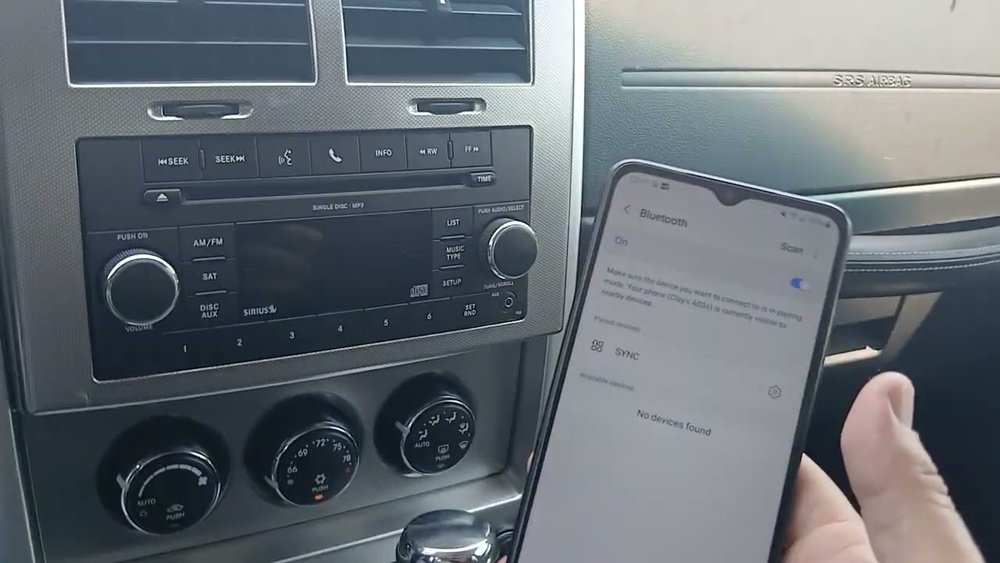
Understanding Jeep Liberty 2012 Bluetooth System
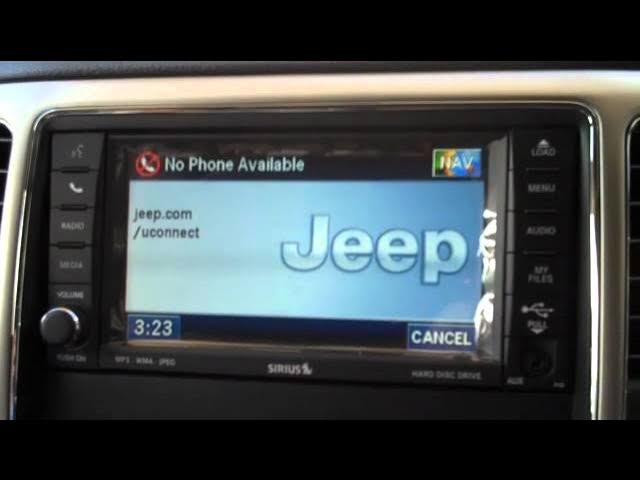
The Jeep Liberty 2012 comes with the Uconnect system, which allows Bluetooth pairing for calls and audio. Not all trims have Bluetooth, so first check your vehicle. If your Jeep has steering wheel buttons labeled “Phone” or “Voice,” you probably have Bluetooth. The Uconnect system supports pairing with most smartphones, but older phones may have issues.
Here’s a quick comparison of Bluetooth features across Jeep Liberty 2012 trims:
| Trim | Bluetooth Calling | Bluetooth Audio | Voice Commands |
|---|---|---|---|
| Sport | Optional | Optional | Optional |
| Limited | Standard | Standard | Standard |
| Latitude | Standard | Standard | Standard |
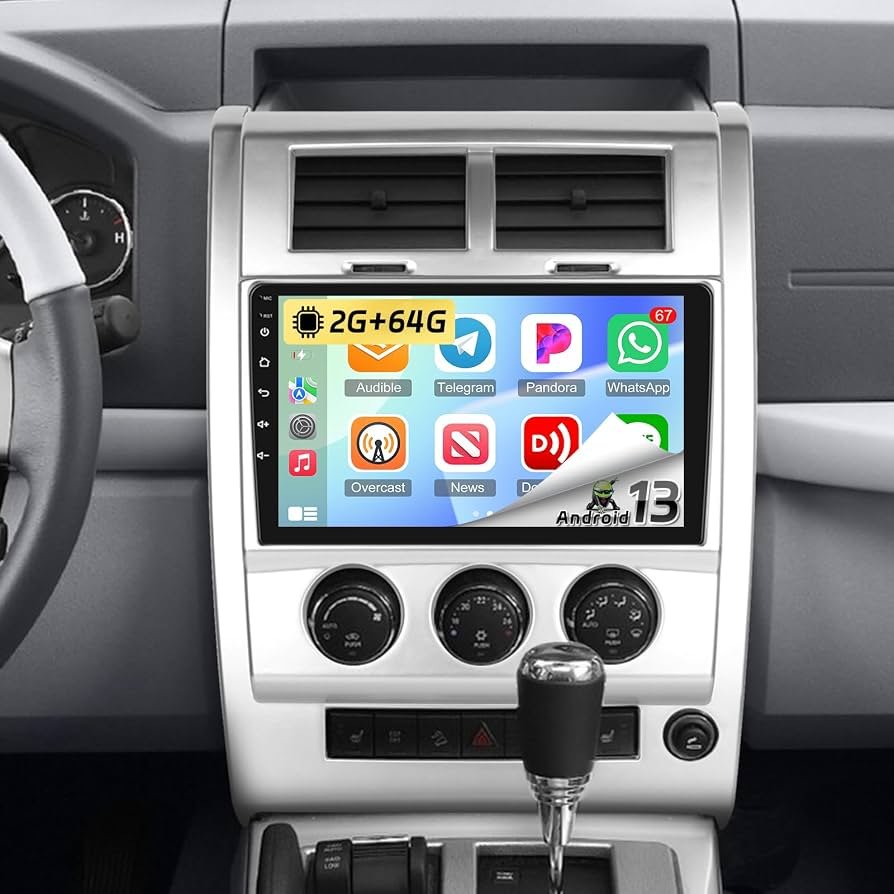
If you don’t see Bluetooth options in your menu, your Jeep may not have factory Bluetooth. You can add Bluetooth by installing an aftermarket kit, but this guide focuses on factory-equipped systems.
Step-by-step: Connecting Bluetooth
1. Prepare Your Device
Before pairing, make sure your phone’s Bluetooth is turned on. Go to your phone’s settings and enable Bluetooth. Make your phone “discoverable” so your Jeep can find it.
2. Start Pairing In Jeep
Turn your Jeep’s ignition to “ON” or start the engine. Press the Phone button on the steering wheel or the dashboard. The Uconnect system will prompt you to begin pairing.
Follow these steps:
- Press the Phone or Voice button.
- Listen to the Uconnect prompts. It will say “Ready” or “Pairing.”
- Say “Pair a device” or press the pairing button if prompted.
3. Search For Jeep On Your Phone
On your phone, search for new Bluetooth devices. You should see something like “Uconnect” or “Jeep Liberty” listed. Select it to start the connection.
4. Enter The Pin
Your Jeep will display a PIN code on the screen or announce it. Enter this code on your phone when asked. If the code is correct, the devices will connect.
Most Jeeps use “0000” or “1234” as the default PIN, but always check your display.
5. Confirm And Test
After pairing, your phone will show a message that it is connected. The Uconnect system may announce “Pairing complete.
” Test the connection by making a call or playing music. Some phones require you to allow access to contacts or audio.
Here’s a summary of the pairing steps:
| Step | Action |
|---|---|
| 1 | Turn on Bluetooth on phone |
| 2 | Press Phone button in Jeep |
| 3 | Start pairing with Uconnect |
| 4 | Find Jeep/Uconnect on phone |
| 5 | Enter PIN |
| 6 | Test connection |
Common Problems And Solutions
Connecting Bluetooth isn’t always smooth. Here are some frequent issues and how to fix them:
- Jeep not showing up: Make sure your phone’s Bluetooth is visible. Restart your phone if needed.
- PIN not accepted: Double-check the code. If it fails, restart the pairing process.
- No audio or contacts: Allow access on your phone. Some phones need permission for contacts and audio.
- Connection drops: This is often caused by interference or old software. Update your phone and Uconnect system if possible.
If you face problems, try deleting the old connection from your phone and Jeep, then start again. You can remove paired devices from Uconnect by saying “Delete a device” when in the pairing menu.
- If your Jeep has trouble connecting with newer phones, try disabling Bluetooth on other devices nearby during setup.
- Many drivers don’t realize Uconnect can store multiple phones. You can pair several devices, but only one can be active at a time.
- If your Uconnect system is slow or buggy, a soft reset can help. Simply turn off the engine, wait a minute, and restart.
Here’s a quick look at maximum device storage:
| System | Max Paired Devices | Switching Devices |
|---|---|---|
| Uconnect 2012 | Up to 7 | Manual selection required |
| Aftermarket Kit | Up to 5 | Manual or auto |
Extra Features And Best Practices
After connecting, you can use voice commands to make calls. Press the Voice button and say “Call [Name]” or “Dial [Number].” Make sure your contacts are synced for best results.
To play music, select Bluetooth audio from your Jeep’s menu. Some apps may need permission to play audio over Bluetooth.
Here are some best practices:
- Keep your phone’s software updated for better compatibility.
- Remove old paired devices if you no longer use them.
- Use hands-free calling for safety.
If you want more advanced features, consider an upgrade. Aftermarket Bluetooth kits can add streaming, text messaging, and even app control.
Frequently Asked Questions
How Do I Know If My Jeep Liberty 2012 Has Bluetooth?
Look for Phone or Voice buttons on the steering wheel or dashboard. You can also check your owner’s manual or visit the Jeep website for specifications.
Can I Connect Multiple Phones To My Jeep Liberty?
Yes, the Uconnect system supports up to 7 paired devices. Only one phone can be active at a time. To switch, select the device from the Uconnect menu.
Why Won’t My Phone Connect Even Though Bluetooth Is On?
Check if your phone is visible to other devices. Restart both the phone and the Jeep.
Delete old connections and try pairing again. Compatibility issues can occur with very new or old phones.
Is Bluetooth Audio Supported In All Jeep Liberty 2012 Models?
Bluetooth audio is standard in some trims (like Limited and Latitude) but optional in others. Check your menu for a “Bluetooth Audio” option.
Where Can I Find More Help With Uconnect Bluetooth?
You can visit the official Uconnect support site for guides and troubleshooting: Uconnect Support.
Connecting Bluetooth to your Jeep Liberty 2012 is easier than it seems when you follow the right steps. With a little patience and the tips above, you’ll enjoy hands-free calls and music every drive.
If you ever run into trouble, don’t hesitate to seek expert help or check your manual.
Safe driving!