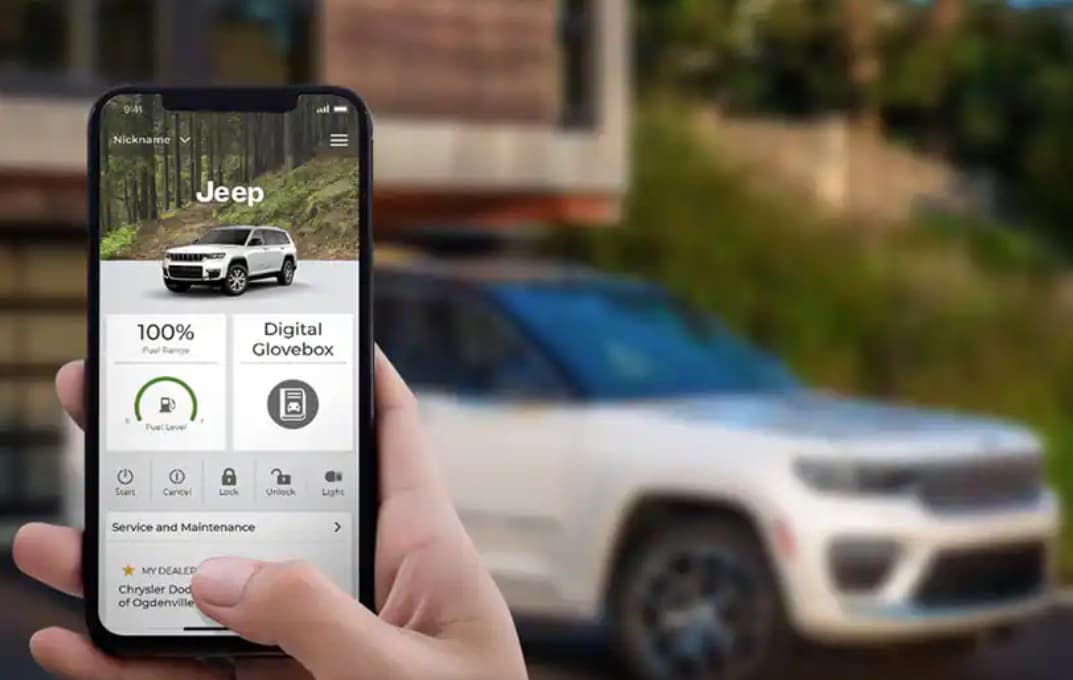
Adding your vehicle to the Jeep app unlocks a range of features that make car ownership simpler and smarter. With just your smartphone, you can check vehicle health, schedule maintenance, and even start your engine remotely.
Many Jeep owners, however, find the setup confusing or miss out on useful options.
This guide explains step-by-step how to add your vehicle to the Jeep app, shares common mistakes, and highlights tips that save time.
Why Add Your Vehicle To The Jeep App?
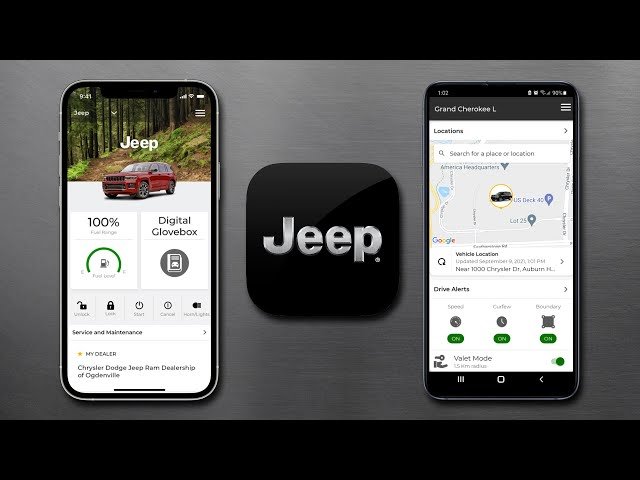
The Jeep app is more than a digital manual. It acts as a personal assistant for your vehicle. When your Jeep is linked with the app, you can:
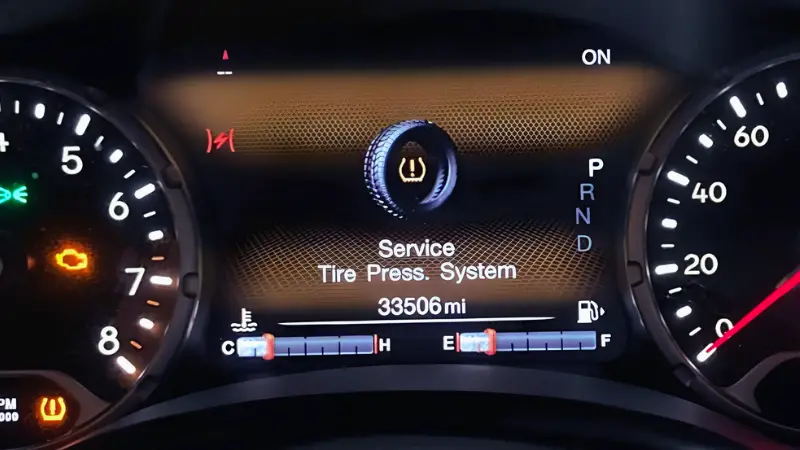
- Access real-time vehicle data, like tire pressure or fuel level.
- Lock or unlock doors remotely.
- Find your car in a busy parking lot.
- Receive important alerts about recalls or scheduled service.
Some features, such as remote start, require a subscription or certain models. Still, even basic access gives you better control and peace of mind.
Getting Ready: What You Need
Before you begin, make sure you have:
- A compatible Jeep vehicle (usually 2018 or newer).
- The Jeep app installed on your smartphone (iOS or Android).
- Your vehicle identification number (VIN)—this is a 17-character code found on your dashboard or in registration papers.
- A Jeep account (or Jeep owner account). If you don’t have one, you can sign up in the app.
Here’s a quick look at requirements for popular Jeep models:
| Model | Year Range | App Compatibility |
|---|---|---|
| Jeep Wrangler | 2018–2024 | Yes |
| Jeep Grand Cherokee | 2019–2024 | Yes |
| Jeep Compass | 2020–2024 | Yes (limited) |
If your model is not listed, check your owner’s manual or the app’s compatibility page.
Step-by-step: How To Add Your Jeep
Follow these steps to add your vehicle successfully:
- Download and open the Jeep app.
- Sign in with your Jeep account or create one if you are a new user.
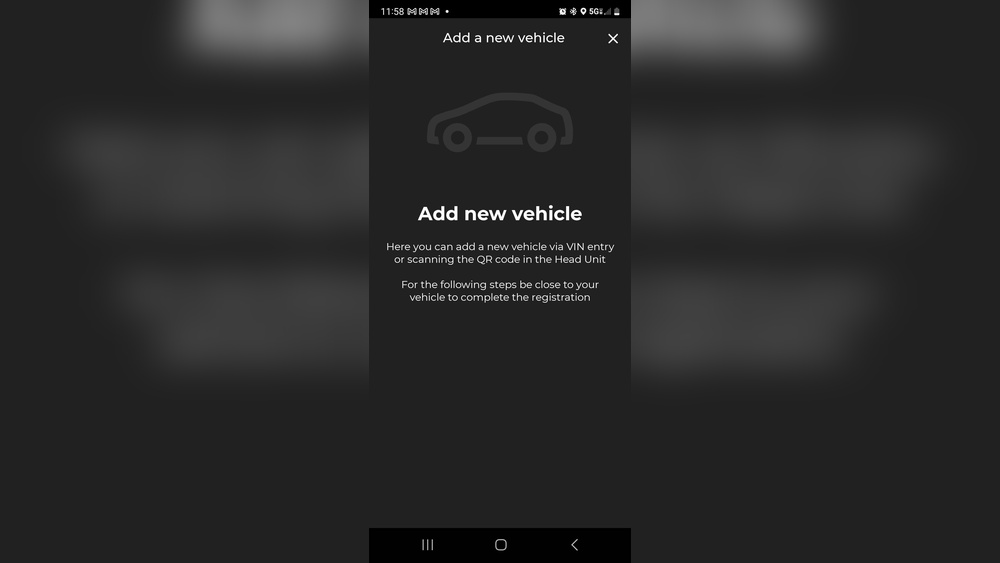
- Tap the ‘Add Vehicle’ or ‘My Garage’ section.
- Enter your VIN. Type carefully—one wrong letter can cause errors.
- Follow the prompts to confirm your vehicle details.
- If required, verify ownership. This may involve entering a code sent to your email or phone.
- Complete the setup by agreeing to terms and saving your vehicle.
Here’s how the app process compares with adding a vehicle on the Jeep website:
| Step | Jeep App | Website |
|---|---|---|
| Account Creation | In-app | On website |
| VIN Entry | Manual or scan QR | Manual only |
| Feature Access | Immediate (after sync) | Requires app login |
The mobile app offers the fastest setup and syncs features quickly.
Troubleshooting Common Problems
Even when you follow the steps, some issues can block your progress. Here are the most common obstacles and what to do:
- VIN not recognized: Double-check the number. Try scanning the VIN barcode if your phone allows.
- App won’t connect: Make sure your phone has a strong internet signal and the app is updated.
- Ownership verification fails: Use the same email and phone number as your Jeep dealership records.
- Vehicle already linked: This can happen if a previous owner added the car. Contact Jeep support to reset it.
A surprising fact: Many users forget to enable Bluetooth or location permissions, which are essential for some Jeep app features. Grant these permissions during setup for a smoother experience.

Maximizing Your Jeep App Experience
After adding your vehicle, you can do more than check stats. Here are ways to get the most out of your Jeep app:
- Set up notifications: Get alerts for maintenance, recalls, or low fuel.
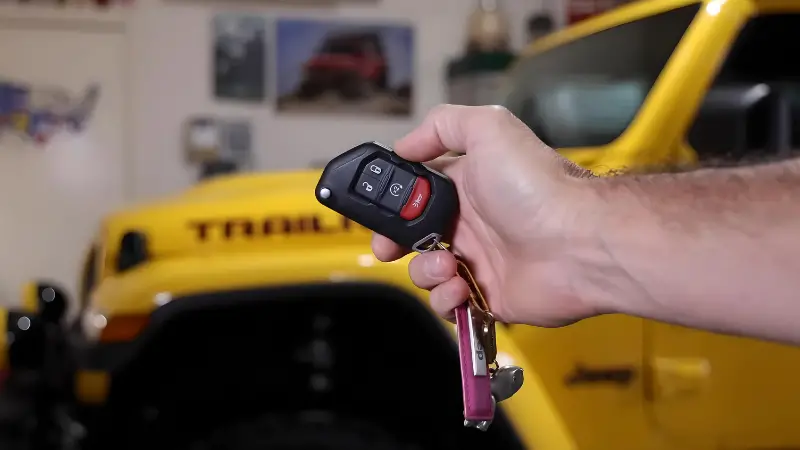
- Explore remote features: If your Jeep supports them, try remote start or door unlock.
- Connect with Jeep Wave: Some owners get exclusive perks, like free oil changes, when linked to the app.
- Share access: Add family members so they can also use key features.
Not all features are available in every region or model. Always check the feature list for your specific Jeep.
Data Privacy And Security
Many owners worry about what data is shared with the Jeep app. Jeep uses secure encryption to protect your vehicle data. Only you (and people you invite) can access your vehicle info in the app. For extra security, enable two-factor authentication in your Jeep account settings.
Here’s a comparison of data privacy between the Jeep app and other major car apps:
| App | Data Encryption | Two-Factor Authentication |
|---|---|---|
| Jeep | Yes | Yes |
| FordPass | Yes | No |
| myChevrolet | Yes | Yes |
Practical Tips And Insights
Most Jeep owners add their vehicle, then stop exploring. Two things beginners often miss:
- Software updates: Jeep sometimes releases new features via app updates. Check for updates monthly for the best performance.
- Multiple vehicles: You can add more than one Jeep to your account. This is handy for families with several Jeeps.
A confident tip: If you’re buying a used Jeep, always remove the previous owner’s info from the app to avoid confusion.
For more details about Jeep’s digital services, visit the official Jeep Uconnect page.
Frequently Asked Questions
How Do I Find My Jeep’s Vin?
The VIN is found on your dashboard, near the windshield on the driver’s side. You can also find it on your car registration, insurance card, or inside the driver’s door frame.
Can I Add More Than One Vehicle To The Jeep App?
Yes, you can add multiple Jeeps to a single account. Tap the ‘Add Vehicle’ button in the app and repeat the steps for each car.
What If My Jeep App Can’t Find My Vehicle?
Double-check your VIN for mistakes. Make sure your car is compatible and that you have a stable internet connection. If problems continue, contact Jeep customer support.
Are All Jeep Models Supported By The App?
Most newer models (2018 and later) are supported, but some features might be limited based on the model and region. Check your owner’s manual for details.
Is It Safe To Use The Jeep App For Remote Controls?
Yes, the app uses secure encryption and two-factor authentication to protect your vehicle. Only registered users can access remote features.
Adding your vehicle to the Jeep app brings modern convenience to your driving experience. With just a few steps, you unlock powerful tools that keep you connected to your Jeep, wherever you go.
Take the time to explore all features, and keep your app updated for the best results.