Connecting your Jeep to Uconnect transforms your driving experience. You get hands-free calling, music streaming, navigation, and easy access to vehicle controls.
Many Jeep owners are excited to use Uconnect but unsure where to begin. This guide helps you connect your Jeep to Uconnect smoothly, even if you are not tech-savvy.
With simple steps, practical advice, and clear examples, you’ll be ready to enjoy the benefits in minutes.
Understanding Uconnect
Uconnect is the smart infotainment system built into most modern Jeep vehicles. It integrates your phone, apps, navigation, and media into one touchscreen interface. Depending on your Jeep model and year, you might have different Uconnect versions:
| Uconnect Version | Screen Size | Main Features |
|---|---|---|
| Uconnect 3 | 5-inch | Bluetooth, AM/FM radio, basic apps |
| Uconnect 4 | 7-8.4-inch | Apple CarPlay, Android Auto, navigation |
| Uconnect 5 | 8.4-10.1-inch | Wireless CarPlay/Android Auto, voice control, advanced apps |
Each version offers unique features, but the basic connection process is similar. Knowing your Uconnect version helps you follow the correct steps and take advantage of all available functions.
Preparing To Connect Your Jeep
Before you start, make sure:
- Your Jeep is parked safely and turned on.
- Your smartphone is charged and Bluetooth is enabled.
- You know your Uconnect version and screen size.
- You have the latest Uconnect software update. Older software can cause connection issues.
Some users skip checking for software updates, but this is a common mistake. Updated software improves compatibility and fixes bugs.
You can update Uconnect through your dealer or by following instructions from Jeep’s official site.
How To Connect Your Phone To Uconnect
The most common way to connect is via Bluetooth. Follow these steps:
- On your Jeep’s Uconnect screen, tap “Phone” or “Settings.”
- Select “Pair a Device” or “Add Device.”
- On your smartphone, open Bluetooth settings and look for “Uconnect” in available devices.
- Tap “Uconnect” to start pairing.
- Enter the PIN shown on your Jeep’s screen into your phone, or confirm the code if prompted.
- Wait for confirmation. Your phone is now connected.
Some Jeep models support wireless Apple CarPlay or Android Auto. If your Uconnect system supports this, follow the same steps and then open CarPlay/Android Auto on your phone.
Troubleshooting Common Issues
If connection fails:
- Restart your phone and Uconnect system.
- Delete previous Bluetooth pairings on both devices and try again.
- Make sure your phone’s software is updated.
- If problems continue, try pairing with another phone. This helps identify if the issue is with your phone or Uconnect.
A less obvious tip: Interference from other Bluetooth devices nearby can cause problems. Turn off other devices while pairing.
Connecting Uconnect To Wi-fi
Some Uconnect systems allow you to connect to Wi-Fi. This feature lets you use online navigation, stream music, and download updates.
Steps to connect:
- Select “Wi-Fi Settings” on your Uconnect screen.
- Choose “Available Networks.”
- Select your home or mobile hotspot network.
- Enter the password.
- Wait for confirmation.
If you drive often, consider using a mobile hotspot. Many carriers offer special plans for cars. This can provide faster and more stable connections than using your phone’s hotspot.
Using Uconnect Apps And Features
Once connected, explore Uconnect’s main features:
- Hands-Free Calling: Tap the phone icon to make or receive calls.
- Music Streaming: Use Bluetooth audio or apps like Spotify and Pandora.
- Navigation: Enter destinations directly or use apps like Google Maps (with CarPlay/Android Auto).
- Voice Commands: Press the steering wheel button and say commands like “Call Mike” or “Navigate to Starbucks.”
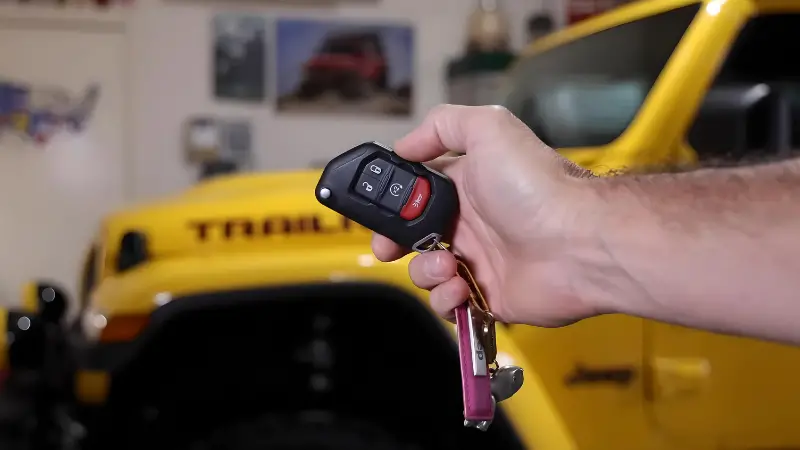
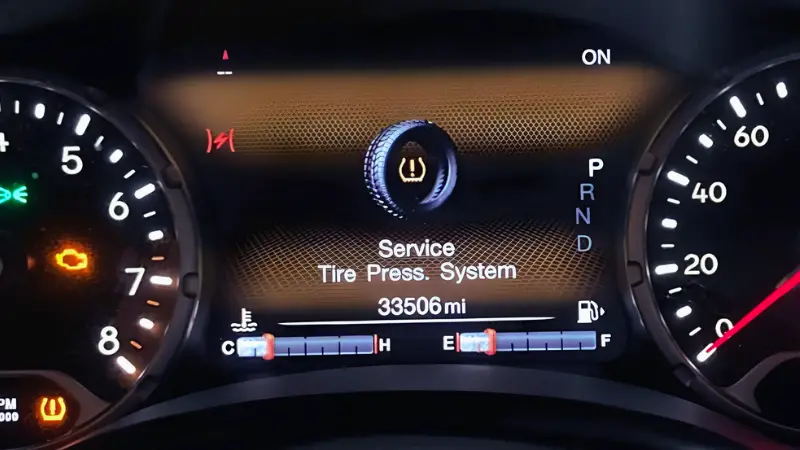
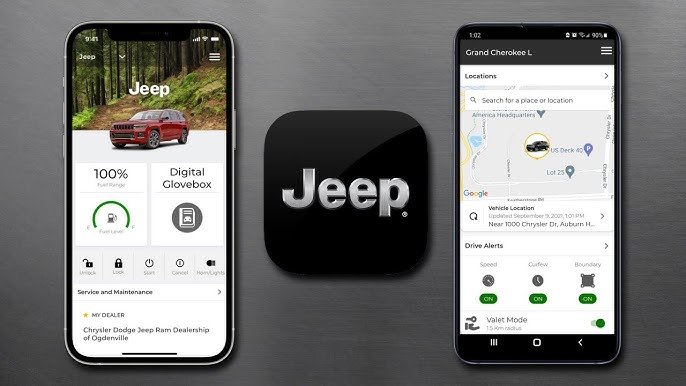
- Vehicle Controls: Lock/unlock doors, check tire pressure, or start your Jeep remotely (for supported models).
Here’s a quick comparison of Uconnect 4 and Uconnect 5 features:
| Feature | Uconnect 4 | Uconnect 5 |
|---|---|---|
| Apple CarPlay/Android Auto | Wired | Wireless |
| Voice Assistant | Basic | Advanced |
| Screen Customization | Limited | Full |
Some users miss the voice command feature. It’s much safer and more convenient than tapping the screen while driving.
Practical Tips For Using Uconnect
- Save your favorite contacts for quick calling.
- Set up navigation shortcuts for regular destinations.
- Adjust audio settings for better sound quality.
- Use “Do Not Disturb” mode to block calls when driving.
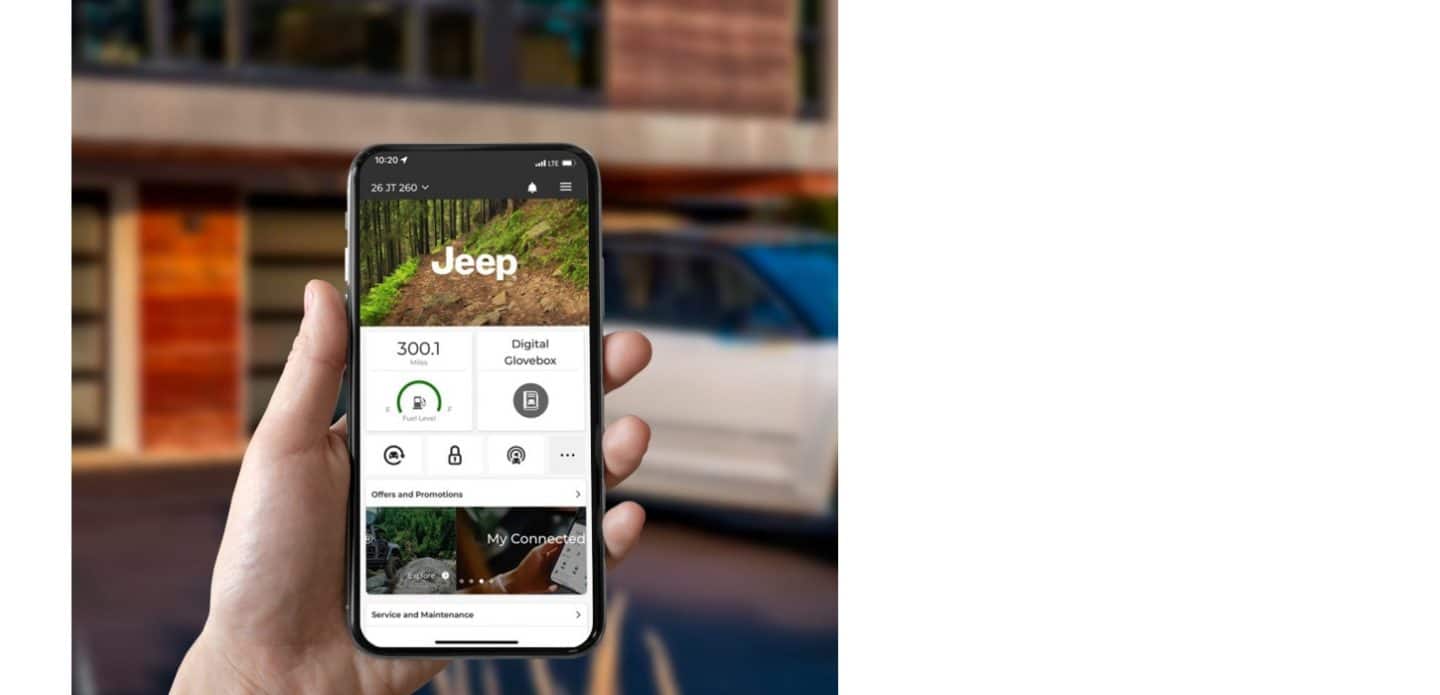
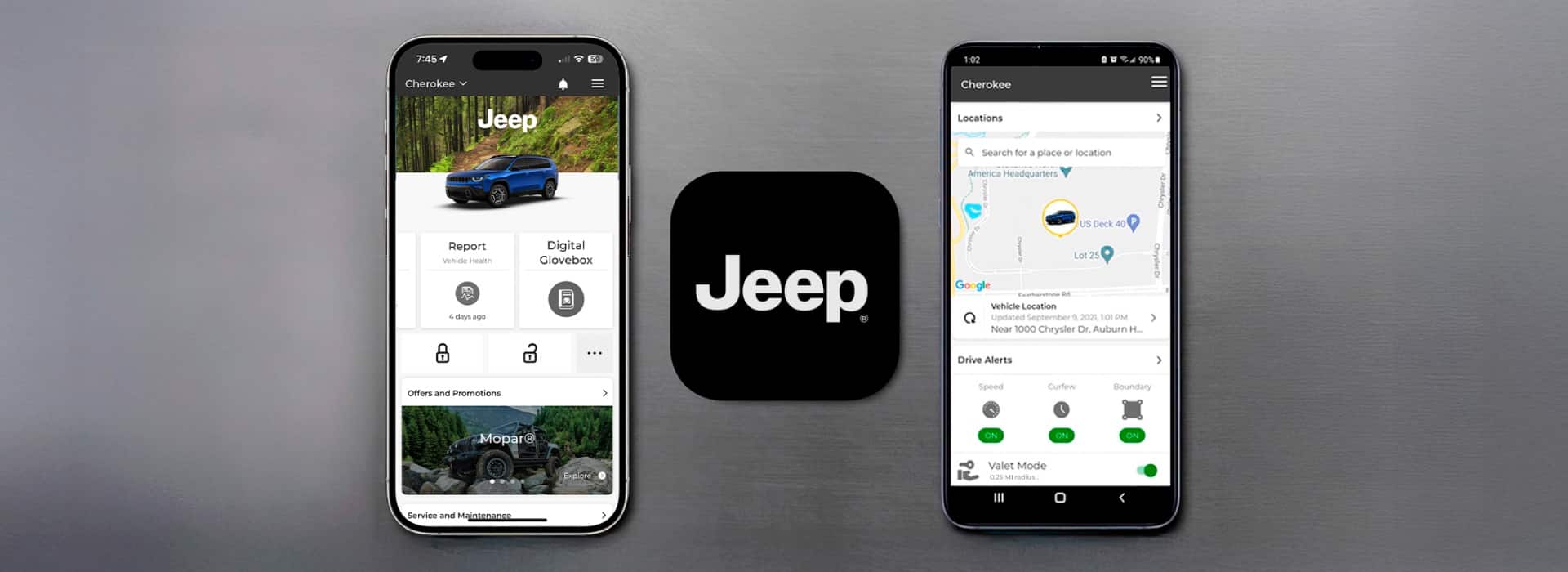
- Explore Uconnect mobile app for remote controls and vehicle info.
One non-obvious insight: If you plan to share your Jeep with family, create separate user profiles in Uconnect 5. This customizes settings for each driver.
Keeping Your Uconnect Secure
When connecting personal devices, always use a strong Wi-Fi password. Remove old devices you no longer use.
If you sell your Jeep, reset Uconnect to factory settings. This protects your privacy and data.
Frequently Asked Questions
How Do I Know Which Uconnect Version My Jeep Has?
Check your Jeep’s owner manual or look at the main menu on the screen. The version is usually displayed at startup.
You can also ask your dealer for help.
Can I Connect More Than One Phone To Uconnect?
Yes, most Uconnect systems allow multiple devices. Only one phone can be active for calls, but you can switch between them in the settings menu.
What If My Phone Won’t Pair With Uconnect?
Restart both devices, delete old pairings, and check for software updates. If it still fails, try pairing a different phone or contact your dealer for support.
Is Uconnect Compatible With All Smartphones?
Uconnect works with most modern phones, including iPhones and Android devices. Very old phones may have limited compatibility.
Where Can I Find Updates For My Uconnect System?
Visit the official Jeep Uconnect update page at Jeep Uconnect for instructions and downloads.
Connecting your Jeep to Uconnect is simple with the right steps. Take time to explore the features and customize them for your needs.
With hands-free controls, music, and navigation, your drive becomes safer and more enjoyable. If you run into problems, use the tips and FAQ above for quick solutions.
Safe travels and enjoy your connected Jeep!