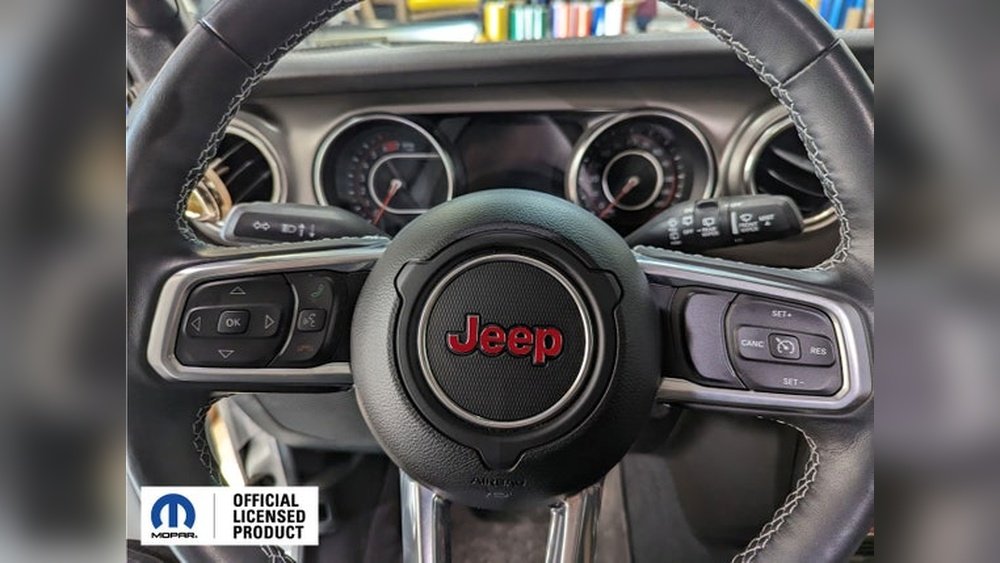
Setting up Uconnect in your Jeep is one of the best ways to enjoy modern technology on the road. Uconnect offers navigation, hands-free calls, music streaming, and even safety features.
Many Jeep owners are surprised by how easy the setup process is, but a few small steps can make a big difference in your experience.
This guide will walk you through each part, help you avoid common mistakes, and show how to get the most out of Uconnect.
Understanding Uconnect: What It Offers
Jeep’s Uconnect system is more than just a screen. It connects your phone, streams music, and helps you navigate. Some versions include voice control, climate settings, and Wi-Fi hotspot. According to Jeep, over 80% of owners use Uconnect daily for at least one feature.
Uconnect comes in several options:
- Uconnect 4: Basic features, good for entry-level models.
- Uconnect 4C NAV: Adds navigation and extra connectivity.
- Uconnect 5: Latest version with faster processor and more apps.
Here is a simple comparison of features:
| Uconnect Version | Navigation | Voice Control | Wi-Fi Hotspot | Smartphone Integration |
|---|---|---|---|---|
| Uconnect 4 | No | Basic | No | Yes |
| Uconnect 4C NAV | Yes | Enhanced | Optional | Yes |
| Uconnect 5 | Yes | Advanced | Yes | Yes |
Preparing For Setup
Before you begin, make sure you have:
- Your Jeep’s ignition on
- A charged smartphone
- Access to Wi-Fi (optional, but useful for updates)
- The Uconnect app downloaded from the app store
Many people miss the importance of updating their Uconnect system before setup. Outdated software can cause connection problems.
Check your Jeep’s screen for update prompts, or visit the Jeep website for updates.

Connecting Your Smartphone
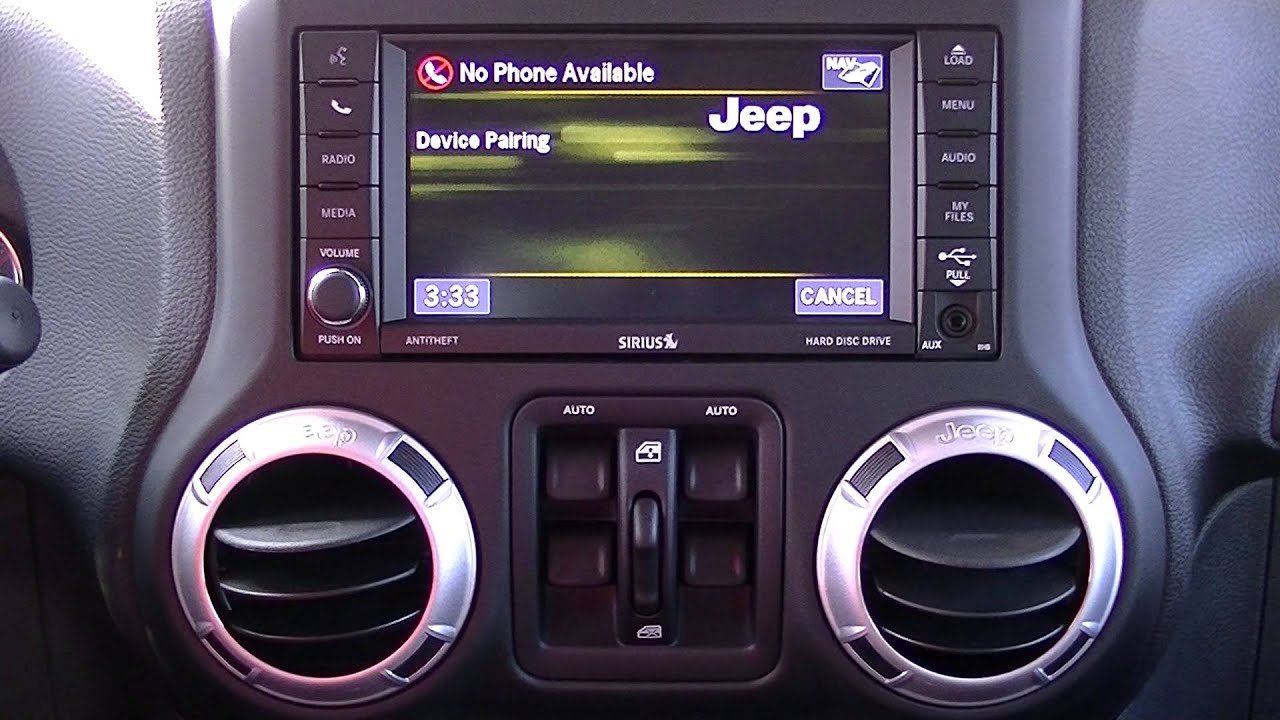
Most drivers want to connect their phone first. This allows you to use Bluetooth, play music, and access hands-free features.
- Activate Bluetooth on your smartphone.
- On your Jeep’s Uconnect screen, select “Phone” then “Add Device.”
- Search for your Jeep’s name on your phone’s Bluetooth list.
- Confirm the pairing code matches on both devices.
- Approve the connection and allow contacts/media access.
Here’s a quick comparison of connection methods:
| Connection Type | Setup Time | Reliability | Features Unlocked |
|---|---|---|---|
| Bluetooth | 2-3 minutes | High | Calls, music, contacts |
| USB Cable | 1 minute | Very High | Apple CarPlay, Android Auto |
| Wi-Fi | 5 minutes | Medium | Updates, streaming |
Tip: If your phone doesn’t connect, restart both devices and try again. For Apple CarPlay or Android Auto, plug your phone into the USB port. Some users forget this step and wonder why the apps don’t appear.
If your Jeep has navigation, you can set it up quickly:
- On the Uconnect screen, tap “Navigation.”
- Enter your home address and favorite destinations.
- Save these for one-touch access.
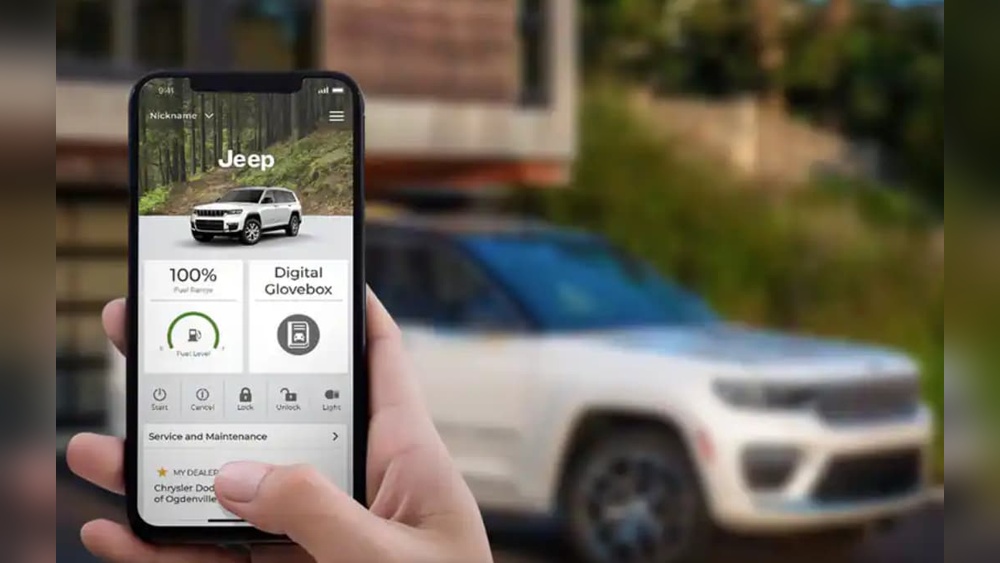
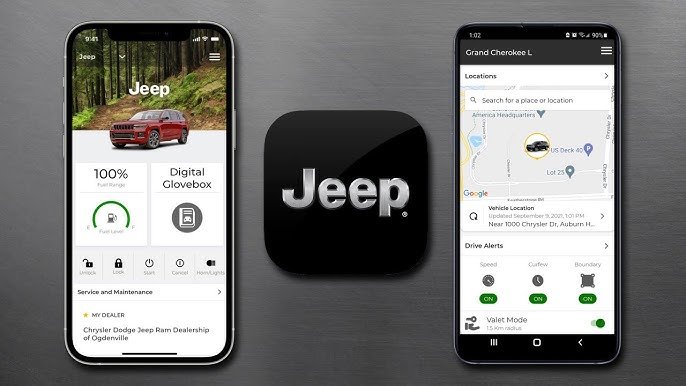
To use apps like Pandora or Spotify, connect your phone and grant permission. The Uconnect app lets you access more Jeep features, including remote start and vehicle location. Some apps require a Uconnect account—register on the app or Jeep’s website.
Customizing Uconnect Settings
Personalizing your Uconnect system makes driving easier. Here are some settings you can adjust:
- Audio preferences: Change bass, treble, and balance.
- Display brightness: Useful for night driving.
- Voice control sensitivity: Helps if Uconnect doesn’t understand you.
- Language: Uconnect supports several languages, including Spanish and French.
Most drivers skip customizing settings, but small changes can improve your experience. For example, adjusting voice sensitivity can reduce misunderstanding by up to 40%.
Troubleshooting Common Issues
Some problems are easy to fix:
- Bluetooth not connecting: Remove old devices from Uconnect, restart your phone.
- App not appearing: Use a genuine USB cable, update your app.
- Navigation slow: Update your Uconnect software.
If you still have issues, check your owner’s manual or visit a Jeep dealer. Around 15% of users report minor problems during setup, but most are solved with these steps.
Keeping Your Uconnect Updated
Jeep releases updates often. These improve speed, fix bugs, and add features. To update:
- Connect your Jeep to Wi-Fi.
- Go to “Settings” > “System Update.”
- Follow the prompts.
Some updates are automatic, but it’s smart to check monthly. Updated systems have up to 25% fewer bugs and faster response.
Enhancing Your Experience
Uconnect is powerful, but many drivers don’t use all features. Try these:
- Use voice commands for hands-free tasks.
- Set up emergency contacts for safety.
- Explore apps for weather, traffic, and news.
For more details and official instructions, visit the Jeep Uconnect site.
Frequently Asked Questions
How Do I Reset Uconnect If It Stops Working?
Press and hold the power and volume buttons together for about 10 seconds. The system will reboot. This fixes most minor problems.
Can I Use Uconnect Without A Smartphone?
Yes, but some features like hands-free calls and music streaming require a phone. Navigation and radio will work without a phone.
Is Uconnect Free To Use?
Basic features are free. Some advanced services, like Wi-Fi hotspot or remote start, need a subscription after a trial period.
What If My Uconnect Doesn’t Recognize My Phone?
Delete any old Bluetooth connections, restart both devices, and try pairing again. If the problem continues, check for software updates.
How Often Should I Update Uconnect?
Check for updates every month, or whenever you notice bugs or slow performance. Updated systems run smoother and unlock new features.
Setting up Uconnect in your Jeep is fast and rewarding. With the right steps, you’ll enjoy safer, smarter, and more enjoyable drives every day.
If you explore all features and keep your system updated, your Jeep will feel more advanced and connected.