Connecting to Uconnect in your Jeep unlocks a range of features designed to make driving easier and more enjoyable. Whether you want to play music, use hands-free calling, or access navigation, Uconnect brings modern connectivity to your vehicle.
Many Jeep owners find the process confusing at first, especially with different Uconnect versions and smartphone types.
Here, you’ll find a clear, step-by-step guide to help you connect and make the most of Uconnect, with practical tips and expert insights to avoid common mistakes.
Understanding Uconnect In Your Jeep
Uconnect is Jeep’s infotainment system, offering touchscreen controls for audio, phone, navigation, apps, and vehicle settings. Most recent Jeep models (since 2015) include Uconnect, but features vary by year and trim. The system supports both Bluetooth and USB connections for smartphones.
Some Uconnect systems also include Apple CarPlay and Android Auto for deeper smartphone integration. Knowing your Jeep’s Uconnect version is helpful:
| Uconnect Version | Release Year | Main Features |
|---|---|---|
| Uconnect 3 | 2015–2017 | Basic Bluetooth, voice command |
| Uconnect 4 | 2018–2022 | Apple CarPlay, Android Auto, better display |
| Uconnect 5 | 2021–present | Custom profiles, wireless CarPlay/Android Auto, larger screens |
Check your vehicle manual or the screen’s startup logo to identify your system.
Preparing To Connect Your Device
Successful connection starts with a few checks:
- Phone compatibility: Ensure your smartphone’s software is up to date. Older phones may have issues.
- Bluetooth enabled: Activate Bluetooth on your device before starting.
- Uconnect ready: Turn on your Jeep and let the Uconnect system boot up fully.
- USB cable (if needed): For Apple CarPlay or Android Auto, have a high-quality USB cable ready (unless your system supports wireless).
Most connection problems happen due to outdated phone software, low battery, or poor-quality cables.

Step-by-step: Connecting Via Bluetooth
Bluetooth is the most common way to connect your phone to Uconnect. Here’s how:
- On your Uconnect screen, select Phone or Pair Device.
- Choose Add Device. The system will display a code.
- On your smartphone, go to Bluetooth settings and select your Jeep’s Uconnect name.
- Confirm the code matches on both the screen and your phone, then accept the pairing request.
- Allow access to contacts and messages if prompted, so hands-free features work.
Bluetooth connection usually takes less than two minutes. If you have problems, restart your phone and try again.
For models with Uconnect 4 or 5, you may need to allow additional permissions for full functionality.
Common Bluetooth Issues
- Device not found: Restart both your Jeep and phone. Make sure your phone is not already connected to another car.
- Audio not playing: Check that Uconnect is set to media mode and phone volume is up.
- Frequent disconnects: Try deleting the pairing and reconnecting from scratch.
Connecting With Apple Carplay Or Android Auto
Many modern Jeeps offer Apple CarPlay and Android Auto, which mirror your phone’s interface on the Uconnect screen. This makes navigation, music, and messaging easier and safer while driving.
For Apple Carplay:
- Connect your iPhone using a USB cable (or wirelessly, if Uconnect 5 supports it).
- On the Uconnect screen, tap the CarPlay icon.
- Accept the prompt on your iPhone.
For Android Auto:
- Connect your Android phone by USB cable or wirelessly (if supported).
- Tap the Android Auto icon on the Uconnect display.
- Follow the prompts on your phone and screen.
Here’s a quick comparison:
| Feature | Apple CarPlay | Android Auto |
|---|---|---|
| Voice Assistant | Siri | Google Assistant |
| Supported Apps | Apple Maps, Spotify, iMessage | Google Maps, WhatsApp, Spotify |
| Wireless Option | Uconnect 5 only | Uconnect 5 only |
If your Jeep doesn’t show CarPlay or Android Auto, check if the feature is enabled in the settings or if your USB cable is the right type.
Making The Most Of Uconnect Features
Once connected, Uconnect offers powerful tools to improve your drive:
- Hands-free calling: Place and answer calls without taking your hands off the wheel.
- Text messaging: Hear messages read aloud and reply with voice commands.
- Navigation: Use built-in maps or your phone’s navigation app.
- Music streaming: Play from apps like Spotify, Apple Music, or Pandora.
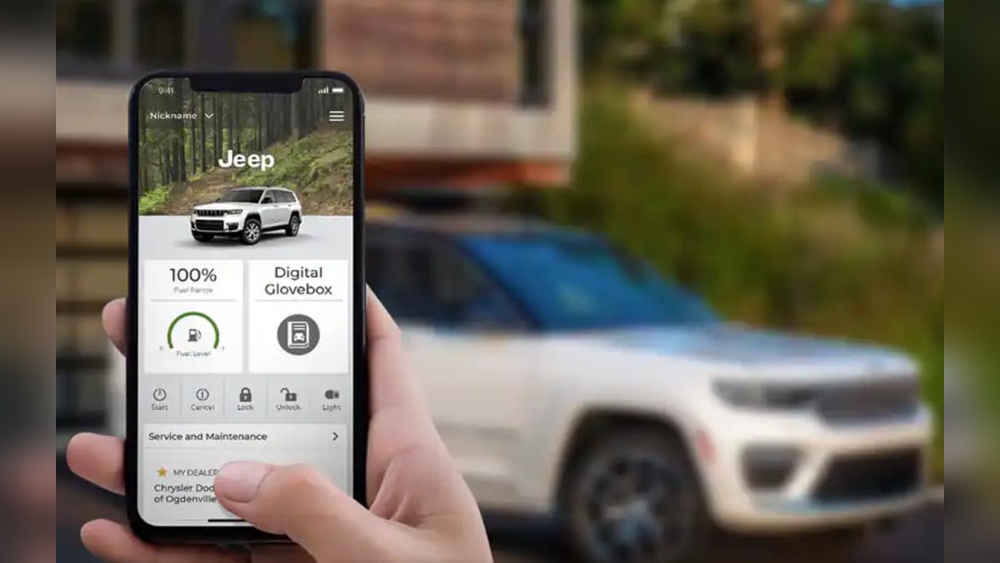
Many Jeep owners miss out on advanced features like customizable shortcuts or remote start (if equipped). Check the Uconnect app for remote lock/unlock, vehicle location, and maintenance alerts.
Some Uconnect systems allow software updates over Wi-Fi, which can fix bugs and add features. Always check for updates in your settings menu.
Troubleshooting Connection Problems
Even with clear steps, you may run into issues. Here are two less obvious solutions:
- Reset Uconnect System: Hold the volume and tuner knobs for about 10 seconds. The screen will go black, then reboot.
- Forget Device on Both Ends: Delete the pairing on both your phone and Uconnect, then pair again. This solves many persistent issues.
If your phone connects but audio quality is poor, try using a different USB port or cable. Jeep models may have multiple ports, but not all support data transfer.
Some older Uconnect systems may need a dealer update to enable newer smartphone features. Always check your system’s compatibility before troubleshooting extensively.
Security And Privacy Tips
When connecting your phone, Uconnect may request access to contacts, messages, and location data. Only allow permissions you’re comfortable with. If you sell your Jeep or trade it in, remember to delete your device from the Uconnect system to protect your privacy.
For deeper details and official guides, you can visit the Jeep Uconnect official page.
Frequently Asked Questions
How Do I Update My Uconnect System?
Most Uconnect 4 and 5 systems allow updates over Wi-Fi. Go to Settings > System Information > Software Updates on your screen. Follow prompts to connect to Wi-Fi and download updates. For older systems, you may need a USB drive or dealer assistance.
Why Won’t My Phone Connect To Uconnect?
Common reasons include outdated phone software, incompatible devices, or too many paired devices in Uconnect’s memory. Deleting old pairings and updating your phone usually solves the problem.
Can I Use Uconnect Without A Smartphone?
Yes, you can use radio, built-in navigation (if available), and some vehicle settings without a phone. However, features like hands-free calling and app integration require a connected smartphone.
Does Uconnect Support Wireless Carplay And Android Auto?
Only Uconnect 5 supports wireless CarPlay and wireless Android Auto. Older Uconnect versions require a USB connection.
How Do I Remove My Phone From Uconnect?
Go to Settings > Phone/Bluetooth > Paired Devices on the Uconnect screen. Select your phone and choose Remove or Forget Device. This protects your information when selling or trading your Jeep.
Connecting to Uconnect in your Jeep opens up a world of convenience and safety. Take a few minutes to set it up properly, and you’ll enjoy a smarter, more connected drive every time.