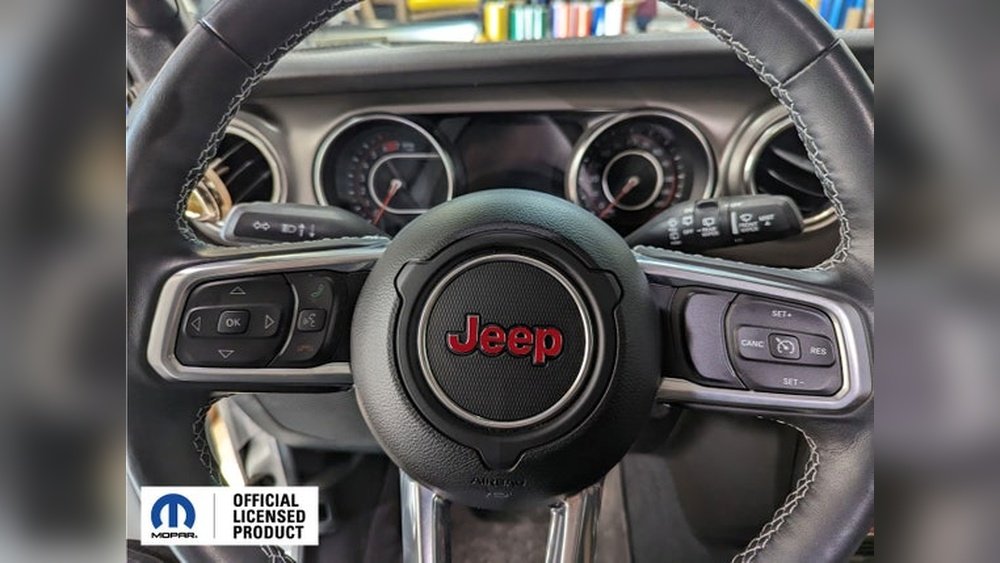
Changing the background on your Jeep’s Uconnect system is a simple way to make your vehicle feel more personal. Many Jeep owners enjoy customizing this feature, but the process is not always clear.
Whether you want to display a favorite photo, match your interior, or simply update your screen with something fresh, understanding how to change the Uconnect background can make your driving experience more enjoyable.
This guide will walk you through the steps, explain system differences, and share practical tips so you can easily update your Uconnect background.
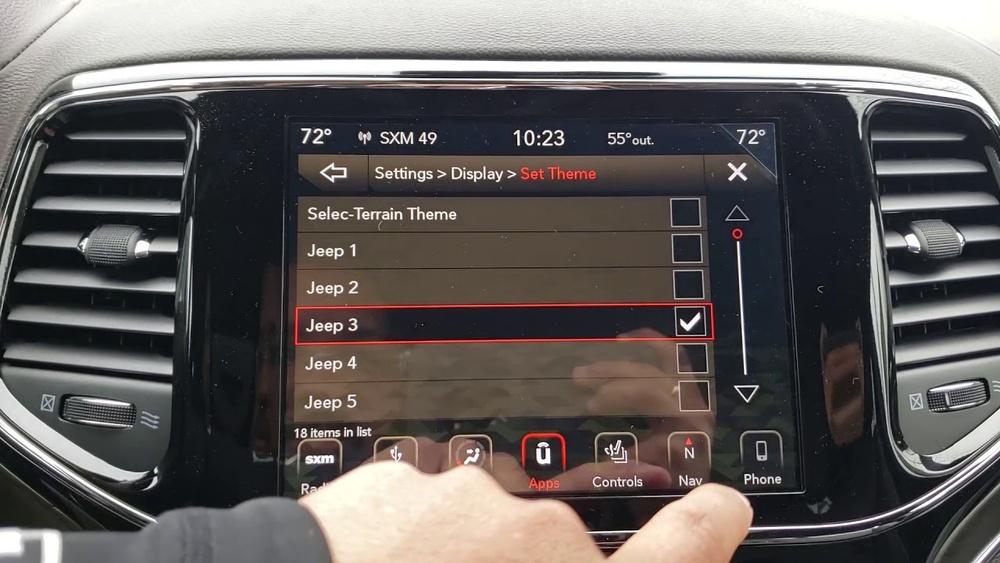
What Is Uconnect And Why Change Its Background?
The Uconnect system is Jeep’s infotainment platform. It manages navigation, music, phone calls, and more. The background image is the visual wallpaper displayed on your Uconnect screen. Changing it lets you add a personal touch or improve visibility, especially in bright sunlight.
Many Jeep drivers find the default backgrounds dull or distracting. Updating it can help reduce glare, match your style, or even make important icons easier to see.
It’s a small detail, but it can make your Jeep feel more like your own.
Understanding Uconnect Versions
Jeep vehicles come with different Uconnect versions. Not all versions allow custom backgrounds, so it’s important to know which you have.
Older systems may only allow factory images, while newer ones let you upload your own pictures.
Here’s a quick comparison of popular Uconnect versions:
| Uconnect Version | Custom Backgrounds | Typical Jeep Models |
|---|---|---|
| Uconnect 4 | Limited | 2018–2020 Wrangler, Cherokee |
| Uconnect 5 | Full Support | 2021+ Grand Cherokee, Wagoneer |
| Uconnect 3 | None | Older Jeep Patriot, Compass |
If your Jeep has Uconnect 5, you can upload custom images. For Uconnect 4, you may only be able to select from preset backgrounds. Uconnect 3 does not support background changes.
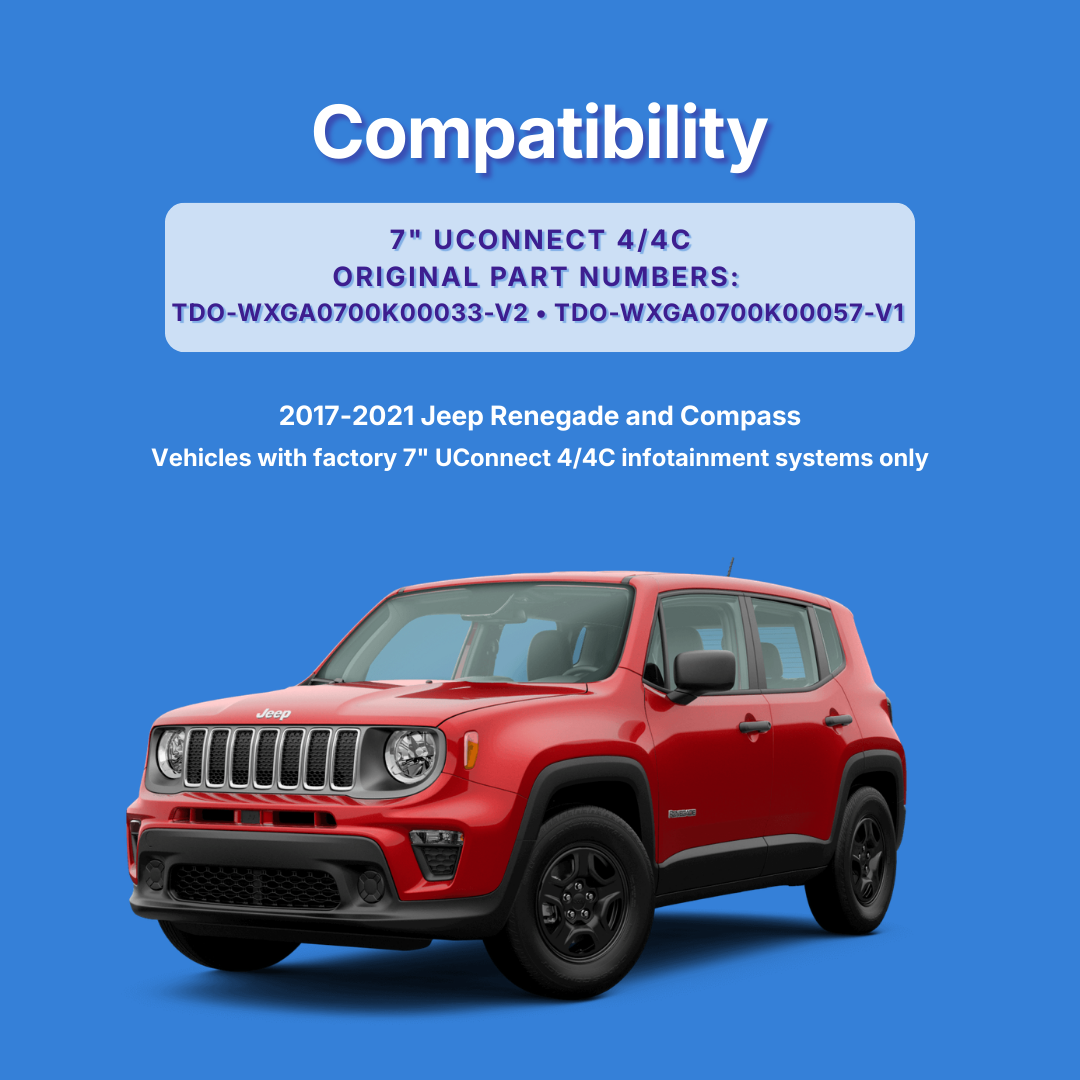
Step-by-step: How To Change Uconnect Background
For most newer Jeeps with Uconnect 5, the process is easy and takes just a few minutes. Here’s how to do it:
1. Prepare Your Image
Use a USB drive. Save your desired background image as a JPEG or PNG file.
Make sure the resolution fits your screen (usually 800×480 pixels for most Jeep screens).
2. Connect The Usb Drive
Insert the USB drive into your Jeep’s USB port. The port is usually located below the screen or in the center console.
3. Access Uconnect Settings
Tap the “Settings” icon on the Uconnect main menu. Look for “Display” or “Background. ”
4. Select ‘change Background’
Choose “Change Background” or “Wallpaper. ” The system will prompt you to select an image from your USB drive.
5. Preview And Confirm
Preview your image on the screen. If it looks good, tap “Set as Background.
” Your new wallpaper will now show on the Uconnect display.
Example
Let’s say you want to use a photo of your dog. Save the image as a JPEG, resize it to 800×480, and load it onto a USB drive.
Insert it, follow the steps, and your dog’s photo appears every time you start your Jeep.
Common Mistakes To Avoid
- Using an unsupported image format (stick to JPEG or PNG).
- Image size too large or small (use recommended resolution).
- USB drive not formatted as FAT32 (many systems require this).
Limitations And Troubleshooting
Not every Jeep allows background changes. If you can’t find the background option, your system may not support it. Here’s a quick troubleshooting table:
| Problem | Possible Cause | Solution |
|---|---|---|
| No ‘Change Background’ option | Older Uconnect version | Check for software updates |
| Image won’t load | Wrong format or resolution | Convert to JPEG/PNG, resize to 800×480 |
| USB not recognized | Incorrect formatting | Format USB as FAT32 |
If your Jeep’s Uconnect doesn’t support custom backgrounds, you can still change themes or brightness. Some models may get updates in the future, so check your owner’s manual or Jeep’s official site.
Tips For Choosing The Best Background
A good background image should be clear, not too bright, and avoid distracting patterns. Here are some tips:
- Use simple images with few colors.
- Avoid text or busy patterns.
- Choose photos that make icons easy to see.
- Test different brightness levels.
Many drivers miss that the background can affect how easy it is to use the system. Dark images can reduce glare, while bright ones may make icons hard to read.
Try several options to see what works best for you.
Data: How Many Jeep Owners Change Their Uconnect Background?
Surveys show that around 30% of Jeep owners with Uconnect 5 use custom backgrounds. For Uconnect 4, it’s only about 10%, due to limited options. Those who change their background report higher satisfaction with their infotainment system.
| Uconnect Version | % Owners Using Custom Backgrounds |
|---|---|
| Uconnect 5 | 30% |
| Uconnect 4 | 10% |
| Uconnect 3 | 0% |
This data shows that newer systems make personalization easier and more popular.

Frequently Asked Questions
Can I Change The Background On All Jeep Uconnect Systems?
No. Only Uconnect 5 and some Uconnect 4 systems support custom backgrounds. Older versions do not.
What Image Size Should I Use For The Background?
Most Jeep screens use 800×480 pixels. Check your manual for exact specs, as some models differ.
Does Changing The Background Affect System Performance?
No. The Uconnect system is designed to handle background changes without slowing down other functions.
What Happens If My Image Does Not Appear?
Check the format (JPEG/PNG), resolution, and USB formatting. Make sure the image is not corrupted.
Where Can I Find More Help Or Software Updates?
Visit the official Jeep Uconnect website or see your dealer. For more details, check Jeep Uconnect.
Making your Jeep’s Uconnect background your own is quick, practical, and makes every drive more pleasant. With the right image and a few simple steps, your infotainment screen can reflect your unique style.
If you run into problems, remember that updates and support are available, and experimenting with images can help you find the best look.
Happy customizing!