Using Uconnect In Your Jeep: A Practical Guide
The Uconnect system in Jeep vehicles transforms the way you drive. It is more than just a media player—it connects your smartphone, navigation, and car controls into one easy-to-use interface.
Whether you want hands-free calling, navigation, or streaming music, Uconnect makes everything simpler. But with so many features, it can feel confusing at first.
This guide will show you step by step how to use Uconnect Jeep, avoid common mistakes, and get the most out of your vehicle’s technology.
Getting Started With Uconnect
Before using Uconnect, you need to understand the basic setup.
- Turn on your Jeep and wait for the Uconnect screen to load.
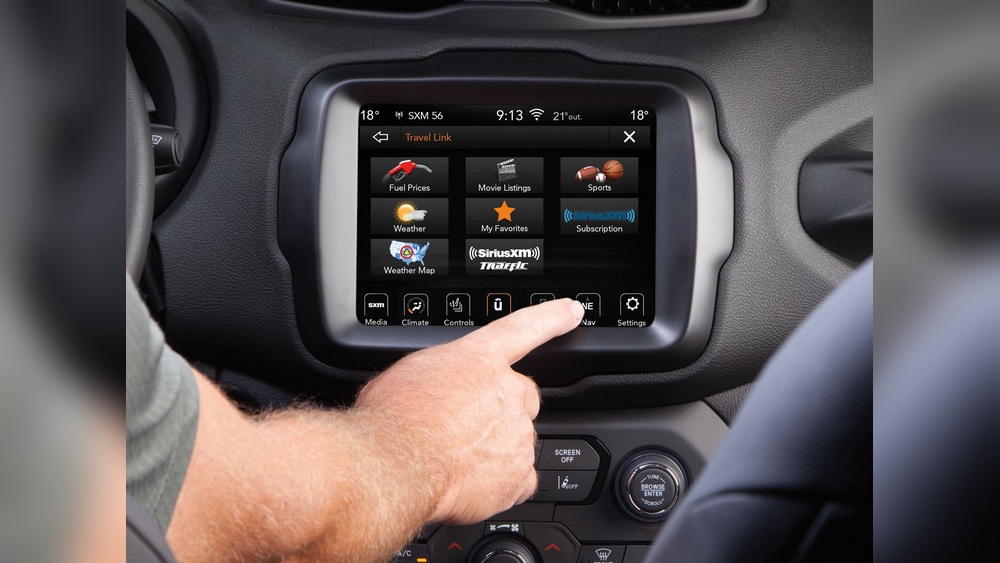
- If your Jeep has a touchscreen, you will see the main menu with options like Media, Phone, and Apps.
- Some older models use physical buttons and a smaller display, but most features are similar.
If you are new to the system, always check your Jeep’s manual for the exact steps, as some screens and buttons may be a little different.
Connecting Your Smartphone
Pairing your phone is essential for hands-free calls, messages, and music streaming.
- Open the Bluetooth settings on your smartphone.
- On the Uconnect screen, tap Phone > Add Device.
- Select your Jeep from the list on your phone.
- Confirm the pairing code matches on both devices.
- Allow access to contacts and messages when prompted.
After connecting, you can make calls and play music directly from your phone. Remember, some older phones may have limited features.
Uconnect Compatibility Table
Here’s a quick look at smartphone compatibility:
| Phone Type | Hands-free Calling | Text Messaging | Music Streaming |
|---|---|---|---|
| iPhone (iOS 12+) | Yes | Yes | Yes |
| Android (8.0+) | Yes | Yes | Yes |
| Older phones | Partial | No | Partial |
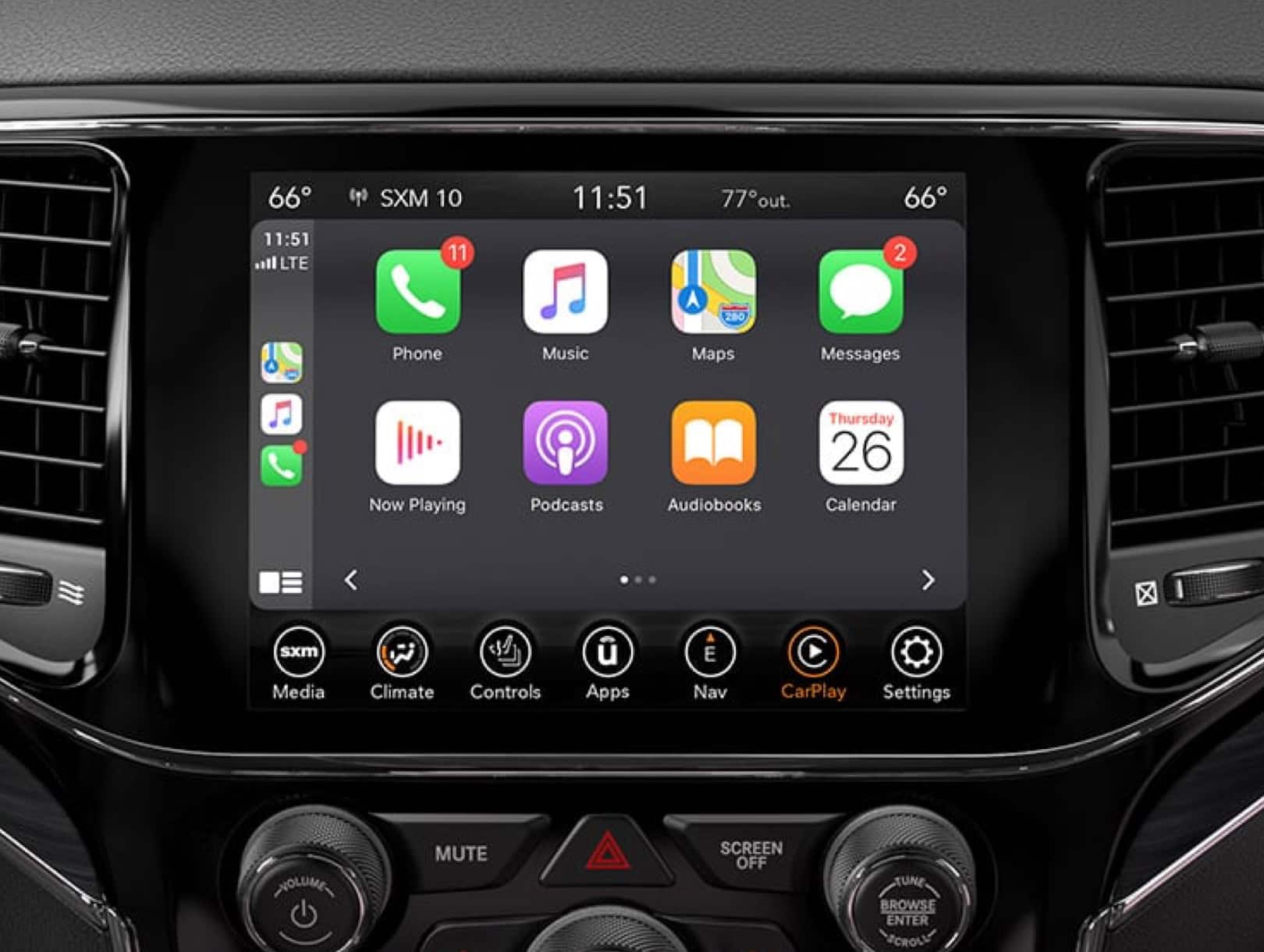
Uconnect’s navigation helps you find your way, even in remote areas. Most newer Jeeps have built-in maps, but some require a smartphone connection.
- Tap Nav or Maps on the screen.
- Enter your destination using the keyboard or voice command.
- Follow turn-by-turn directions shown on the display.
A helpful tip: If your Jeep’s maps are out-of-date, you can update them through the official Uconnect website or your Jeep dealer.
| Feature | Built-in Nav | Smartphone Integration |
|---|---|---|
| Works without cell signal | Yes | No |
| Real-time traffic updates | Some models | Yes |
| Map updates | Manual | Automatic |
Many users miss that built-in navigation keeps working even if you lose phone signal, which is valuable during off-road trips.
Playing Music And Media
Uconnect supports many ways to play your favorite audio:
- Bluetooth streaming: Play directly from your phone.
- USB connection: Plug in a flash drive or phone for playback.
- AM/FM/SiriusXM: Listen to radio or satellite channels.
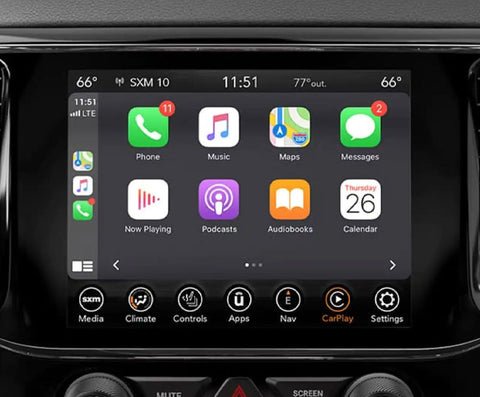
To switch between sources, tap the Media button and choose your preferred option.
You can also control volume and skip tracks using steering wheel buttons, making it safer while driving.
Audio Source Comparison
| Audio Source | Sound Quality | Data Needed | Main Benefit |
|---|---|---|---|
| Bluetooth | Good | Phone Data | Wireless |
| USB | Excellent | No | High Quality |
| SiriusXM | Good | Subscription | Variety |
A common mistake is not adjusting audio settings. Explore the Equalizer under Settings for better sound.
Voice Commands And Hands-free Features
Uconnect’s voice command system improves safety and convenience. Press the voice button on your steering wheel, then say what you need, such as “Call John Smith” or “Play 90s Hits.”
Tips for better voice recognition:
- Speak clearly and naturally.
- Avoid background noise when possible.
- Use exact contact names as saved in your phone.
Voice control also helps you set navigation destinations, change radio stations, or adjust climate settings in some models.
Using Apps And Updates
Some Uconnect systems support apps like Yelp, Pandora, and Weather. To use these:
- Connect your phone via Bluetooth or USB.
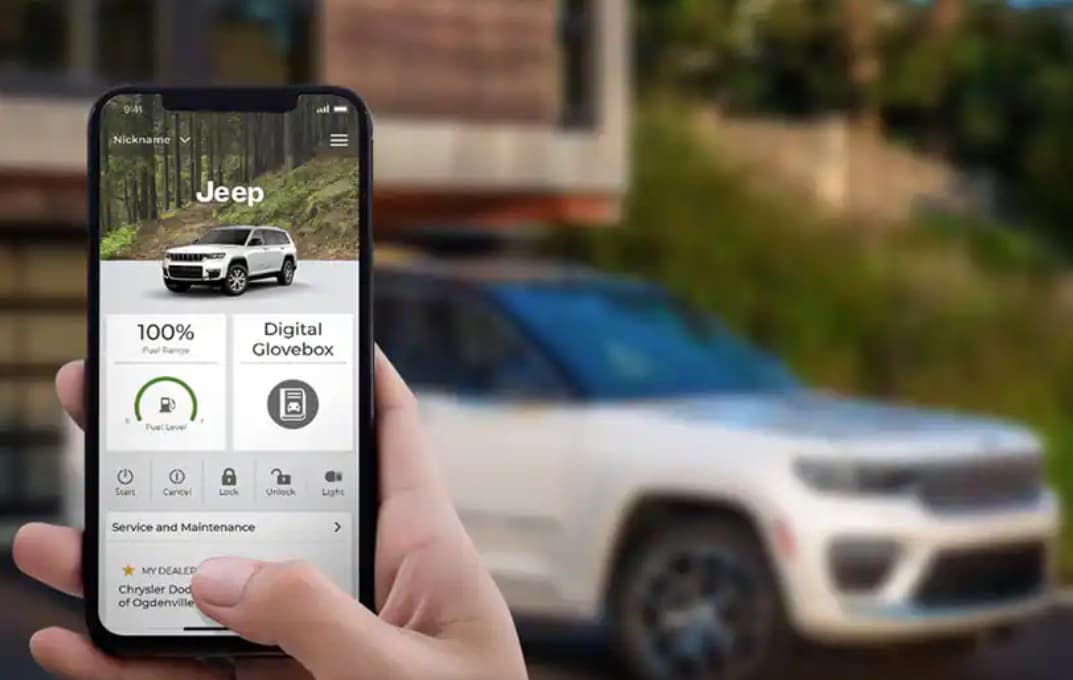
- Open the Uconnect App on your phone.
- Select apps from the Uconnect screen.
Always keep your system updated for best performance. Updates can fix bugs, add features, and improve security. Visit the official Uconnect site for the latest software.
Troubleshooting Common Problems
Even the best systems have issues sometimes. If Uconnect isn’t working:
- Restart your phone and the Uconnect system.
- Delete old Bluetooth pairings and reconnect.
- Check for software updates.
- If the screen freezes, try a soft reset (hold the volume and tuner knobs for 10 seconds).
If issues persist, visit your dealer for expert help.
Practical Tips For Better Experience
- Save your favorite contacts and destinations for quick access.
- Use a short USB cable to avoid connection problems.
- Update your phone and Uconnect system regularly.
- If using CarPlay or Android Auto, use an original cable for best results.
- Adjust screen brightness and sound settings for comfort.
Many new users forget to update the Uconnect software, which can cause glitches. Also, always check compatibility before buying new devices.
Frequently Asked Questions
How Do I Reset My Uconnect System?
To reset, hold down the volume and tuner knobs together for about 10 seconds. The screen will go black and restart.
Can I Add Apple Carplay Or Android Auto To My Jeep?
If your Jeep model supports it but does not have it activated, you may be able to add it with a software update or dealer installation. Check with your local Jeep dealer.
Is Uconnect Free To Use?
Basic features are free. However, services like SiriusXM, some navigation updates, and Wi-Fi may require a subscription.
Why Can’t My Phone Connect To Uconnect?
Check if Bluetooth is enabled on both devices. Delete old pairings and try again. Make sure your phone’s software is up-to-date.
How Do I Update Uconnect Software?
Visit the official Uconnect website, enter your Jeep’s VIN, and follow the instructions to download and install updates using a USB drive.
Uconnect helps you enjoy your Jeep and stay safe on the road. With a little practice, you will find it easy to manage calls, music, maps, and more all from your dashboard.
Start exploring, and your next drive will be even better.