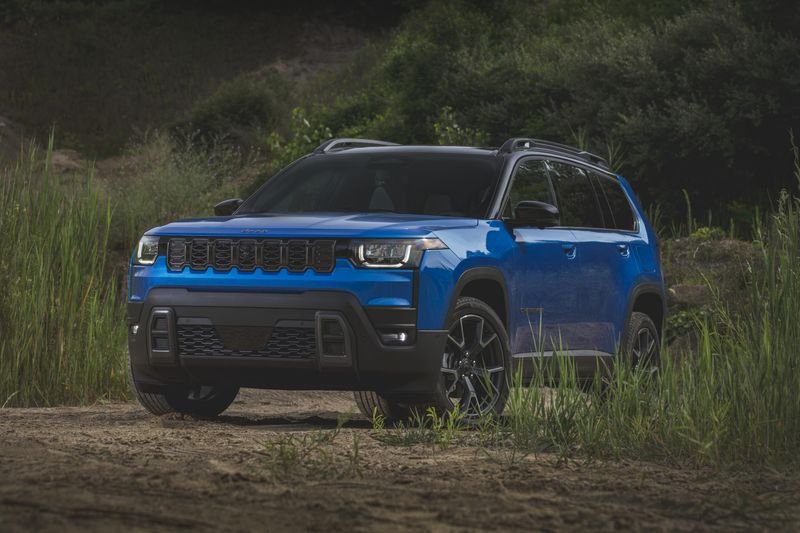
The Jeep Grand Cherokee has become a favorite among SUV lovers for its blend of luxury, ruggedness, and technology. One standout feature in recent models is the passenger screen—a digital display designed for the front passenger, putting entertainment, navigation, and vehicle controls right at their fingertips.
If you’re new to the Grand Cherokee or just curious about making the most of this tech, you’re in the right place. This guide explains, in clear steps, how to use the passenger screen, the features it offers, and tips to avoid common mistakes.
What Is The Passenger Screen?
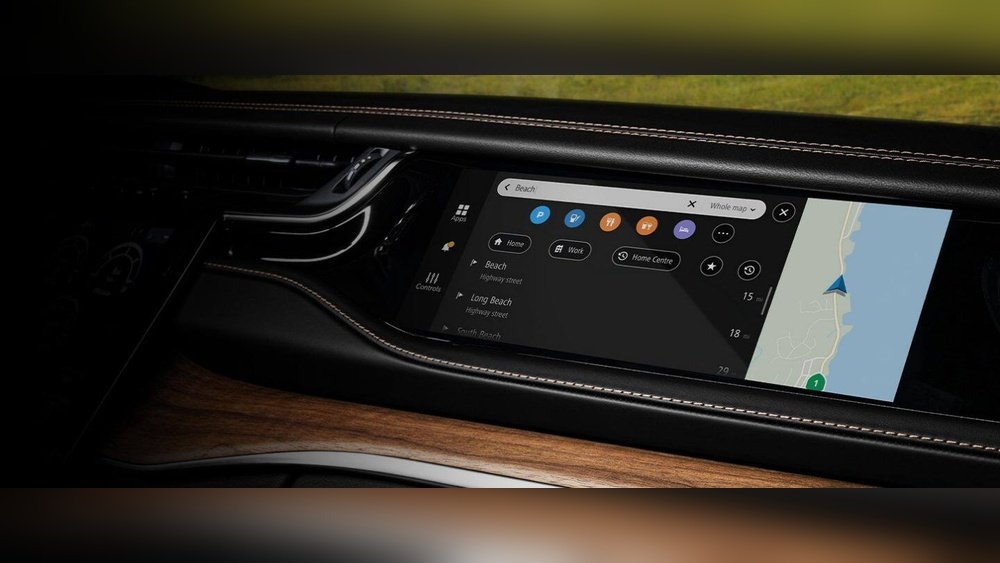
The passenger screen is an interactive touch display located on the dashboard, directly in front of the front passenger seat. Unlike the main infotainment system, this screen is only visible to the passenger, thanks to special privacy technology. It’s designed to help the passenger control navigation, entertainment, and even vehicle settings, without distracting the driver.
Main Features Of The Passenger Screen
The Jeep Grand Cherokee’s passenger screen offers a range of features. Here’s a quick overview:
| Feature | Description |
|---|---|
| Navigation Input | Set or adjust routes for the main navigation system. |
| Entertainment Control | Browse music, movies, or streaming apps. |
| Camera Views | Display front, rear, or side camera feeds. |
| Device Connectivity | Connect headphones or personal devices via USB or Bluetooth. |
| Rear Seat Entertainment | Manage content for rear displays (if equipped). |
Not every Grand Cherokee trim has the passenger screen. It is standard or optional on higher trims like the Summit or Overland.

How To Use The Passenger Screen
Understanding how to use the passenger screen will help you get the most out of your ride. Here’s how to get started:
Turning On And Accessing The Screen
- Start the Vehicle: The passenger screen will power on automatically with the vehicle.
- Touch to Wake: If the screen is dark, tap it gently to wake it up.
- Safety Notice: The display is angled and polarized so only the passenger can see it, reducing distractions for the driver.
The home screen displays several icons. Tap the icon for the function you want:
- Navigation: Enter a destination, search for points of interest, or adjust the route. Changes show up on the main driver display.
- Media: Choose from radio, Bluetooth, USB, or streaming sources. Control playlists or skip tracks.
- Camera: Switch between camera views for better visibility when parking or off-roading.
- Settings: Adjust brightness, sound, and connectivity options.
The passenger can search for locations or enter addresses directly. Once a route is set, it appears on the driver’s main display.
This allows the passenger to handle navigation duties, so the driver can focus on the road.
Managing Entertainment
You can stream content, connect headphones via the screen’s dedicated jack, or control playback for the rear-seat screens. Some models support HDMI input, so you can connect a gaming console or streaming stick.
Connecting Devices
Use USB or Bluetooth to connect a smartphone or tablet. The screen supports device charging and media playback.
Here’s a quick comparison of connectivity options:
| Connection Type | Supported Features |
|---|---|
| USB | Charging, media playback, software updates |
| Bluetooth | Audio streaming, calls, device pairing |
| HDMI | Video input for gaming or streaming devices |
Tips For Using The Passenger Screen Effectively
- Explore Settings: Adjust brightness or sound so the screen is comfortable for your eyes and ears.
- Use Headphones: For media playback, especially when others in the car want quiet, connect headphones directly to the screen.
- Sync with Rear Entertainment: If there are rear screens, use the passenger display to manage what kids or passengers in back see.
- Privacy Mode: The screen’s privacy filter means only the passenger sees it, but be mindful when entering sensitive information.

Common Mistakes To Avoid
- Distracting the Driver: Don’t show media or camera feeds that might catch the driver’s attention.
- Overloading the System: Running multiple apps or streaming from several devices can slow down performance.
- Forgetting to Disconnect Devices: Always unplug devices before leaving the car to avoid battery drain.
- Ignoring Updates: Keep your system updated for new features and security patches.
A non-obvious insight: many users miss that the passenger screen can control front climate settings on some models. This helps when the driver is busy or wants to keep their hands on the wheel.
Another tip: if you connect a streaming device via HDMI, remember to select the correct input from the passenger screen menu. Many beginners miss this step and think the system is not working.
When Should You Use The Passenger Screen?
The passenger screen is most useful for:
- Long road trips: Passengers can handle navigation changes or find restaurants along the route.
- Family drives: Keep kids entertained by managing rear-seat content.
- Urban commutes: Let the passenger control music or podcasts.
For more details about features and model availability, visit the official Jeep Grand Cherokee page.
Comparing The Passenger Screen To Other Suvs
How does the Grand Cherokee’s passenger screen stack up against similar models? Here’s a quick look:
| Model | Passenger Screen | Key Features |
|---|---|---|
| Jeep Grand Cherokee | Yes (select trims) | Navigation, media, camera, HDMI input |
| Wagoneer | Yes (optional) | Larger display, similar controls |
| Ford Explorer | No | Central infotainment only |
| BMW X5 | No | Rear seat entertainment only |
This shows the Grand Cherokee offers one of the most advanced passenger display systems in its class.
Frequently Asked Questions
How Do I Turn Off The Passenger Screen?
Press and hold the power icon on the screen. The display will go dark.
It will wake up automatically when tapped or when the vehicle restarts.
Can The Driver See What Is On The Passenger Screen?
No. The screen uses a privacy filter so it’s only visible to the passenger. This helps reduce distractions for the driver.
Is It Possible To Connect A Gaming Console To The Passenger Screen?
Yes, if your Grand Cherokee has an HDMI port. Plug in the console, select HDMI from the menu, and you’re ready to play.
Can I Control Rear-seat Entertainment From The Passenger Screen?
Yes, you can choose videos, music, or apps for the rear screens from the passenger display if your vehicle has this feature.
Does The Passenger Screen Support Apple Carplay Or Android Auto?
No, these smartphone integrations are available on the main infotainment screen, not the passenger screen.
The passenger screen in the Jeep Grand Cherokee is a powerful tool for navigation, entertainment, and convenience. With a little practice, you’ll find it adds real value to every trip, whether you’re commuting, traveling with family, or exploring new places.
Always keep safety in mind, and enjoy the extra freedom and control this unique feature provides.