Updating your Jeep’s Uconnect software can transform your driving experience. Uconnect controls everything from navigation to entertainment and climate settings. But over time, new features and important bug fixes arrive through software updates. Many Jeep owners don’t realize how much smoother or safer their drive can be after a simple update. If you’re not sure how to update Uconnect in your Jeep, this guide makes it clear and simple.
Why Update Your Uconnect Software?
Keeping your Uconnect system current is more than just getting the latest look. Jeep releases software updates to:
- Fix security vulnerabilities
- Add new apps or features
- Improve Bluetooth and smartphone connectivity
- Solve glitches, such as freezing or slow response
- Update maps (for navigation-equipped models)
Outdated software can cause your system to lag or crash. In some cases, you may even miss out on important safety updates.
How To Check Your Current Uconnect Version
Before updating, you need to know which software version you’re running. This tells you if you really need an update.
- Start your Jeep and turn on the Uconnect system.
- Tap the ‘Settings’ button on the screen.
- Scroll to ‘System Information’ or ‘About’.
- Write down the software version.
Compare your version with the latest available on the official Jeep Uconnect website.
Updating Uconnect: Step-by-step Guide
Uconnect updates can be installed in a few ways. The most common are over-the-air (OTA) updates and USB updates.
Over-the-air (ota) Updates
Some newer Jeep models (2017 and newer) support OTA updates. This is the simplest method.
- Make sure your Jeep is parked in a safe place with good cellular or Wi-Fi signal.
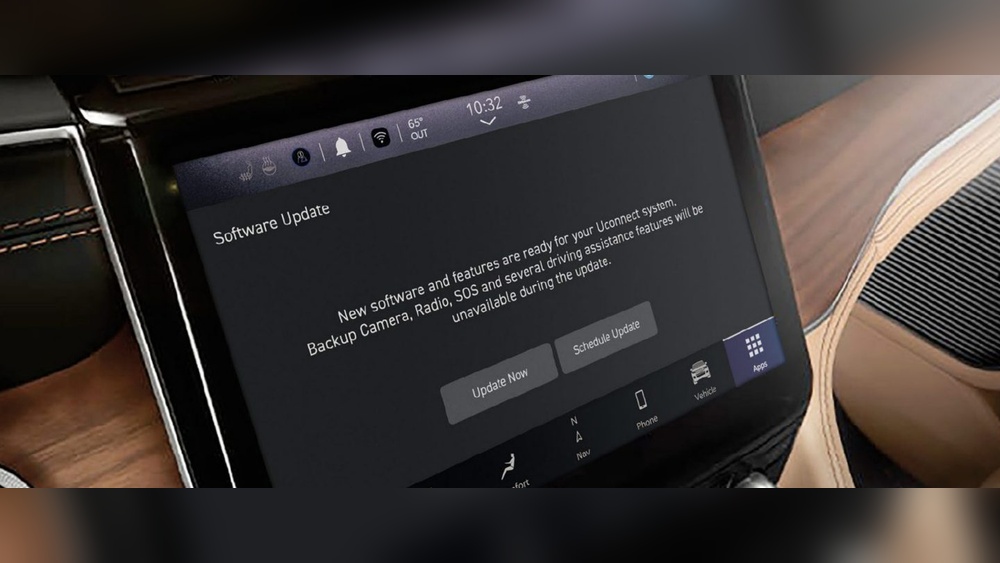
- On your Uconnect screen, go to Settings > System Information.
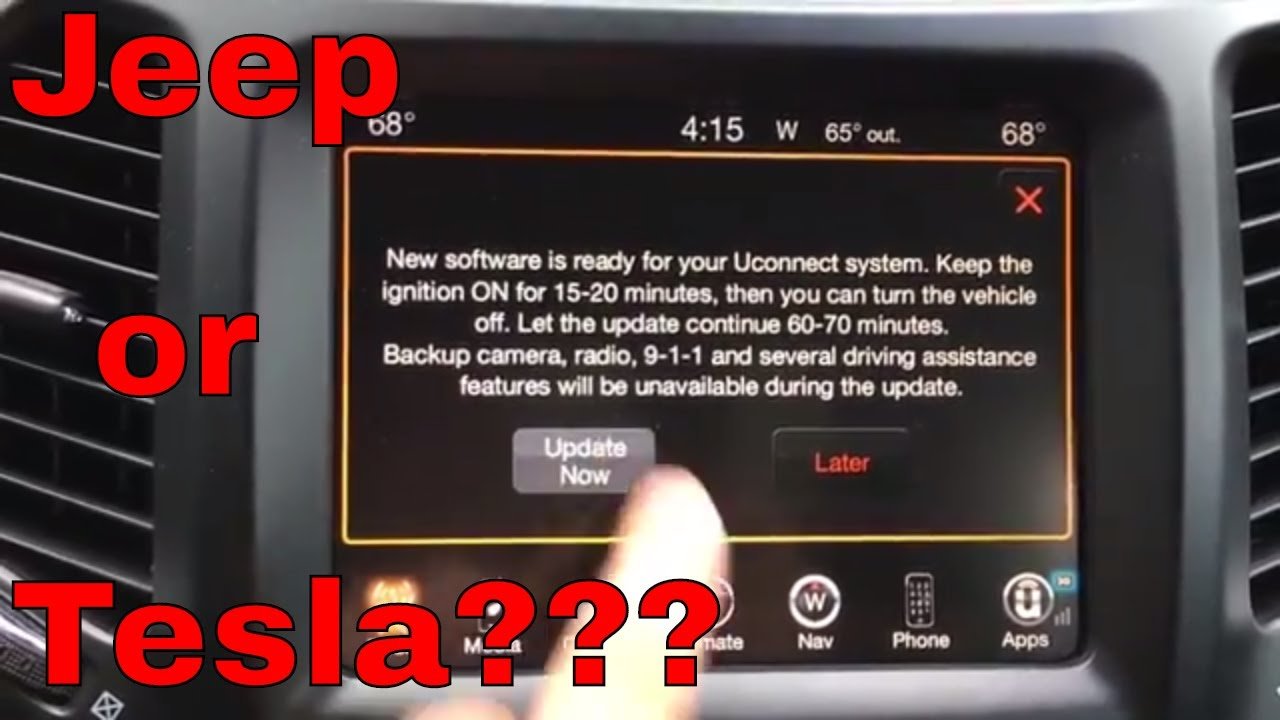
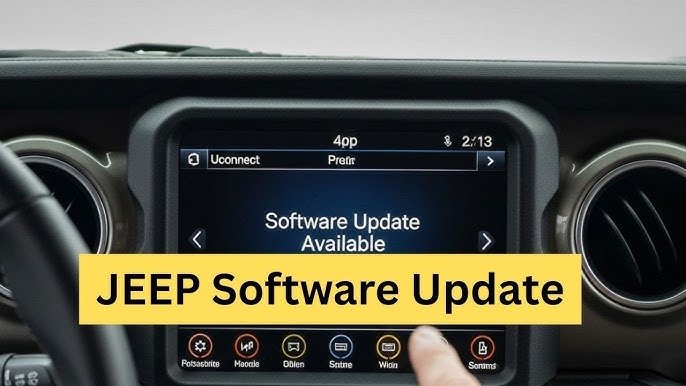
- If an update is available, a message will appear.
- Follow the prompts to start the update.
The system will reboot after installation. Don’t turn off your vehicle during this process.
Usb Update Method
If your Jeep doesn’t support OTA updates, you’ll need a USB drive.
- Visit the official Uconnect update page.
- Enter your Vehicle Identification Number (VIN) to check for updates.
- Download the update file to your computer.
- Copy the file to an empty USB drive (8GB is usually enough; format as FAT32).
- Plug the USB into your Jeep’s USB port with the engine running.
- Follow the on-screen instructions to begin the update.
The update will take 20 45 minutes. Do not remove the USB drive or turn off your Jeep during installation.
Dealer Update Option
If you’re not comfortable doing it yourself, Jeep dealers can update Uconnect for you. This is sometimes required for older vehicles or major version changes.
- Schedule a service appointment
- Ask if there’s a fee (some updates are free under warranty)
Tip: Always back up your contacts and settings. Some updates may reset your preferences.
Common Problems And Fixes
Even with clear instructions, some users face issues. Here are common problems and how to solve them:
| Problem | Possible Cause | Solution |
|---|---|---|
| Update won’t start | Wrong file or USB format | Check file type, reformat USB to FAT32 |
| System freezes during update | Low battery or interruption | Keep engine running, avoid turning off vehicle |
| No update found | Already up-to-date or VIN error | Double-check VIN, confirm latest version |
If your Uconnect still isn’t working right after updating, try a factory reset from the settings menu.
What You Need Before Updating
Don’t start the update until you have everything ready:
- Your Jeep VIN
- A computer with internet access
- A blank USB drive (if not using OTA)
- Your Jeep keys (keep vehicle in Park, engine on)
- At least 30–45 minutes of free time
Many users miss a key detail: the USB drive must be empty and formatted correctly. Using a drive with other files or the wrong format (exFAT, NTFS) often causes update failures.
Comparing Update Methods
Here’s how the main update methods compare for Jeep Uconnect:
| Method | Ease of Use | Time Needed | Best For |
|---|---|---|---|
| Over-the-Air (OTA) | Very Easy | 15–30 minutes | Newer models (2017+) |
| USB Update | Moderate | 20–45 minutes | Older models or manual updates |
| Dealer Visit | Professional help | Varies | Complex cases or warranty |
Extra Tips For A Smooth Update
- Leave your Jeep running (in Park) during the update to prevent battery drain.
- If you’re updating navigation maps, these can take longer—sometimes over an hour.
- Don’t disconnect your phone or USB drive while updating.
- Write down your favorite radio stations or custom settings—they may reset.
- If your update fails, try using a different USB drive or redownload the update file.
A less obvious tip: Check for TSBs (Technical Service Bulletins) related to Uconnect. Sometimes, Jeep releases special instructions for tricky updates. You can find TSBs on Jeep forums or the manufacturer’s website.
Frequently Asked Questions
How Do I Find My Jeep’s Vin?
The VIN is a 17-character code. You can find it on the dashboard near the windshield, inside the driver’s door, or on your registration papers.
Can I Update Uconnect Without A Usb Drive?
Yes, if your Jeep supports over-the-air updates. Otherwise, a USB drive is required for manual updates.
Will Updating Uconnect Erase My Settings?
Most updates keep your settings. However, major updates or errors can reset saved preferences.
It’s smart to note your favorite settings before starting.
Is It Safe To Update Uconnect Myself?
Yes, as long as you follow instructions and do not turn off your Jeep during the process. Dealer help is available if you prefer.
What If My Update Fails Or Gets Stuck?
Restart your Jeep and try the update again. If problems continue, use a different USB drive or contact your Jeep dealer for support.
Updating your Uconnect software is the easiest way to keep your Jeep running smoothly and enjoy new features. With a little preparation, you’ll avoid common problems and make the most of your infotainment system. For more details, always check the official Jeep support page or your owner’s manual.