Updating the navigation system in your Jeep Wrangler can make every drive smoother and less stressful. Old maps can lead to wrong turns, missed locations, or even safety issues.
Many Wrangler owners aren’t sure how to get the latest navigation data.
Don’t worry updating your Jeep’s navigation is easier than you might think, and it’s something you can do yourself. This guide explains the steps, what you need, and common mistakes to avoid, so you’re never lost on the road.
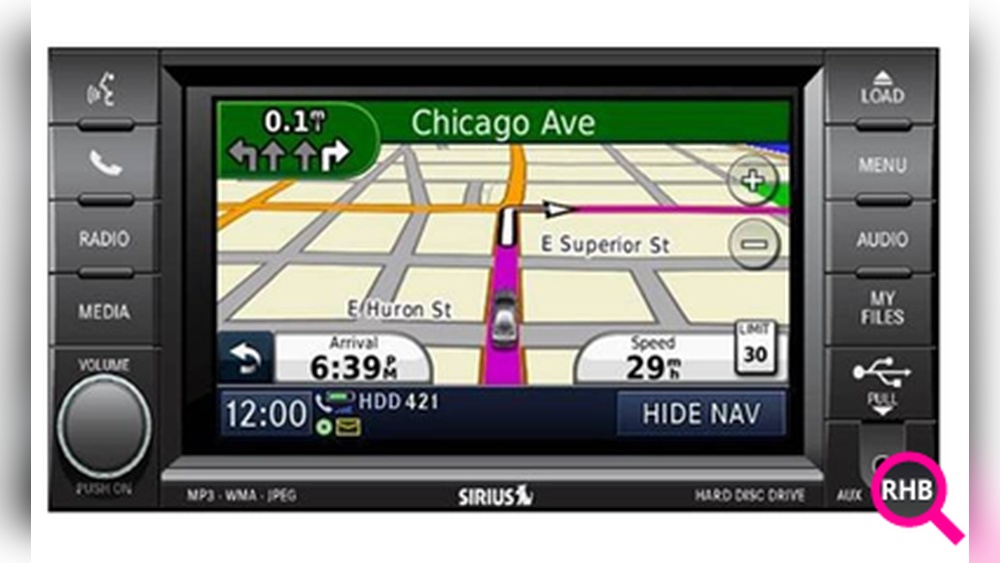
Navigation updates do more than add new roads. Updated maps include recent construction, new businesses, and improved routing. The Jeep Wrangler’s navigation system relies on this data to give you the fastest, safest routes. If your maps are out of date, you may waste fuel, time, and patience.
Key reasons to update:
- New roads and addresses are added every year.
- Detours and road changes can confuse old systems.
- Points of interest, like gas stations or restaurants, change.
- Emergency services locations are updated.
Surprisingly, many Jeep owners don’t realize that factory navigation updates are not automatic. You must install them yourself or visit a dealer.
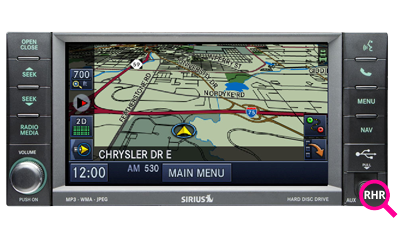
Before updating, know which navigation system your Jeep has. Wrangler models use different systems depending on year and trim.
| Model Year | Navigation System | Update Method |
|---|---|---|
| 2011–2018 | Uconnect 430N/730N | USB or DVD |
| 2018–Present | Uconnect 4C NAV/5 NAV | USB |
You can find your system name on the main screen at startup or in your owner’s manual. Updating steps are similar, but always check for your specific system.
What You Need For The Update
Having the right tools speeds up the process and prevents errors.
- VIN (Vehicle Identification Number): Find this on your dashboard or registration.
- Compatible USB drive: Minimum 16GB, formatted as FAT32.
- Computer with internet: To download the update.
- Jeep navigation update site access: Usually, updates come from the official Mopar or Uconnect website.
- Time and patience: The update process can take 30–60 minutes.
Some older systems may use DVDs instead of USB. Always check your manual or the update instructions.
Follow these steps to keep your Wrangler’s navigation current.
1. Check For Available Updates
- Visit the official Jeep or Uconnect update page.
- Enter your VIN to see if an update is available.
- Note the update version and its features.
2. Download The Update
- Download the map update file to your computer.
- The file can be large (up to 8GB). Make sure you have a stable internet connection.
3. Prepare Your Usb Drive
- Format your USB drive to FAT32 to avoid compatibility issues.
- Copy the update file(s) to the drive. Don’t unzip or modify the files unless instructed.
4. Install The Update In Your Jeep
- Start your Jeep and let the system boot up.
- Insert the USB drive into the navigation port.
- Follow the on-screen prompts. The system will guide you through the installation.
- Do not turn off the engine or remove the USB until the update is complete.
5. Confirm The Update
- After installation, the system will restart.
- Check the map version in the settings menu.
- If the version matches the new update, you’re done.
Costs And Considerations
Navigation updates are not always free. Most Jeep Wrangler updates cost between $100–$200. Sometimes, you can get a free update during the first year of ownership.
| Update Source | Cost Range | Update Frequency |
|---|---|---|
| Mopar/Uconnect Official | $150–$200 | Every 1–2 years |
| Dealership Service | $200–$300 | On request |
| Third-party Providers | Varies | Not recommended |
Using unofficial sources can cause errors or even damage your system. It’s best to use official channels for updates.
Common Mistakes To Avoid
Many first-timers run into simple issues during their first update. Here’s what to watch out for:
- Wrong USB format: Always use FAT32, not exFAT or NTFS.
- Incomplete downloads: A slow or interrupted download can corrupt files.
- Turning off the engine: The update process needs stable power.
- Using old update files: Only install the latest version for best results.
A non-obvious tip: Some USB ports in your Wrangler may only charge devices, not transfer data. Check your manual for the correct port before starting.
Tips For A Smooth Update
- Update in a safe place: The process can take an hour, so park where you won’t need to move.
- Keep the engine running: To prevent battery drain, don’t use accessory mode.
- Double-check USB contents: Only the update files should be on the drive.
- Note your settings: Updates may reset your preferences.
If you get stuck, Jeep’s customer support can help, or you can check forums like the Jeep Wrangler section on JeepForum.
Some Wrangler owners use their smartphones for navigation and skip the factory update. Apps like Google Maps or Waze update automatically and offer live traffic. However, factory navigation works even when you’re off the grid—a major advantage for off-road adventures.
If you regularly drive in remote areas without cell service, keeping your built-in maps updated can be a lifesaver.
Frequently Asked Questions
It’s best to update every 1–2 years or before a long road trip. New roads and points of interest are added regularly.
Can I Use Any Usb Drive For The Update?
No. Your USB drive should be 16GB or larger and formatted as FAT32. Drives formatted differently may not work.
What If The Update Fails?
If your update fails, remove the USB, restart your Jeep, and try again. Make sure the files downloaded completely. Persistent issues may require dealer help.
Updates are usually not free after the first year. Check your warranty or purchase details for exceptions.
Is It Safe To Use Third-party Map Sources?
No. Third-party updates can corrupt your system or void your warranty. Always use official Jeep or Uconnect sources.
Keeping your Jeep Wrangler’s navigation system updated means more than just new maps it’s about confidence on every drive. Taking the time to install the latest update saves time, avoids frustration, and helps you explore with peace of mind.
Whether you’re on the highway or a hidden trail, you’ll know your navigation is ready for the journey ahead.