Updating the navigation system in your Jeep can make every drive smoother. With fresh maps, you avoid wrong turns, detours, and delays.
The Jeep Uconnect navigation system offers helpful tools, but many owners find the update process confusing. If you want accurate routes, clear directions, and up-to-date points of interest, keeping your Uconnect navigation current is essential.
This guide walks you through the update process step by step, highlights common mistakes, and explains what you need to know before you start.
Whether you’re a tech beginner or just want to avoid frustration, these tips will help you update your Jeep’s navigation quickly and safely.
Outdated navigation causes more than missed turns. New roads, changed traffic patterns, and updated speed limits often appear only in the latest map versions. Here’s why regular updates matter:
- Accurate routes: Get current road layouts and traffic info.
- New points of interest: Find new restaurants, gas stations, or attractions.
- Safety: Avoid outdated data, wrong directions, or road closures.
- Efficiency: Save time and fuel with the best routes.
A 2023 AAA survey found that 27% of drivers have followed incorrect GPS directions due to old maps, leading to wasted time and stress.
Checking Your Uconnect System Version
Before you update, you need to know your current system version. Different Jeeps use different Uconnect versions, such as Uconnect 4, Uconnect 5, or older systems. The update steps depend on your system’s age and features.
- Start your Jeep and turn on the Uconnect screen.
- Go to “Settings” or “System Information.”
- Find the “Software Information” or “About” section.
- Write down the software version number and map version.
Here’s a quick comparison of common Uconnect versions:
| Uconnect Version | Model Years | Main Features |
|---|---|---|
| Uconnect 3 | 2013-2018 | Basic navigation, small touchscreen |
| Uconnect 4 | 2017-2021 | Improved maps, smartphone integration |
| Uconnect 5 | 2021-present | Faster updates, wireless options |
Knowing your system helps you pick the right update method.
Preparing For The Update
Updating Uconnect navigation takes a bit of preparation. Here’s what you’ll need:
- A reliable USB drive (at least 16GB, formatted to FAT32)
- A computer with internet access
- Your vehicle’s VIN number (found on your dashboard or registration)
- Battery power or keep your engine running during the update
One mistake many owners make is using a USB drive that’s too small or not formatted correctly. Always format the drive before downloading updates.
Downloading The Update
Jeep partners with map providers like HERE or TomTom for navigation data. Updates are not free for all models; some require payment. Follow these steps:
- Go to the official Jeep Uconnect update site.
- Enter your VIN number to check for available updates.
- If an update is available, download the files to your computer.
- Unzip the files if needed, then copy them to your USB drive.
Here’s a look at the typical update file sizes by system:
| Uconnect Version | Map Update Size | Estimated Download Time (10 Mbps) |
|---|---|---|
| Uconnect 3 | 6-8 GB | ~2 hours |
| Uconnect 4 | 8-12 GB | ~3 hours |
| Uconnect 5 | 12-16 GB | ~4 hours |
A non-obvious tip: Don’t interrupt the download or remove the USB drive until all files are copied, or you’ll risk file corruption.
Installing The Update In Your Jeep
Now that you have the update on your USB drive, it’s time to install it in your Jeep.
- Start your vehicle and keep it in Park. If possible, keep the engine running to avoid battery drain.
- Insert the USB drive into the Uconnect USB port.
- The system should detect the update automatically and prompt you to start.
- Follow the on-screen instructions carefully.
- The update can take 30-90 minutes. Do not turn off your vehicle or remove the USB drive until complete.
If the system doesn’t recognize the USB drive, try a different port or reformat and reload the files. Patience is important interruptions can cause system errors.
After The Update: Checking And Troubleshooting
Once the update finishes, the Uconnect system will usually restart. Here’s what to do next:
- Go to “Navigation” and check the new map version.
- Test a few routes to make sure everything works.
- If you see any errors, restart your Jeep or repeat the update process.
If problems continue, contact your dealer or visit the official Jeep Uconnect support page for help.
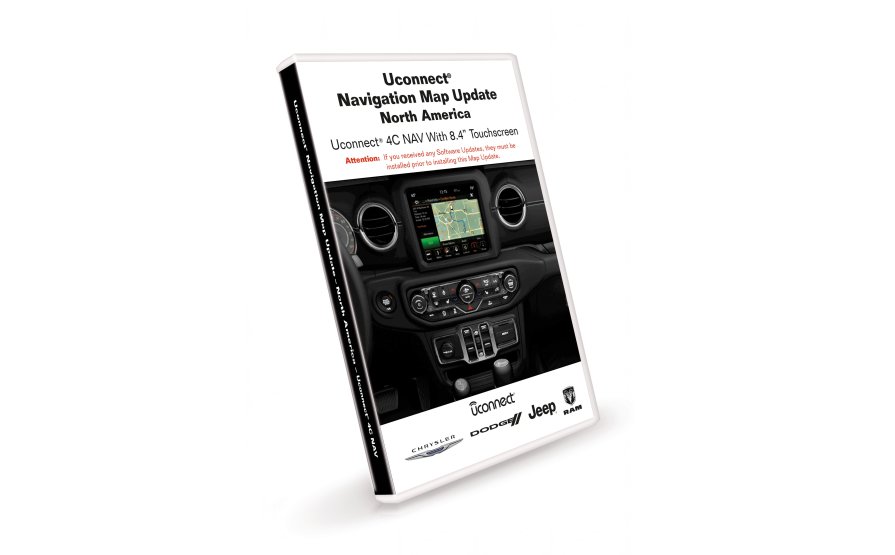
Dealer Vs. Diy Updates
Some Jeep owners prefer to let the dealer handle updates. This is more expensive but can save time and reduce stress if you’re not comfortable with tech tasks.
Here’s a quick cost and convenience comparison:
| Update Method | Average Cost | Time Required | Pros/Cons |
|---|---|---|---|
| DIY (USB) | $150–$200 | 1–2 hours | Cheaper, but needs computer skills |
| Dealer | $200–$400 | 2–3 hours (including wait) | Easy, but more expensive |
Tip: If your Jeep is still under warranty, ask if updates are free at your dealer.
Tips For A Smooth Update
- Always use a freshly formatted USB drive.
- Use your vehicle’s main USB port, not a charging-only port.
- Allow extra time—don’t plan to use your Jeep during the update.
- Double-check your VIN and system version before downloading.
A common beginner mistake is starting the update with a weak battery. Always keep your Jeep running or connect a charger to prevent issues.
Frequently Asked Questions
Most experts recommend updating once a year. If you drive in areas with lots of new construction, update more often.
No, most updates require a one-time payment. Some new vehicles include free updates for a limited time.
What If My Uconnect System Freezes During The Update?
If the system becomes unresponsive, turn off your Jeep, wait a few minutes, then restart. If the problem continues, contact your dealer.
Only the newest Uconnect 5 systems support wireless updates, and even then, only for certain software—not always for maps.
Will Updating Uconnect Affect My Saved Locations Or Settings?
Usually, updates keep your favorites and settings. Still, back up important addresses just in case.
Updating your Jeep Uconnect navigation may seem tricky at first, but it’s a valuable task for safer, more efficient driving. Taking a little extra time to follow each step carefully prevents headaches and ensures your maps are ready for any adventure.