If your Jeep Grand Cherokee 2020 radio is not working as expected, you’re not alone. Many drivers face issues like a frozen screen, unresponsive buttons, or loss of sound. These can be frustrating, especially when you rely on the radio for navigation, music, or calls. The good news is, most problems can be solved by performing a reset. This guide shows you how to reset your radio step-by-step, explains when a reset is necessary, and gives tips for avoiding common mistakes.
When And Why You Might Need To Reset
Modern Jeep radios are more than just music players they control apps, navigation, and even climate. Problems can happen after a software update, battery change, or with everyday use.
Common reasons to reset your Jeep Grand Cherokee radio include:

- The touchscreen freezes or lags
- Audio stops suddenly
- Bluetooth stops connecting
- Navigation system glitches
- The radio won’t turn on
A reset can clear temporary bugs and restore normal function. However, not all problems require a reset.
If your radio has no power at all, the issue may be with the vehicle’s fuse or wiring.
Types Of Radio Resets
Jeep Grand Cherokee 2020 models use the Uconnect system. There are two main reset options:
- Soft Reset: This keeps your personal data and radio presets.
- Factory/Hard Reset: This erases all data and returns settings to default.
Here’s a comparison of both methods:
| Reset Type | Data Loss | Best For | Time Needed |
|---|---|---|---|
| Soft Reset | No | Minor glitches | 1-2 minutes |
| Factory Reset | Yes | Major issues, resale | 3-5 minutes |

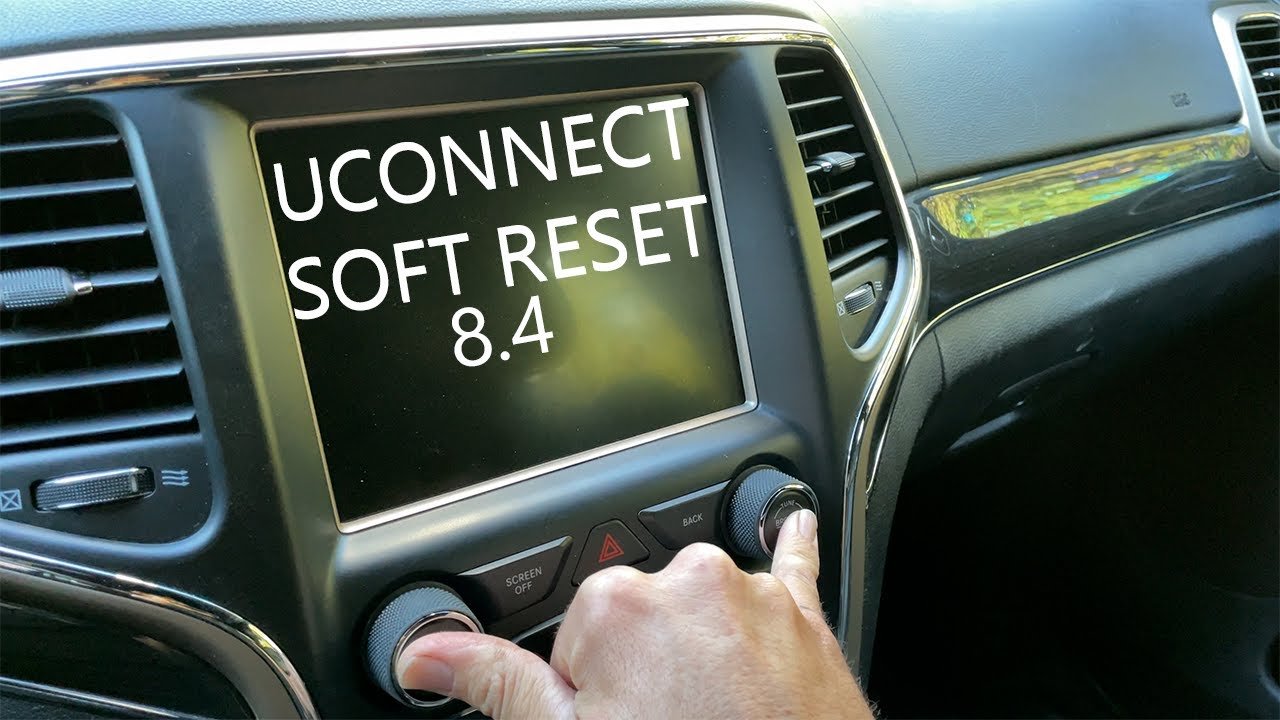
How To Perform A Soft Reset
A soft reset is usually enough to fix most issues. It’s quick and safe.
- Turn your Jeep on but keep it in Park.
- Hold down the volume and tune buttons together for about 10 seconds.
- The screen will go black, then the Jeep logo will appear as the system restarts.
- Release the buttons and wait for the home screen to load.
This does not erase your radio presets or connected devices.
Soft Reset: Common Mistakes
- Not holding both buttons at the same time
- Releasing buttons too early (hold for the full 10 seconds)
- Trying to reset while the vehicle is moving
If the radio doesn’t restart, try again with the engine running. Sometimes, performing the reset with the accessory mode (engine off, but electronics on) doesn’t work.
How To Perform A Factory Reset
A factory reset wipes all data, including paired devices and saved addresses. Only use this if a soft reset fails.
- With the Jeep on, tap the Settings icon on the Uconnect screen.
- Scroll to and select System Information or Reset (options may vary).
- Tap Restore Factory Settings or Reset to Default.
- Confirm your choice. The system will restart and return to default settings.
After a factory reset, you’ll need to reconnect your phone and set radio stations again.
Factory Reset: What Gets Erased?
| Erased Data | Not Erased |
|---|---|
| Bluetooth devices | Map updates |
| Radio presets | Software updates |
| Navigation addresses |
Tip: Write down important settings before you reset. Most users forget their favorite radio stations or paired phone names.
What To Do If A Reset Doesn’t Work
If your radio is still not working after both resets, the issue may be deeper. Possible causes include:
- Blown fuse
- Faulty wiring
- Outdated software
Try these steps:
- Check your Jeep’s fuse box for a blown fuse (see your owner’s manual for the exact fuse).
- Visit a Jeep dealership for a software update or diagnosis.
- Some updates or recalls may not be visible to regular users. Checking the official Jeep Uconnect update page can show if a new version is available.
Preventing Future Radio Problems
Keeping your Uconnect radio running smoothly is easier than most drivers think. Follow these habits:
- Update Uconnect software when new versions are available
- Avoid disconnecting the battery often
- Don’t press the screen or buttons too quickly in a row
- Keep the system free of too many paired devices
Sometimes, using cheap phone chargers can interfere with the radio system due to electrical noise.
Real-world Example
Anna, a Grand Cherokee owner, noticed her radio would freeze after cold mornings. A soft reset fixed the problem every time.
However, after a battery change, the radio stopped working completely. A factory reset finally restored her system but she had to reconnect her Bluetooth and re-enter her navigation addresses.
This shows why you should start with a soft reset, and only use a factory reset if necessary.
Key Insights Most Owners Miss
- Soft resets do not erase your presets—they are safe for everyday use. Many owners worry needlessly about losing saved settings.
- Factory reset is not always visible—on some Grand Cherokees, the reset option is hidden under advanced settings. If you can’t find it, check your manual or try searching for “reset” using the Uconnect’s voice command.
- Not all resets fix hardware issues—if your radio has no power at all, a reset will not help. That’s often a sign of a blown fuse or wiring problem.
Frequently Asked Questions
How Often Should I Reset My Jeep Grand Cherokee Radio?
You should only reset your radio when you notice problems, like freezing or lag. Regular resets are not needed and won’t improve performance.
A soft reset won’t erase maps or addresses. A factory reset will remove saved addresses but not built-in map data.
What If My Radio Won’t Turn On At All?
First, check your vehicle’s fuses. If the fuse is fine, the problem could be with the wiring or the radio unit itself.
In this case, visit a certified Jeep service center.
Can I Reset My Radio While Driving?
No, you should never attempt a reset while driving. Always put your Jeep in Park with the engine running before starting any reset process.
Is There A Way To Update My Uconnect System Without Visiting The Dealer?
Yes, you can often update your Uconnect system yourself by downloading the update from the Jeep official website and following the instructions.
Resetting your Jeep Grand Cherokee 2020 radio is a simple way to fix common issues and avoid unnecessary trips to the dealership. Start with a soft reset, keep your system updated, and always keep a record of your favorite settings. With these steps, you’ll keep your drive smooth and your music playing.