Connecting your smartphone to your Jeep’s Uconnect system opens up a world of convenience. You can make hands-free calls, stream music, and use navigation apps all without taking your hands off the wheel.
But the process can feel confusing, especially if you’re not a tech expert.
This guide will walk you through every step to pair your phone with Jeep Uconnect, explain what to do if things don’t work, and share insider tips that make the process smoother.
What Is Jeep Uconnect And Why Pair Your Phone?
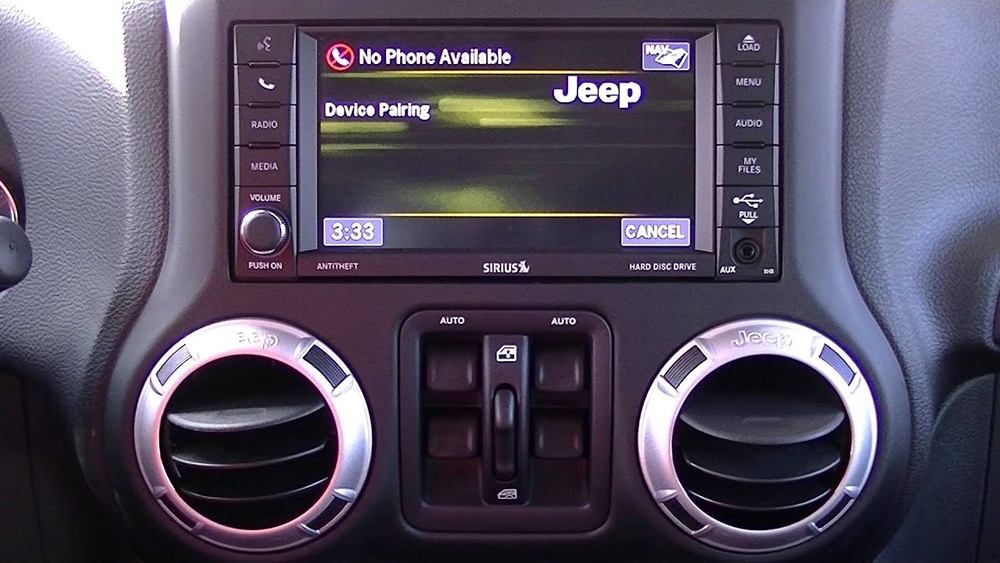
Uconnect is Jeep’s infotainment system. It controls everything from radio and climate to phone calls and apps. When you pair your phone with Uconnect, you use Bluetooth to link both devices. This connection lets you stay focused on driving while still accessing your phone’s important features.
Pairing is possible on most Jeep models from 2014 and newer, but the steps can vary slightly based on the model year and Uconnect version.
Preparing For Pairing
Before you start, make sure you have:
- Your phone (fully charged)
- Your Jeep keys (car in park mode)
- Bluetooth enabled on your phone
- Your Uconnect PIN (usually displayed during pairing)
Some older phones or Uconnect systems might need software updates. Check your phone’s operating system and update if needed.

Step-by-step: How To Pair Your Phone With Jeep Uconnect
Follow these steps for a smooth pairing experience:
- Start your Jeep and keep it in park.
- On your Uconnect touchscreen, tap the “Phone” icon.
- Select “Add Device” or “Pair a Device.” Uconnect will now search for nearby Bluetooth devices.
- On your phone, open Bluetooth settings and make sure Bluetooth is ON.
- Your Uconnect system should appear in the phone’s list (like “Uconnect” or “Jeep Uconnect”).
- Tap it. A PIN will show on both your phone and Uconnect screen.
- Confirm the PIN matches, then tap “Pair” or “Yes” on both screens.
If successful, Uconnect will ask if you want to make this phone the primary device. Accept if it’s your main phone.
Quick Reference: Pairing Steps
| Step | Uconnect Action | Phone Action |
|---|---|---|
| 1 | Tap “Phone” icon | Open Bluetooth settings |
| 2 | Select “Add Device” | Ensure Bluetooth is ON |
| 3 | Wait for PIN | Select “Uconnect” from list |
| 4 | Confirm PIN | Confirm PIN and Pair |
Common Issues And How To Fix Them
Sometimes, pairing doesn’t work on the first try. Here are common problems and simple solutions:
- Bluetooth Not Showing: Make sure your phone is visible or “discoverable” in Bluetooth settings.
- PIN Doesn’t Match: Cancel and try pairing again. Restart both your phone and Uconnect if needed.
- Connection Drops: Delete the device from Uconnect, remove Uconnect from your phone’s Bluetooth list, then restart both devices and pair again.
- Uconnect Freezes: Older Uconnect versions sometimes freeze. Turn the car off, wait 2 minutes, then try again.
Troubleshooting Comparison
| Problem | Possible Cause | Solution |
|---|---|---|
| Uconnect not found | Bluetooth off | Enable Bluetooth on phone |
| No sound from calls | Audio not routed | Check call audio setting |
| Won’t pair | Old software | Update phone/Uconnect |
Advanced Tips For A Better Connection
Many Jeep owners stop after pairing, but there are ways to get more from your Uconnect system:
- Set your phone as primary: This ensures automatic connection every time you start your Jeep.
- Pair multiple phones: Uconnect allows more than one device, though only one is active at a time. Pair a work and personal phone for flexibility.
- Sync contacts and messages: When prompted, allow Uconnect to access your contacts and texts. This lets you use voice commands for calling or texting.
- Use voice commands: Try “Call John Smith” or “Read last message.” Your hands stay on the wheel.
One insight many users miss: Uconnect remembers the last five paired devices. If you switch phones often, you may need to delete old devices to add a new one.
Quick Feature Comparison
Here’s a look at what features you can use after a successful pairing:
| Feature | Available After Pairing? | Voice Command Support |
|---|---|---|
| Hands-free calling | Yes | Yes |
| Music streaming | Yes | No |
| Text messaging | Yes | Yes (if supported) |
| Navigation apps | Yes (with CarPlay/Android Auto) | No |
Safety And Privacy Considerations
Pairing your phone to Uconnect is convenient, but it’s important to know what information you share. Uconnect may access:
- Contacts and call history
- Text messages
- Recent destinations (if using navigation apps)
If you sell your Jeep or rent it, always delete your paired phone from the system to protect your privacy. You can do this in the Uconnect “Settings” menu under “Paired Devices.”

Frequently Asked Questions
How Many Phones Can I Pair With Jeep Uconnect?
You can pair up to seven devices with most Uconnect systems, but only one can be connected for calls and media at a time.
Does Pairing Work With Both Android And Iphone?
Yes, Jeep Uconnect supports both Android and iPhone. The pairing process is nearly the same for both types.
My Phone Won’t Connect After An Update. What Should I Do?
Try deleting your phone from the Uconnect paired list and remove Uconnect from your phone’s Bluetooth devices. Restart both devices and pair again.
If issues continue, check for software updates for both your phone and Uconnect.
Can I Use Apple Carplay Or Android Auto With Uconnect?
Yes, if your Jeep model supports it. You may need to connect your phone with a USB cable for full features like navigation and app integration. For more details, visit the official Jeep Uconnect website.
How Do I Remove A Paired Phone From Uconnect?
Go to “Settings” on the Uconnect touchscreen, find “Paired Devices,” select the phone you want to remove, and tap “Delete” or “Remove. ” This keeps your data safe if you change or sell your car.
Pairing your phone with Jeep Uconnect brings comfort and safety to your drive. With these steps, tips, and fixes, you’ll enjoy all the smart features your Jeep offers without frustration.