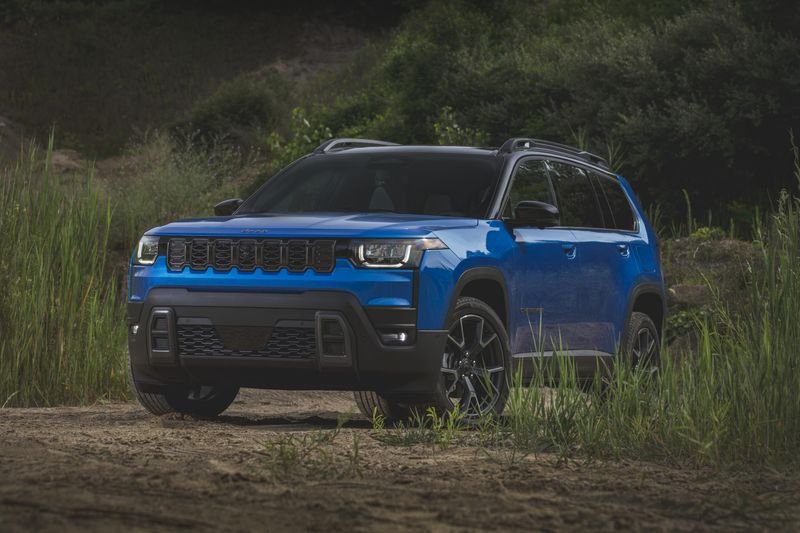
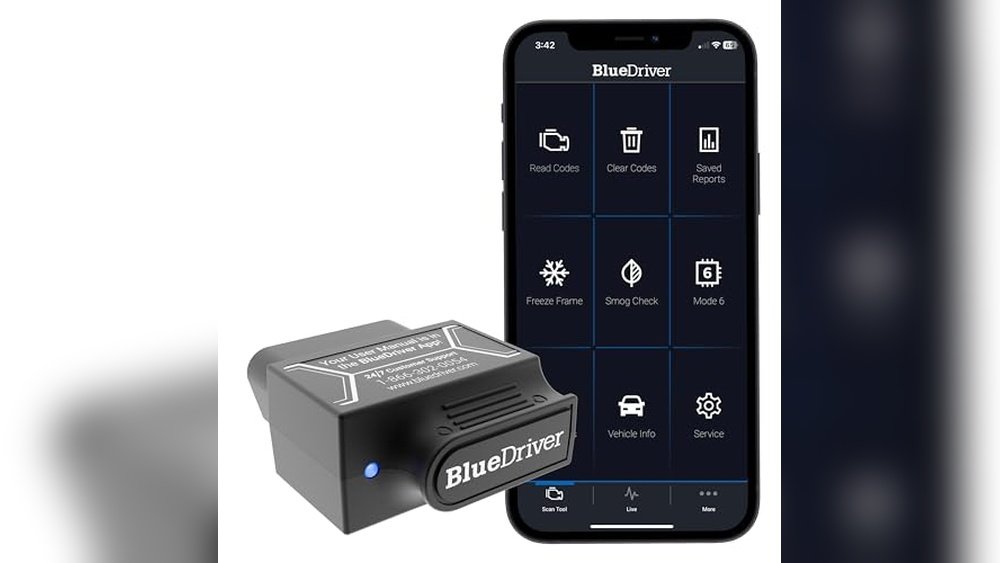
Connecting your phone to a Jeep Compass is a simple step that can make your driving experience safer and more enjoyable. With your phone connected, you can use hands-free calling, stream music, and access navigation apps directly from your car’s screen.
If you’re unsure where to start, this guide will walk you through the process using clear instructions. You’ll also learn about common mistakes, key features, and how to troubleshoot problems.
Let’s explore how to connect your phone to the Jeep Compass and make the most of its Uconnect system.
Understanding Your Jeep Compass Connectivity Options
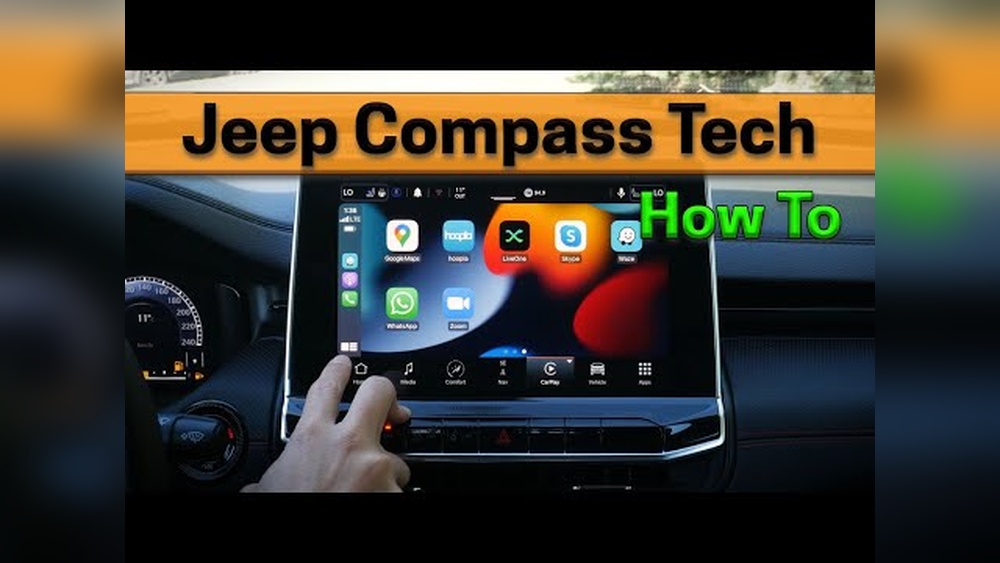
The Jeep Compass uses the Uconnect infotainment system, which supports several ways to connect your phone:
- Bluetooth: Wireless calling and audio streaming.
- Apple CarPlay: For iPhones, allows access to apps, music, and navigation.
- Android Auto: For Android phones, offers similar features.
Not all Compass models have the same features. The Uconnect system can vary by year and trim level. Here’s a quick comparison of typical connectivity features:
| Model Year | Uconnect Version | Bluetooth | Apple CarPlay | Android Auto |
|---|---|---|---|---|
| 2018 | Uconnect 4 | Yes | Yes | Yes |
| 2019 | Uconnect 4C | Yes | Yes | Yes |
| 2022 | Uconnect 5 | Yes | Yes | Yes |
If you’re not sure which Uconnect version you have, check your owner’s manual or look at your infotainment screen for the version number.
Step-by-step Guide: Connecting Via Bluetooth
Bluetooth is the most common way to connect your phone. Follow these steps:
- Turn on your Jeep Compass and the Uconnect screen.
- Enable Bluetooth on your phone. Go to Settings > Bluetooth and make sure it’s turned on.
- On the Uconnect screen, press Phone or Settings.
- Select Add Device or Pair New Device.
- Your car will display a list of available devices. Find your phone’s name and select it.
- A code will appear on both your phone and the Uconnect screen. Confirm the code matches.
- Tap Pair on your phone and Yes on Uconnect.
- Wait for the connection to finish. Your phone may ask for permissions. Allow access to contacts and messages.
Your phone is now connected. You can make calls, play music, and use voice commands.
Common mistakes:
- Forgetting to turn on Bluetooth on your phone.
- Not allowing permissions, which prevents syncing contacts.
- Trying to pair while driving; some features lock for safety.

Using Apple Carplay And Android Auto
For more advanced features, use Apple CarPlay or Android Auto. These systems let you use apps like Maps, Spotify, or WhatsApp on the car screen.
Apple Carplay
- Use a USB cable to connect your iPhone to the Compass’s USB port.
- The Uconnect screen will ask if you want to use CarPlay. Tap Yes.
- Your phone screen will lock, and the apps appear on the car display.
- Use touch, steering wheel controls, or voice commands (Siri).
Tip: CarPlay might not work wirelessly on all Compass models. Try a cable if wireless fails.
Android Auto
- Plug your Android phone into the USB port using a quality cable.
- Uconnect will prompt you to start Android Auto. Tap Yes.
- Follow instructions on your phone for permission.
- Android Auto apps now show on the car’s screen.
Non-obvious insight: Using a poor-quality cable often causes connection problems with CarPlay and Android Auto. Invest in a certified cable for best results.
Troubleshooting Connection Issues
Sometimes, pairing doesn’t work as expected. Here’s a quick troubleshooting table:
| Problem | Possible Cause | Solution |
|---|---|---|
| Bluetooth won’t connect | Bluetooth not enabled | Turn Bluetooth on your phone and retry |
| CarPlay/Android Auto fails | Bad USB cable | Replace with a certified cable |
| Contacts not syncing | Permissions not allowed | Allow access when prompted |
| Phone name not showing | Too many paired devices | Delete old devices from Uconnect |
Another insight: Some Compass models require the car to be in “Park” to pair a new device. If pairing won’t work while driving, try again when parked.
Maximizing Your Connected Experience
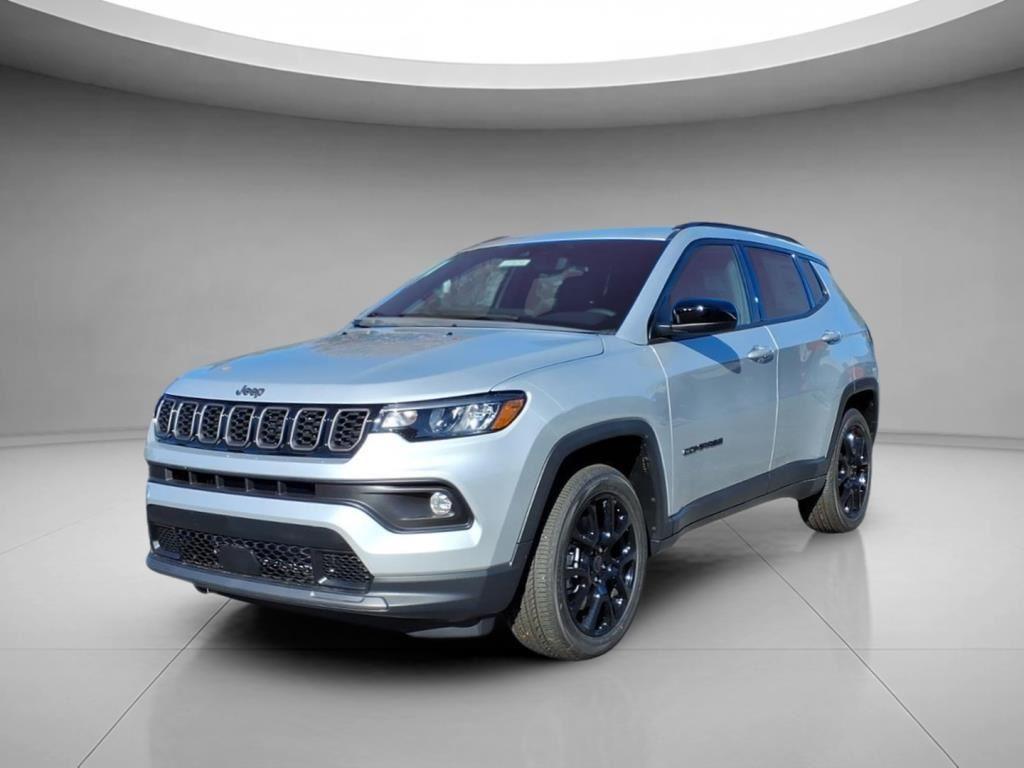
Connecting your phone is just the first step. Here’s how to get more from your Jeep Compass:
- Voice Commands: Use voice assistants (Siri or Google Assistant) to make calls and send texts hands-free.
- Streaming Music: Apps like Spotify or Apple Music work smoothly when connected.
- Navigation: Use Google Maps or Apple Maps for real-time directions.
Remember, using your phone through the car keeps your hands on the wheel and eyes on the road. This is safer and often required by law in many states.
Data Privacy And Safety Tips
When you connect your phone, the Compass may access your contacts, messages, and call history. Here’s how to protect your data:
- Only pair your phone in private or trusted environments.
- Delete your device from Uconnect before selling or trading your car.
- Don’t allow unnecessary permissions if you’re worried about privacy.
Frequently Asked Questions
How Many Phones Can I Connect To My Jeep Compass?
Most Uconnect systems allow pairing up to eight devices. However, only one phone can be active for calls at a time.
Do I Need Internet For Apple Carplay Or Android Auto?
You need a mobile data connection for apps like Maps or streaming music, but the basic CarPlay/Android Auto features work without WiFi.
Can I Connect My Phone Wirelessly?
Bluetooth works wirelessly, but wireless CarPlay/Android Auto depends on the Compass model and year. Older models usually require a USB cable.
Why Is My Phone Not Showing On The Car Screen?
If your phone doesn’t appear, check that Bluetooth is enabled, remove old devices, and use a high-quality cable for CarPlay/Android Auto.
Is It Safe To Use My Phone While Driving?
Using your phone through Uconnect is much safer than holding it. It’s designed for hands-free use and follows safety laws.
Connecting your phone to your Jeep Compass is a straightforward process, but knowing the right steps and common issues makes it easier. With Bluetooth, Apple CarPlay, or Android Auto, you can enjoy music, calls, and navigation safely. Always use good cables, allow necessary permissions, and keep your attention on the road. For more details on Uconnect features and compatibility, visit the official Jeep Uconnect site. With these tips, your Jeep Compass will become even smarter and more convenient for every drive.