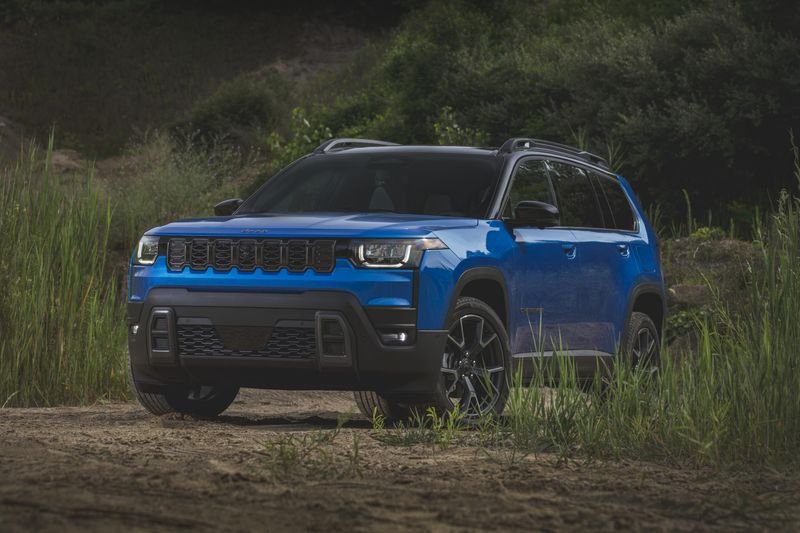
Connecting your phone to your Jeep Grand Cherokee via Bluetooth unlocks a safer and more convenient driving experience. You can answer calls hands-free, stream music, and access navigation—all without touching your phone. However, many drivers struggle with pairing their device, especially if the car’s interface is not intuitive. This guide will show you how to connect Bluetooth to your Jeep Grand Cherokee quickly, avoid common mistakes, and maximize the features available.
Understanding Jeep Grand Cherokee Bluetooth System
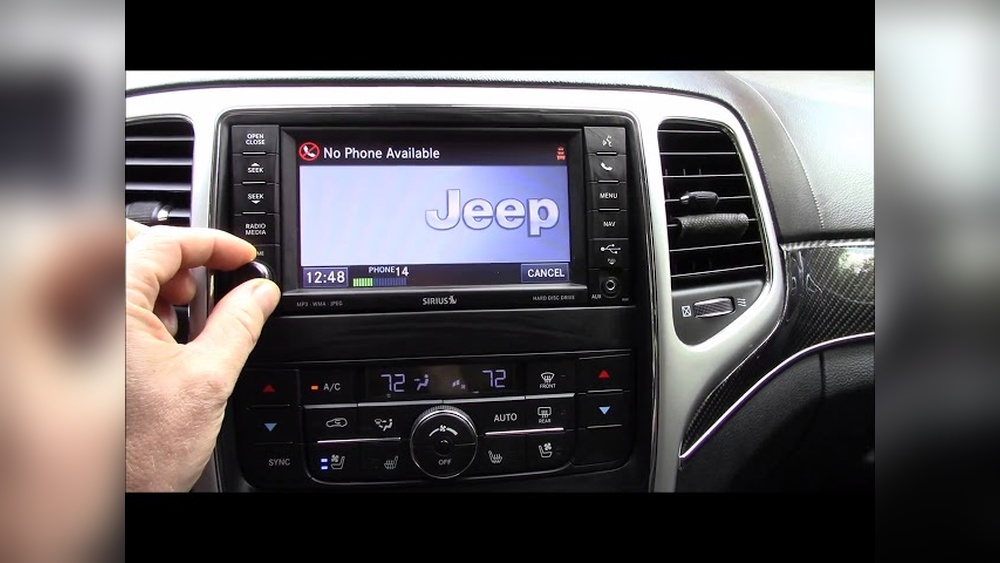
Before you start, it’s helpful to know which Uconnect system your Grand Cherokee uses. Most models from 2014 onward have Uconnect 4 or 5, while older ones may have Uconnect 3. The features and steps are similar, but the screen layout can differ.
Here’s a comparison of Uconnect systems in recent Grand Cherokees:
| Model Year | Uconnect Version | Bluetooth Features |
|---|---|---|
| 2014–2017 | Uconnect 3 | Hands-free calls, basic audio streaming |
| 2018–2021 | Uconnect 4 | Improved audio, voice commands, text reply |
| 2022–2024 | Uconnect 5 | Wireless Apple CarPlay, Android Auto, advanced streaming |
Check your owner’s manual or the system’s start-up screen to confirm your version.
Step-by-step: Pairing Your Phone With Jeep Grand Cherokee
1. Activate Bluetooth On Your Phone
Go to your phone’s settings and turn on Bluetooth. Make sure your phone is discoverable.
2. Start The Jeep And Access Uconnect
Turn on the vehicle. On the Uconnect touchscreen, tap the Phone or Settings icon.
3. Select ‘add Device’ Or ‘pair New Device’
The system will prompt you to add a device. Tap Add Device. Your Jeep will begin searching for nearby Bluetooth devices.
4. Find ‘uconnect’ On Your Phone
On your phone, you’ll see a list of available devices. Select Uconnect.
5. Enter The Pairing Code
The Jeep and your phone will display a PIN code. Confirm the code matches on both screens, then tap Pair.
6. Allow Permissions
Your phone may ask for permission to share contacts and messages. Agree if you want full functionality.
7. Connection Confirmation
The Uconnect screen will show your phone as connected. Now you can make calls, stream music, and use voice commands.
Here’s a quick comparison of phone operating systems and their compatibility with Jeep Bluetooth:
| Operating System | Compatibility | Special Features |
|---|---|---|
| iOS (iPhone) | Excellent | Apple CarPlay, Siri voice commands |
| Android | Excellent | Android Auto, Google Assistant |
| Windows Phone | Limited | Basic calls and streaming |
Common Problems And Solutions
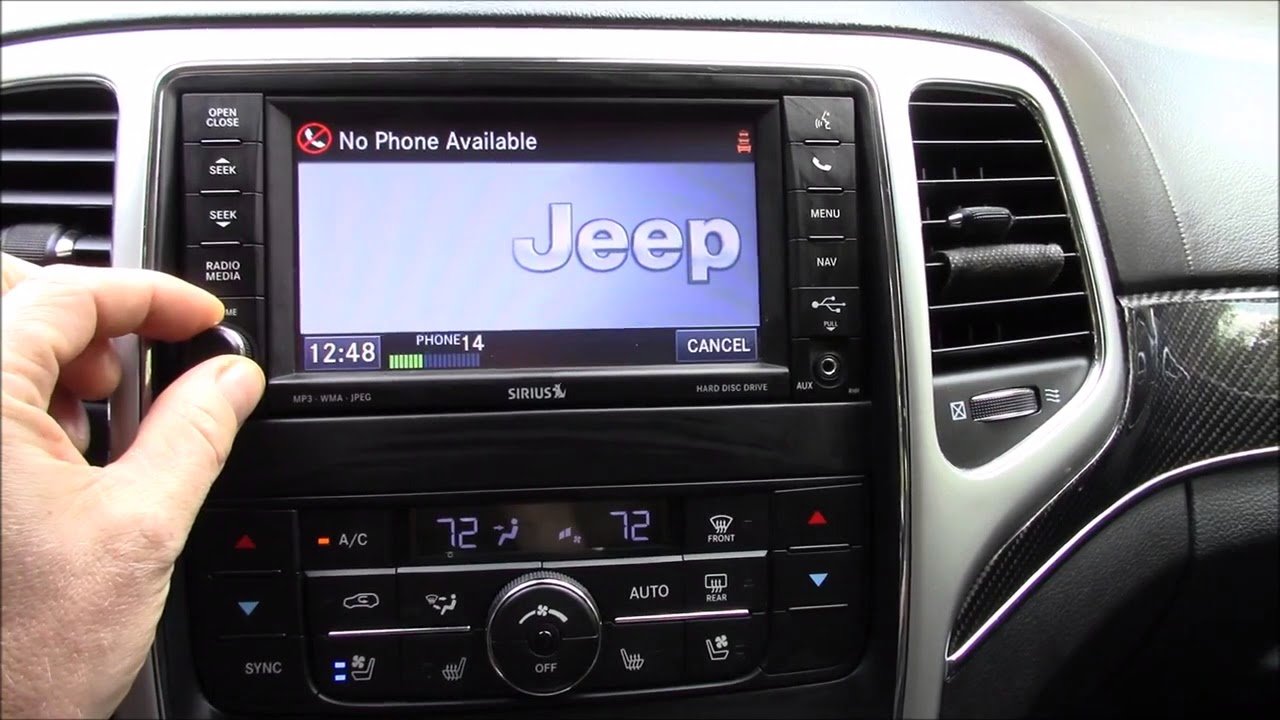
Pairing doesn’t always go smoothly. Here are some frequent issues and how to fix them:
- Device not found: Make sure Bluetooth is enabled and your phone is visible. Restart your phone and Uconnect if needed.
- Pairing fails: Double-check the PIN code, and try again. If it keeps failing, remove old Bluetooth connections from both your phone and Uconnect.
- Audio not streaming: Ensure your phone’s audio output is set to Bluetooth. For iPhone, swipe down and select Uconnect as the audio device.
- Contact sync fails: Some phones restrict access. Check Bluetooth settings and allow Uconnect to access contacts.
- Disconnected randomly: This can happen if your phone’s battery saver mode is on. Disable battery saver or update your phone’s firmware.
A non-obvious insight: If your Jeep has multiple paired devices, it will automatically connect to the last used phone unless you manually select another. Also, Uconnect can store up to seven devices, but older models might struggle if memory is full—delete unused devices for smoother pairing.
Tips To Enhance Your Bluetooth Experience
- Update Uconnect software: Many issues disappear after a software update. Visit your dealer or check online for updates.
- Use voice commands: Activate features hands-free by saying “Call John” or “Play music.”
- Organize contacts: Sync only essential contacts to avoid clutter and speed up the system.
- Stream audio apps: Spotify, Pandora, and Apple Music work seamlessly with Uconnect, but make sure you’re logged in before pairing.
- Security tip: Always disconnect your phone if you’re using a rental or borrowed Jeep to protect your data.
Here’s a comparison of Bluetooth streaming quality across Uconnect systems:
| Uconnect Version | Streaming Quality | Lag (ms) |
|---|---|---|
| Uconnect 3 | Standard | 120 |
| Uconnect 4 | Enhanced | 90 |
| Uconnect 5 | High-definition | 60 |
Frequently Asked Questions
How Many Phones Can I Pair With My Jeep Grand Cherokee?
You can pair up to seven devices with most Uconnect systems. Only one can be connected for calls at a time, but you can switch between devices easily.
Is Bluetooth Available On Older Grand Cherokee Models?
Yes, models from 2011 onward usually have Bluetooth. However, features might be limited, and the pairing process can be slower.
Can I Stream Music From Any App?
Most audio apps like Spotify, Pandora, and Apple Music work well. If you have issues, check if your app is updated and your phone is connected as the audio device.
What Should I Do If My Phone Won’t Connect?
First, restart both the phone and the Uconnect system. Delete unused devices, ensure Bluetooth is enabled, and try pairing again. Sometimes, updating your phone’s software helps.
Does Uconnect Support Wireless Apple Carplay And Android Auto?
Uconnect 5 in newer Grand Cherokees supports wireless Apple CarPlay and Android Auto. Older versions may need a USB connection for these features. For more info, check the official Jeep site: Jeep Uconnect.
Connecting Bluetooth in your Jeep Grand Cherokee is simple once you know the steps. The process takes only a few minutes, and the benefits are clear safer calls, easier access to music, and smarter driving.
If you follow these instructions and tips, you’ll avoid common mistakes and enjoy a reliable connection every day.
Always check for updates, keep your contacts organized, and use voice commands to make your driving experience smoother and safer.