Connecting your phone to your Jeep can make every drive smoother and safer. Whether you want to listen to your favorite music, get directions, or use hands-free calls, modern Jeeps make it easy.
But, many people find the process confusing, especially with different models and tech options.
This guide will walk you through each step, highlight common mistakes, and share some insider tips for a reliable connection.
Know Your Jeep’s System
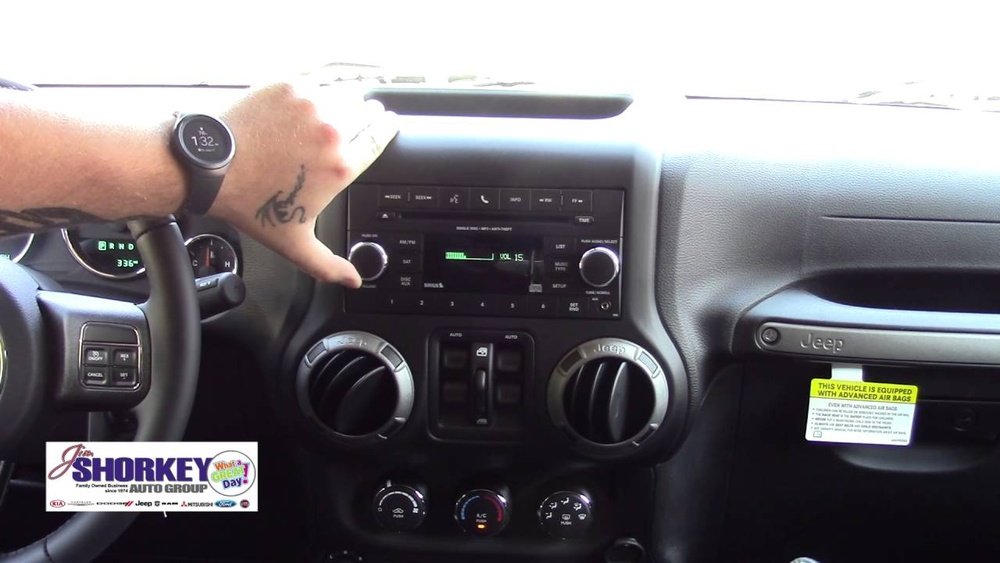
Before you start, it’s important to know which infotainment system your Jeep uses. Most models from 2017 onward feature the Uconnect system, which supports both Bluetooth and Apple CarPlay/Android Auto. Older Jeeps may only have basic Bluetooth or an auxiliary port.
Here’s a simple comparison of Jeep infotainment options:
| Jeep Model Year | System Type | Phone Connection Methods |
|---|---|---|
| 2017 and newer | Uconnect (4/5/7/8.4/10.1) | Bluetooth, USB, CarPlay/Android Auto |
| 2013–2016 | Uconnect (3/5/8.4) | Bluetooth, USB |
| Before 2013 | Basic/No infotainment | Bluetooth (if equipped), AUX |
Check your owner’s manual or the Uconnect logo on your dashboard to confirm your system.
Connecting Via Bluetooth
This is the most common method. Here’s how to connect your phone to your Jeep using Bluetooth:
- Enable Bluetooth on your phone. Go to Settings > Bluetooth, and turn it on.
- Start your Jeep and keep it in Park.
- On the Jeep’s touchscreen, tap Phone or Settings, then select “Pair Device” or “Add Device.”
- On your phone, select your Jeep from the list of available devices (usually named “Uconnect” or your model).
- Confirm the pairing code matches on both screens, then tap “Pair” on your phone and “Yes” on the Jeep screen.
- Allow access to contacts and messages for full functionality.
If pairing fails, restart both your phone and the Jeep system. Also, delete any old connections you no longer use.
Connecting Via Usb: Apple Carplay And Android Auto
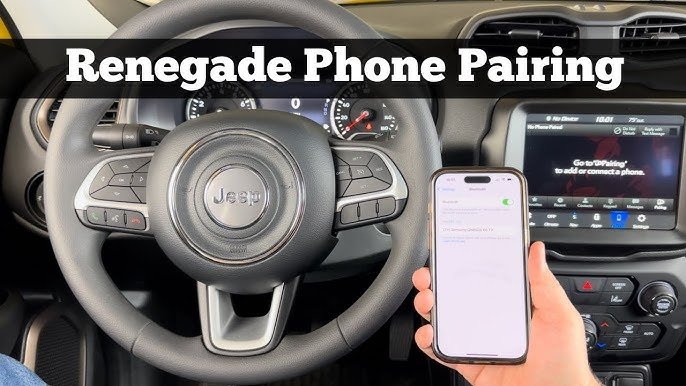
For a more advanced connection, use Apple CarPlay (iPhone) or Android Auto (Android phones). You’ll need a USB cable, and your Jeep must support these features (most models since 2017).
Steps For Apple Carplay
- Plug your iPhone into the Jeep’s USB port using an original or high-quality cable.
- The CarPlay icon will appear on the Jeep’s touchscreen.
- Tap the icon and follow on-screen prompts.
- Accept any permissions on your iPhone.
Steps For Android Auto
- Connect your Android phone to the Jeep’s USB port.
- If Android Auto is not installed, your phone may prompt you to download it.
- Follow the prompts on both the Jeep screen and your phone.
- Grant permission to access contacts, messages, and location.
Not all USB ports in your Jeep may support data transfer. Use the port labeled with a phone or CarPlay/Android Auto icon.
Here’s a quick feature comparison:
| Connection Type | Voice Commands | App Integration | Audio Quality |
|---|---|---|---|
| Bluetooth | Limited | Basic (calls, music) | Good |
| Apple CarPlay/Android Auto | Advanced (Siri/Google) | Full (Maps, Messaging, Music) | Excellent |
Troubleshooting Connection Issues
Sometimes, things don’t work as expected. Here are common problems and solutions:
- Jeep not showing up on phone: Make sure Bluetooth is enabled and visible. Delete old devices from your Jeep’s paired list.
- No sound: Check if your phone is set as the audio source. Some apps require you to select “Media” on the Jeep screen.
- CarPlay/Android Auto not working: Ensure your USB cable is not damaged. Try another port or restart the infotainment system.
- Frequent disconnections: Turn off battery-saving modes and close unused apps on your phone.
A less-known tip: Updating your Jeep’s Uconnect software can solve many pairing issues. Most dealerships offer free updates, or you can check the official Jeep website.
Tips For A Reliable Connection
- Always use an original USB cable for CarPlay or Android Auto. Cheap cables often cause dropped connections.
- Keep your phone’s software updated. Outdated operating systems can cause compatibility issues.
- Pair only one phone at a time to avoid confusion.
- If you use multiple phones, label them clearly in your Jeep’s paired device list.
For more details on the Uconnect system and phone compatibility, visit the official Jeep Uconnect page.
Advanced Features: Wireless Carplay And Android Auto
Some newer Jeeps (mainly 2021 and later) support wireless CarPlay and Android Auto. This means you can connect without a USB cable.
Here’s how to set it up:
- Enable Bluetooth and Wi-Fi on your phone.
- On the Jeep’s Uconnect screen, go to “Phone” > “Pair Device.”
- Select your Jeep on your phone’s Bluetooth list, then follow prompts for CarPlay or Android Auto.
- Accept permissions.
Wireless connections are convenient, but they may use more battery and can be less stable than USB. If you notice lag or dropouts, switch to a wired connection.

Frequently Asked Questions
How Many Phones Can I Pair With My Jeep’s Uconnect?
Most Jeep Uconnect systems allow you to pair up to eight devices, but only one can be active at a time for calls and media.
Do I Need A Special App To Connect My Phone?
For Bluetooth, you don’t need any extra app. For Android Auto or Apple CarPlay, your phone should have these apps installed.
Some Android phones require a download from Google Play.
Why Does My Jeep Not Recognize My Phone?
This can happen if your phone’s software is outdated, your Jeep’s Uconnect needs an update, or your USB cable is faulty. Try updating your device and using a different cable.
Yes, with Apple CarPlay or Android Auto, you can use Google Maps, Apple Maps, or Waze on your Jeep’s touchscreen.
Is It Safe To Connect My Phone While Driving?
It’s safest to connect your phone before you start driving. Most features are designed for hands-free use, but setting up while parked is best.
Connecting your phone to your Jeep unlocks a world of convenience and safety. With a few simple steps and the right cables, you’ll enjoy hands-free calls, streaming, and navigation.
Remember, each Jeep model may have small differences, so check your manual if you get stuck.
With practice, you’ll connect in seconds and keep your focus where it matters on the road.