Changing the language on your Jeep’s Uconnect system can make your driving experience smoother and more enjoyable, especially if English is not your first language or you simply prefer using another language.
Many drivers do not realize how customizable their Uconnect system is, or that switching languages can affect not just the display, but also voice commands and navigation prompts.
This guide will walk you through the process step by step, explain what to expect at each stage, and share tips for avoiding common mistakes. Whether you own a brand-new Jeep or an older model, you’ll find clear answers here.
Understanding Jeep Uconnect Language Settings
Jeep’s Uconnect system is more than just a radio interface. It’s the center for your vehicle’s navigation, calls, media, and sometimes climate control.
The system supports multiple languages to help drivers feel comfortable and in control.
Changing the language does more than update on-screen text. It can also change voice guidance, system prompts, and even some third-party app interactions.
However, not all languages offer full voice support some may only affect menu text. It’s important to know what your specific Uconnect version can do.
Which Uconnect Versions Allow Language Change?
Most Uconnect systems from 2014 and newer support multiple languages. Systems in older Jeeps may have limited options or require software updates. Here’s a quick comparison:
| Uconnect Version | Supported Languages | Voice Command Support |
|---|---|---|
| Uconnect 5 (2021+) | 10+ | Full |
| Uconnect 4 (2017–2021) | 6–8 | Partial |
| Uconnect 3 (2014–2018) | 3–4 | Limited |
| Uconnect 2 & earlier | 1–2 | No |
Check your owner’s manual or the Uconnect screen to see which version you have. If your Jeep is from 2018 or newer, you likely have Uconnect 4 or 5.
Steps To Change Language On Jeep Uconnect
Changing the language is usually a simple process, but the exact steps can vary by model year and Uconnect version. Below you’ll find instructions for the two most common systems.
For Uconnect 4 And 5 Systems
- Start your Jeep and let the Uconnect system boot up fully.
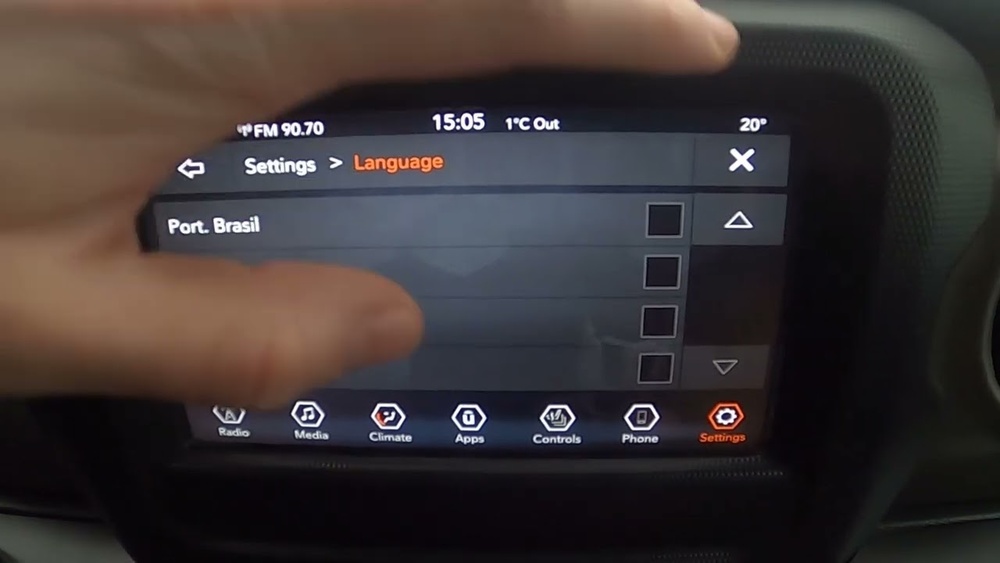
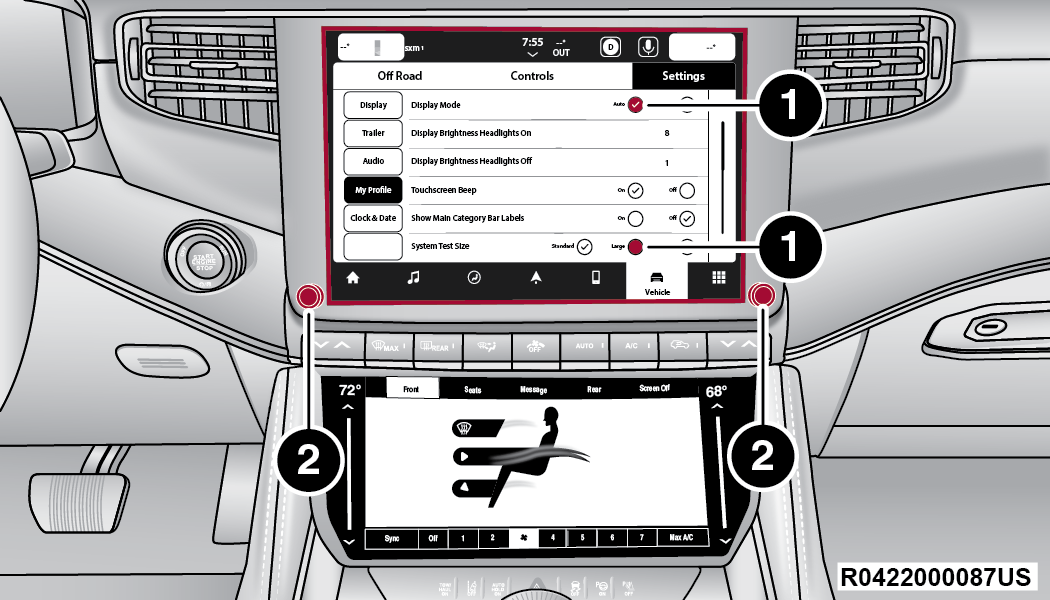
- Press the Settings icon (usually a gear symbol) on the main menu.
- In the Settings menu, tap on Display or Language & Keyboard (the exact name may differ).
- Select Language.
- Browse the available list and tap your preferred language.
- Confirm your choice if prompted. The system may reboot or refresh the screen.
- Voice commands and navigation prompts will now use your chosen language, if supported.
For Older Uconnect (3 And Below)
- Turn on the vehicle and Uconnect system.
- Press the Menu or Settings button (may be a physical or on-screen button).
- Use the Touchscreen or the Tune/Scroll knob to navigate to “System Setup.”
- Select Language.
- Choose your desired language (choices may be limited).
- The system will update; some older units may need a restart.
Using Steering Wheel Controls
Some Jeep models let you access Uconnect settings using steering wheel buttons. This can be helpful if your touchscreen isn’t responding well. Look for the Voice or Phone button. Press and hold, then say “Change language” (in the current system language). Follow the prompts.
Pro tip: If you get stuck in a language you don’t understand, the menu order and icons remain the same. Use your phone’s camera with a translation app to help navigate back to your preferred language.
Languages Available On Jeep Uconnect
Language options will depend on your Jeep’s region and the Uconnect software version installed. Here’s a typical selection for North American models:
- English (US and UK)
- Spanish
- French (Canadian and European)
- Portuguese (Brazilian)
- Italian
- German
- Dutch
Some systems offer more, such as Polish, Russian, or simplified Chinese, especially in newer models.
| Language | Menu Text | Voice Commands | Navigation Voice |
|---|---|---|---|
| English | ✓ | ✓ | ✓ |
| French | ✓ | ✓ | ✓ |
| Spanish | ✓ | ✓ | ✓ |
| German | ✓ | Partial | Partial |
| Italian | ✓ | No | No |
Not every language offers full voice command support. Sometimes, only menu text will change, and navigation voices may remain in English.
What Changes When You Switch Languages
Switching the language on your Uconnect system does more than just translate words. Here’s what happens:
- Menu labels and settings: All buttons, menus, and settings will be shown in your chosen language.
- Voice guidance: Navigation instructions, if supported, will play in your selected language.
- Voice commands: You may need to use commands in the new language.
- Phone and media: Contact names and media information stay the same unless your phone’s language matches.
- App integration: Supported third-party apps may also switch if they support the language.
Non-obvious insight: If you use Apple CarPlay or Android Auto, these systems will use your phone’s language, not the Uconnect language. This means you can have CarPlay in Spanish, but Uconnect menus in English, or vice versa.
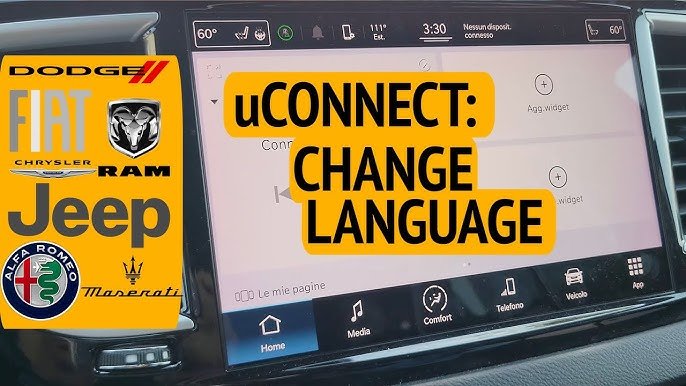
Common Problems And How To Fix Them
Many Jeep owners make simple mistakes when changing the language, or they run into unexpected issues. Here’s how to avoid common pitfalls:
The System Is Stuck In A Language You Don’t Understand
This is a common problem, especially after renting a Jeep abroad or buying a used car. If this happens:
- Use the icon positions (gear for settings, letters for language) rather than reading text.
- Use your smartphone’s live translation camera on the screen.
- If you can’t figure it out, disconnect the battery for a minute. This sometimes resets the Uconnect system to factory settings (but you’ll lose saved data).
In some cases, only menu text changes. This usually means:
- The Uconnect software does not have full voice files for your language.
- Your map or navigation system needs a separate update (check with your dealer).
- A soft reset (hold the power and volume buttons together) may help.
Uconnect Freezes After Language Change
Very rarely, the system may freeze or restart after switching languages. This is usually a bug or low memory problem.
- Try turning the Jeep off, opening the driver’s door, and waiting two minutes before restarting.
- If the problem returns, visit your Jeep dealer for a software update.
Non-obvious insight: Some advanced settings, like safety warnings or system messages, may remain in the original language for legal reasons. Always double-check critical alerts after changing the language.
Tips For Choosing The Best Language Setting
- Choose a language you understand well for safety. Navigation mistakes can be dangerous.
- If you share your Jeep with others, pick a language everyone in the household can use.
- When traveling in another country, temporarily switching to the local language can help with road signs and directions.
- Update your Uconnect software for the latest language support. Dealers can do this for free during regular maintenance.
- If you use voice commands often, test them in your new language. Some accents or words may be recognized differently.
How To Update Uconnect For More Language Options
Newer Uconnect systems sometimes add language packs through updates. Here’s how to check and update:
- Visit the Uconnect website or your Jeep dealer’s site.
- Enter your VIN (Vehicle Identification Number) to see available updates.
- Download updates to a USB drive, following the instructions carefully.
- Insert the USB drive into your Jeep’s port and follow on-screen prompts.
Important: Only download updates from official Jeep sources to avoid problems.
For a direct resource, you can check updates and support at the official Jeep Uconnect site.
When To Visit A Dealer For Help
Most language changes are easy to do at home, but see your dealer if:
- The language you want is not listed.
- The system freezes or doesn’t save your choice.
- Navigation voices are stuck in a different language.
- You need to add a new language pack.
Dealers can reprogram the Uconnect system and check for the latest updates. This is especially helpful for older Jeeps or import models.
Frequently Asked Questions
Can I Add More Languages To My Uconnect System?
Most Uconnect systems only support the languages pre-installed by Jeep. However, some updates add new options.
Check your Jeep dealer or the official Uconnect website for new language packs.
Does Changing The Uconnect Language Affect My Phone’s Language?
No, the Uconnect system and your phone operate separately. CarPlay and Android Auto use your phone’s language, while Uconnect menus use the system setting. You can have different languages on each.
Language availability depends on your Jeep’s region and Uconnect version. Some models only have three or four choices.
If you need a language not listed, ask your dealer about updates or regional reprogramming.
Will Changing The Language Delete My Saved Contacts Or Radio Stations?
No, changing the language only affects menus and system prompts. Your contacts, radio presets, and navigation favorites will stay the same.
Is It Safe To Change The Language While Driving?
For safety, always change the Uconnect language when the vehicle is parked. Menu navigation can be distracting, and some features are locked while driving.
Switching the language on your Jeep Uconnect system is a simple way to make your driving experience more comfortable and accessible. Take a few minutes to explore the settings and try different options.
If you run into any issues, Jeep’s support and dealership staff can help you get the most from your Uconnect system.
With the right language, every drive can feel a bit more like home.