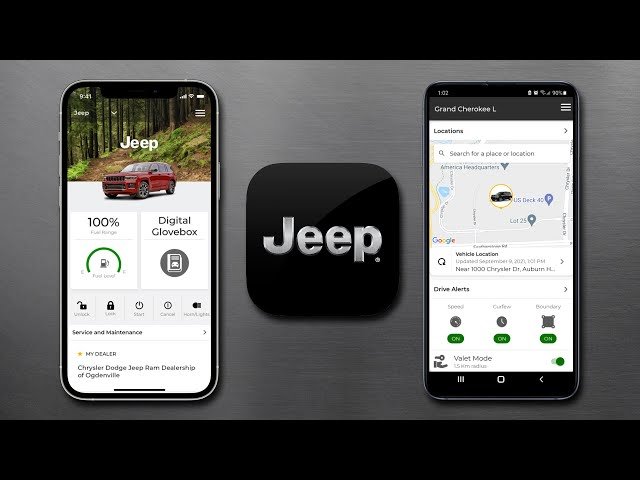
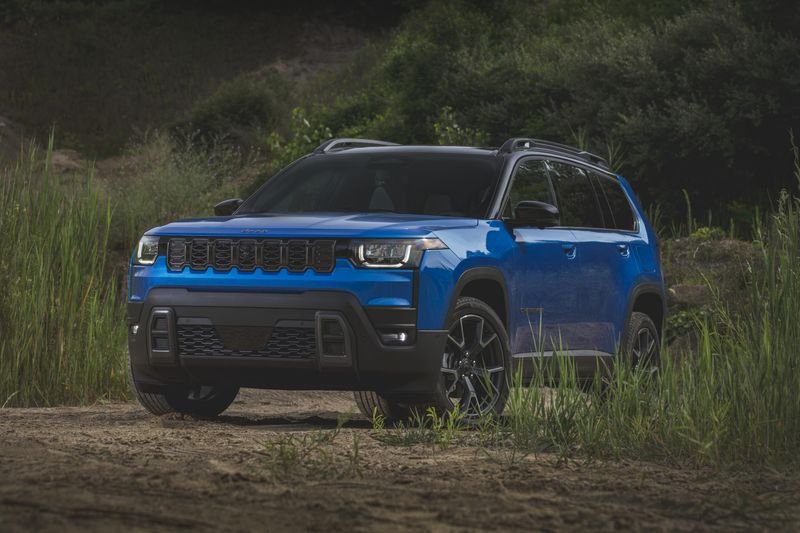
Adding your car to the Jeep app opens up a new world of control, convenience, and information. Whether you want to check your car’s status, find service centers, or use remote features, the app makes it easy. But many new Jeep owners find the setup process confusing. This guide will show you step by step how to add your car to the Jeep app, avoid common mistakes, and make the most of your vehicle’s smart features.
What You Need Before Starting
Before you begin, gather these items:
- Your Jeep vehicle (parked nearby)
- The Vehicle Identification Number (VIN)
- A smartphone (iOS or Android)
- Your Jeep account login (or be ready to create one)
- Reliable internet connection
Many users miss the VIN step. You can find the VIN on your car’s dashboard (driver’s side, near the windshield), inside the driver’s door, or on your registration papers.
Downloading And Installing The Jeep App
Search for the Jeep app in the Apple App Store or Google Play Store. The app is free. After downloading, open the app and choose your country and language. Setting the correct region is important, as features and services can change depending on location.
App Requirements
| OS | Minimum Version | Storage Needed |
|---|---|---|
| iOS | 13.0 | 100 MB |
| Android | 8.0 | 90 MB |
Some older phones might not support all app features. Make sure your phone is updated.
Creating Or Logging Into Your Jeep Account
If you already have a Jeep account, log in using your email and password. If not, create one:
- Tap “Sign Up.”
- Enter your email, create a password, and agree to terms.
- Confirm your email address by clicking the link sent to your inbox.
Many people forget to verify their email. Without this step, you cannot add your car.
Adding Your Car To The Jeep App
This is the key step. Here’s what to do:
- Open the Jeep app and log in.
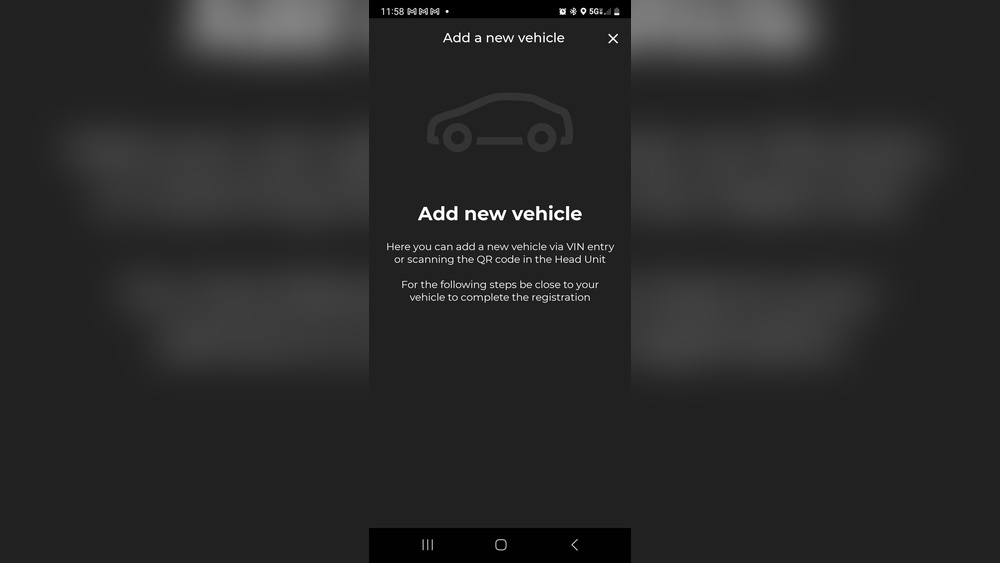
- Tap the “Add Vehicle” or “+” icon on the home screen.
- Enter your VIN carefully. Double-check each digit.
- The app may ask you to scan a QR code from your car’s infotainment screen or enter a pairing code. Follow on-screen instructions.
- The app will connect to your car. This may take a few minutes.
If the app shows an error, check your internet connection and VIN. If the issue continues, restart your phone and try again.
Common Pairing Methods
| Method | When Used | What You Need |
|---|---|---|
| Manual VIN Entry | Most models | VIN number |
| QR Code Scan | Newer models | Infotainment screen access |
| Bluetooth Pairing | Specific trims | Phone with Bluetooth on |
Verifying Your Car
To finish, the app may ask you to verify ownership. Usually, you will:
- Enter a code sent to your phone or email
- Confirm by starting the car or pressing a button
This step keeps your vehicle secure. If you skip it, some remote features will not work.
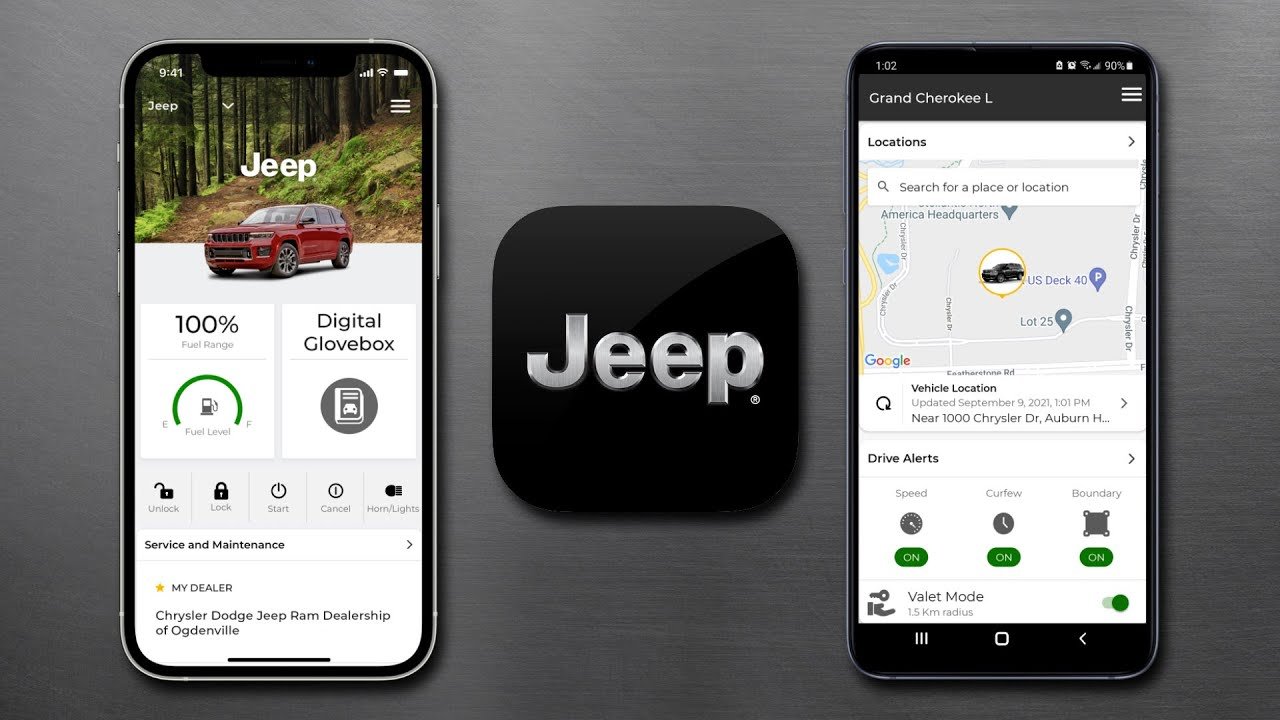
Exploring Key Features After Adding Your Car
Once your car is connected, you gain access to powerful tools. Here are the most popular:
- Remote start/stop: Start your car from inside your house.
- Lock/unlock doors: No need to use your key fob.
- Vehicle health report: See tire pressure, oil level, and maintenance alerts.
- Find my car: Locate your Jeep in a crowded parking lot.
- Trip history: Track past journeys, fuel usage, and driving data.
Not all features are available on every model. For example, remote start may require a subscription or specific trim.
Feature Comparison By Jeep Model
| Feature | Jeep Compass | Jeep Grand Cherokee | Jeep Wrangler |
|---|---|---|---|
| Remote Start | Optional | Standard | Optional |
| Vehicle Health Report | Yes | Yes | Yes |
| Find My Car | Yes | Yes | No |
Always check your owner’s manual or the Jeep website to see which features your car supports.
Troubleshooting Tips
If your Jeep app does not recognize your car, try these steps:
- Restart your phone and the app.
- Check your car’s internet or cellular connection.
- Make sure you entered the correct VIN.
- Update your app to the latest version.
- Contact Jeep support if the problem continues.
A non-obvious tip: The VIN must match exactly—one wrong letter (like ‘O’ instead of zero) will block pairing. Also, some features may be delayed up to 24 hours after setup.
Privacy And Data Security
Many drivers worry about privacy. The Jeep app uses secure servers to store your data.
You control what information is shared, and you can remove your car from the app at any time.
For more details, visit the official Jeep Connectivity page.

Making The Most Of Your Jeep App
After setup, take time to explore all settings. Set up alerts for service reminders or low fuel.
Update your contact information so you do not miss important notifications. If you sell your car, remember to remove it from your app account for safety.
Adding your car to the Jeep app is not just about convenience it keeps you informed, improves safety, and can even increase your car’s resale value. With just a few steps, you unlock all the smart tools Jeep designed for you.
Frequently Asked Questions
How Do I Find My Jeep’s Vin?
The VIN is a 17-digit code found on the dashboard near the windshield, inside the driver’s door, or on your registration paperwork. It is also shown in the vehicle’s infotainment system in most new models.
Can I Add More Than One Jeep Vehicle To The App?
Yes, you can add multiple vehicles. Tap the “+” symbol on the home screen and repeat the process for each Jeep you own.
What Should I Do If The App Cannot Connect To My Car?
Check your internet, confirm the VIN, and make sure your car is in an area with good cell service. Restart the app and your phone. If it still fails, contact Jeep support.
Is There A Cost To Use The Jeep App?
The app is free, but some features—like remote start—require a paid subscription after a trial period. Check your model’s details for more information.
How Do I Remove My Car From The Jeep App If I Sell It?
Go to the app’s settings, select your vehicle, and choose “Remove Vehicle. ” This protects your data and disables app features for the next owner.
Adding your Jeep to the app is simple if you follow the steps carefully. Take advantage of all the features and drive with greater confidence and convenience.