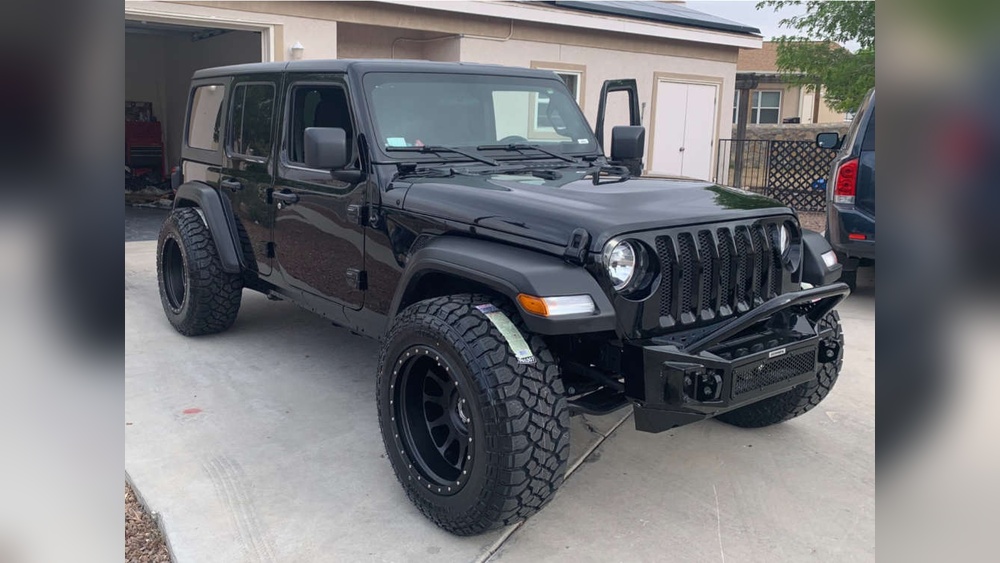
Getting the most from your Jeep Grand Cherokee means understanding all its features. One handy tool is the Projection Manager.
This system lets you connect your smartphone, use apps on the car’s touchscreen, and enjoy smarter driving. Many drivers don’t know how to set it up or use it well.
With the right steps, you can make your trips safer and more fun. Let’s explore how to use Projection Manager in your Jeep Grand Cherokee, so you get the best experience every time you drive.
What Is Projection Manager In Jeep Grand Cherokee?
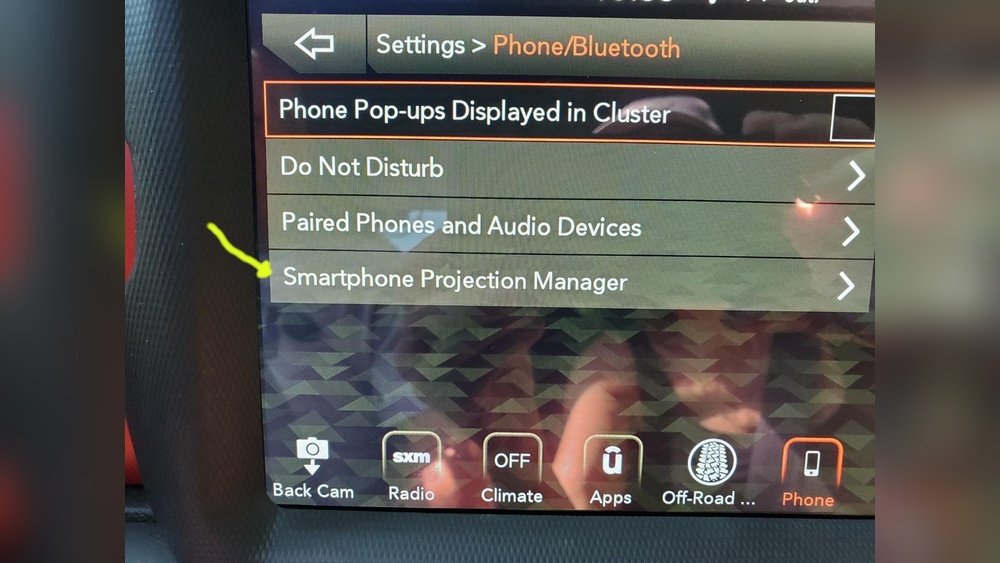
Projection Manager is a built-in feature in the Jeep Grand Cherokee’s Uconnect infotainment system. It allows you to use Apple CarPlay or Android Auto. When connected, your phone’s apps appear on the car’s touchscreen. You can access navigation, music, calls, and messages safely while driving.
Here’s a quick comparison of Apple CarPlay and Android Auto features:
| Feature | Apple CarPlay | Android Auto |
|---|---|---|
| Navigation | Apple Maps, Google Maps, Waze | Google Maps, Waze |
| Music | Apple Music, Spotify | Google Play Music, Spotify |
| Voice Control | Siri | Google Assistant |
| Messaging | iMessage, SMS | SMS, WhatsApp |
| Phone Calls | Yes | Yes |
Many drivers miss the fact that Projection Manager keeps your phone’s data private. The car does not store your messages or contacts after disconnecting.
Also, you can customize which apps appear on the screen useful if you want only maps and music.
Setting Up Projection Manager
To start using Projection Manager, you need a compatible smartphone and a USB cable. Most Jeep Grand Cherokees from 2018 onwards have this feature.
If your car is older, check if it supports Uconnect 4 or newer.
Follow these steps:
- Check Compatibility: Make sure your Jeep’s Uconnect system and your phone are compatible with CarPlay or Android Auto.
- Connect Your Phone: Use a high-quality USB cable. Plug your phone into the USB port labeled with a smartphone icon.
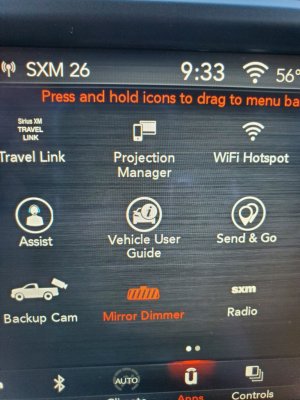
- Enable Projection Manager: On the Uconnect touchscreen, tap the “Projection Manager” icon. Select either “Apple CarPlay” or “Android Auto”.
- Grant Permissions: Your phone may ask for permission to connect. Accept all prompts to allow access.
- Customize Apps: Choose which apps you want to appear. You can manage these in your phone’s settings.
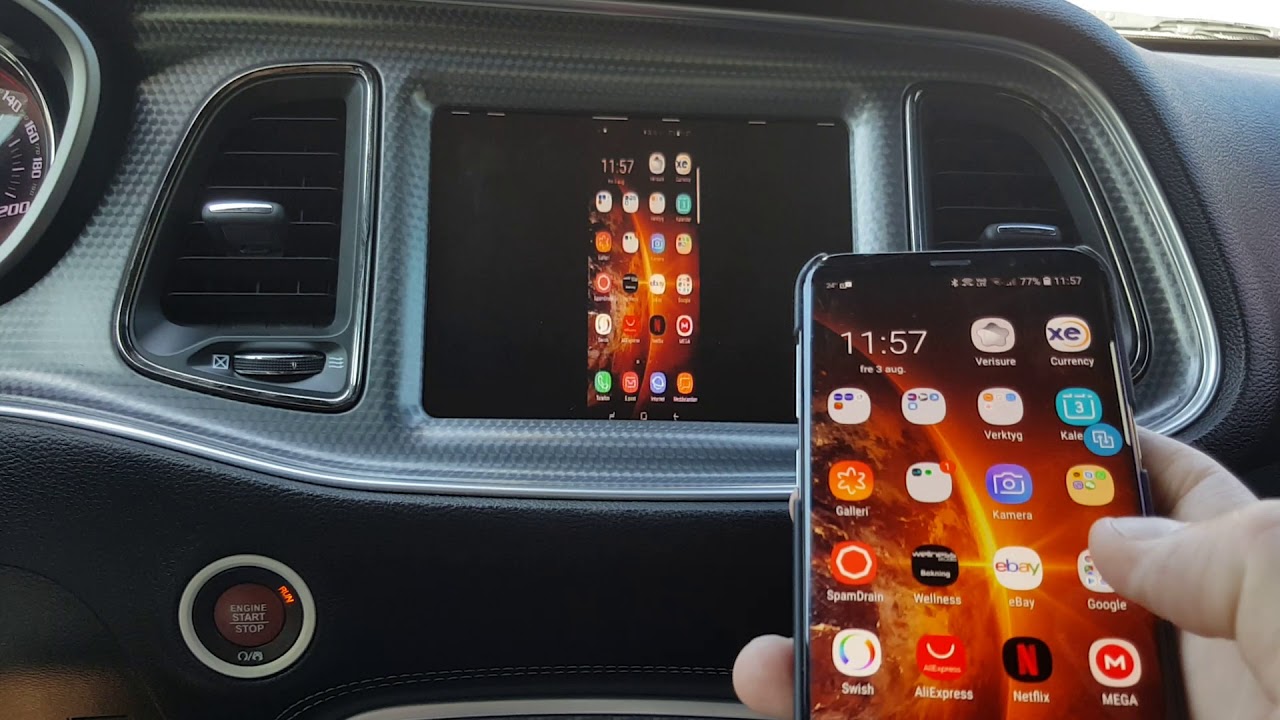
- Start Using: The apps now show on the Uconnect screen. Use voice commands, steering wheel controls, or the touchscreen.
Many users make the mistake of using low-quality cables. This can cause connection errors or disconnects.
Always use the original cable for best results.

Key Features And Benefits
Projection Manager adds convenience and safety. Here are the top benefits:
- Hands-Free Calling: Make and receive calls without touching your phone.
- Voice Commands: Use Siri or Google Assistant to control apps, send messages, or play music.
- Navigation: Get real-time directions from Google Maps, Apple Maps, or Waze.
- Media Access: Listen to Spotify, podcasts, or audiobooks.
- Messaging: Dictate and listen to messages safely.
Below is a comparison of using your phone versus Projection Manager for common tasks:
| Task | Phone Only | Projection Manager |
|---|---|---|
| Navigation | Small screen, manual input | Large display, voice control |
| Calling | Hold phone, distracted | Hands-free, safer |
| Music | Manual selection | Touchscreen/voice |
| Messages | Type by hand | Voice dictation |
Many drivers don’t realize you can set up “Do Not Disturb” mode for messaging, which blocks distractions while driving. This keeps you focused and improves safety.
Troubleshooting Common Issues
Sometimes, Projection Manager doesn’t work as expected. Here are some common problems and solutions:
- No Connection: If your phone won’t connect, check the USB cable. Try another port or restart the Uconnect system.
- App Not Showing: Some apps need to be enabled in your phone’s settings. Check permissions and update the app.
- Audio Issues: If sound is missing, make sure your phone’s volume is up and the car’s audio source is correct.
- Frequent Disconnects: This often happens with cheap cables or old phones. Update your phone’s software and use a reliable cable.
If problems persist, visit your dealership or check the official Uconnect support page. Regular software updates also fix many bugs.
Tips For Best Experience
To get the most from Projection Manager, try these expert tips:
- Keep Software Updated: Update your phone and Uconnect system regularly.
- Organize Apps: Arrange apps on your phone so only useful ones appear on the car screen.
- Use Shortcuts: Set up voice shortcuts for frequent tasks, like calling home or starting navigation.
- Check Privacy Settings: Limit which apps share data with the car.
- Clean USB Port: Dust and debris can cause connection problems.
One non-obvious tip: Some Jeep models allow wireless CarPlay or Android Auto. If your Grand Cherokee supports it, you can connect without a cable. Just check your manual or settings.
Safety And Privacy Concerns
Projection Manager is designed to protect your privacy. When you disconnect, your phone’s data is not stored in the car.
However, always check app permissions and avoid connecting devices you don’t trust. Using voice commands reduces distractions, but still keep your eyes on the road.
For more details on privacy and safety, you can visit the official Jeep Uconnect website: Jeep Uconnect.
Frequently Asked Questions
How Do I Know If My Jeep Grand Cherokee Has Projection Manager?
Look for the “Projection Manager” icon on your Uconnect touchscreen. Most models from 2018 and newer have it. If unsure, check your owner’s manual.
Can I Use Projection Manager Wirelessly?
Some Grand Cherokee models support wireless CarPlay and Android Auto. Check your car’s settings or manual to see if this option is available.
Why Won’t My Phone Connect To Projection Manager?
This is often caused by a poor USB cable or outdated software. Try a new cable, update your phone, and restart your car’s Uconnect system.
What Apps Can I Use With Projection Manager?
You can use navigation, music, calling, and messaging apps. Some third-party apps may need to be enabled in your phone’s settings.
Is My Personal Data Safe When Using Projection Manager?
Yes. The car does not store your phone’s data after you disconnect.
Always check app permissions and use trusted devices.
Using Projection Manager in your Jeep Grand Cherokee makes driving safer and more enjoyable. With the right setup, you can stay connected without distractions.
Follow these tips, keep your system updated, and enjoy the smart features every time you drive.