Adjusting your Jeep’s screen brightness can make a big difference, especially when driving at night or under strong sunlight. A screen that’s too bright can distract you and make it harder to see the road.
On the other hand, a dim screen during the day can make navigation and system controls hard to read.
Many Jeep owners find the process confusing because different models and years use different systems. This guide explains how to turn down the brightness on your Jeep screen, whether you drive a Wrangler, Grand Cherokee, or another model. You’ll also learn helpful tips, common mistakes to avoid, and what to do if the settings don’t work as expected.
Understanding Jeep Screen Types
Jeep vehicles use several types of infotainment systems. The most common are Uconnect 4, Uconnect 5, and some older systems. Knowing your system type helps you follow the right steps.
| Jeep Model | System Type | Screen Size |
|---|---|---|
| Wrangler JL (2018+) | Uconnect 4/5 | 7″ / 8.4″ |
| Grand Cherokee (2014+) | Uconnect 4/5 | 8.4″ |
| Renegade (2015+) | Uconnect 4 | 7″ |
If you’re not sure which system you have, check your owner’s manual or look for the system name on the home screen when you start your Jeep.
How To Turn Down Brightness On Jeep Screen
The steps can vary slightly depending on your system, but these are the most common methods.
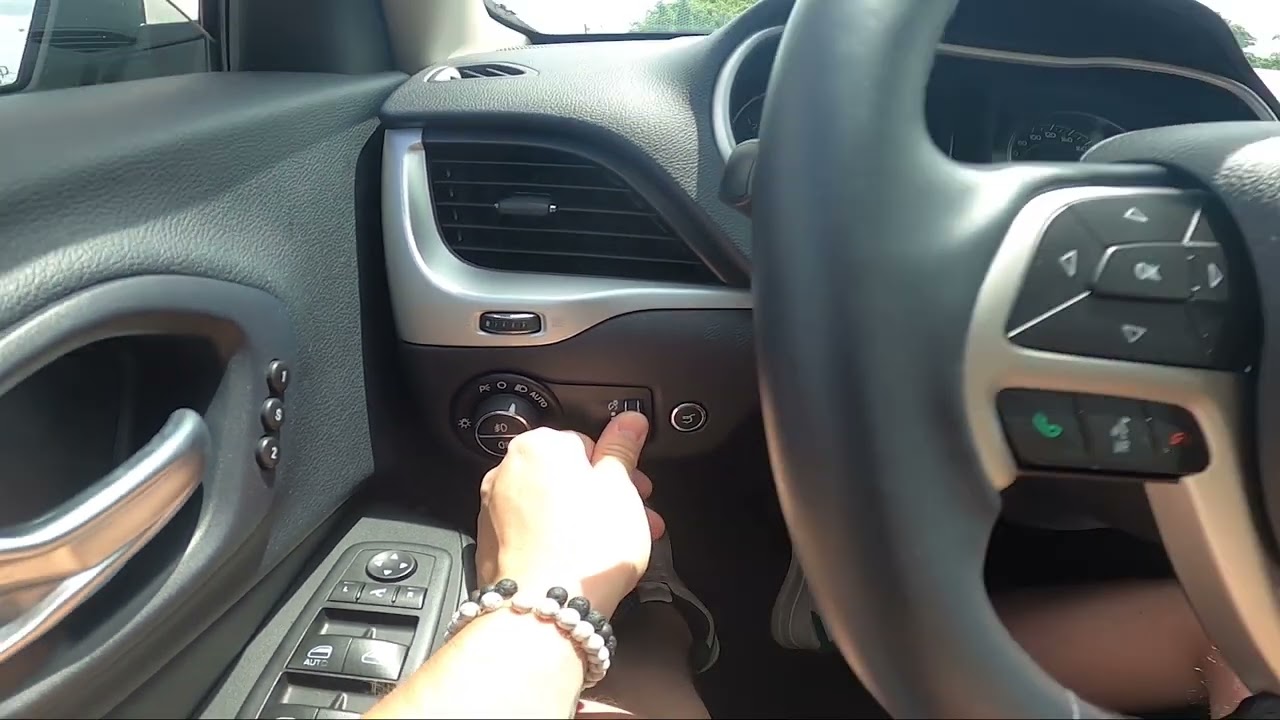
1. Using The Physical Dimmer Knob
Most Jeeps have a dimmer knob or switch near the headlight controls, usually to the left of the steering wheel. This knob adjusts both the instrument cluster and the screen brightness.
- Turn the knob down to decrease brightness.
- If you rotate the knob all the way up, it may activate the interior dome light. Avoid this for night driving.
Non-obvious insight: Some models allow you to set the screen to turn off completely with a long press or by scrolling past the lowest dimmer setting.
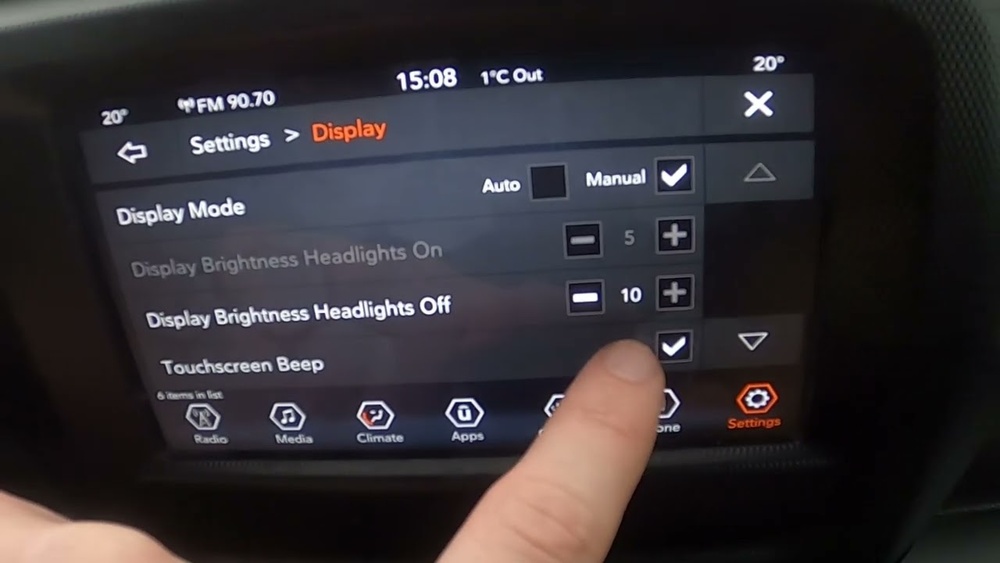
2. Adjusting Brightness Through Uconnect Settings
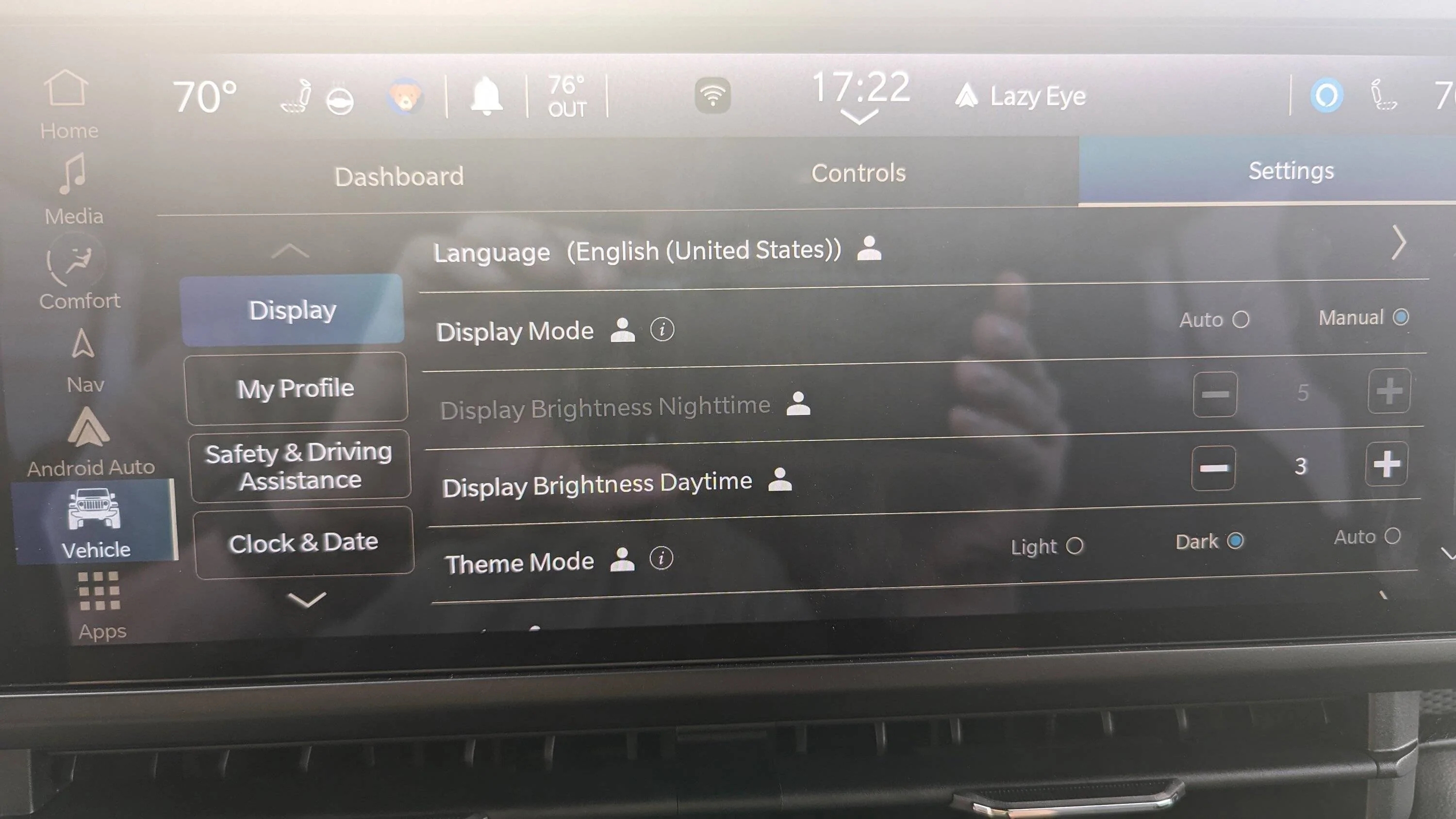
If your Jeep uses Uconnect 4 or Uconnect 5, you can fine-tune the brightness in the system menu.
- Tap the Settings button on your screen.
- Look for Display or Brightness.
- Use the slider or +/- buttons to reduce brightness.
- Some systems offer Auto mode, which adjusts brightness based on ambient light.
Example: On the 2022 Grand Cherokee L, go to Settings > Display > Brightness, then slide left to dim the screen.
3. Night Mode And Automatic Dimming
Many Jeeps have a night mode feature that automatically dims the screen when the headlights are on. To check or adjust:
- Go to Settings > Display > Mode
- Choose between Auto, Day, or Night.
Tip: If your screen stays bright at night, make sure the system is set to Auto mode, not locked in Day mode.
4. App-specific Brightness
If you use Android Auto or Apple CarPlay, their brightness can sometimes override your Jeep settings. Make sure your phone’s night mode is enabled for best results.
Troubleshooting Common Issues
Sometimes, the brightness doesn’t change as expected. Here’s what to check:
| Problem | Possible Cause | Solution |
|---|---|---|
| Screen won’t dim at night | Mode set to Day | Switch to Auto or Night mode |
| Dimmer knob not working | Software glitch | Restart vehicle; check settings |
| Brightness resets after restart | Profile not saved | Save settings to user profile |
Non-obvious insight: Some Jeeps link brightness settings to each driver profile. Always save your settings after adjusting, especially if multiple drivers use the vehicle.
Tips For Optimizing Screen Brightness
- Adjust for time of day: Lower the brightness at night to reduce eye strain.
- Avoid reflections: Move the screen angle if possible, or use a matte screen protector.
- Update your system: Software updates can fix brightness bugs. Check your dealer or Jeep’s official site for updates.
- Don’t rely only on auto mode: Sometimes, manual adjustment is needed for the best visibility.
Comparing Brightness Settings: Manual Vs. Auto
Choosing between manual and automatic brightness depends on your driving habits.
| Feature | Manual Mode | Auto Mode |
|---|---|---|
| Control Level | Full control | Automatic adjustment |
| Best For | Custom preferences | Changing light conditions |
| Common Issue | Forgetting to adjust | Over/under dimming in rare cases |
What To Do If Settings Don’t Work
If you still can’t adjust the brightness, try these steps:
- Restart your Jeep. Sometimes, electronics need a reset.
- Check for software updates. Go to the Jeep website or your dealer.
- Consult your manual. Look up your specific model and system.
- Visit a dealership. If all else fails, a certified technician can diagnose the issue.
Safety Considerations
A screen that is too bright or too dim can be dangerous. Night driving requires lower brightness to avoid distraction. During the day, increase brightness for clear visibility. Always adjust your screen before starting to drive, not while on the road.
Extra tip: Some states have laws about interior light brightness, especially for commercial vehicles. While most Jeep owners won’t be affected, it’s good to know for long trips or shared vehicles.
Frequently Asked Questions
How Do I Know If My Jeep Has Uconnect 4 Or 5?
Check the home screen for the system name, or consult your owner’s manual. Uconnect 5 usually has a more modern interface and supports wireless Android Auto and Apple CarPlay.
Why Does My Jeep Screen Stay Bright At Night?
It’s likely set to Day mode or the auto-brightness sensor is blocked. Try switching to Auto or Night mode in display settings.
Can I Turn The Jeep Screen Off Completely?
Yes. Most Jeeps allow you to turn off the display by holding the power button or using the settings menu.
The radio and other functions will keep working.
Does The Brightness Setting Affect Backup Camera Quality?
Reducing brightness can make the backup camera harder to see, especially in sunlight. Adjust brightness for a balance between comfort and visibility.
Where Can I Find More Help For My Jeep System?
Visit the official Jeep Owners Site for manuals, software updates, and support.
Adjusting your Jeep’s screen brightness doesn’t have to be confusing. By following the steps above, you can set up your display for safe and comfortable driving in any light condition.
Always check your specific model’s options, save your preferences, and update your software for the best experience.