Connecting your phone to a Jeep Wrangler 2017 can make your driving experience safer and more enjoyable. You can play music, use navigation, make hands-free calls, and send messages—all through your vehicle’s infotainment system.
But for first-time users, the process can be a bit confusing. This guide walks you through each step, explains common problems, and highlights extra features you might not know about.
Understanding Your Jeep Wrangler’s Connectivity Options
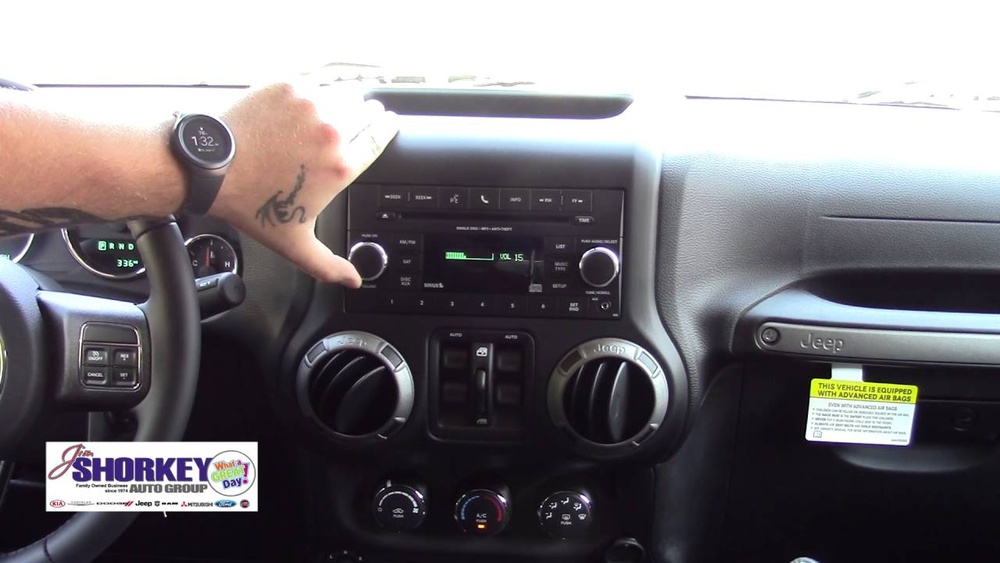
The 2017 Jeep Wrangler offers a few ways to connect your phone. The most popular is Bluetooth, but some models also allow USB or AUX connections. Knowing which system your Wrangler has is important.
Here’s a quick comparison:
| Connection Type | Main Use | Compatible With |
|---|---|---|
| Bluetooth | Hands-free, music, calls | Most smartphones |
| USB | Music playback, charging | iPhone, Android |
| AUX | Music playback only | Any device with headphone jack |
Most drivers prefer Bluetooth for its wireless convenience and extra features. Let’s focus on setting up Bluetooth, since it’s the most common and useful option.
Step-by-step: Connecting Your Phone Via Bluetooth
To connect your phone, you need the Uconnect system. This system is standard in most 2017 Wrangler trims. The process is similar for both iPhone and Android devices.
1. Prepare Your Phone
- Make sure Bluetooth is turned on.
- Set your phone to discoverable mode (usually automatic when Bluetooth is on).
2. Start The Jeep Wrangler
- Turn the key to the “On” position or start the engine.
- The Uconnect system will power up.
- Press the Phone button on your dashboard or touch screen.
- If no phone is paired, the system will prompt: “No phone connected. Would you like to pair a phone?”
- Select Yes.
4. Pair Your Devices
- On your phone, go to Bluetooth settings.
- Look for “Uconnect” in the available devices list.
- Tap to connect.
A code will appear on both the Uconnect screen and your phone. Make sure the codes match, then confirm on both devices.
5. Confirm And Sync
- Once paired, the Jeep may ask permission to access your contacts and messages. Allow this for full hands-free features.
- You should see a “Phone connected” message.
6. Test The Connection
- Try making a call or playing music to confirm everything works.
Here’s a quick look at what you should see:
| Step | Uconnect Display Message | Phone Screen Message |
|---|---|---|
| Pairing | Ready to pair | Uconnect available |
| Code confirmation | Does code match? | Pair with code? |
| Success | Phone connected | Connected to Uconnect |

Troubleshooting Common Issues
Sometimes, things don’t work as expected. Here’s how to handle the most frequent problems:
- Phone Not Found: Make sure both devices have Bluetooth turned on. Restart your phone and the Uconnect system if needed.
- Pairing Fails: Clear old devices from the Uconnect memory (Settings > Paired Devices > Remove). Then try again.
- Calls Not Working: Confirm you allowed access to contacts and calls during pairing.
- Audio Not Playing: Check your phone’s media output—sometimes it stays set to the phone speaker.
A non-obvious tip: Some phones require you to re-allow permissions after software updates. Check your phone’s Bluetooth settings if features stop working.
If you keep having trouble, try resetting your Uconnect system by holding the volume and tuner knob buttons together for about 10 seconds.
Extra Features And Useful Settings
Many drivers miss out on useful tools because they only use basic pairing. Here’s what else you can do once your phone is connected:
- Voice Commands: Press the voice button on your steering wheel to call contacts or play music hands-free.
- Text Messaging: Certain phones can send/receive messages through the Uconnect screen.
- Navigation: Use your phone’s GPS apps and stream directions through the car speakers.
For best results, keep your phone’s software updated. Some new features require recent iOS or Android versions.
Using Usb Or Aux As Alternatives
If your Wrangler’s Bluetooth isn’t working or you prefer a wired connection, you can use USB or AUX.
- USB: Plug your phone’s charging cable into the USB port, usually under the dashboard or center console. This allows music playback and charges your device at the same time.
- AUX: Use a 3.5mm cable to connect your phone’s headphone jack to the Jeep’s AUX input. This only plays audio—no calls or messages.
Here’s how USB and AUX compare to Bluetooth:
| Feature | Bluetooth | USB | AUX |
|---|---|---|---|
| Hands-free calls | Yes | No | No |
| Music control from dashboard | Yes | Yes | No |
| Charging | No | Yes | No |
| Sound quality | Good | Excellent | Good |
| Works with all phones | Most | Yes | Yes |
Safety Tips For Hands-free Use
Even with your phone connected, distractions are still possible. Follow these simple tips:
- Set up your device before driving.
- Use voice commands instead of touching the screen.
- Pull over if you need to enter addresses or send complex messages.
Some states have strict hands-free laws. Check local rules to avoid fines or penalties.
Frequently Asked Questions
Can I Connect More Than One Phone To My Jeep Wrangler 2017?
Yes, you can pair several phones, but only one can be active at a time. Switch between them in the Uconnect paired devices menu.
Why Won’t My Phone Connect After A Software Update?
Sometimes, updates change Bluetooth settings or permissions. Remove the Jeep from your phone’s Bluetooth list, restart both devices, and pair again.
Does The 2017 Jeep Wrangler Support Apple Carplay Or Android Auto?
No, the 2017 Wrangler does not support these features natively. They were added in later models.
You can, however, use Bluetooth or USB for music and calls.
How Do I Delete A Phone From The Uconnect System?
Go to the Uconnect Settings > Paired Devices, select the device you want to remove, and confirm deletion.
Where Can I Find More Details About My Jeep’s Uconnect Features?
Visit the official Jeep Uconnect page for manuals, compatibility lists, and troubleshooting guides.
Connecting your phone to the Jeep Wrangler 2017 is simple once you know the steps. With Bluetooth, you’ll enjoy hands-free calling, music, and more. If you run into problems, a quick reset or checking permissions usually solves them. Take advantage of extra features and always drive safely. With the right setup, your Wrangler’s infotainment system will keep you connected and focused on the road.