Setting up Jeep Uconnect can transform your driving experience. Whether you just bought a new Jeep or want to get more from your vehicle’s tech, Uconnect offers navigation, hands-free calls, and streaming music right from your dashboard. Many Jeep owners are surprised by how much easier daily driving becomes after setup. But getting started can be confusing, especially with different Uconnect versions and smartphone connections. This guide will help you set up Jeep Uconnect step by step, avoid common mistakes, and unlock useful features you might not know about.
What Is Jeep Uconnect?
Uconnect is Jeep’s official infotainment system. It lets you connect your smartphone, use navigation, control media, and adjust climate settings, all from one touchscreen. Jeep started using Uconnect in 2011, and it’s become more advanced with each generation. Most recent Jeep models—like the Wrangler, Grand Cherokee, and Gladiator—come with Uconnect as standard or optional equipment.
There are several Uconnect versions, including Uconnect 4, Uconnect 4C NAV, and the newer Uconnect 5. Features vary by model and year. Understanding your version is important—some older systems lack features like Apple CarPlay or Android Auto.
Preparing To Set Up Uconnect
Before you start, gather:
- Your vehicle keys (car must be in park)
- Your smartphone (iPhone or Android)
- Your Uconnect system PIN (for pairing)
- A strong Wi-Fi or cellular connection (for app setup and updates)
Check your Jeep’s manual to confirm which Uconnect version you have. This detail helps you know what to expect during setup.

Step-by-step Setup Guide
1. Power On And Access The Uconnect System
Start your Jeep and let the Uconnect touchscreen boot up. You should see the home menu. Tap “Phone” or “Settings” to start pairing.
2. Pair Your Smartphone With Bluetooth
- On your Uconnect screen, select Phone > Add Device.
- On your phone, turn on Bluetooth and search for new devices.
- Select your Jeep’s Uconnect from the list.
- A PIN will appear on both screens. Confirm the numbers match, then accept.
- Allow access to contacts and messages if prompted.
Pairing usually takes less than two minutes. If you have issues, restart both your phone and the Uconnect system.
3. Connect Apple Carplay Or Android Auto
If your Uconnect version supports Apple CarPlay or Android Auto:
- Apple CarPlay: Plug your iPhone into the USB port. CarPlay should launch automatically. If not, open the CarPlay app from the Uconnect menu.
- Android Auto: Plug your Android phone into USB. Follow prompts to allow access.
Some Uconnect systems support wireless CarPlay and Android Auto, but older models may need a cable.
4. Set Up Uconnect App
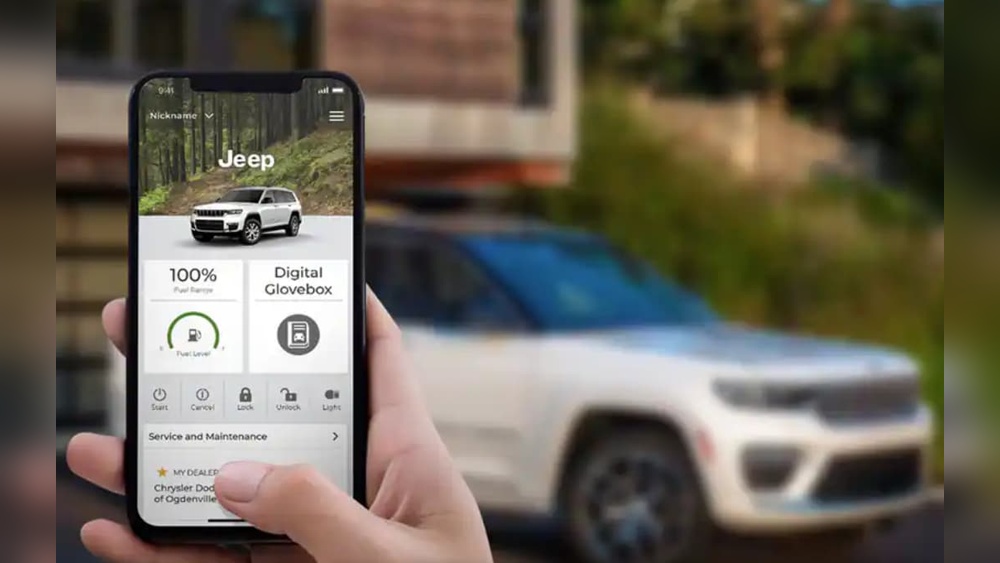
Download the Uconnect app from the App Store or Google Play. The app lets you:
- Lock/unlock your Jeep remotely
- Start your engine (if supported)
- Send addresses to your navigation system
After downloading, create an account and link your Jeep using the VIN (Vehicle Identification Number).
5. Personalize Your Uconnect Settings
Inside the Settings menu, adjust options like:
- Audio preferences (bass, treble, balance)
- Navigation preferences (map view, guidance voice)
- Driver profiles (for seat, mirror, and climate memory)
Customizing these will make your daily drives smoother and more comfortable.
Comparing Uconnect Versions
Knowing your system’s version helps you understand its capabilities. Here’s a quick comparison:
| Feature | Uconnect 4 | Uconnect 5 |
|---|---|---|
| Screen Size | 7-8.4 inch | 8.4-10.1 inch |
| Apple CarPlay/Android Auto | Wired | Wireless |
| Voice Control | Basic | Advanced, Natural Language |
| Navigation | Optional | Standard on most trims |
Most 2021 and newer Jeeps use Uconnect 5, which is faster and easier to use.
Common Setup Problems And Solutions
Many beginners face issues when setting up Uconnect. Here’s how to solve the most common ones:
- Bluetooth not pairing: Make sure both your phone and Uconnect are visible and not already connected to another device. Delete old devices if needed.
- App features missing: Some features require a paid subscription or a newer Jeep model. Check your vehicle’s compatibility before troubleshooting.
- Navigation not working: If your Jeep lacks built-in navigation, you’ll need to use CarPlay or Android Auto for map apps.
Here’s a quick look at common errors and fixes:
| Issue | Possible Cause | Quick Solution |
|---|---|---|
| No Bluetooth Connection | Outdated software | Update Uconnect and phone OS |
| App won’t connect | Incorrect VIN entry | Double-check VIN in app |
| No CarPlay/Android Auto | Unsupported Uconnect version | Check system compatibility |
Useful Tips For Better Uconnect Experience
- Update your Uconnect system regularly. Updates fix bugs and add new features. Visit your dealer or use USB updates if your system allows.
- Create different driver profiles if multiple people use your Jeep. Each can have their own seat, climate, and radio settings.
- Use the Do Not Disturb feature to block calls and texts while driving—safety first.
One non-obvious insight: Uconnect’s voice commands improve with use. The system “learns” your speech over time, making hands-free driving smoother.
Another tip: If you have multiple Bluetooth devices, set your main phone as “favorite” in the Uconnect Bluetooth menu. This prevents unwanted connections.

When To Visit Your Dealer
Some advanced Uconnect settings, like software upgrades or fixing system errors, may require a dealership visit. If your screen freezes or features disappear after an update, don’t try to fix it yourself—Jeep technicians have special tools to reset the system safely. For more details about Uconnect’s technical background, visit the official Wikipedia page.
Frequently Asked Questions
How Do I Reset My Uconnect System?
To reset Uconnect, hold the volume and tune buttons together for 10-15 seconds. The screen will go black and restart. This solves most minor glitches.
Some Uconnect versions allow you to add navigation as a paid upgrade. Others require factory-installed hardware. If not possible, use smartphone navigation with CarPlay or Android Auto.
Why Is My Phone Not Connecting To Uconnect?
Check that Bluetooth is on and not connected to another device. Remove old pairings and try again. Updating your phone’s software often solves connection issues.
Is Uconnect Free To Use?
Basic features like Bluetooth and media are free. Remote start, location, and advanced security features may require a subscription after a trial period.
Does Uconnect Work With All Smartphones?
Uconnect supports most iPhones and Android phones from the last five years. Very old phones may have compatibility problems with the latest Uconnect systems.
Setting up Jeep Uconnect can seem tricky at first, but most owners find the process smooth with the right steps. With your system set up, you’ll enjoy safer, more connected driving every day.