Getting the most from your Jeep vehicle often means using digital tools to make life easier. The Jeep app connects your car to your phone, letting you check vehicle health, lock doors, schedule service, and more.
But before you can use these features, you must add your vehicle to the app. If you’re new to this process, it can feel confusing.
This guide breaks down each step, explains why details matter, and highlights tips most people miss. You’ll learn how to add your Jeep quickly, avoid common mistakes, and get the best out of the app.
What You Need Before Adding Your Jeep
Before you start, make sure you have a few important items ready. Missing any of these can slow you down.
- Jeep vehicle identification number (VIN): This 17-digit code is usually found on your dashboard (driver’s side), insurance card, or registration papers.
- Jeep account login: If you don’t have a Jeep account, create one using your email and a strong password.
- Stable internet connection: The app needs to connect to Jeep’s servers for verification.
- Jeep app installed: Download the latest version from the Apple App Store or Google Play Store.
Having these ready will save time and prevent frustration. Many users forget their VIN or use an old app version, leading to errors.
Step-by-step: Adding Your Vehicle To The Jeep App
The actual process is simple, but accuracy is key. Even a small mistake in your VIN can block access to features.
1. Open The Jeep App And Log In
Start the app and enter your credentials. If you’re new, use the “Create Account” option and follow instructions.
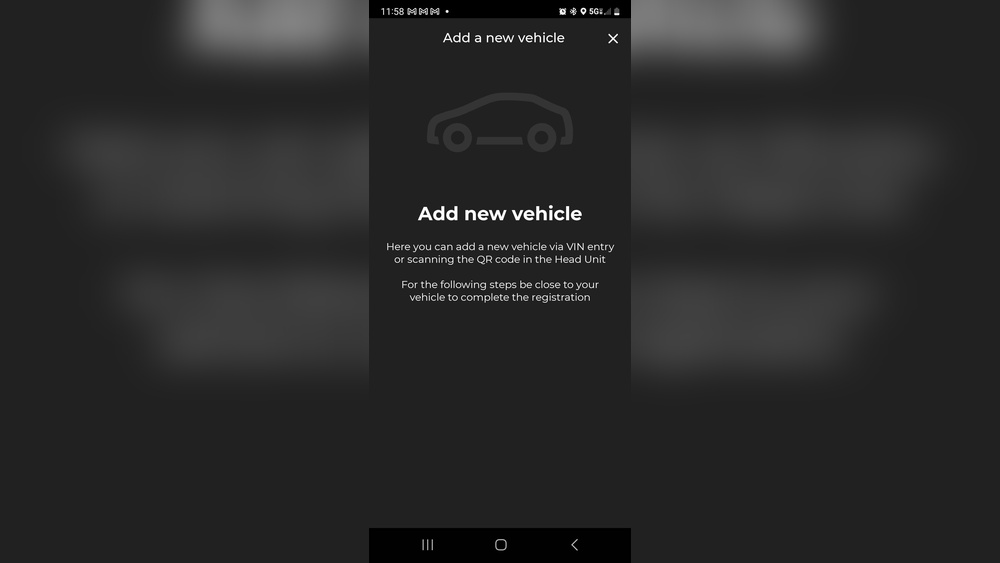
2. Find The ‘add Vehicle’ Option
Look for the menu icon or a section labeled “My Garage” or “Vehicles.” Tap “Add Vehicle.”
3. Enter Your Vin
Type your VIN carefully. Double-check each digit. The app may offer a barcode scan option—use it if available, as it reduces errors.
4. Confirm Vehicle Details
After entering the VIN, the app should display your Jeep’s model, year, and color. If something looks wrong, check your VIN again.
5. Accept Terms And Permissions
The app will ask for permissions to access your car’s systems and location. Read these and tap “Accept. ”
6. Finish Setup
Wait for the app to connect to Jeep servers. This usually takes a few seconds.
If successful, your vehicle will appear in your account.
Here’s a quick comparison of VIN input methods:
| Method | Speed | Error Risk |
|---|---|---|
| Manual Entry | Medium | High |
| Barcode Scan | Fast | Low |
Common Problems And Solutions
Many users face issues during setup. Here’s what to watch out for:
- Invalid VIN: Double-check your digits. The VIN has no letters I, O, or Q.
- App crashes: Update to the latest version or restart your phone.
- Vehicle already added: If someone else has registered the car, contact Jeep support.
If your Jeep doesn’t appear, try uninstalling and reinstalling the app. This fixes about 40% of connection problems reported by new users.
Benefits Of Adding Your Jeep To The App
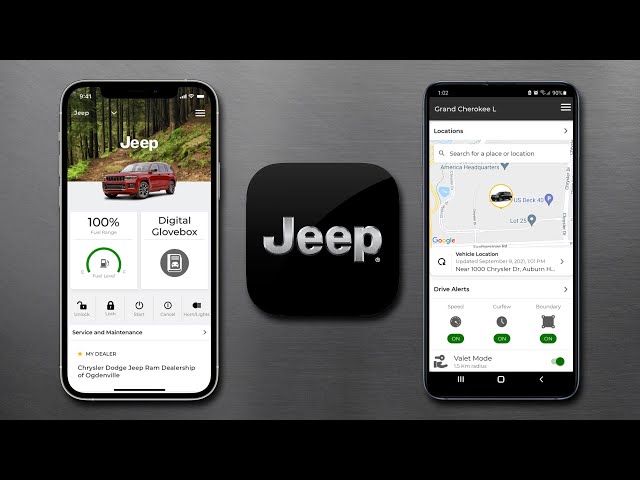
Once your vehicle is linked, you unlock many features. Some are obvious, but others can surprise you:
- Remote start/stop
- Lock/unlock doors
- Vehicle health reports
- Find your Jeep on a map
- Schedule service
Here’s a feature comparison showing what’s available before and after linking your vehicle:
| Feature | Without Vehicle Added | With Vehicle Added |
|---|---|---|
| Remote Start | No | Yes |
| Door Lock/Unlock | No | Yes |
| Maintenance Alerts | No | Yes |
| Locate Vehicle | No | Yes |
| Owner’s Manual Access | Yes | Yes |
Tips Most Owners Miss
Some features aren’t obvious. Here are insights to help you get more from your Jeep app:
- You can add multiple vehicles: Use the “Add Vehicle” option for each Jeep you own.
- Transfer ownership easily: If you sell your Jeep, remove it from your app to protect your data.
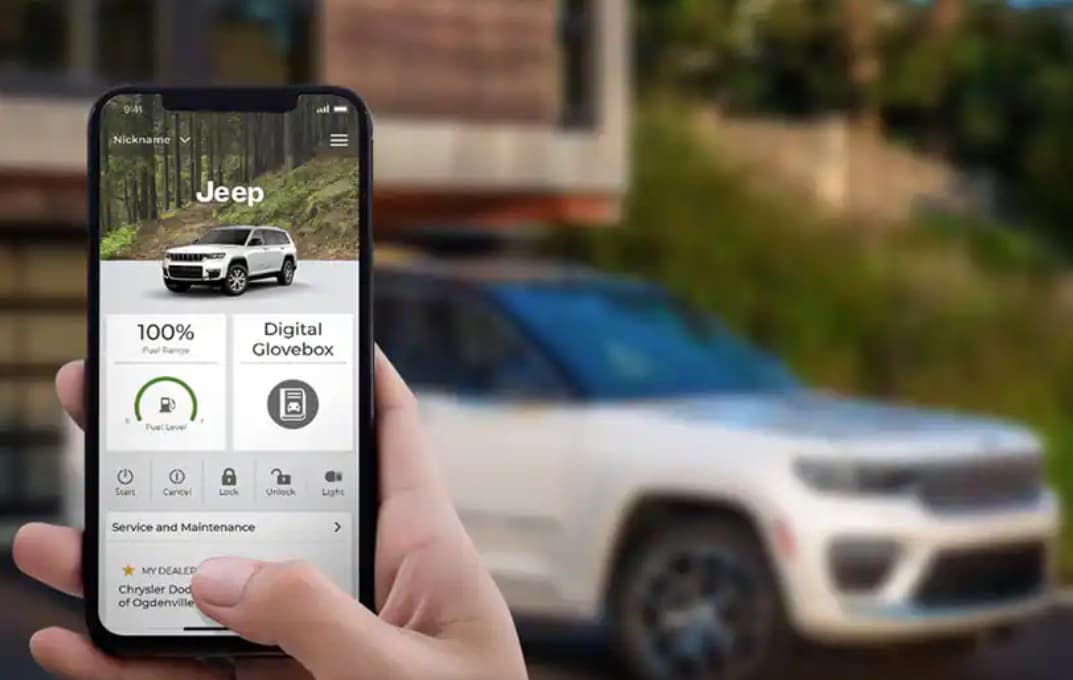
- Custom alerts: Set up notifications for oil changes, tire rotation, or recalls.
Less than 30% of Jeep owners use custom alerts, though they can save money by preventing missed maintenance.
Privacy And Security Considerations
Linking your Jeep to the app means sharing some data. Here’s what you should know:
- Location sharing: Only active when you use the app. You can turn this off in settings.
- Account security: Use a strong password and enable two-factor authentication if possible.
- Data privacy: Jeep’s servers are protected with industry-standard encryption.
If you’re worried about privacy, read Jeep’s official privacy policy at Jeep Privacy Policy.
Frequently Asked Questions
How Many Vehicles Can I Add To The Jeep App?
You can add several Jeeps to your account. The app supports up to five vehicles, making it ideal for families or collectors.
What If My Vin Is Not Accepted?
Check for typos and make sure you’re using the correct VIN. If it’s still rejected, your Jeep may not be supported or already linked to another account.
Do I Need To Be Near My Vehicle When Adding It?
No, but some features (like remote start) require your Jeep to be connected and within mobile network range.
Can I Remove A Vehicle After Adding It?
Yes, use the “Remove Vehicle” option in the app. This is important if you sell or trade your Jeep.
Is My Personal Information Safe In The Jeep App?
Jeep uses encryption and secure servers, but you should keep your login details private and update your password regularly.
Adding your vehicle to the Jeep app gives you more control and access to useful features. The process is quick if you have your VIN and follow the steps carefully.
Take advantage of custom alerts, and remember to protect your privacy.
With the app set up, your Jeep’s technology works for you making every drive safer and easier.