Turning on the screen in your Jeep Cherokee is more than just a simple action. The screen is your gateway to navigation, entertainment, climate control, and vehicle settings.
Whether you drive an older model or a modern version with a Uconnect system, knowing how to activate and troubleshoot the screen can save you frustration and time.
Many new owners or renters feel confused when the screen doesn’t light up immediately, especially if they are unfamiliar with Jeep’s controls. This guide explains everything you need to know, from basic steps to useful tips, so you can use your Jeep Cherokee’s screen confidently.
Understanding The Jeep Cherokee Screen
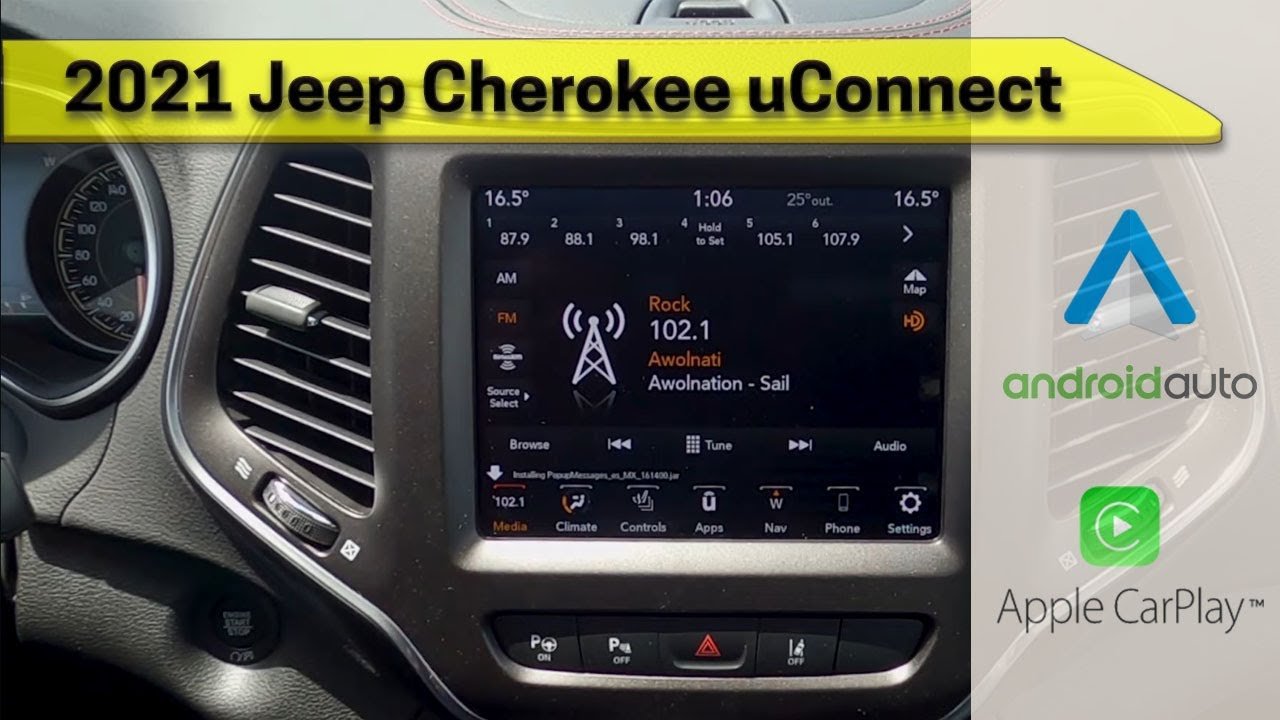
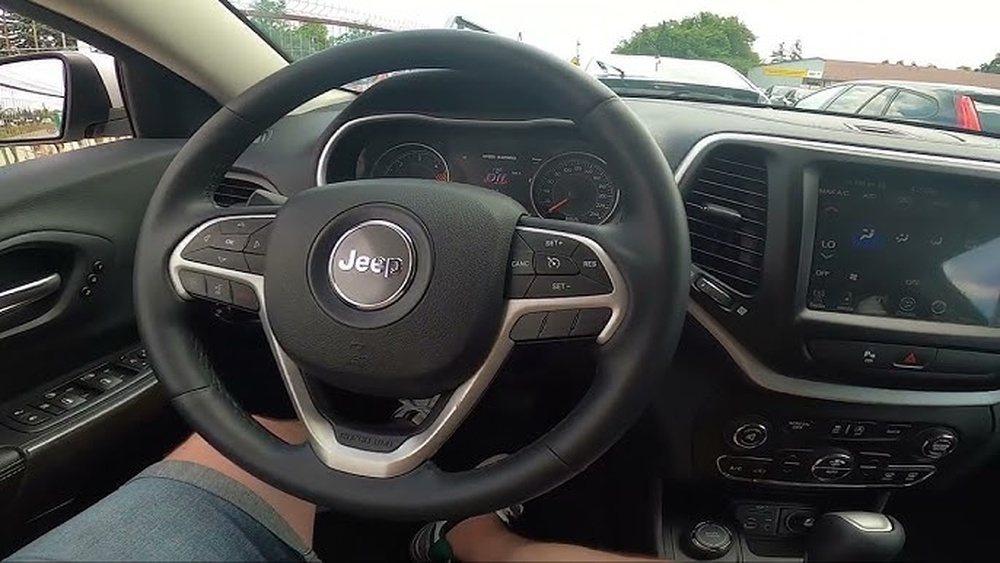
The Jeep Cherokee uses a touchscreen system, commonly called Uconnect. Most models since 2014 have this system, but older versions may use a simpler display. The main screen controls audio, navigation, phone, and climate. It also shows backup camera and vehicle alerts.
Here’s a comparison of screen sizes in recent Jeep Cherokee models:
| Model Year | Base Screen Size | Premium Screen Size |
|---|---|---|
| 2014-2018 | 5.0 inch | 8.4 inch |
| 2019-2021 | 7.0 inch | 8.4 inch |
| 2022+ | 7.0 inch | 10.1 inch |
Knowing your screen size helps you locate buttons and settings, since layouts can change slightly.
How To Turn On Screen In Jeep Cherokee
For most drivers, turning on the screen is automatic. But sometimes, extra steps are needed. Follow these clear steps:
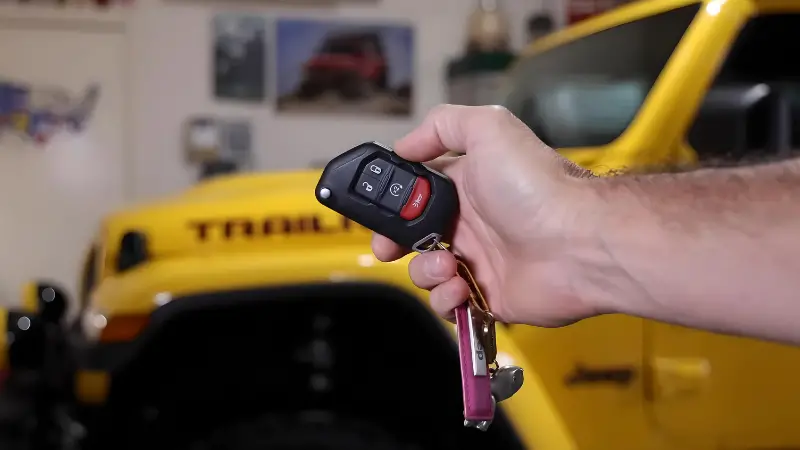
- Insert the key fob or have it inside the car.
- Press the Start/Stop button or turn the ignition to “On” (for older models with a key).
- Wait for the screen to light up. It usually takes 2–5 seconds.
- If the screen stays dark, check if the brightness knob (located near the headlight switch) is turned down. Adjust it upward.
- Tap the power button on the screen or console if available. Not all models have this, but some do.
- For Uconnect systems, pressing any main control (radio, climate, phone) can activate the screen.
Here’s a quick comparison of screen activation methods in different Jeep Cherokee generations:
| Generation | Activation Method | Extra Steps |
|---|---|---|
| 2010-2013 | Ignition On | Manual brightness adjustment |
| 2014-2021 | Start button/Ignition | Tap screen or power button |
| 2022+ | Push-to-start | Voice activation possible |
If your screen doesn’t turn on, try switching the vehicle off and on again. Sometimes, a quick restart fixes minor glitches.
Common Problems And Solutions
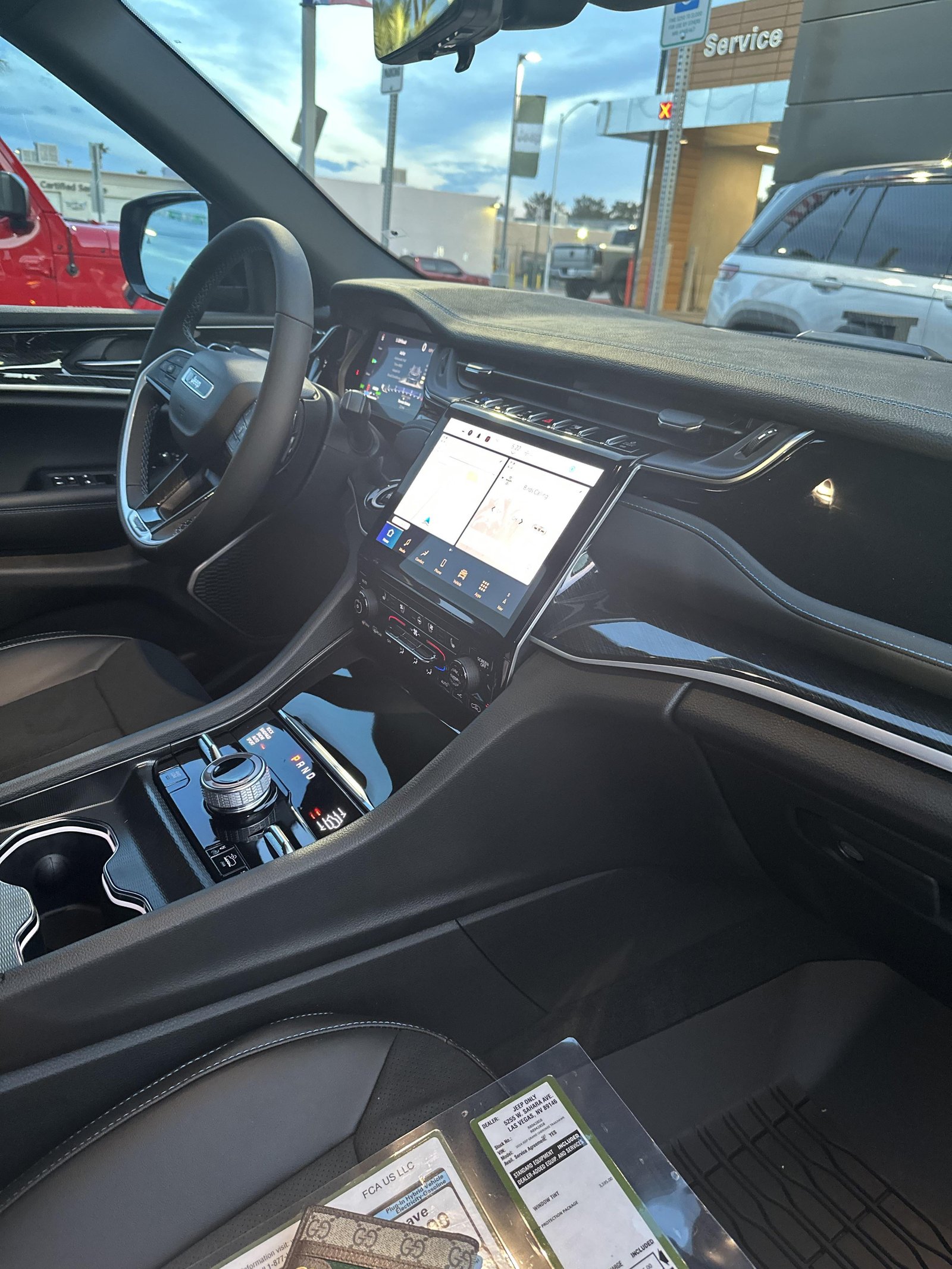
Even with modern technology, problems can happen. The screen may fail to turn on due to several reasons. Here are the most common issues and how to solve them:
- Dead Battery: If your battery is low, the screen may not power up. Check battery voltage (12.6V is ideal when parked).
- Blown Fuse: Each screen has a dedicated fuse. Check your owner’s manual for the fuse location and replace if needed.
- Software Freeze: Uconnect systems can freeze after updates. Hold the power button for 10 seconds to force a reboot.
- Loose Connections: Sometimes, connectors under the dashboard get loose, especially after repairs. Secure all cables.
- Brightness Set to Zero: Rotate the brightness knob fully to the right to check if that’s the issue.
Here’s a quick table showing possible causes and solutions:
| Problem | Likely Cause | Quick Fix |
|---|---|---|
| Screen won’t turn on | Battery or fuse | Check battery, replace fuse |
| Screen flickers | Loose connection | Secure cables |
| Blank screen after update | Software freeze | Force reboot |
| Dim screen | Brightness setting | Adjust knob |
One insight many miss: If your screen is blank but audio still works, it’s likely a software or brightness issue—not a complete screen failure.
Expert Tips For Better Use
Most Jeep Cherokee owners only use the screen for basic functions. But there are ways to make your experience smoother:
- Update software regularly: Uconnect updates fix bugs and add new features. You can update via Wi-Fi or USB.
- Clean the screen gently: Use a soft, damp microfiber cloth. Avoid strong cleaners which may damage the touchscreen.
- Learn shortcut gestures: Some models allow swiping or tapping corners for quick access to menus.
- Voice activation: Newer Cherokees let you turn on the screen or access functions by saying “Hey Jeep” or “Uconnect.”
Another tip: If you rent a Jeep Cherokee, ask for a quick demo from staff. Many rental screens are set to minimum brightness for privacy, which can confuse new users.
When To Seek Professional Help
If your screen doesn’t respond after trying the steps above, it’s time to get expert help. Signs you need a technician:
- Screen stays black after reboot.
- No sound or system response.
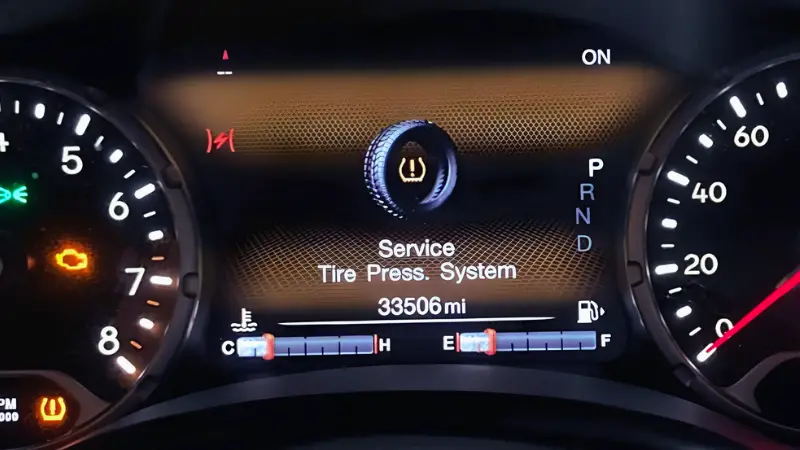
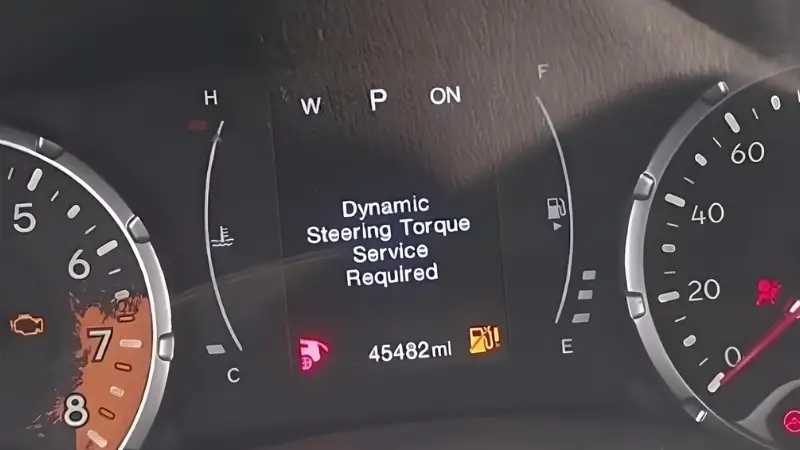
- Error messages show on startup.
- Screen shows lines or glitches.
Dealers can diagnose hardware and software issues. Repairs may be covered by warranty if your vehicle is under five years old. For more details on Uconnect troubleshooting, visit the official Jeep Uconnect support.
Frequently Asked Questions
How Do I Turn On The Screen If My Jeep Cherokee Has A Key Ignition?
Insert the key, turn it to the “On” position. The screen should light up within a few seconds.
If not, adjust the brightness knob or check the fuse.
Why Does My Screen Stay Dark After Starting The Car?
Possible reasons include a low battery, blown fuse, or brightness set to minimum. Try restarting the car and adjusting the brightness knob.
If it still doesn’t work, check for error messages.
Can I Turn On The Screen Without Starting The Engine?
Yes, in most models, turning the ignition to “Accessory” mode will power the screen. For push-to-start vehicles, press the start button once without pressing the brake pedal.
How Often Should I Update My Jeep Cherokee’s Screen Software?
It’s best to check for updates every six months. Updates fix bugs and add new features.
You can do this via Wi-Fi or by visiting your dealer.
What Should I Do If My Screen Freezes Or Becomes Unresponsive?
Try holding the power button for 10 15 seconds to force a reboot. If this doesn’t work, turn off the car and restart. Persistent issues may require a dealer visit.
Turning on your Jeep Cherokee’s screen is simple for most drivers, but knowing extra steps and tips can make your experience smoother and safer.
With these practical instructions, you’ll be ready to use every feature confidently, avoid common mistakes, and solve basic problems yourself.
If you ever face complex issues, don’t hesitate to seek expert help your Jeep’s screen is too important to leave unresolved.