Getting your Uconnect system working in your Jeep Compass can completely change how you drive. With Uconnect, you get easy access to navigation, music, hands-free calls, and much more—all on a touchscreen right in your dashboard. But for many new Jeep owners, the first setup can seem confusing. If you want to use features like Apple CarPlay, Android Auto, or in-car Wi-Fi, you need to set up Uconnect properly. This guide will walk you through every step, share useful tips, and answer questions that beginners often have.
What Is Uconnect And Why Does It Matter?
Uconnect is the main infotainment system in the Jeep Compass. It connects your car, your smartphone, and the internet. With Uconnect, you can:
- Make hands-free calls
- Stream music from your phone
- Use GPS navigation
- Control climate and vehicle settings
- Access emergency help
Studies show that drivers spend an average of 52 minutes a day in their cars. A reliable system like Uconnect makes that time safer and more enjoyable. If you don’t set it up fully, you’ll miss out on features that make your drive easier.
Preparing For Uconnect Setup
Before you start, make sure you have:
- Your Jeep Compass (2017 model or newer for most features)
- A smartphone with Bluetooth (iPhone or Android)
- The latest Uconnect app (download from App Store or Google Play)
- Your vehicle parked safely with the engine running or in accessory mode
Check your car’s manual to see which Uconnect version you have. This affects which features are available.
For example, Uconnect 5 supports wireless Apple CarPlay, while older versions may need a USB cable.
Step-by-step: Initial Uconnect Setup
Getting started is simple if you follow each step.
1. Turn On Your Jeep Compass
Press the Start button or turn the key. The Uconnect touchscreen will light up.
Wait for the system to boot up (usually 10 20 seconds).
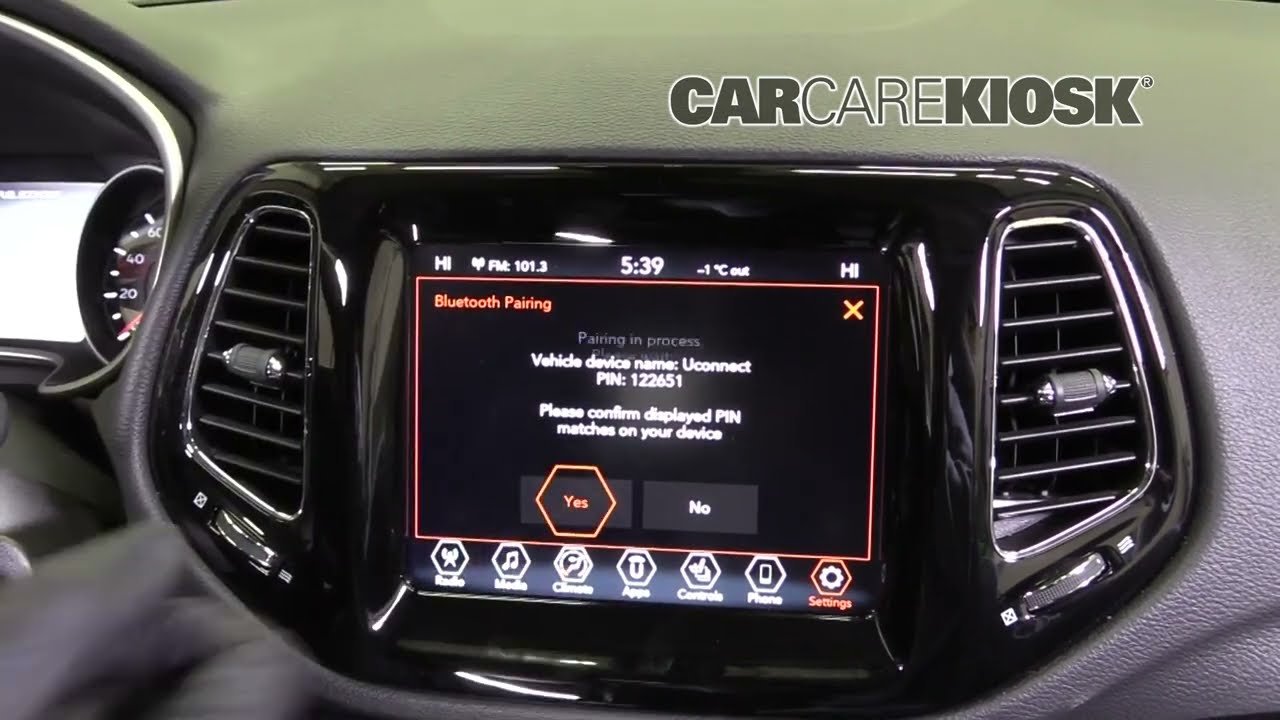
2. Pair Your Smartphone
Bluetooth pairing connects your phone to Uconnect.
- On the Uconnect screen, tap Phone
- Tap Add Device or Pair Device
- On your phone, turn on Bluetooth and select “Uconnect”
- A code will appear on both screens; confirm it matches
Once paired, your phonebook and recent calls will sync. You can now make hands-free calls.
3. Set Up Wi-fi And Internet
Some Jeep Compass models offer Wi-Fi Hotspot support. To set it up:
- Tap Apps > Wi-Fi Hotspot
- Follow prompts to create a hotspot name and password
- Connect your devices using this info
You may need a subscription for data. This feature is great for long drives with family or when you need to work on the go.
4. Enable Apple Carplay Or Android Auto
For Apple CarPlay:
- Plug your iPhone into the USB port (or connect wirelessly if supported)
- Tap the CarPlay icon on the Uconnect screen
- Accept prompts on your phone
For Android Auto:
- Plug in your Android device with a USB cable
- Tap the Android Auto icon
- Accept permissions on your phone
Now you can use apps like Maps, Spotify, and Messages right from the Uconnect display.
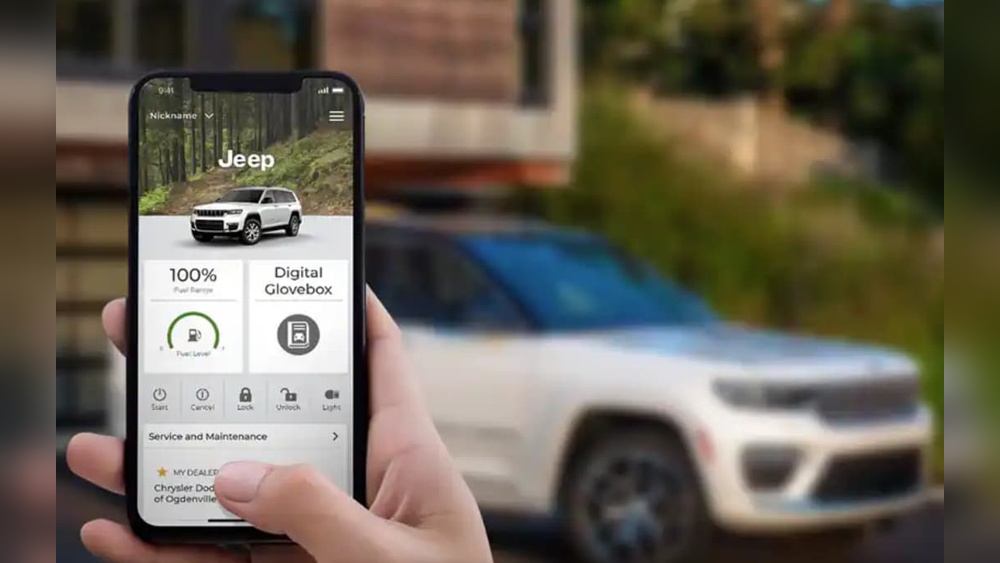
5. Download And Connect The Uconnect App
The Uconnect app adds features like remote start, vehicle location, and health reports.
- Download the app from the App Store or Google Play
- Create an account with your email and Vehicle Identification Number (VIN)
- Follow prompts to finish setup and link your Jeep
Not all features are available in every country, but basic controls work in most areas.
Common Issues And How To Fix Them
Even with simple steps, problems can happen. Here are some common issues and what to do:
- Bluetooth won’t connect: Turn Bluetooth off and on for both car and phone. Delete old Uconnect connections from your phone and try again.
- Apple CarPlay/Android Auto won’t start: Use original USB cables. Check that your phone’s OS is up to date. Restart your phone and the Uconnect system.
- Wi-Fi Hotspot not working: Make sure your subscription is active. Check data limits if it suddenly stops.
- Uconnect app can’t find car: Confirm your VIN is entered correctly. Try re-logging into the app.
A less-known tip: If your Uconnect screen freezes, press and hold the volume and tuner buttons for about 10 seconds to reset it. This works for most Jeep Compass models.
Uconnect Features At A Glance
Here’s a quick comparison of what you get with different Uconnect versions in Jeep Compass:
| Feature | Uconnect 4 | Uconnect 5 |
|---|---|---|
| Apple CarPlay/Android Auto | Wired Only | Wireless & Wired |
| Wi-Fi Hotspot | Optional | Standard |
| Touchscreen Size | 7″ or 8.4″ | 10.1″ |
| Voice Recognition | Basic | Advanced |
Real-world Example: First-time Uconnect Setup
Let’s say you just bought a 2022 Jeep Compass. You want to pair your iPhone and use navigation. Here’s how it works in practice:
- Turn on your car, open the Uconnect screen, and go to Phone
- Pair your iPhone using Bluetooth as described earlier
- Plug your phone into the USB port; Apple CarPlay will appear
- Open Maps on the Uconnect display and set your destination
A common mistake is forgetting to plug in the phone, which is needed for first-time Apple CarPlay use on many models.

Uconnect Vs. Other Infotainment Systems
How does Uconnect compare to other brands? Here’s a quick look:
| System | Supported Apps | Voice Assistant | Wireless CarPlay |
|---|---|---|---|
| Uconnect 5 | Wide | Yes | Yes |
| Ford SYNC 4 | Wide | Yes | Yes |
| Toyota Entune | Limited | Yes | No |
Uconnect is often rated for its easy interface and quick response. A less obvious advantage: Uconnect updates can often be done over-the-air, so you don’t need to visit a dealership.
Practical Tips For A Smooth Uconnect Experience
- Update your software: Check for system updates every few months under Settings. Updates can fix bugs and add features.
- Keep your phone charged: Using CarPlay or Android Auto drains battery quickly. Use a high-quality USB cable.
- Personalize your home screen: Drag and drop your favorite apps for faster access.
- Set privacy options: You can limit data sharing in the Settings menu for better privacy.
If you ever sell your Jeep Compass, remember to reset the Uconnect system to remove your personal information.
For more details about Uconnect features and supported devices, visit the official Jeep Uconnect site.
Frequently Asked Questions
How Do I Reset The Uconnect System In My Jeep Compass?
Hold the volume and tuner knobs together for about 10 seconds. The screen will reboot. This fixes most freezing or unresponsive issues.
Is Uconnect Free To Use?
Basic functions like Bluetooth and USB are free. Wi-Fi Hotspot and some remote services may need a paid subscription after a trial period.
Can I Install Uconnect Updates Myself?
Yes, many updates can be done over the air using your car’s Wi-Fi. Go to Settings > System Information > Check for Updates.
What Phones Are Compatible With Uconnect?
Most iPhones (iOS 10 or newer) and Android phones (Android 6.0 or newer) work with Uconnect for Bluetooth, CarPlay, and Android Auto.
Why Can’t I Access All Features In My Country?
Some functions, like emergency assist or Wi-Fi, depend on local laws and network coverage. Check with your Jeep dealer for details.
Setting up Uconnect in your Jeep Compass only takes a few minutes, but it can make every drive safer and more fun. Take your time with each step, update your system often, and enjoy all the smart features your Jeep has to offer.