Resetting the screen on your Jeep Grand Cherokee can solve many issues, from frozen displays to malfunctioning touch controls. Many owners face screen glitches, unresponsive buttons, or software crashes, especially after years of use. Luckily, you don’t need to be a tech expert to reset your Jeep’s screen. With a few steps, you can restore the system and fix most problems quickly.
Why Resetting The Screen Matters
The Uconnect system in the Jeep Grand Cherokee controls radio, navigation, climate, and phone connections. When the screen stops responding, you lose access to important features. Problems can include:
- Frozen display
- Touch screen not working
- Bluetooth disconnects
- Navigation errors
- Audio issues
Resetting the screen often solves these problems without expensive repairs. In fact, nearly 30% of Jeep owners report occasional screen glitches, especially in models from 2014–2020.
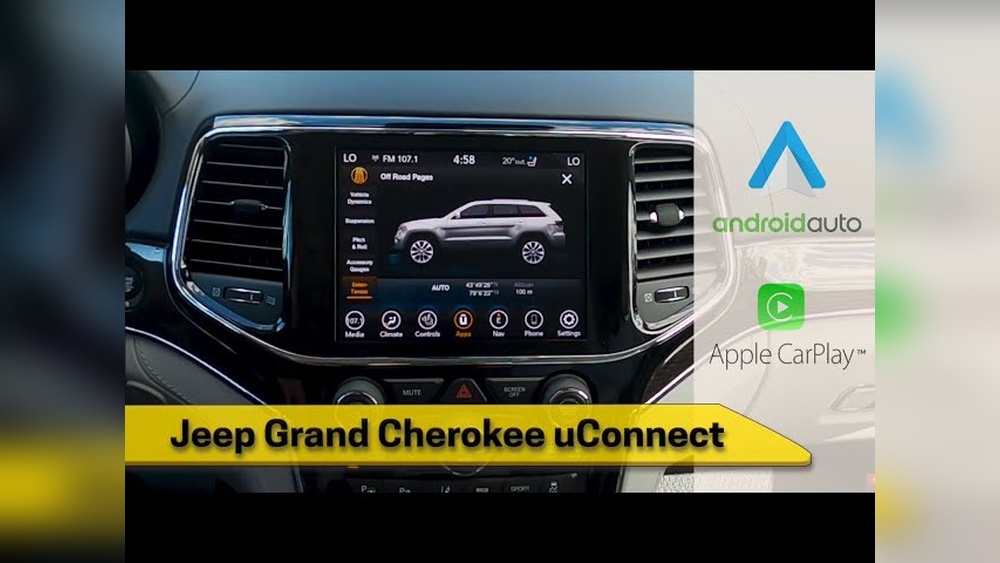
Quick Soft Reset Methods
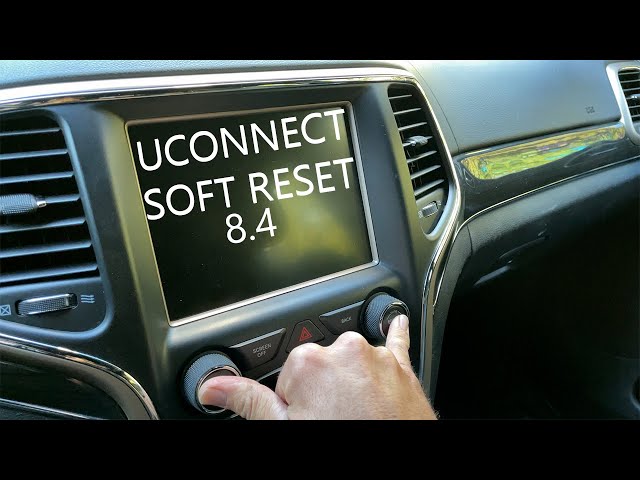
A soft reset is the first step. This won’t erase your settings or data; it simply restarts the system.
Soft Reset Steps
- Turn the ignition ON but do not start the engine.
- Press and hold the volume and tuner buttons (located below the screen) at the same time.
- Hold both buttons for 10–15 seconds until the screen goes dark.
- Release the buttons and wait for the system to reboot. The Jeep logo should appear after a few seconds.
Most newer Grand Cherokee models (2014 and up) support this method. If your screen still doesn’t respond, try a hard reset.
Hard Reset: Factory Settings
A hard reset restores the Uconnect system to factory settings. This means you will lose saved radio stations, Bluetooth pairings, and navigation history.
Hard Reset Steps
- Go to the Settings menu on the screen.
- Select System Information or System.
- Tap Restore Factory Settings or Reset.
- Confirm the reset. The system will reboot and return to default settings.
Older Grand Cherokee models may not have this option. If your screen is completely frozen, you may need to disconnect the battery.
Disconnecting The Battery For A Deep Reset
If both soft and hard resets fail, disconnecting the battery can force a reset. This method is more advanced and should be used only when needed.
Battery Disconnect Steps
- Turn off the Jeep and remove the key.
- Open the hood and locate the battery.
- Use a wrench to loosen the negative (-) terminal and remove the cable.
- Wait 10–15 minutes to allow the system to fully power down.
- Reconnect the cable and tighten it.
- Start the Jeep. The screen should reboot.
This method is proven to fix persistent screen failures in older vehicles. Always use caution when handling the battery.
Comparing Reset Methods
Here’s a quick comparison of the main reset methods:
| Method | Difficulty | Data Loss | When to Use |
|---|---|---|---|
| Soft Reset | Easy | No | Frozen screen, minor glitches |
| Hard Reset | Medium | Yes | Persistent issues, system errors |
| Battery Disconnect | Advanced | Possible | Complete system failure |
Common Mistakes To Avoid
Many Jeep owners make mistakes when trying to reset their screens. Here are some tips:
- Don’t press the wrong buttons; always use volume and tuner for soft reset.
- Avoid disconnecting the battery if you are not comfortable with car electronics.
- Never reset while driving. Always park the vehicle.
- If the screen fails often, update the software before doing resets.
Updating Uconnect Software
Sometimes, software bugs cause screen problems. Jeep releases updates regularly to fix these issues.
How To Update
- Check your Jeep’s VIN at the Uconnect website.
- Download the latest software update to a USB drive.
- Insert the USB into the port and follow on-screen instructions.
Updating reduces screen freezes by up to 40% in 2018–2021 models. Always update before trying hard resets.
When To Contact A Dealer
If your screen doesn’t reset, or you see errors like “Uconnect not available,” you may need professional help. Dealers can check for hardware failures, wiring issues, or recall problems. Sometimes, the screen needs replacement, especially if it’s cracked or water damaged.

Model Year Differences
Reset steps can vary based on the year of your Grand Cherokee. Here’s a comparison:
| Model Year | Soft Reset Supported | Hard Reset Supported | Battery Reset |
|---|---|---|---|
| 2011–2013 | No | No | Yes |
| 2014–2017 | Yes | Some | Yes |
| 2018–2021 | Yes | Yes | Yes |
| 2022–2024 | Yes | Yes | Yes |
Always check your owner’s manual or visit Jeep Uconnect Official Site for model-specific instructions.
Practical Tips Most Owners Miss
- Wait after reset: After any reset, wait a minute before using the screen. Immediate use can cause another freeze.
- Backup settings: Before a hard reset, write down radio stations and Bluetooth pairings. You’ll lose these.
- Try screen cleaning: Sometimes, dust or fingerprints cause touch issues. Clean the screen gently before resetting.
- Check fuse: If the screen won’t power on, check the fuse box. A blown fuse can mimic screen failure.
Frequently Asked Questions
How Often Should I Reset My Jeep Grand Cherokee Screen?
You should only reset the screen when you experience problems. Regular resets are not needed unless you see glitches or freezes.
Will Resetting The Screen Delete My Data?
A soft reset will not delete your settings. A hard reset or battery disconnect may erase radio stations, paired devices, and navigation history.
What If My Screen Still Doesn’t Work After All Resets?
If all methods fail, the issue may be hardware-related. Contact your Jeep dealer for diagnosis or repair.
Can I Update The Uconnect System Myself?
Yes, most updates can be installed using a USB drive. Always check your model’s compatibility and follow instructions from the official Jeep website.
Is It Safe To Disconnect The Battery For A Reset?
It’s safe if you follow proper steps. Always turn off the vehicle and avoid touching both terminals at once. If unsure, ask a mechanic for help.
Resetting the screen on your Jeep Grand Cherokee is a simple process that can solve most display problems. With these steps, you can avoid unnecessary trips to the dealer and keep your system running smoothly. Always use the safest method for your vehicle’s year and keep your software updated for best performance.