If you own a Jeep, you probably use the Jeep app to control your vehicle’s features or check its status. But what if you sell your car, buy a new one, or just want to remove your old vehicle from the app? Removing a vehicle from the Jeep app is important for your privacy and security. It ensures that nobody else can access your vehicle’s location or controls.
Yet, many owners find the process confusing. The app’s menus can be tricky, and there are a few steps you must follow to do it right.
This guide explains the process in simple English, shows you what to expect, and points out common mistakes to avoid.

Let’s make sure your vehicle data stays safe and your app is set up the way you want.
Why Remove A Vehicle From The Jeep App?
People often forget to remove their old vehicles from the app. Here’s why it matters:
- Security: If you sell your Jeep but keep it on the app, the new owner might see your info—or worse, you might control their car by accident.
- Privacy: Leaving a car on your account can share its location or history.
- Account Management: Removing old vehicles keeps your app organized and avoids confusion.
Many drivers miss these points, but they are important for your peace of mind.
What To Know Before Removing
Before starting, there are a few things you need:
- App access: Make sure you know your Jeep app login and password.
- Stable internet: You’ll need a good connection.
- Backup your data: Any journeys, stats, or settings for that vehicle will be lost. Take screenshots if you want to keep them.
Also, know that after removing, you might not be able to add the same car again without help from Jeep customer service.
Step-by-step: How To Remove Vehicle From Jeep App
Follow these steps to remove your vehicle safely.
1. Open The Jeep App And Log In
Launch the Jeep app on your phone or tablet. Enter your username and password if needed. Wait for the home screen to load.
2. Go To Your Garage Or Vehicle List
Most Jeep apps have a menu called “Garage,” “My Vehicles,” or “Vehicle List. ” Tap this section.
- If you have more than one vehicle, you’ll see them listed here.
- Tap on the vehicle you want to remove.
3. Access Vehicle Settings
Look for a small gear icon or a menu button (three dots). Tap to open the vehicle settings page.
- This section usually includes “Edit,” “Remove Vehicle,” or “Delete Vehicle.”
- If you can’t find it, check the app’s Help or FAQ section.
4. Remove The Vehicle
Tap the “Remove Vehicle” or similar button. The app will ask you to confirm.
- Read any warnings carefully.
- Confirm your choice.
Some apps ask for your account password again to double-check.
5. Check For Confirmation
You should see a message like “Vehicle Removed” or “Success. ” If you don’t, restart the app and check your vehicle list.
6. Extra: Unpair From Jeep Services
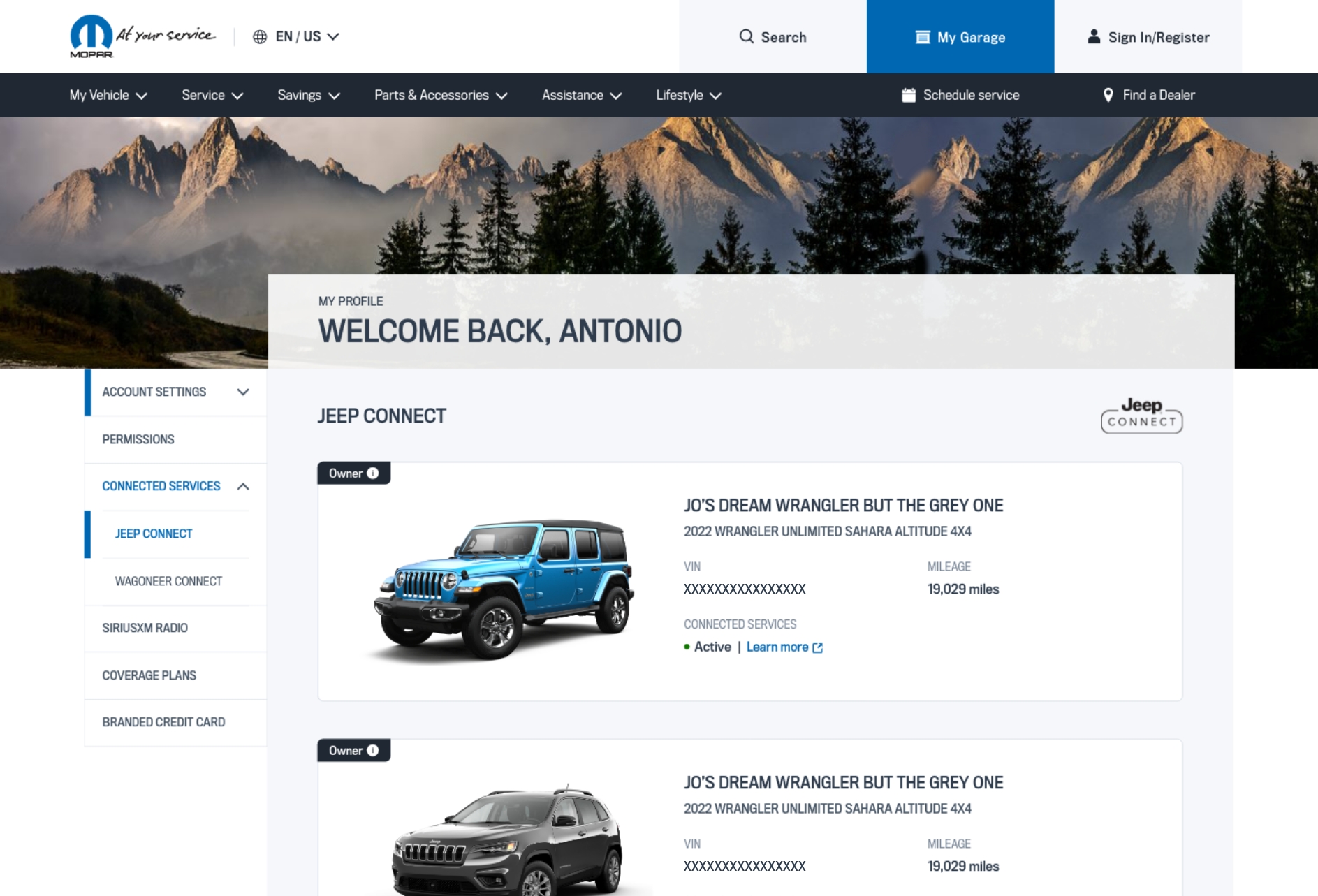
If your Jeep is connected to other services (like SiriusXM or Uconnect), log into those accounts and disconnect the vehicle there too. This step is often missed and helps protect your info.
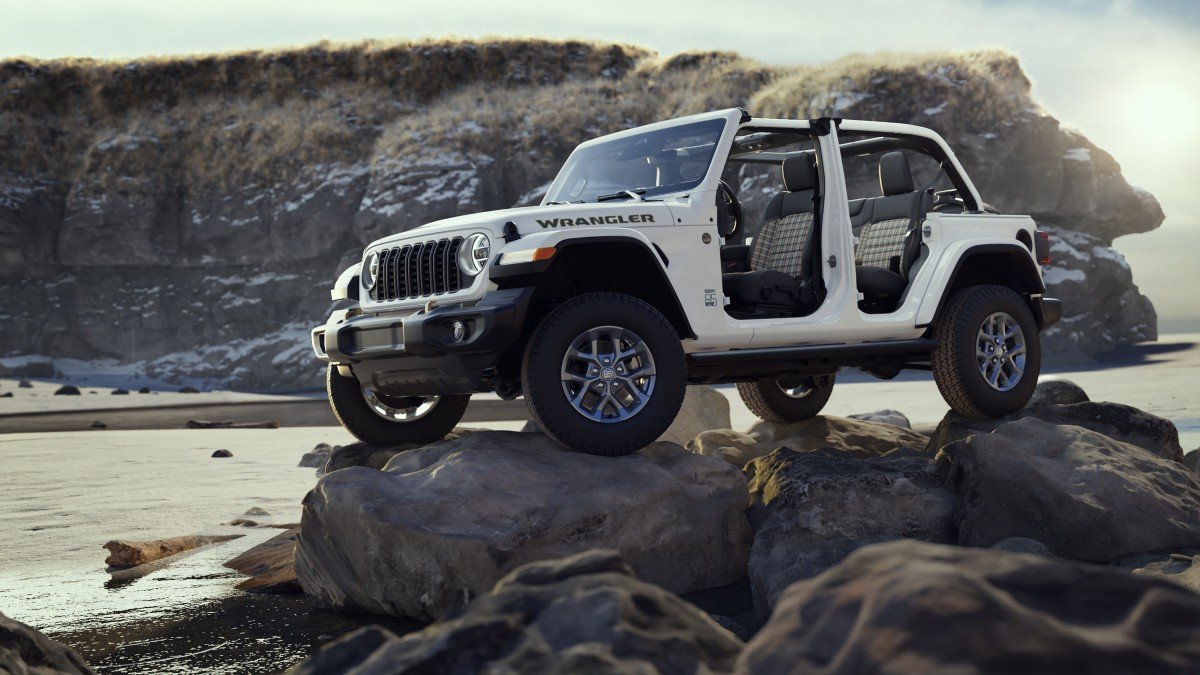
Example: Removing A Jeep Wrangler
Let’s say you own a 2020 Jeep Wrangler. After selling it, you want to remove it:
- Open the Jeep app and sign in.
- Go to “My Vehicles.”
- Tap “2020 Wrangler.”
- Tap the gear icon > “Remove Vehicle.”
- Confirm when the app asks.
- Check your garage. The Wrangler should be gone.
What Happens After Removal?
Once removed:
- The car disappears from your app.
- Remote features (lock, start, location) stop working for this car.
- You cannot control or track the vehicle anymore.
- The new owner can add the car to their own app.
Important: If you plan to buy another Jeep, you can add it using the Vehicle Identification Number (VIN).
Comparison: Removing Vs. Hiding A Vehicle
Some users ask about “hiding” a vehicle instead of removing it. Here’s how they compare:
| Action | Effect | Best For |
|---|---|---|
| Remove | Deletes all data, full disconnect | Selling car, privacy concerns |
| Hide | Just removes from main view, data remains | Multiple cars, not selling |
For true security, always choose remove.
Table: Common Mistakes To Avoid
Many Jeep owners make small errors when removing vehicles. Here’s how to avoid them:
| Mistake | What Can Happen | How to Avoid |
|---|---|---|
| Not logging out | Old car can still be controlled | Log out after removal |
| Forgetting other accounts | Data stays connected elsewhere | Unpair from all services |
| No backup | Lose trip history, stats | Take screenshots before removing |
Data And Privacy: What Jeep Collects
Jeep apps collect more data than most people realize. This can include:
- Location history
- Driving stats (speed, distance)
- Maintenance records
- Remote commands (lock/unlock, engine start)
Removing your vehicle cuts off this data flow. According to a 2022 Car Data Privacy study, over 70% of connected vehicles send data to the manufacturer, which is why removal is key when you change cars.
When To Contact Jeep Support
Sometimes, the app might not let you remove a vehicle. Reasons include:
- Your account is locked.
- The app crashes.
- You see error messages.
If this happens, contact Jeep customer support. They can manually remove the vehicle. You can find support info in the app or at the official Jeep Connectivity page.
Adding A New Vehicle
After removing your old car, you might want to add a new Jeep. Here’s what you’ll need:
- The new VIN (Vehicle Identification Number)
- Access to your new car
- The latest version of the Jeep app
Go to “Add Vehicle” in your app, enter the VIN, and follow the instructions. The app may need you to be near the car to finish setup.
Frequently Asked Questions
How Do I Know If My Vehicle Was Removed?
Check your “My Vehicles” list in the app. If your car isn’t there, removal was successful. You should also get a confirmation message.
Can I Recover Data After Removing My Vehicle?
No. Removing a vehicle deletes most data from your app.
Always save important info before you remove the car.
What If The App Won’t Let Me Remove The Vehicle?
Try restarting your phone and updating the app. If it still fails, contact Jeep customer support for help.
Is Removing A Vehicle The Same As Deleting My Jeep Account?
No, removing a vehicle only disconnects that car. Your account stays active, and you can add new vehicles at any time.
Do I Need To Remove The Vehicle If I Trade It In At A Dealer?
Yes, always remove your vehicle before trading it in. This protects your data and ensures the new owner can register the car without problems.
Removing your vehicle from the Jeep app is important for privacy and security. By following these steps, you’ll keep your account clean and your information safe.
Take a few minutes to double-check your app today your peace of mind is worth it.