Getting your Uconnect system to work in a Jeep can feel confusing, especially if you’re using it for the first time or facing connection issues. Uconnect is Jeep’s in-car communication and entertainment system.
It lets you connect your phone, use navigation, stream music, and more—all from your dashboard. But when things don’t work smoothly, it can be frustrating.
This guide will help you get Uconnect up and running, fix common issues, and make the most of its features. Whether you’re a new Jeep owner or trying to solve a specific problem, you’ll find step-by-step help here.

Understanding Uconnect: What It Does And Why It Matters
Uconnect is more than just a radio. It’s the central control system for many of your Jeep’s smart features. With Uconnect, you can:
- Pair your smartphone via Bluetooth
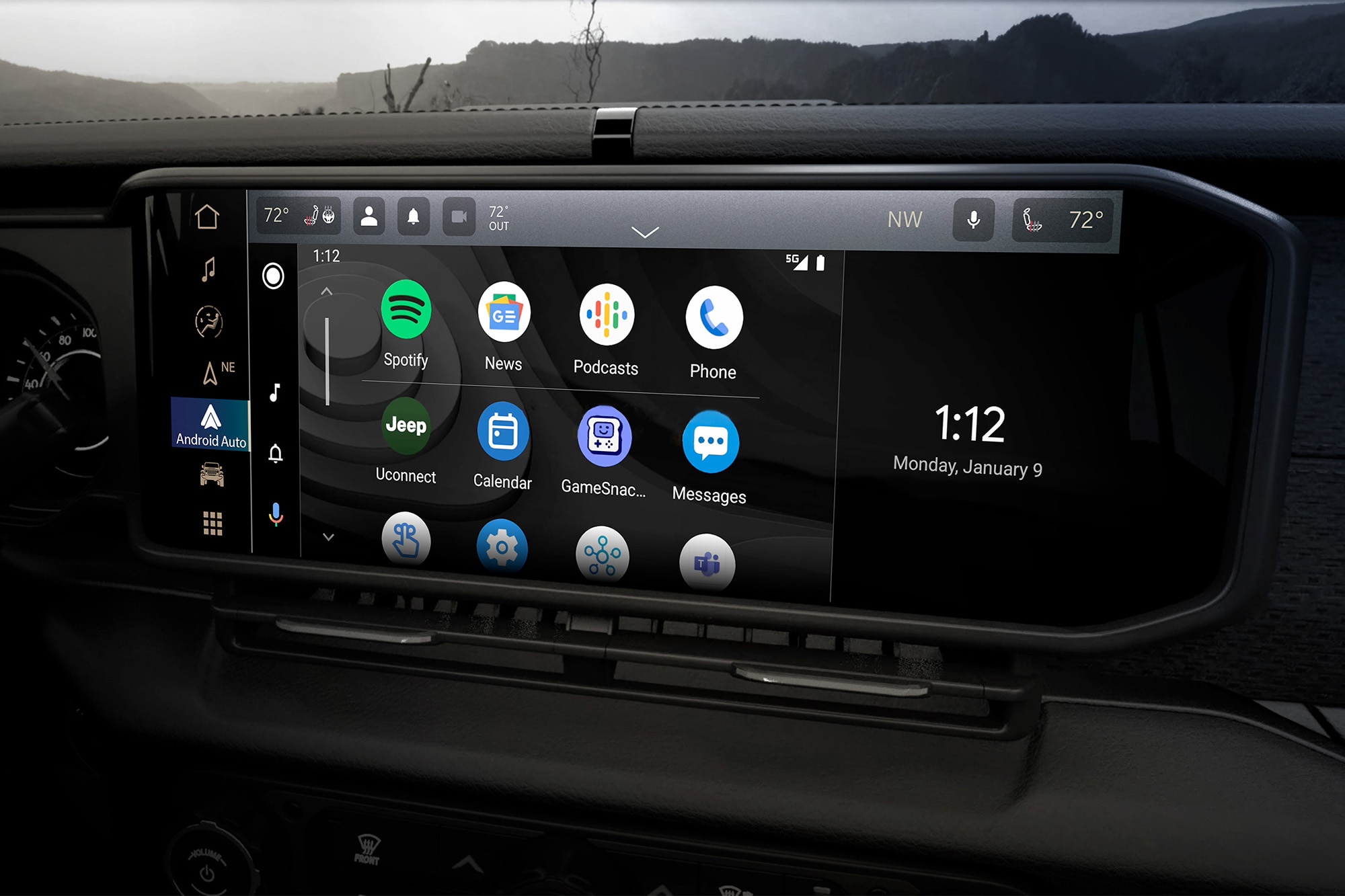
- Use Apple CarPlay or Android Auto
- Get turn-by-turn navigation
- Control the climate and vehicle settings
- Access emergency assistance
Uconnect is standard or optional on most recent Jeep models, including the Wrangler, Grand Cherokee, Compass, and Renegade. Its features can vary by model and trim, so always check your Jeep’s manual for details.
Getting Started: Setting Up Uconnect For The First Time
The first time you use Uconnect, you need to set up your phone and personalize your settings.
Step 1: Power On Your Jeep And Uconnect System
Make sure your Jeep is in park and the ignition is on. The Uconnect touchscreen should light up automatically. If not, press the power button.
Step 2: Pair Your Smartphone
To use calling, texts, and music, you need to pair your phone.
- On the Uconnect home screen, tap the Phone or Phone Pairing icon.
- On your phone, turn on Bluetooth.
- Select “Add Device” on the Uconnect screen.
- Choose your phone from the list. A code will appear on both screens.
- Confirm the code matches and accept the pairing on your phone.
Your phone is now connected. If you want to connect more devices, repeat these steps.
Step 3: Enable Apple Carplay Or Android Auto (if Available)
For hands-free apps, navigation, and voice controls:
- Apple CarPlay: Connect your iPhone with a USB cable. Approve the “Allow CarPlay” message on your phone.
- Android Auto: Connect your Android phone with a USB cable. Approve any prompts on your device.
Some new Uconnect systems support wireless CarPlay and Android Auto, but not all models do.
Step 4: Register For Uconnect Services (optional)
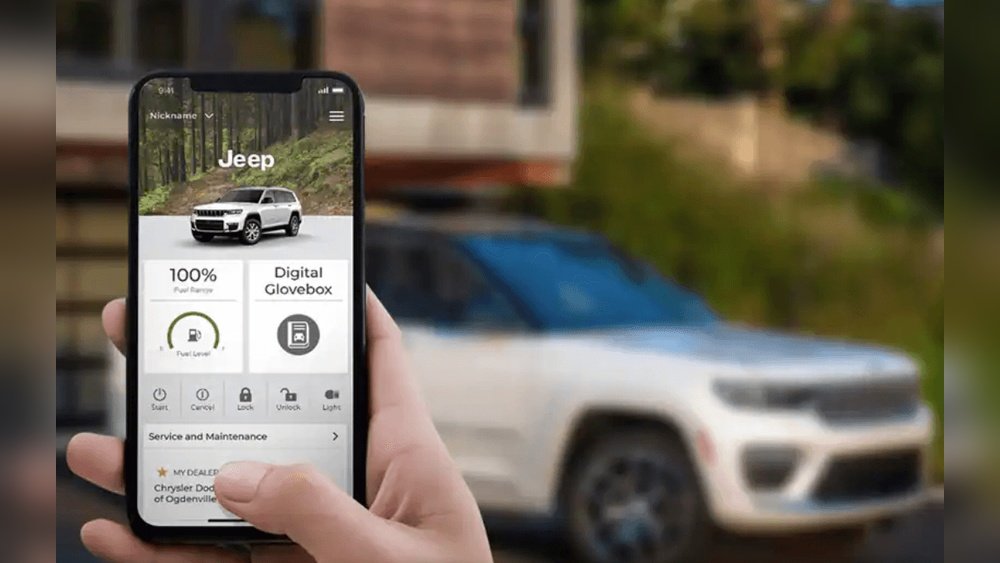
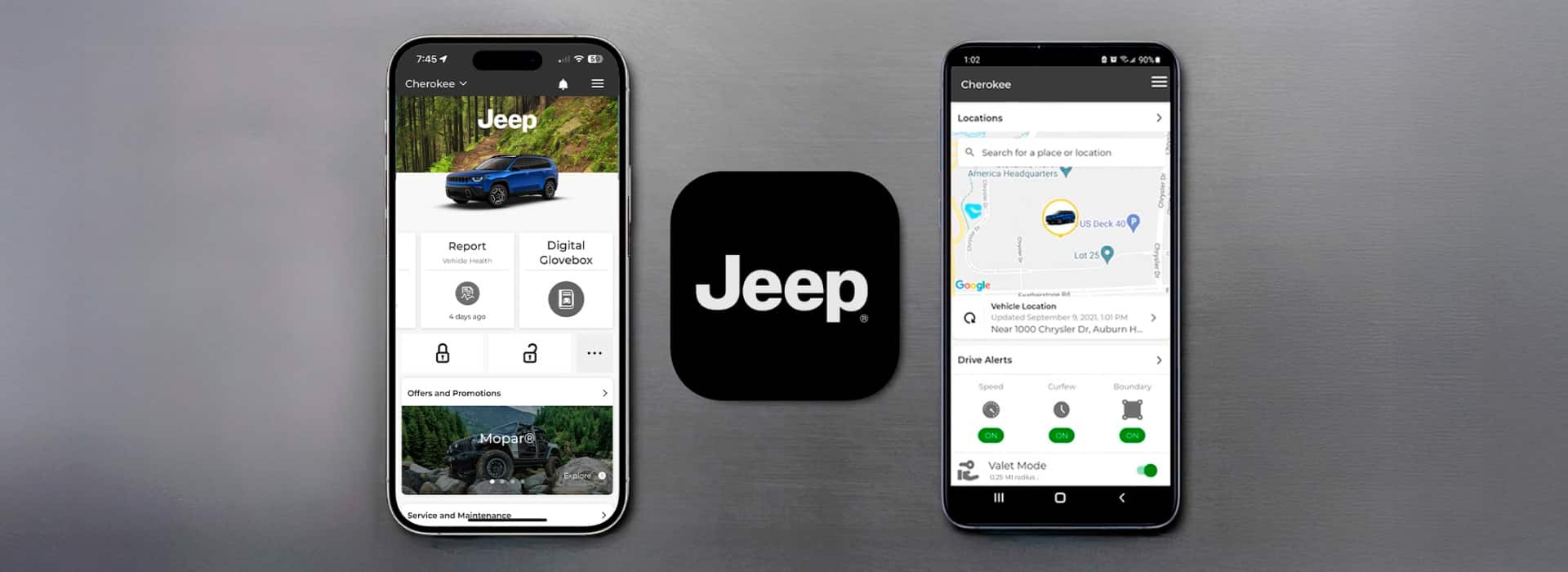
Some Uconnect features—like remote start from your phone or vehicle location—require you to register. Download the Uconnect app from the App Store or Google Play. Create an account using your vehicle identification number (VIN).
Common Setup Mistakes
Many users forget to:
- Approve all prompts on their phone
- Use a high-quality USB cable (for CarPlay/Android Auto)
- Update their phone’s software before pairing
If you skip these, Uconnect may not work as expected.
Troubleshooting Uconnect: Fixing Common Problems
Sometimes, Uconnect doesn’t work right away. Here’s how to solve the most frequent issues.
Uconnect Won’t Pair With Your Phone
If your phone doesn’t connect:
- Make sure Bluetooth is enabled on both devices
- Delete any old pairings on both Uconnect and your phone
- Restart your phone and the Jeep’s system
- Try pairing again
If you still have trouble, check if your phone’s software is up to date. Some older phones or very new updates may cause problems.
Apple Carplay Or Android Auto Not Working
If you plug in your phone and nothing happens:
- Try a different USB port (some Jeeps have multiple ports)
- Use the original or a certified cable
- Check that CarPlay/Android Auto is enabled on your phone’s settings
If it’s still not working, restart both your phone and the Uconnect system.
Uconnect System Freezes Or Crashes
Like any computer, Uconnect can freeze. To reset:
- Hold down the volume knob and tune knob together for about 10 seconds.
- The screen will go black and restart.
This soft reset won’t delete your settings.
Uconnect App Not Working Remotely
If your Uconnect app can’t control your Jeep:
- Make sure your Jeep is in an area with good cell signal
- Check that your subscription is active (remote services require a subscription)
- Log out of the app and log in again
If you still can’t connect, contact your Jeep dealer or Uconnect support.
Uconnect Versions: What’s The Difference?
Not all Uconnect systems are the same. Features depend on your Jeep’s model year and trim. Here’s a summary of the main versions:
| Uconnect Version | Screen Size | Main Features | Available In |
|---|---|---|---|
| Uconnect 3 | 5-7 inches | Basic radio, Bluetooth | Older Jeeps, base trims |
| Uconnect 4 | 7-8.4 inches | Apple CarPlay, Android Auto | 2017+ Jeeps |
| Uconnect 5 | 8.4-10.1 inches | Wireless CarPlay/Android Auto, improved navigation | 2021+ models |
If your Jeep has an older Uconnect version, some features like wireless CarPlay may not be available.
Updating Uconnect: Why And How To Do It
Uconnect systems sometimes need software updates to fix bugs or add new features. Here’s how to check and update:
- On your Uconnect screen, go to Settings > System Information.
- Write down your current software version.
- Visit the official Mopar Uconnect update page.
- Enter your Jeep’s VIN to see if updates are available.
Some updates can be installed over-the-air (OTA), while others need a USB drive and a computer.
Updating With A Usb Drive
- Download the update file from the Mopar site
- Copy it to a FAT32-formatted USB drive
- Plug the drive into your Jeep’s USB port
- Follow the on-screen instructions
Never turn off your Jeep or remove the USB drive during the update.
Why Updating Matters
Updates can fix problems like:
- Bluetooth connection drops
- Slow or laggy touchscreens
- Navigation map errors
Many users miss that regular updates can prevent many common Uconnect problems.
Uconnect Features You Might Not Know
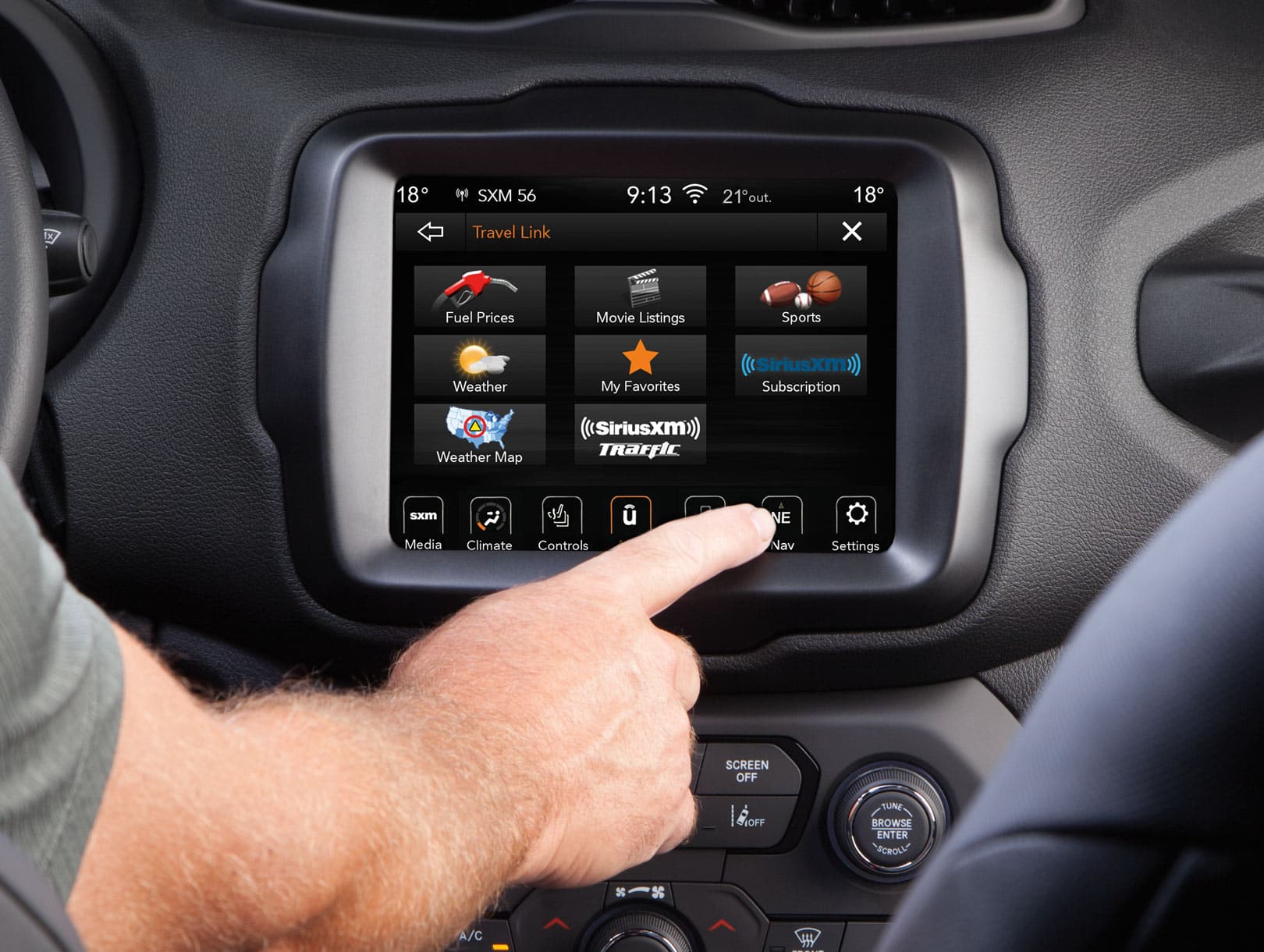
Uconnect offers more than most drivers realize. Here are some features you might not be using yet:
- Voice commands: Control music, calls, or navigation without touching the screen.
- Wi-Fi hotspot: Turn your Jeep into a mobile Wi-Fi zone (subscription required).
- Do Not Disturb mode: Block incoming calls and texts while driving.
- SiriusXM Guardian: Remote start, lock/unlock, and vehicle finder from the app.
- App shortcuts: Add your favorite apps to the home screen for quick access.
Some features require a paid subscription after the trial period.
Comparing Uconnect To Other Systems
How does Uconnect compare to other in-car systems? Here’s a quick look:
| System | Voice Control | Wireless CarPlay/Android Auto | Remote Services |
|---|---|---|---|
| Uconnect 5 | Yes | Yes | Yes (subscription) |
| Ford SYNC 4 | Yes | Yes | Yes (subscription) |
| Toyota Entune | Basic | No | Yes (limited) |
| Chevy MyLink | Yes | Some models | Yes (subscription) |
Uconnect stands out for its simple interface and wide support for third-party apps.
Practical Tips To Get The Most From Uconnect
Getting Uconnect to work is one thing; making it work well is another. Here are some tips for better performance:
- Always keep your phone’s Bluetooth and app software updated.
- Clean your Uconnect touchscreen with a microfiber cloth to avoid missed touches.
- Set up favorites for radio stations and contacts for faster access.
- Use voice commands to reduce distractions and drive safely.
- Download maps ahead of time if you plan to drive in areas with poor cell coverage.
If you use Uconnect for long trips, consider a charger for your phone, as navigation and streaming can drain your battery quickly.
When To Visit The Dealer
If you’ve tried everything and Uconnect still won’t work, it might be a hardware issue. Visit your Jeep dealer if:
- The screen stays black or won’t turn on
- The system restarts randomly, even after updates
- Bluetooth and USB ports don’t work with any device
Dealers can check for warranty coverage and repair or replace the Uconnect hardware if needed.
Frequently Asked Questions
Why Won’t My Phone Connect To Uconnect?
Most connection issues happen because of old pairings or outdated software. Delete any old Bluetooth connections on both your phone and Uconnect.
Make sure your phone’s software is up to date, and try pairing again.
Can I Update Uconnect Myself?
Yes, you can update Uconnect yourself using a USB drive and files from the official Mopar site. Some newer systems update over the air.
Always follow the instructions to avoid damaging the system.
Is There A Monthly Fee For Uconnect?
Basic Uconnect features are free, but advanced services like remote start, vehicle tracking, and Wi-Fi require a subscription after a free trial.
Does Uconnect Work With All Smartphones?
Uconnect works with most modern phones that support Bluetooth. For Apple CarPlay, you need an iPhone 5 or newer.
For Android Auto, you need a phone with Android 6. 0 or newer.
What Should I Do If Uconnect Keeps Freezing?
Try a soft reset by holding the volume and tune knobs for 10 seconds. If that doesn’t help, check for software updates.
If problems continue, visit your Jeep dealer for service.
Getting Uconnect to work in your Jeep is usually straightforward if you follow the right steps. By understanding your system, updating regularly, and knowing how to solve common issues, you can enjoy all the features Uconnect has to offer. If you ever get stuck, don’t hesitate to check your owner’s manual or visit your local dealer for help. And remember, keeping your technology updated is the best way to avoid problems on the road.