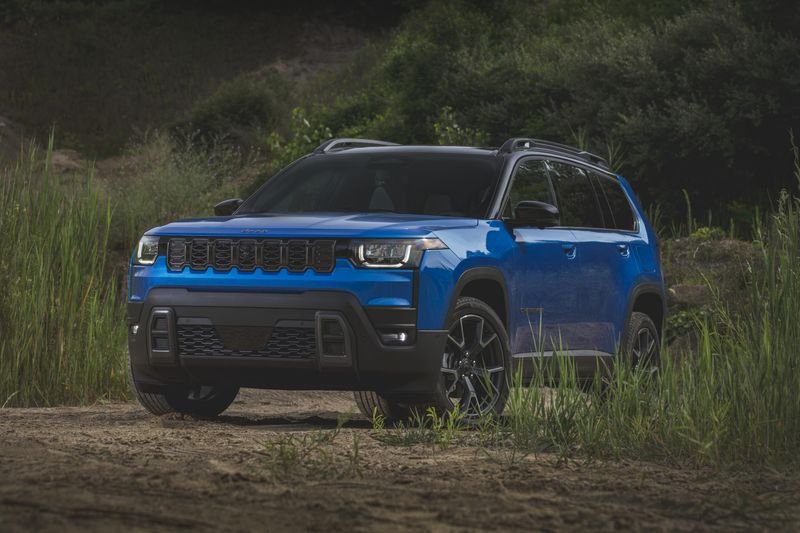
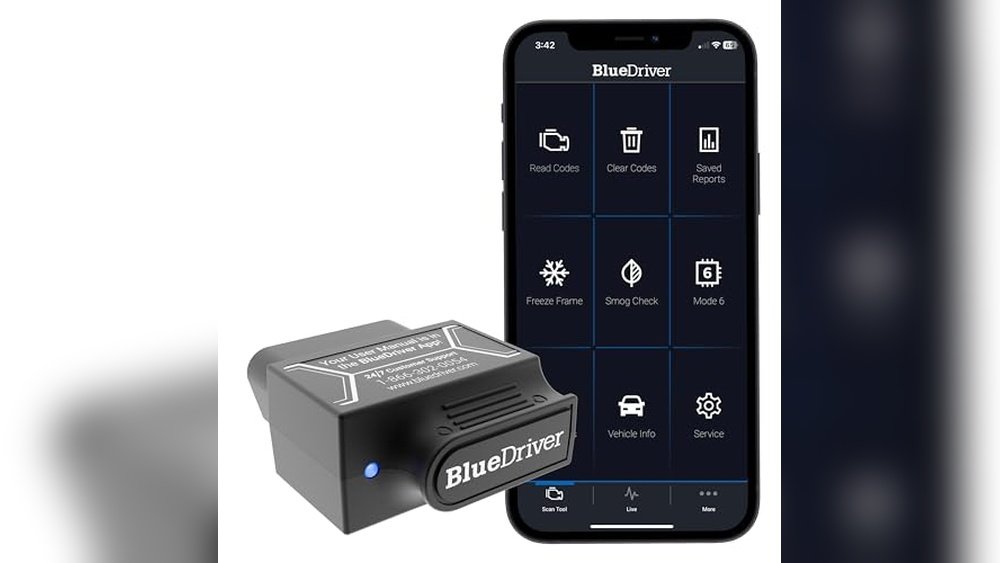
Apple CarPlay makes it easy to use your iPhone safely while driving. You can access navigation, music, calls, and messages through your car’s touchscreen or voice commands. Many modern vehicles come with Apple CarPlay as a standard or optional feature, but it isn’t always clear how to get CarPlay working on specific systems like Uconnect—the infotainment platform used in many Chrysler, Dodge, Jeep, Fiat, and RAM vehicles. If you’re wondering how to get Apple CarPlay on Uconnect, this guide will walk you through everything you need to know, from checking compatibility to troubleshooting and upgrades.
What Is Uconnect And Why Does Carplay Matter?
Uconnect is the brand name for the infotainment systems found in many Fiat Chrysler Automobiles (FCA) vehicles. It manages functions like music, navigation, phone calls, climate control, and sometimes vehicle settings. Uconnect systems vary by model, year, and trim level—some offer basic features, while others come with large touchscreens and advanced connectivity.
Apple CarPlay is a software platform that links your iPhone to your car’s infotainment screen. It mirrors select apps, making them easy to use without taking your hands off the wheel. For many drivers, CarPlay is safer and more convenient than using the phone directly.
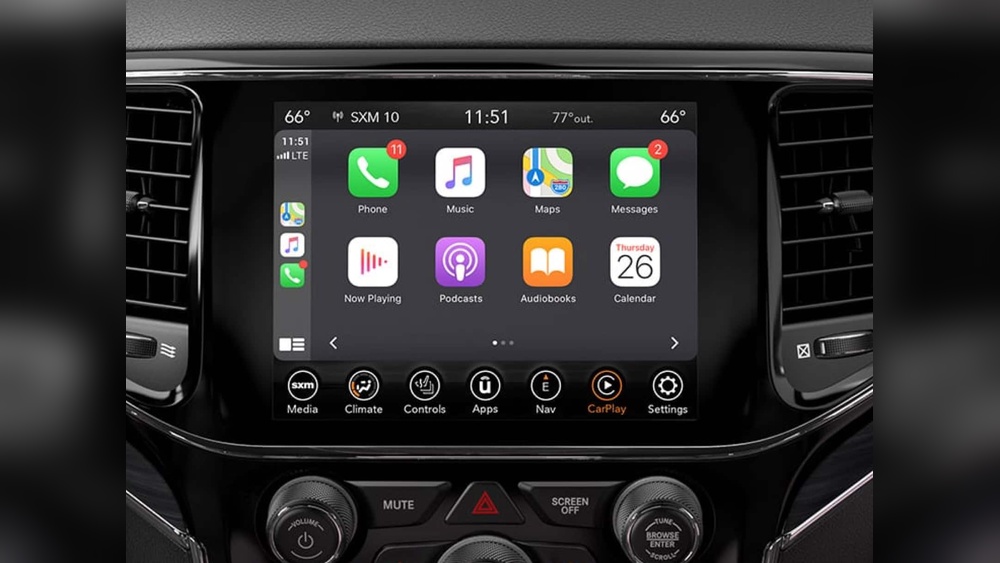
But not all Uconnect systems support CarPlay, and the process to enable it isn’t always straightforward. Let’s explore how you can get Apple CarPlay on your Uconnect system.
Check If Your Uconnect System Supports Apple Carplay
Before you try to set up CarPlay, you need to know if your vehicle’s Uconnect system is compatible. Not every version of Uconnect has this feature.
Uconnect Versions And Compatibility
CarPlay support started appearing in Uconnect systems around the 2017 model year. Generally, Uconnect systems with 7-inch or larger touchscreens—called Uconnect 4 and newer—are most likely to work with CarPlay.
Here’s a quick reference for common Uconnect systems and their CarPlay support:
| Uconnect Version | Screen Size | CarPlay Support | Years Available |
|---|---|---|---|
| Uconnect 3 | 5.0″–8.4″ | No | 2013–2019 |
| Uconnect 4 | 7.0″–8.4″ | Yes | 2017–2022 |
| Uconnect 5 | 7.0″–12.0″ | Yes (with wireless CarPlay) | 2021–present |
Tip: Your vehicle’s manual or the Uconnect website can confirm compatibility. Or, look for a CarPlay or smartphone icon on your infotainment screen.
Which Vehicles Have Uconnect With Carplay?
Most Chrysler, Dodge, Jeep, RAM, and some Fiat models from 2017 onward offer CarPlay in at least some trims. For example:
- Jeep Grand Cherokee (2018+)
- Chrysler Pacifica (2017+)
- RAM 1500 (2018+)
- Dodge Charger (2017+)
Not all trims and years have CarPlay, even if they have Uconnect. Always double-check before expecting it to work.

How To Set Up Apple Carplay On Uconnect
If your Uconnect system supports CarPlay, getting started is usually quick. The process can vary slightly by car model and Uconnect version, but these steps work for most vehicles.
Wired Carplay Setup (uconnect 4 And 5)
- Start your car and turn on the Uconnect screen.
- Use an Apple-certified USB cable to connect your iPhone to the car’s USB port. Use a high-quality cable for best results.
- Watch for a CarPlay prompt on your Uconnect screen. It may ask for permission on both the car and your iPhone.
- Allow CarPlay when prompted. Your iPhone may ask if you want to allow CarPlay with this vehicle.
- CarPlay should launch on the Uconnect display. You’ll see iOS icons for Maps, Messages, Music, and more.
If CarPlay doesn’t appear: Try a different USB port. Some cars have multiple ports, but only one supports CarPlay. Check your owner’s manual for the correct port.
Wireless Carplay Setup (uconnect 5)
Some newer vehicles with Uconnect 5 support wireless CarPlay. Here’s how to set it up:
- Enable Bluetooth and Wi-Fi on your iPhone.
- On the Uconnect screen, go to the ‘Phone’ or ‘Device’ menu and select ‘Add Device’.
- Select your vehicle from the list on your iPhone’s Bluetooth menu.
- Follow the prompts to pair your phone with Uconnect via Bluetooth.
- Once paired, CarPlay should launch wirelessly.
Note: Wireless CarPlay drains your phone battery faster than wired use. Keep a charger handy for long trips.
Common Setup Mistakes
- Using a non-certified cable: Cheap cables often fail to connect reliably.
- Trying on an unsupported Uconnect version: Even with the right cable, Uconnect 3 and older won’t work.
- Missing software updates: Older Uconnect software may need an update for CarPlay support.
What To Do If Your Uconnect Doesn’t Support Carplay
Not all Uconnect systems can run CarPlay. If your car doesn’t support it, you still have a few options.
Upgrade Your Uconnect System
Some vehicles allow you to upgrade the head unit (the screen and electronics in your dash) to a newer Uconnect version that supports CarPlay. This upgrade is not always cheap or easy, but it’s possible for certain models.
| Upgrade Option | Approximate Cost | Who Can Install? | CarPlay Support |
|---|---|---|---|
| OEM Uconnect Upgrade | $1,000–$2,000 | Dealer or specialist | Yes |
| Aftermarket Head Unit | $400–$1,200 | Audio shop or DIY | Yes (depends on model) |
| CarPlay Adapter | $100–$500 | DIY (plug-and-play) | Sometimes |
OEM upgrades (original equipment manufacturer) are designed for your exact car model and usually work best, but they are also the most expensive. Aftermarket head units (like from Alpine, Pioneer, Kenwood) are cheaper, and many support CarPlay, but may require custom installation.
Use A Carplay Adapter
Some companies make CarPlay adapters that plug into your USB port or connect behind the dash. These adapters can add CarPlay to certain Uconnect models that don’t have it from the factory.
Warning: Not all adapters work well, and some may void your vehicle’s warranty. Research carefully and look for reviews from owners of your car model.
Rely On Your Phone (as A Last Resort)
If upgrading isn’t possible, you can still use your iPhone hands-free with Bluetooth. You won’t get the full CarPlay experience, but you can make calls, stream music, and use voice commands in most Uconnect systems.
Practical Tips For A Better Carplay Experience
Using Apple CarPlay on Uconnect is simple, but a few extra tips can make your experience smoother.
- Keep your iPhone updated. CarPlay works best with the latest iOS updates.
- Check your data plan. Navigation and streaming use mobile data.
- Organize your CarPlay home screen. You can arrange apps in your iPhone settings under General > CarPlay.
- Limit distractions. Only use CarPlay features when safe—let Siri read messages instead of looking at the screen.
- Use a good cable for wired CarPlay. Apple-certified cables reduce connection issues.
Hidden Insight: Many people don’t realize you can customize CarPlay’s app order and hide apps you don’t use. This makes finding your favorite navigation or music app much faster.
Another Tip: Some Uconnect systems allow you to split the screen, so you can have CarPlay on one side and vehicle controls on the other. Check your manual to see if this is possible in your car.
Troubleshooting Apple Carplay On Uconnect
If CarPlay isn’t working as expected, try these steps:
- Restart your iPhone and Uconnect system. This solves many connection issues.
- Try a different USB port or cable. Not all ports support CarPlay.
- Update your software. Both your iPhone and Uconnect may need updates.
- Forget the car from your iPhone settings. Go to Settings > General > CarPlay, select your car, and tap ‘Forget This Car.’ Then set up again.
- Reset network settings on your iPhone. Sometimes, network issues block CarPlay.
If nothing works, your dealer or a car audio specialist can help. They may know about recalls or software updates for your vehicle.
Comparing Uconnect Carplay With Other Systems
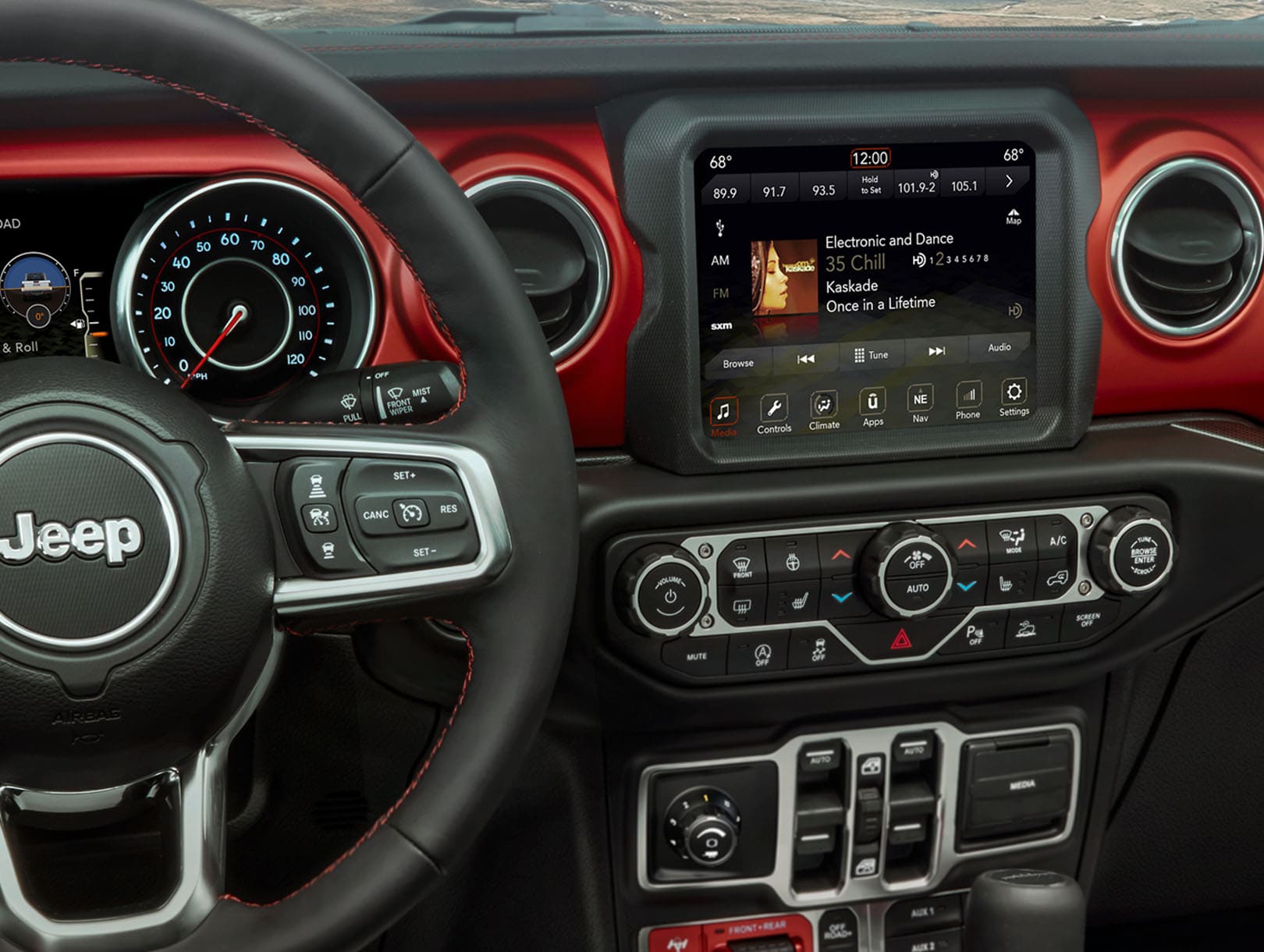
How does Uconnect with CarPlay stack up against other major infotainment platforms? Here’s a quick comparison to help you understand the differences.
| Infotainment System | CarPlay Support | Wireless CarPlay | Unique Features |
|---|---|---|---|
| Uconnect 5 | Yes | Yes | Multi-user profiles, Alexa built-in |
| Ford SYNC 4 | Yes | Yes | Over-the-air updates, cloud navigation |
| GM Infotainment 3 | Yes | Some models | Built-in 4G Wi-Fi, Marketplace apps |
| Toyota Audio Plus | Yes | Some models | Dynamic navigation, custom themes |
Uconnect 5 is one of the most advanced, with fast response, wireless CarPlay, and extra features like Alexa. But Ford and GM systems also offer strong competition. For more, see the official Apple CarPlay page.
Frequently Asked Questions
How Do I Know If My Uconnect System Has Apple Carplay?
Check your vehicle’s owner’s manual or the Uconnect settings menu for a CarPlay or smartphone icon. Most Uconnect 4 (7-inch or larger screen) and all Uconnect 5 systems support CarPlay. If you’re still unsure, your dealership can confirm compatibility by your VIN.
Can I Add Carplay To An Older Uconnect System?
You can sometimes add CarPlay by upgrading the head unit to a newer Uconnect version or installing an aftermarket system. Some plug-and-play adapters work, but results vary.
OEM upgrades are often best but cost more.
Does Wireless Carplay Work On All Uconnect Systems?
No. Only Uconnect 5 and some newer vehicles support wireless CarPlay. Older Uconnect 4 systems require a wired connection. If your car has wireless charging, it may also have wireless CarPlay, but check your manual to confirm.
Will Using Carplay Drain My Iphone Battery?
Wired CarPlay charges your phone while in use. Wireless CarPlay uses Bluetooth and Wi-Fi, which can drain your battery faster. For long drives, keep a charger handy if you use wireless CarPlay.
Is Carplay Safe To Use While Driving?
CarPlay is designed for safer driving, but any screen use can be distracting. Use voice commands and Siri for most functions.
Set up navigation and music before you start driving, and only use CarPlay features when safe.
Getting Apple CarPlay on your Uconnect system can transform your driving experience, making it safer and more enjoyable. Whether you’re setting up a compatible system or exploring upgrades, following these steps will help you make the most of both Uconnect and CarPlay.
Remember to check compatibility first and always use trusted equipment and installers for any upgrades. With a little setup, your favorite iPhone apps will be right at your fingertips every time you get behind the wheel.