Changing the language on your Jeep Wrangler might seem simple, but it’s a task that can confuse even experienced drivers. Whether you’ve bought a used Wrangler, rented one abroad, or simply want to switch to your native language, knowing how to adjust these settings is important. Luckily, Jeep makes this process user-friendly if you know where to look. This guide will walk you through the steps, highlight common mistakes, and explain what to do if you hit a snag. You’ll also learn about language options, compatibility, and some insider tips to get the most out of your Wrangler’s infotainment system.
Why Language Settings Matter
The language setting in your Jeep Wrangler affects everything from dashboard messages to navigation instructions and touchscreen menus. Choosing the right language improves safety, as you’ll quickly understand alerts or warnings. It also makes it easier to use features like Apple CarPlay, Bluetooth, and voice commands.
Many people overlook this simple setting, but it can make daily driving less stressful especially if multiple drivers share the same car. It’s also helpful if you drive in a different country or need to help visitors use your Wrangler.
Which Jeep Wranglers Support Language Change?
Most Jeep Wranglers built after 2011 support language changes through their Uconnect infotainment systems. Older models may have limited options or require dealer assistance. Here’s a quick comparison of language change support by generation:
| Model Year | Uconnect Version | Language Change Support |
|---|---|---|
| 2011–2017 | Uconnect 3.0/5.0 | Basic (Menu or Dealer) |
| 2018–2024 | Uconnect 4/4C/4C NAV/5 | Full Menu Support |
If you’re unsure about your Jeep’s model year, check your owner’s manual or the infotainment system’s splash screen when starting the car.

Step-by-step: How To Change Language On Jeep Wrangler
Changing the language is usually a few taps away, but the steps can vary slightly depending on your Wrangler’s Uconnect system.
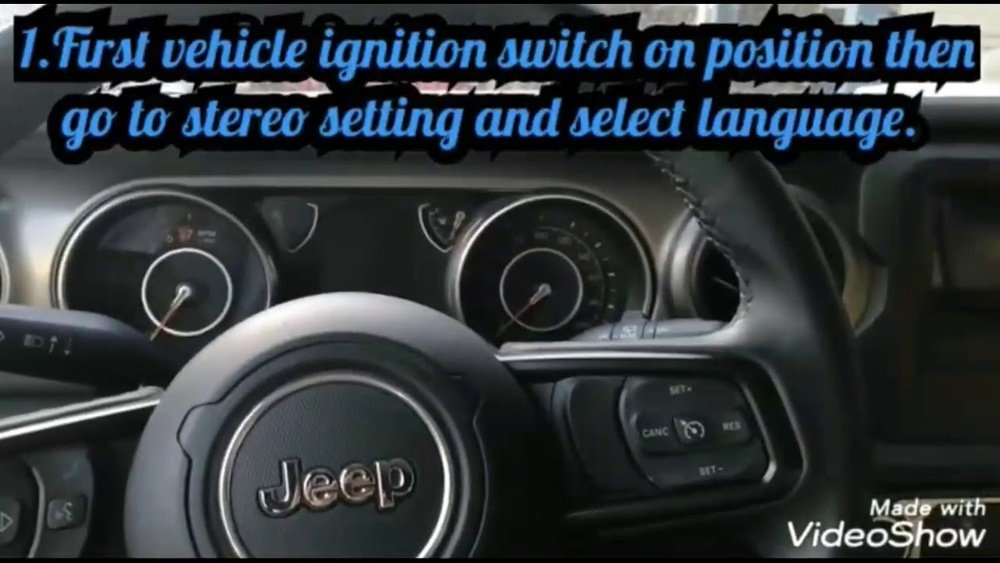
- Turn on the ignition: Start your Wrangler or switch to accessory mode.
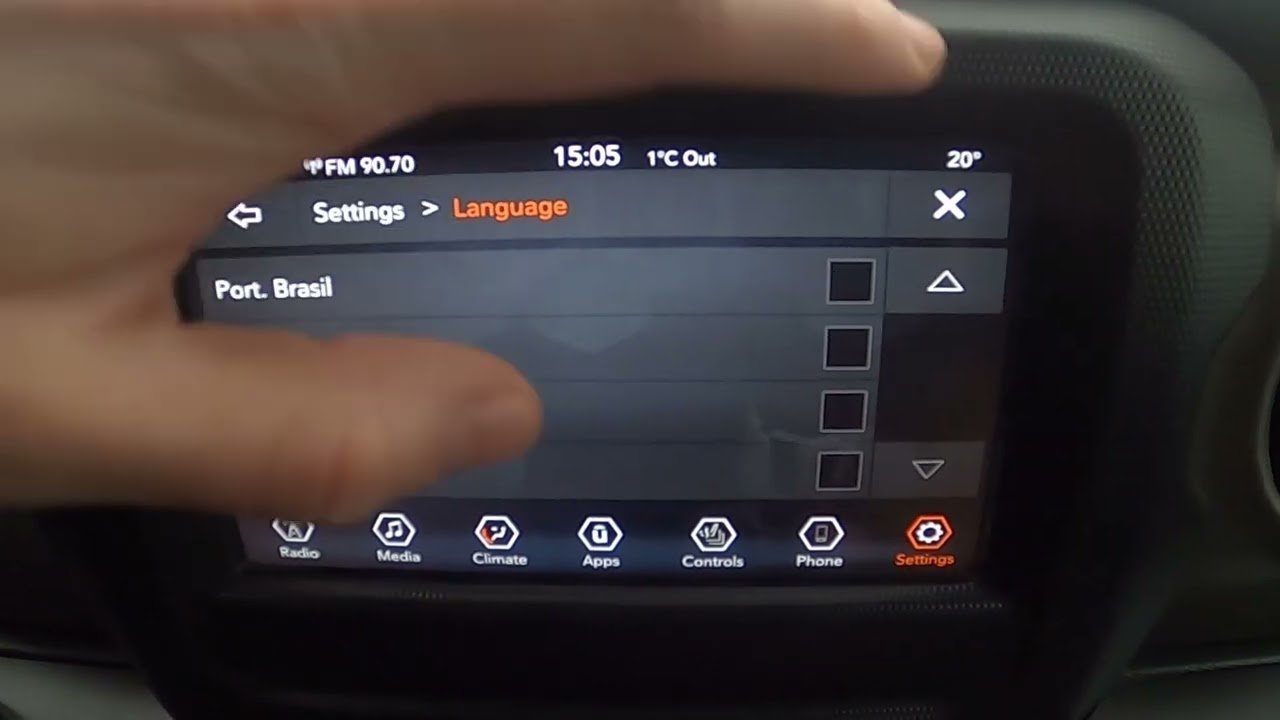
- Tap the ‘Settings’ icon on the home screen.
- Scroll to ‘Language’: Find the option, usually under ‘Display’ or ‘System’.
- Select your preferred language from the list.
- Confirm your choice: The system may ask for confirmation or restart.
- Wait for the system to update: Menus and displays will switch to the new language.
For Uconnect 3.0/5.0 (2011–2017)
- Press the ‘Menu’ or ‘Settings’ button (sometimes a physical button).
- Navigate to ‘Display Settings’ using arrow keys or knobs.
- Select ‘Language’.
- Choose your language and confirm.
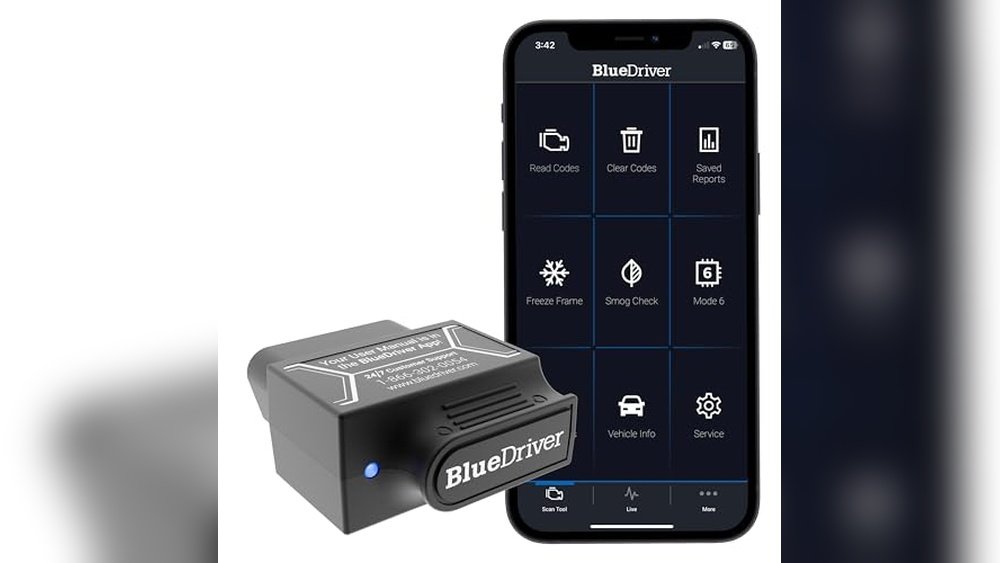
Not all earlier models have a language menu. If you cannot find it, your dealer can often update the language using a diagnostic tool.
Changing Language On The Instrument Cluster
Some Wranglers have a separate language setting for the instrument cluster (the digital screen behind the steering wheel). To change this:
- Use the steering wheel buttons to access the cluster menu.
- Find ‘Settings’, then look for ‘Language’.
- Choose your language and confirm.
Important tip: The language you set in the infotainment system and cluster may not always sync, so check both for consistency.
Common Mistakes To Avoid
Many owners miss a few key points:
- Not saving changes: Some systems need you to confirm twice or wait for a reboot.
- Ignoring updates: Outdated Uconnect software may limit language options.
- Assuming all features translate: Navigation or voice commands might stay in English even after switching languages.

What Languages Are Available?
Jeep Wranglers support a wide range of languages, including:
- English (US, UK, Australian)
- Spanish
- French
- German
- Italian
- Portuguese
- Dutch
- Russian
- Chinese (Simplified)
- Japanese
Here’s a quick example of what you might find in the language selection menu:
| Language Option | Menu Label | Voice Command Support |
|---|---|---|
| Spanish | Español | Yes |
| French | Français | Partial |
| Chinese | 中文 | No |
Voice command support can be limited for certain languages, so test your favorite features after changing the setting.
Troubleshooting Language Change Issues
If you can’t change the language or the menu doesn’t appear, try these steps:
- Restart the vehicle: Sometimes, a simple restart helps the system refresh.
- Update Uconnect software: Visit the Jeep website or your dealer for the latest version.
- Check your owner’s manual: Some regions restrict language changes due to regulations.
- Contact your dealer: If you see error messages or missing options, a dealer can reset or reprogram the system.
Insider tip: Sometimes, features like navigation prompts or emergency calls use a default language. You might need to reset these separately.
Resetting To Default Language
If you accidentally pick the wrong language and can’t navigate menus, don’t worry. Most Wranglers allow you to reset the system:
- Press and hold the power and volume buttons for about 10 seconds to force a system reset.
- The infotainment system will reboot, usually returning to English or the last confirmed language.
For persistent problems, a dealer can perform a hard reset using a scan tool.
Extra Tips For International Drivers
If you drive in a bilingual region or frequently travel, keep these in mind:
- Download a PDF of your owner’s manual in your preferred language.
- Set up your smartphone’s CarPlay or Android Auto to match your language for easy switching.
- Some rental Jeeps are locked to a specific language—ask the rental company for help.
Non-obvious insight: If your Wrangler supports multiple user profiles, each profile can have its own language setting. This is useful if family members prefer different languages.
For more information on Uconnect, you can visit the official Jeep Uconnect page.
Frequently Asked Questions
If you can’t understand the current menu, use your smartphone to translate screen text, or reference the owner’s manual screenshots. As a last resort, perform a system reset by holding down the power and volume buttons together.
Changing the language usually updates menu text and navigation voice prompts. However, map place names and some addresses may still show in the local language, especially outside North America.
Can I Change The Language On A Jeep Wrangler Rental?
Yes, but some rental agencies lock language settings. If you can’t access the menu, ask a staff member or look for a reset button.
Always return the car in the original language setting for the next driver.
Why Is My Voice Command Not Working After I Change The Language?
Some languages do not support full voice command features. Check the language table in your owner’s manual or test with simple commands. You may need to update your system or switch back to English for full support.
Is It Possible To Add More Languages To My Jeep Wrangler?
You cannot add extra languages beyond those installed by Jeep. If your region’s language isn’t listed, ask your dealer if a software update is available, but custom language packs are not supported.
Changing the language on your Jeep Wrangler is quick once you know where to look. Take a few minutes to set it up, and you’ll enjoy a more comfortable and safer drive no translation apps required.