Watching video content on the Jeep Grand Cherokee screen can enhance your driving experience, especially for passengers during long trips. However, many owners are unsure how to play video, what formats work, or what settings are needed. This guide explains the process, offers practical tips, and highlights important safety and compatibility points—all in clear, simple English.
Understanding The Jeep Grand Cherokee Screen
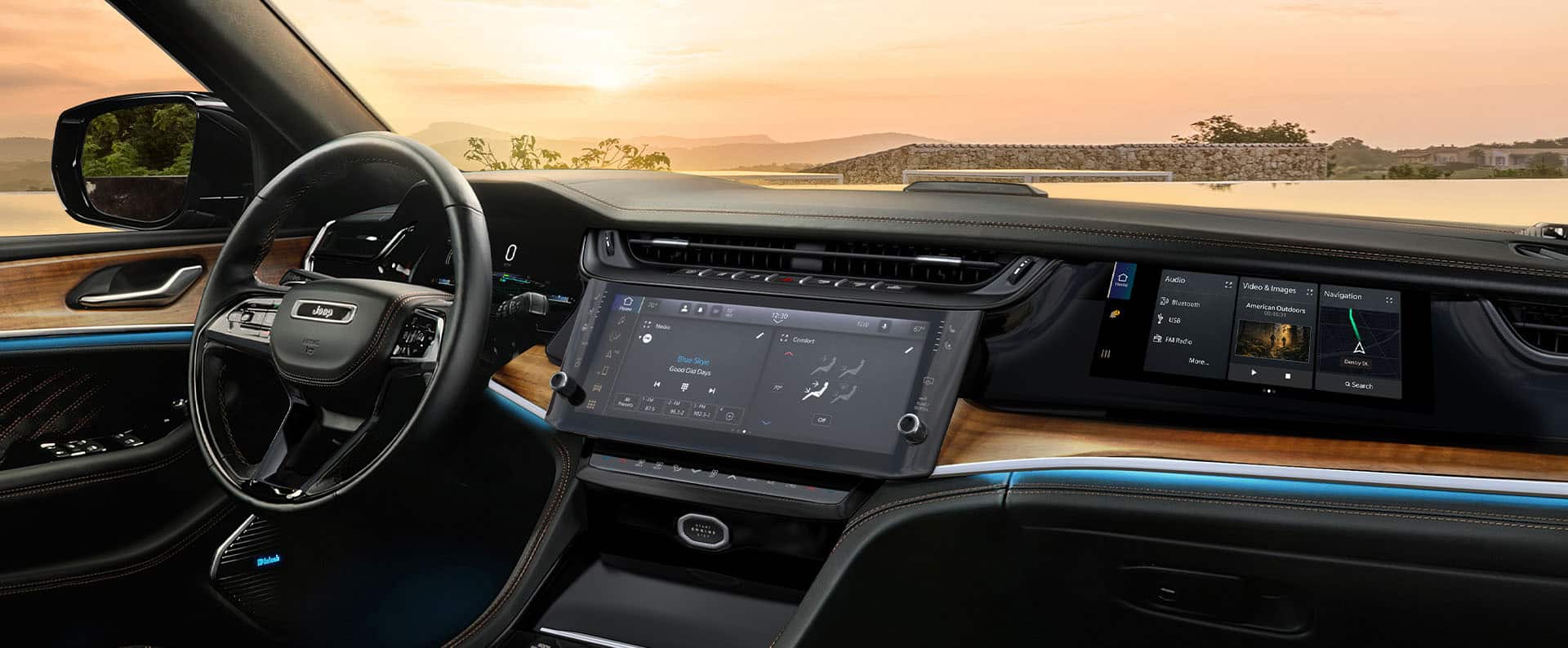
Most recent Jeep Grand Cherokee models use the Uconnect infotainment system. This screen controls navigation, music, phone, and sometimes video playback. The size and features depend on your model year:
| Model Year | Screen Size | Uconnect Version |
|---|---|---|
| 2017-2019 | 8.4-inch | Uconnect 4 |
| 2020-2021 | 10.1-inch | Uconnect 5 |
| 2022+ | 10.25-inch | Uconnect 5 (updated) |
Knowing your screen size and Uconnect version helps you choose the right methods for video playback. Not all versions support video natively.
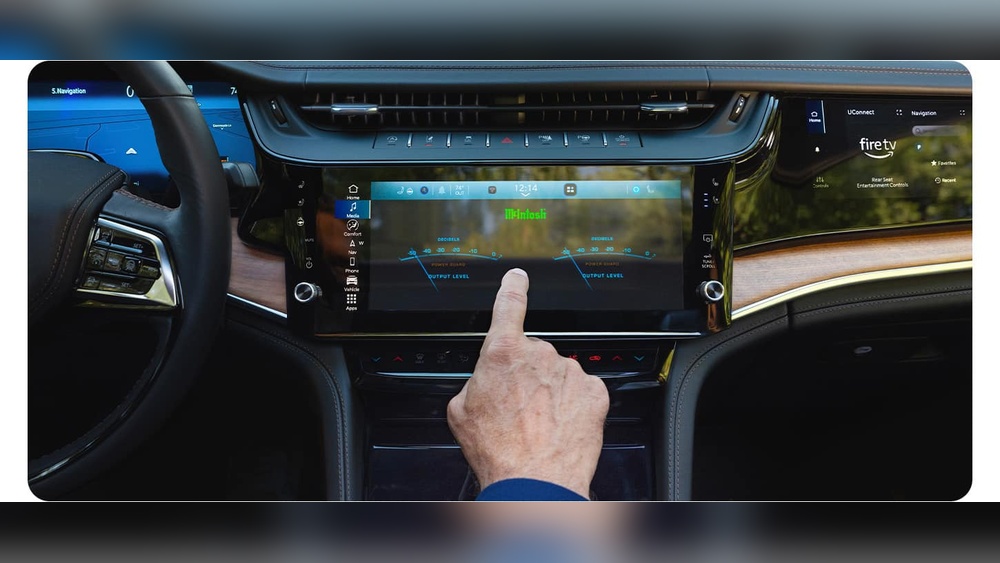
Ways To Play Video On Jeep Grand Cherokee Screen
Playing video on the Grand Cherokee screen is possible with the right tools and settings. Here are the most common ways:
1. Usb Drive Method
Many Jeep Grand Cherokees support video files from a USB flash drive. Here’s how:
- Prepare your video files: Convert them to MP4 format, which works best.
- Format your USB drive: Use FAT32 or exFAT file systems.
- Insert the USB drive: Plug it into the USB port in the console.
- Select Media: On the Uconnect screen, tap ‘Media’ and choose ‘USB.’
- Play your video: Browse and select the video file.
| File Format | Supported? | Best for |
|---|---|---|
| MP4 | Yes | Most videos |
| AVI | Sometimes | Older videos |
| MKV | No | Not recommended |
Tip: If your video does not play, try converting it to MP4 using a free tool like HandBrake. Always check the file size—some systems have limits (usually under 4GB).
2. Hdmi Or Auxiliary Input
Some Grand Cherokee models have an HDMI or AUX input. This allows you to connect devices directly:
- Use an HDMI cable to connect a smartphone, tablet, or media player.
- Switch the Uconnect screen to ‘HDMI’ input.
- Play your video from the connected device.
Note: Not all models have HDMI ports. Check your owner’s manual.
3. Streaming Via Smartphone (android Auto/apple Carplay)
The newer Uconnect systems support Android Auto and Apple CarPlay. However, these platforms focus on navigation and audio—not video. You cannot stream video directly through them for safety reasons. Still, some advanced apps or device hacks can mirror your phone’s screen, but these are not official and may void your warranty.
Non-obvious insight: Even if you manage to mirror your phone, the screen will turn off while driving due to safety settings. Video playback is allowed only when parked.
4. Factory Rear Entertainment System
Some Grand Cherokees come with a rear-seat entertainment system. This is a separate screen for passengers in the back:
- Supports DVDs, USB, or streaming from tablets.
- Rear passengers can watch while the driver focuses on the road.
- Controlled by separate remote or screen controls.
If your vehicle has this system, use the dedicated ports and follow the manual.

Safety And Legal Considerations
Video playback is disabled while driving for safety. The main screen will only show video when the car is in ‘Park.’ This is required by US law to prevent driver distraction.
Never attempt to bypass these limits. If you try to hack the system, you risk damaging your electronics, voiding your warranty, or breaking traffic laws.
Troubleshooting Common Issues
Sometimes, videos do not play as expected. Here are the main problems and solutions:
- Unsupported format: Convert your video to MP4.
- USB not recognized: Format the drive to FAT32/exFAT and try again.
- Large file size: Split your video into smaller files under 4GB.
- Video won’t play while driving: This is normal—playback is only allowed when parked.
| Issue | Possible Cause | Solution |
|---|---|---|
| Video won’t play | Wrong format | Convert to MP4 |
| USB not detected | File system error | Reformat drive |
| Blank screen | Driving mode | Put car in Park |
Non-obvious insight: Some USB ports are for charging only, not data. Use the main media port for video playback.
Practical Tips For Better Experience
- Use high-quality USB drives from trusted brands to avoid connection issues.
- Keep your video files organized with clear names and folders.
- For road trips, download content ahead of time—streaming is not supported on the main screen.
- Update your Uconnect software regularly. New updates can fix bugs and add features.
If you need more technical help, the official Jeep website has manuals and videos: Jeep Owners Site.
Frequently Asked Questions
Can I Watch Youtube Or Netflix On The Jeep Grand Cherokee Screen?
No. The main screen does not support streaming apps like YouTube or Netflix. Only locally saved videos on a USB drive or rear entertainment screens can be used.
Is It Possible To Play Video While Driving?
No. For safety, video playback is disabled while driving. The screen will only show video when the car is parked, and this cannot be bypassed safely or legally.
What Is The Best Video File Format For Jeep Grand Cherokee?
MP4 is the most reliable format. It works on almost all Uconnect systems and is easy to convert from other formats.
Why Doesn’t My Usb Drive Work On The Screen?
Most likely, the drive is not formatted correctly or uses an unsupported file system. Use FAT32 or exFAT and keep the file size under 4GB for best results.
Can Passengers Use The Screen For Video During A Trip?
Only rear-seat passengers with the dedicated entertainment system can watch videos while driving. The main front screen is restricted for safety.
Playing video on your Jeep Grand Cherokee screen is simple when you know the right steps. Always use safe methods, check compatibility, and follow the rules for a smooth experience. With these tips, you can enjoy your favorite content—especially when parked or during long journeys with passengers.