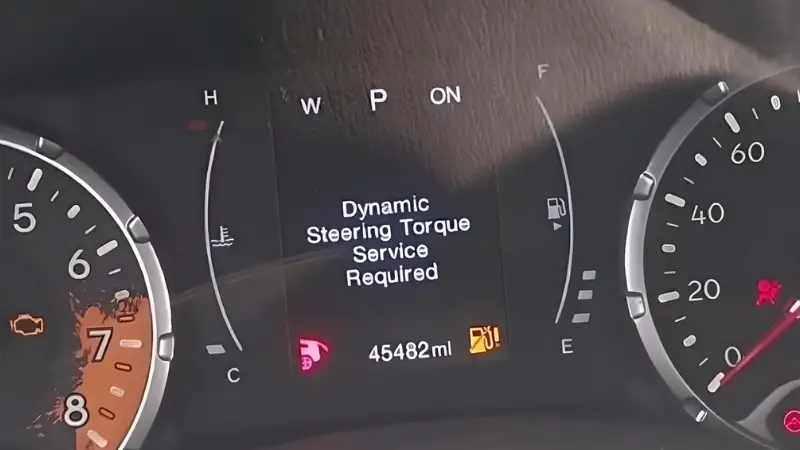
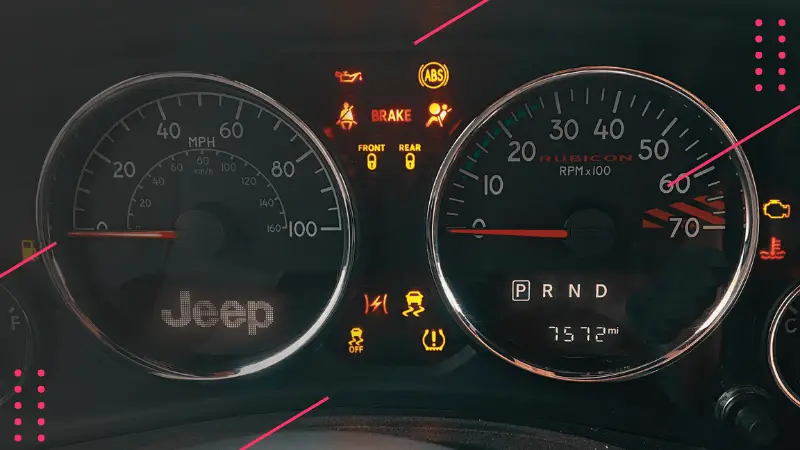
Turning on the screen in your Jeep can seem simple, but many drivers face issues, especially with newer models packed with technology. Whether you want to access navigation, music, or vehicle settings, the Jeep screen is your gateway.
In this guide, you’ll learn how to turn on the screen, solve common problems, and understand the different types of Jeep screens. If you’re new to Jeep or struggle with technology, this article will help you feel confident and get the most from your vehicle.
Understanding Jeep Screens
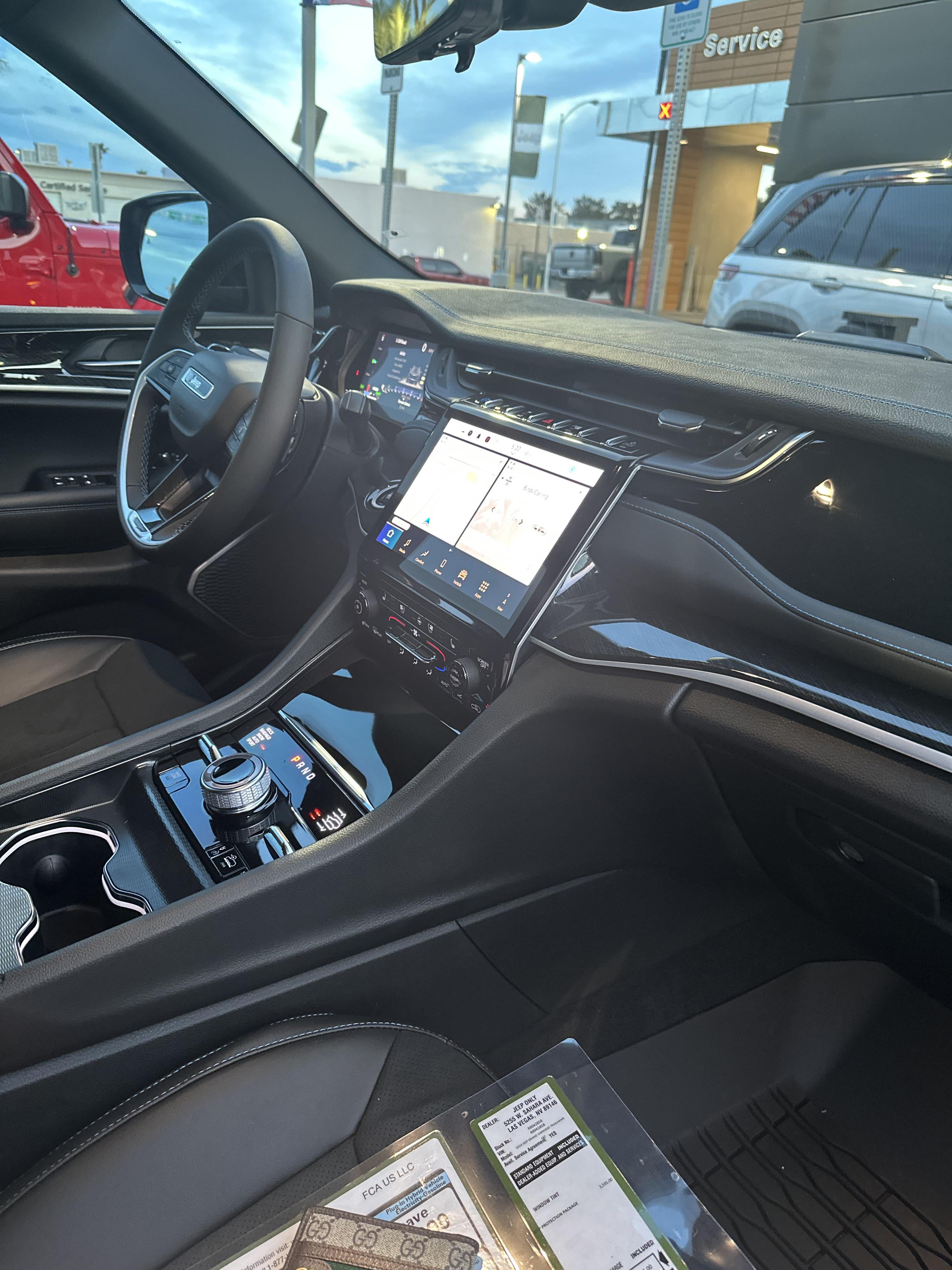
Most recent Jeep models come with either a Uconnect touchscreen or a basic digital display. These screens control entertainment, climate, navigation, and phone connectivity. The most popular sizes are 5-inch, 7-inch, and 8.4-inch displays.

Here’s a quick comparison of Jeep screen types:
| Screen Type | Main Features | Common Models |
|---|---|---|
| Uconnect Touchscreen | Navigation, music, phone, apps | Grand Cherokee, Wrangler, Compass |
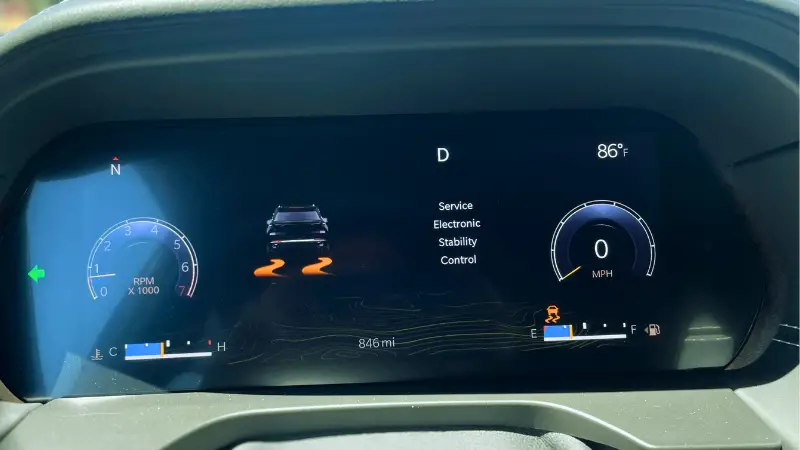
| Digital Instrument Cluster | Speed, vehicle info, alerts | Renegade, Cherokee |
| Basic LCD Display | Radio, clock, basic info | Older Jeep models |
Knowing your Jeep’s screen type helps you follow the right steps and avoid confusion.
Steps To Turn On Your Jeep Screen
Turning on the screen is usually easy, but the steps can vary depending on your model and screen type. Here’s how to do it:
1. Insert The Key Or Press Start
For traditional key ignition, insert and turn the key. For push-button start, press the brake pedal and push the Start button.
2. Power Up The Screen
Most screens turn on automatically with the engine. In some models, the screen powers up when you turn the ignition to Accessory mode (without starting the engine).
3. Look For The Jeep Logo
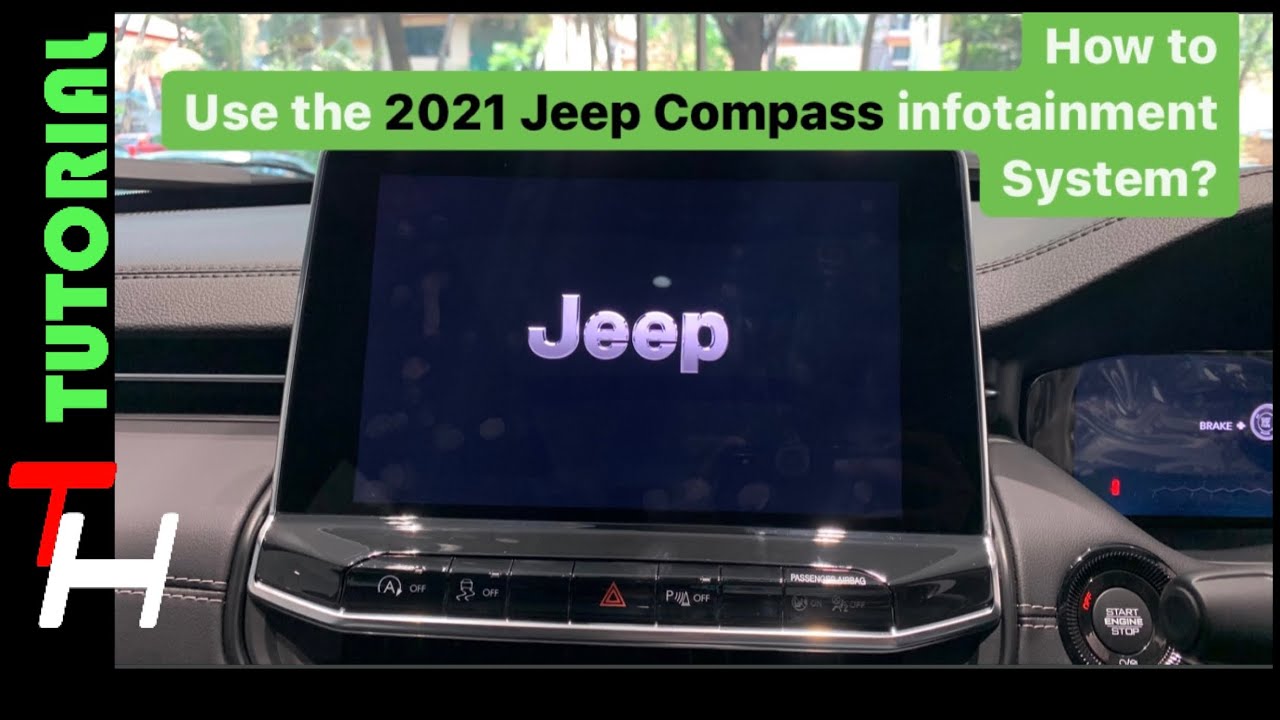
When the screen comes on, you’ll often see the Jeep logo or a welcome message. This means the system is loading.
Some older screens have a power button near the display. If the screen doesn’t turn on, press this button.
5. Adjust Brightness And Contrast
If the screen looks dim, use the brightness knob or touch controls to adjust. Jeep screens can be hard to see in sunlight, so increase brightness as needed.
Here’s a comparison of ignition methods and their effect on screen activation:
| Ignition Type | Screen Activation | Typical Model Years |
|---|---|---|
| Key Ignition | Turns on with engine or accessory mode | 2015 and earlier |
| Push Button Start | Turns on with start or accessory mode | 2016 and newer |
| Remote Start | Screen turns on after remote start sequence | 2018 and newer |
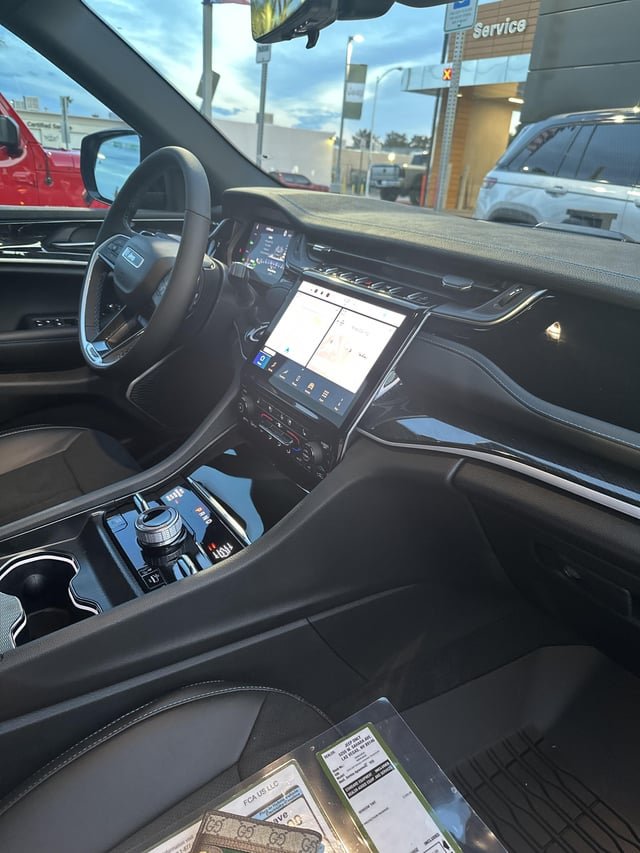
Troubleshooting Screen Issues
Sometimes, your Jeep screen won’t turn on or acts strangely. Here are some common problems and solutions:
- Screen Stays Black
- Check if the vehicle is in Accessory or Run mode.
- Try restarting the ignition.
- Inspect fuse box for blown fuses.
- Frozen or Unresponsive Screen
- Hold the power button for 10 seconds to force a reset.
- Disconnect and reconnect the car battery (last resort).
- Dim or Flickering Screen
- Adjust brightness.
- Check battery voltage. Low voltage can cause display issues.
- Touchscreen Not Responding
- Clean the screen gently with a microfiber cloth.
- Avoid using sharp objects or harsh cleaners.
If basic troubleshooting fails, contact your dealer or check the official Jeep website for software updates.
Practical Tips For Using Your Jeep Screen
Most drivers miss these simple but helpful tips:
- Keep Software Updated: Jeep releases updates that fix bugs and add features. Visit the Jeep website or your dealer for updates.
- Don’t Ignore Battery Health: Weak batteries can cause screen and electronics problems. Test your battery at least once a year.
- Customizing Home Screen: Arrange apps and shortcuts for quick access. This saves time and keeps you focused on driving.
- Enable Night Mode: Switch to night mode for easier viewing during dark hours. This reduces eye strain and distractions.
Common Mistakes Beginners Make
New Jeep owners often make these mistakes:
- Trying to turn on the screen without starting the car or switching to accessory mode.
- Ignoring warning messages. Sometimes the screen stays off due to low battery or system errors.
- Using dirty hands or sharp objects on the touchscreen, which can damage the display.
- Forgetting to check for updates, leading to slow performance and missing new features.
Here’s a quick summary of mistakes and solutions:
| Mistake | Result | How to Fix |
|---|---|---|
| Not starting ignition | Screen stays off | Turn key or press start |
| Dirty screen | Poor touch response | Clean with microfiber cloth |
| Ignoring updates | Screen lags or crashes | Install Jeep software updates |
Frequently Asked Questions
How Do I Turn On The Jeep Uconnect Screen?
Just start the vehicle or switch to Accessory mode. The Uconnect screen should power on automatically. If not, check for a physical power button near the display.
Why Is My Jeep Screen Not Turning On?
A black screen can mean a blown fuse, low battery, or a software glitch. Try restarting the car, checking the fuses, and cleaning the screen.
If it still won’t turn on, contact your dealer.
Can I Turn On The Jeep Screen Without Starting The Engine?
Yes. In most models, turning the key to Accessory mode or pressing the start button without the brake will turn on the screen and electronics.
How Do I Reset My Jeep Touchscreen?
Hold down the power button for 10 seconds or use the reset option in the settings menu. For serious issues, disconnect the car battery for a few minutes.
Where Can I Find Jeep Screen Software Updates?
Updates are available on the official Jeep website or at authorized dealerships. For more details, visit Jeep Official Site.
Turning on your Jeep screen is often simple, but knowing the right steps and solutions gives you more control. If you follow these tips, you’ll avoid common mistakes and keep your Jeep’s technology running smoothly.
With practice, you’ll feel confident using every feature your screen offers, whether you’re navigating a new city or just listening to music.