Pairing your iPhone with Jeep Uconnect is a smart way to enjoy hands-free calls, music, and navigation while driving. Many Jeep owners want to connect their smartphones, but they often struggle with unclear instructions or technical steps.
This article guides you through the pairing process, shows how to troubleshoot common issues, and helps you get the best experience from your Uconnect system. With simple explanations and practical examples, you’ll learn how to make your Jeep and iPhone work together smoothly.
Understanding Jeep Uconnect And Iphone Compatibility
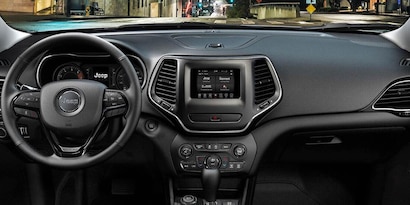
Jeep Uconnect is a multimedia system found in most Jeep vehicles. It lets you control audio, navigation, phone calls, and more from a touchscreen or voice commands. Most Uconnect models support Bluetooth pairing with iPhones, but features can vary depending on your Jeep’s year and Uconnect version.
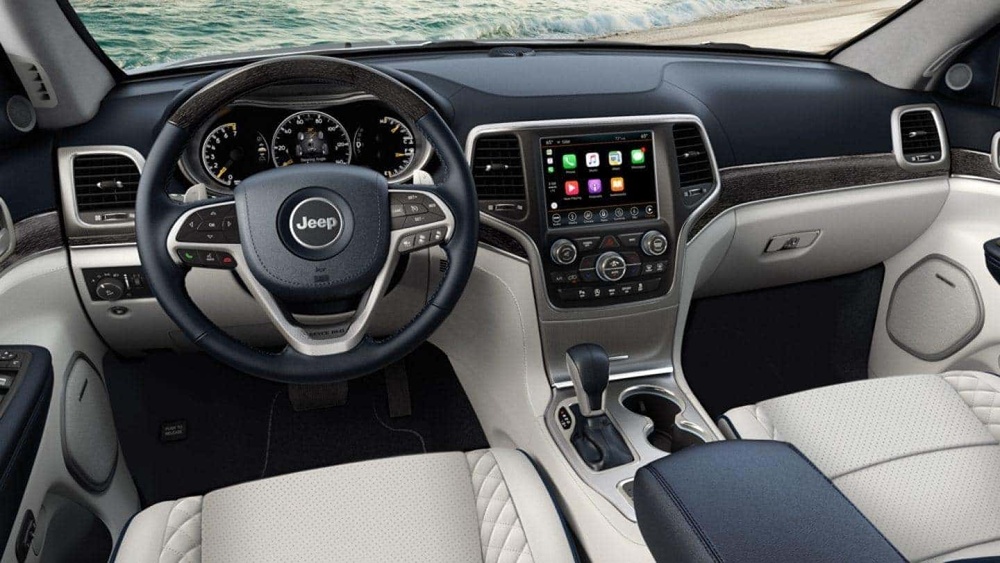
Here’s a quick compatibility overview:
| Uconnect Version | iPhone Supported | Main Features |
|---|---|---|
| Uconnect 3 | iPhone 5 and newer | Bluetooth calls, audio |
| Uconnect 4 | iPhone 6 and newer | Apple CarPlay, Bluetooth calls, audio |
| Uconnect 5 | iPhone 7 and newer | Wireless CarPlay, advanced voice |
Most Jeep models from 2015 onwards use Uconnect 4 or newer. If your Jeep supports Apple CarPlay, you’ll get extra features like Siri voice control and app integration.
Step-by-step Guide: Pairing Your Iphone With Jeep Uconnect
Connecting your iPhone to Jeep Uconnect is simple if you follow these steps:
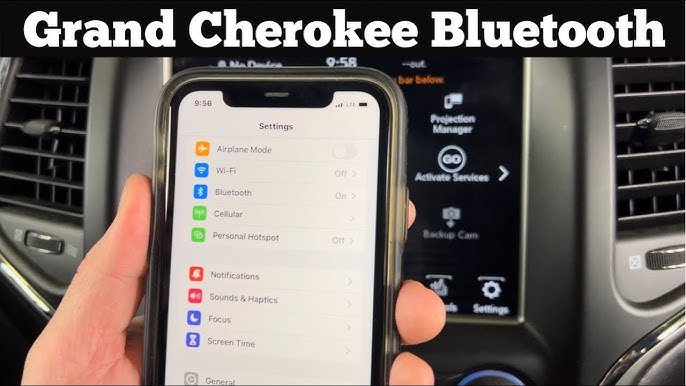
- Check Bluetooth Settings: On your iPhone, go to Settings > Bluetooth. Make sure Bluetooth is ON.
- Start Uconnect Bluetooth Pairing: Press the Phone or Settings button on your Uconnect touchscreen. Choose “Pair a device” or “Add device.”
- Find Uconnect on iPhone: Your iPhone will show “Uconnect” under available devices. Tap to connect.
- Confirm Pairing Code: Uconnect and your iPhone will show a code. Verify it matches, then tap “Pair” on your phone and “Yes” on Uconnect.
- Allow Access: Your iPhone may ask for permission to sync contacts and messages. Tap “Allow.”
- Test Connection: Make a test call or play music to confirm pairing.
If your Jeep supports Apple CarPlay, connect your iPhone with a USB cable for the first time. Follow on-screen instructions to enable CarPlay.
Common Mistakes To Avoid
- Forgetting to turn on Bluetooth on your iPhone
- Not updating your iPhone or Uconnect software
- Trying to pair while the Jeep is moving (pairing usually works only in Park)
- Ignoring pairing code mismatch
Troubleshooting Pairing Issues
Sometimes, pairing doesn’t work the first time. Here are practical solutions for common problems:
Bluetooth Doesn’t Show Uconnect
- Restart your iPhone and Uconnect system.
- Make sure your Jeep is in Park.
- Remove old paired devices from Uconnect and iPhone.
Pairing Code Doesn’t Match
- Cancel pairing and restart the process.
- Make sure both devices show the same code before confirming.
Uconnect Fails To Connect
- Update your iPhone to the latest iOS version.
- Check for Uconnect software updates at your dealership.
Here’s a quick comparison of troubleshooting steps:
| Problem | Quick Fix |
|---|---|
| Bluetooth not visible | Restart both devices |
| Pairing code error | Retry pairing, check code |
| Connection drops | Update software, remove old pairings |
Using Uconnect Features With Your Iphone
Once paired, you can use several features:
- Hands-free calls: Use Uconnect voice button to make calls.
- Music streaming: Play music from Apple Music, Spotify, or your library.
- Text messaging: Listen to and reply to texts using voice commands.
- Navigation: Use Apple Maps or Google Maps via CarPlay (if supported).
For Jeep models with Apple CarPlay, you get a more advanced experience:
| Feature | Bluetooth Only | With CarPlay |
|---|---|---|
| Calls | Yes | Yes + Siri support |
| Music | Yes | Yes + app integration |
| Navigation | No | Yes (Maps, Waze) |
| Text messaging | Basic | Advanced with Siri |
Some beginners miss that CarPlay works only when connected with a USB cable for most Uconnect models. Only Uconnect 5 supports wireless CarPlay.
Practical Tips For Reliable Connection
To keep your iPhone and Uconnect connection stable, follow these tips:
- Always keep your iPhone’s software updated.
- Remove unused paired devices from Uconnect regularly.
- Avoid pairing multiple phones at the same time.
- Use a high-quality USB cable for CarPlay.
- If you change your iPhone, unpair the old device first.
Many users forget to update Uconnect software, which can lead to pairing issues. You can check for updates at your Jeep dealer or on the official Uconnect website.
If you want more technical details or help, the official Jeep Uconnect support page has step-by-step guides and FAQs.
Frequently Asked Questions
Can I Pair More Than One Iphone With Jeep Uconnect?
Yes, you can pair several phones, but only one can be active for calls or audio at a time. To switch, use the Uconnect settings to select the desired device.
Why Does My Iphone Disconnect From Uconnect Randomly?
This often happens due to outdated software or interference from other devices. Update your iPhone and Uconnect, and remove any unused paired devices for a stable connection.
Does Uconnect Support Wireless Apple Carplay?
Only the latest Uconnect 5 systems support wireless CarPlay. Older versions require a USB cable to use CarPlay features.
How Do I Update Uconnect Software?
You can update your Uconnect at the dealership or download updates from the Jeep website. Follow instructions carefully to avoid interruption during the update.
What Should I Do If Bluetooth Pairing Fails Every Time?
First, restart both your iPhone and Uconnect system. Remove any old pairings, update your software, and try again.
If issues continue, contact your Jeep dealer for support.
Pairing your iPhone with Jeep Uconnect gives you safer, smarter driving. With these steps and tips, you’ll avoid common mistakes and enjoy the full power of your Jeep’s multimedia system.
Take a few minutes to set up your connection, and your drives will be more connected and enjoyable.