Connecting your phone to a Jeep Grand Cherokee 2011 is easier than many people expect. Whether you want to stream music, make hands-free calls, or access navigation, pairing your device helps you drive safer and smarter. This guide shows you every step, explains common mistakes, and shares tips most drivers overlook. With the right approach, you can enjoy your phone’s features without hassle—no advanced tech skills needed.
Understanding Jeep Grand Cherokee 2011 Connectivity
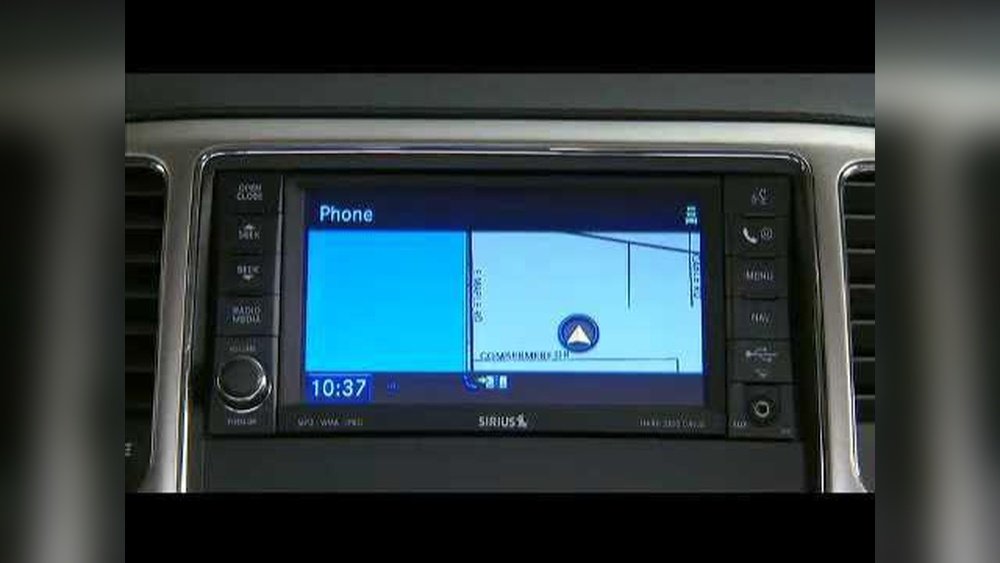
The 2011 Grand Cherokee comes with Uconnect, Jeep’s built-in infotainment system. Most models have Bluetooth, but some base trims may not. The Uconnect system lets you pair your phone for calls and audio, but it does not support Apple CarPlay or Android Auto. Instead, you use Bluetooth for most phone features.
Here’s a quick look at the connectivity options available:
| Feature | Supported | Notes |
|---|---|---|
| Bluetooth Calling | Yes | Most trims |
| Bluetooth Audio | Yes | Music streaming |
| USB Port | Yes | For charging |
| Apple CarPlay / Android Auto | No | Not supported |
Step-by-step Guide: Pairing Your Phone
Follow these steps to connect your phone to your Jeep Grand Cherokee 2011 using Bluetooth. The process is simple, but missing a step can cause issues.
1. Prepare Your Phone
- Turn on Bluetooth on your phone.
- Make your device discoverable (visible to other devices).
2. Start Uconnect Pairing
- Turn on your Jeep and press the Uconnect Phone button (usually on the steering wheel or dashboard).
- Listen for the system prompt: “Ready.”
- Say “Pair a device.”
3. Connect From Your Phone
- On your phone, search for available Bluetooth devices.
- Select “Uconnect” from the list.
- Enter the PIN displayed on the Jeep screen (often 0000 or 1234).
4. Confirm Pairing
- Uconnect confirms the connection.
- Your phone may ask for permission to access contacts and messages. Allow these for full features.
5. Test The Connection
- Make a call using the Uconnect system.
- Try playing music via Bluetooth.
- Check if caller ID and contacts appear on the Jeep display.
Troubleshooting Tips
Most issues happen because of missed steps or device compatibility. Here’s a table of common problems and solutions:
| Problem | Likely Cause | Solution |
|---|---|---|
| Phone won’t connect | Bluetooth off or not discoverable | Turn Bluetooth on and retry pairing |
| No audio/music | Incorrect audio source | Select Bluetooth as audio source |
| Contacts not syncing | Permission not granted | Allow access on your phone |
| Uconnect not found | Bluetooth module issue | Restart Jeep and phone |

Advanced Tips Most People Miss
Many drivers never use the full potential of their Jeep’s Bluetooth. Here are two advanced insights:
- Multiple Device Pairing: The Uconnect system allows pairing with more than one phone. However, only one device connects at a time. To switch, use the Uconnect menu and select the desired device.
- Voice Commands: Use voice commands for safer driving. After pairing, say “Call [Name]” or “Dial [Number]” without touching your phone. This reduces distraction and is often faster.
Another detail: Bluetooth range matters. If your phone is in the backseat or trunk, the connection may drop. Keep your phone near the center console for best performance.
Common Mistakes To Avoid
When connecting your phone, some errors are easy to make:
- Forgetting to turn on Bluetooth before pairing.
- Entering the wrong PIN or ignoring prompts on your phone.
- Not updating your phone’s software, which can cause compatibility issues.
- Trying to connect multiple phones at once (Uconnect only supports one active device).
If pairing fails, restart both the Jeep and your phone, then try again. Sometimes clearing old paired devices from Uconnect can also help.
Enhancing Your Experience
If you want more than basic Bluetooth, you have options:
- Aftermarket upgrades: You can install a modern head unit with support for Apple CarPlay or Android Auto.
- Bluetooth adapters: For older trims without Bluetooth, a plug-in adapter for the auxiliary port can add wireless capability.
- USB charging: Use the built-in USB port for reliable charging, but remember it does not transfer data for music playback.
Here’s a quick comparison of upgrade options:
| Upgrade Type | Benefits | Cost Range |
|---|---|---|
| Aftermarket Head Unit | Modern features, touch screen | $300–$800 |
| Bluetooth Adapter | Easy install, wireless music | $20–$50 |
| OEM Bluetooth Module | Factory look, full integration | $100–$250 |
Staying Safe And Legal
Hands-free use is not only convenient, it’s required by law in many states. According to the National Highway Traffic Safety Administration, distracted driving causes thousands of accidents every year. Using your phone through Uconnect keeps your focus on the road and can help you avoid fines and accidents. Always set up your phone before driving, and rely on voice commands whenever possible.
For more details on Bluetooth laws and safety, visit NHTSA.

Can I Connect Any Smartphone To My Jeep Grand Cherokee 2011?
Most phones with Bluetooth will connect. Older phones or those with outdated software may have issues. Always update your phone before pairing.
Does The 2011 Grand Cherokee Support Apple Carplay Or Android Auto?
No, Apple CarPlay and Android Auto are not supported in this model. Only Bluetooth calling and audio are available through Uconnect.
How Many Phones Can I Pair With Uconnect?
Uconnect can store several phones, but only one device connects at a time. You can switch between paired phones in the menu.
Why Isn’t My Music Playing Through The Speakers?
Check if Bluetooth audio is selected as the source. If the phone is connected only for calls, music won’t play. Change the audio source in Uconnect settings.
What Should I Do If Pairing Fails?
Restart both your Jeep and phone. Make sure Bluetooth is on and both devices are discoverable. If problems continue, delete old paired devices and try pairing again.
Connecting your phone to your Jeep Grand Cherokee 2011 unlocks safer driving and entertainment. By following these steps and tips, you’ll get the most from your Uconnect system.
Remember to check compatibility, use voice commands, and explore upgrade options if you want more features.
Safe travels!