Connecting your car to the Jeep app unlocks a new level of convenience and control. Imagine checking your fuel level, starting your engine remotely, or locking your doors with just your phone. These features are not just futuristic—they’re available right now for most Jeep owners. But if you’re new to this, the process can feel confusing. With this guide, you’ll learn step-by-step how to connect your Jeep vehicle to its official app, what you need to prepare, and practical tips for a smooth experience.
What You Need Before You Start
Before connecting your car, gather a few key items. You’ll save time and avoid common mistakes.
- Compatible Jeep vehicle: Most Jeep models from 2018 and newer support app connectivity, but check your owner’s manual to confirm.
- Smartphone: The Jeep app is available for both iOS and Android.
- Vehicle Identification Number (VIN): Usually found on the dashboard or inside the driver’s door.
- Jeep account: You’ll need to register or log in.
- Strong internet connection: Both your phone and car need to be online for setup.
Some older models may require extra steps, like a software update. Always check your vehicle’s compatibility first.
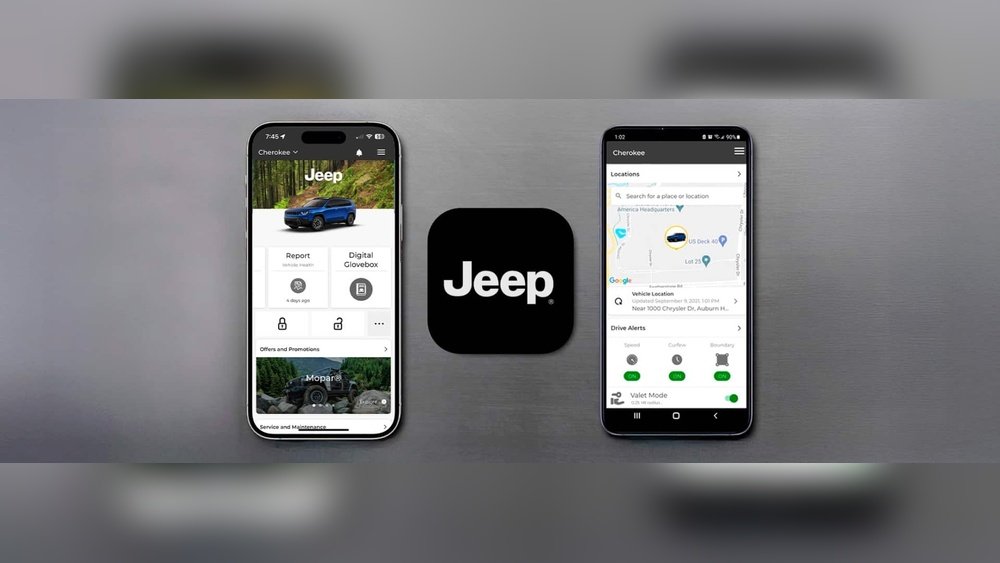
Step-by-step Guide To Connecting Your Car
Let’s break down the process into clear, simple steps.
1. Download The Jeep App
Go to the App Store or Google Play, search for “Jeep,” and download the official app. Make sure it’s the official app by FCA or Stellantis.
2. Create Or Log Into Your Jeep Account
Open the app and sign up with your email address. If you already have an account from the Jeep website, use those credentials.
Remember to use the same email linked to your vehicle purchase for easier verification.
3. Add Your Vehicle
Tap “Add Vehicle” in the app menu. Enter your VIN. Double-check this number—it’s easy to make mistakes. The VIN links your app account to your specific Jeep.
4. Verify Ownership
The app may prompt you to verify you own the vehicle. This could involve:
- Entering a code sent to your email
- Taking a photo of your VIN plate
- Answering questions about your Jeep
This step keeps your car safe from unauthorized access.
5. Enable Connected Services
Some Jeeps have Uconnect or similar systems. You might need to activate these services:
- Turn your vehicle on
- Navigate to the vehicle’s touchscreen menu
- Select “Apps,” then “Activate Services”
- Follow instructions to connect to Wi-Fi or cellular
If you skip this, the app features won’t work.
6. Pair Your Phone And Car
With services activated, the app will guide you to pair your phone:
- Bluetooth: Ensure Bluetooth is enabled on both devices.
- Wi-Fi: Some models use Wi-Fi Direct for faster pairing.
Follow the prompts. If you run into trouble, restart both devices.
7. Test The Connection
Try a simple feature like locking or unlocking your doors from the app. If it works, you’re connected!
If not, check internet, Bluetooth, or app permissions.

Jeep App Features And Benefits
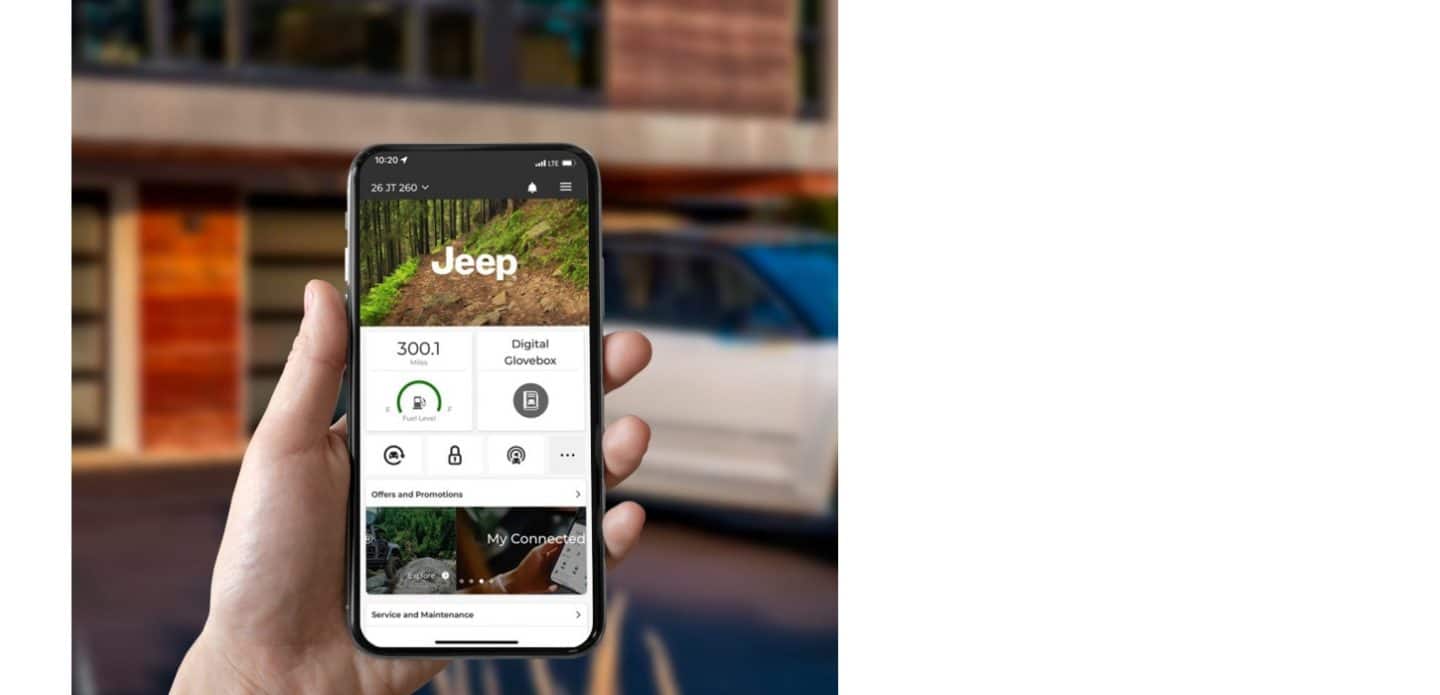
Connecting your Jeep unlocks powerful features. Here’s what you can expect:
- Remote Start: Start your engine from anywhere, perfect for hot or cold days.
- Lock/Unlock: Secure your vehicle with your phone, even if you forget.
- Location Tracking: Find your car in large parking lots.
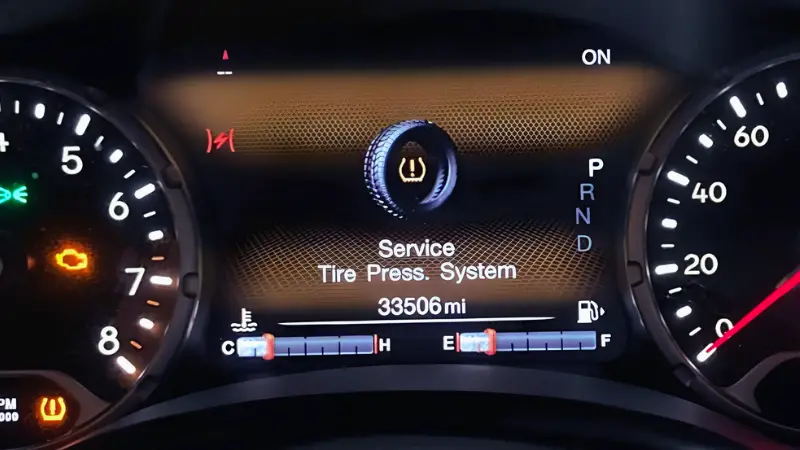
- Vehicle Health Reports: Get updates on battery, oil, and tire pressure.
- Trip History: Review past routes and mileage.
Some features may require a paid subscription, so check inside the app for details.
| Feature | Availability | Subscription Needed? |
|---|---|---|
| Remote Start | Most models, 2018+ | Yes |
| Lock/Unlock | All models with app | No |
| Vehicle Health | Selected models | No |
| Location Tracking | All app-enabled | No |
Common Problems And How To Fix Them
Even tech-savvy users face issues. Here are fixes for frequent problems:
- App won’t connect: Check if your car’s Wi-Fi or Bluetooth is enabled.
- VIN not recognized: Double-check the number, or try scanning with your phone’s camera.
- Remote features not working: Make sure your Jeep subscription is active.
- App crashes: Update the app or restart your phone.
A non-obvious tip: Some Jeep models need the car in “Park” and doors closed to activate certain features. Also, app permissions (like location and Bluetooth) must be allowed.
| Problem | Quick Fix |
|---|---|
| Bluetooth won’t pair | Reset both phone and vehicle system |
| VIN not found | Check for typos; try manual entry |
| App features missing | Confirm subscription and software updates |
Practical Tips For A Smooth Experience
- Update your app regularly: New features and bug fixes appear often.
- Use strong passwords: Protect your Jeep account.
- Allow app permissions: Location, Bluetooth, and notifications help features work.
- Keep your car’s software updated: Visit your dealer or use the car’s menu.
- Check cellular coverage: If your Jeep uses cellular, poor signal can cause delays.
A helpful insight: Don’t use public Wi-Fi for pairing. It’s less secure and often slow.
Comparing Jeep App With Other Car Apps
If you own other brands, you might wonder how Jeep’s app stacks up. Here’s a quick comparison.
| App | Remote Start | Lock/Unlock | Vehicle Health | Location Tracking |
|---|---|---|---|---|
| Jeep | Yes | Yes | Yes | Yes |
| FordPass | Yes | Yes | Yes | Yes |
| myChevrolet | Yes | Yes | Yes | Yes |
| Toyota App | Yes | Yes | Limited | Yes |
Jeep’s app is competitive, offering almost all major features. However, some advanced functions may require an extra fee.

Security And Privacy Considerations
With more connectivity comes greater responsibility. Protect your data:
- Choose strong passwords.
- Do not share your app login with others.
- Update your app to get security fixes.
- Read privacy policies to know how your data is used.
Jeep and other car brands use encryption and secure servers, but you should always stay alert.
Where To Get Help
If you have trouble, the best resources are:
- Jeep’s official support website
- Your local Jeep dealer
- Online Jeep forums
For detailed support and official instructions, visit Jeep Official Connectivity.
Connecting your Jeep to its app is not just about convenience. It’s about safety, efficiency, and getting more from your car.
With these steps and tips, you can set it up quickly and fix most issues yourself.
Frequently Asked Questions
How Do I Know If My Jeep Model Supports App Connectivity?
Most Jeeps from 2018 and newer support the app. Check your owner’s manual or the Jeep official website for compatibility.
Is The Jeep App Free To Use?
Basic features are free. Advanced functions like remote start may require a subscription.
What If My Vin Is Not Accepted?
Double-check the VIN, and try manual entry. If it still fails, contact Jeep support or your dealer.
Can I Connect Multiple Jeeps To One App?
Yes, you can add more than one vehicle. Simply repeat the “Add Vehicle” step for each car.
Is My Personal Data Safe With The Jeep App?
Jeep uses secure servers and encryption. Always use strong passwords and update your app to protect your information.
Connecting your car to the Jeep app is a smart step for every Jeep owner. With careful setup and attention to security, you’ll enjoy a safer, more convenient driving experience.