Getting a new Jeep is exciting, but connecting it to the Jeep app unlocks even more features. From remote start to vehicle health reports, the app makes your driving experience smarter and easier. Many Jeep owners, especially those new to technology, find the process of adding their new vehicle confusing. If you’re struggling, this guide will take you step-by-step through adding a new Jeep vehicle to the app, with tips, common mistakes, and useful data to help you get the most out of your vehicle.
Why Add Your Vehicle To The Jeep App?
Connecting your Jeep to the app isn’t just about convenience. You gain access to real-time information, remote functions, and security features that are otherwise unavailable. For example, over 70% of Jeep owners report using the app for checking tire pressure and fuel levels before long trips. It’s also essential for warranty tracking and emergency services. Adding your vehicle ensures you get updates, recalls, and tips specific to your model.
Preparation Before Adding A New Vehicle
Before you start, make sure you have:
- Jeep vehicle VIN (Vehicle Identification Number): This is usually found on your dashboard, driver’s side door, or vehicle documents.
- Jeep app installed: Download from the App Store or Google Play.
- Jeep account: Create one if you haven’t. You’ll need an email and password.
- Internet access: Wi-Fi or mobile data is required.
What Is Vin And Where To Find It?
The VIN is a 17-character code unique to your vehicle. It’s essential for adding your Jeep to the app. Here’s a quick comparison of where to find the VIN in different Jeep models:
| Jeep Model | VIN Location |
|---|---|
| Jeep Wrangler | Driver’s side dashboard, visible from windshield |
| Jeep Cherokee | Driver’s door frame label |
| Jeep Grand Cherokee | Vehicle registration papers |

Step-by-step Guide: Adding Your New Jeep To The App
Follow these steps to connect your Jeep to the app:
- Open the Jeep app on your smartphone.
- Log in to your account. If you don’t have one, click “Sign Up.”
- Tap the menu icon (three lines in the corner).
- Select “Add Vehicle” or “My Garage” depending on the app version.
- Enter your VIN carefully. Double-check for mistakes.
- Choose your Jeep model and year from the dropdown.
- Confirm the details and tap “Save” or “Add.”
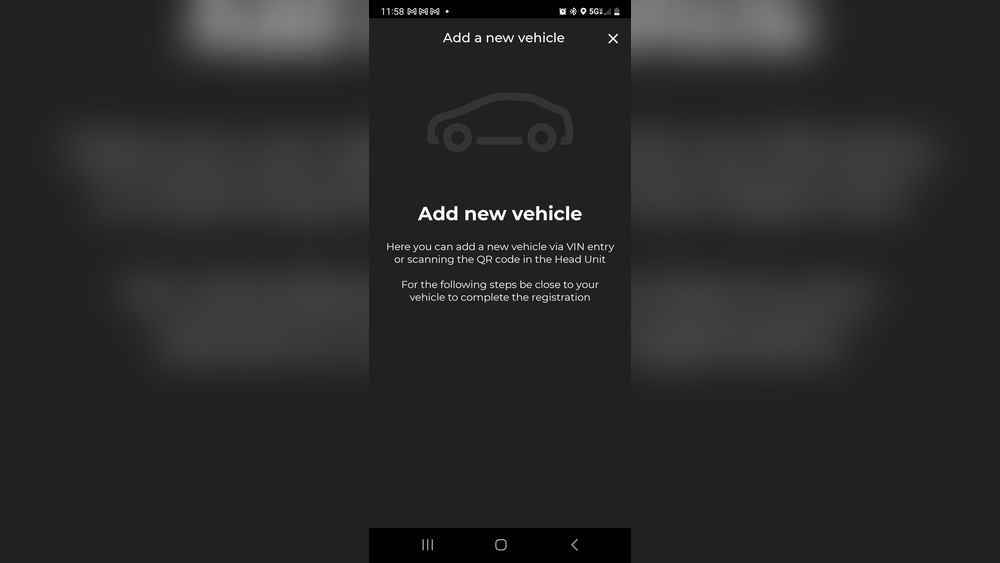
- The app may prompt you to verify ownership. You might need to upload a photo of your registration or scan a QR code in your vehicle.
- Once verified, your Jeep appears in your garage. You can now access features like remote start, lock/unlock, and vehicle health reports.
Example: Adding A Jeep Wrangler
Let’s say you have a 2023 Jeep Wrangler. After entering your VIN and model, the app will show your vehicle’s image and details. If you’re prompted for verification, take a clear photo of your registration document and upload it. Within minutes, your Wrangler is ready to use in the app.
Features Available After Adding Your Vehicle
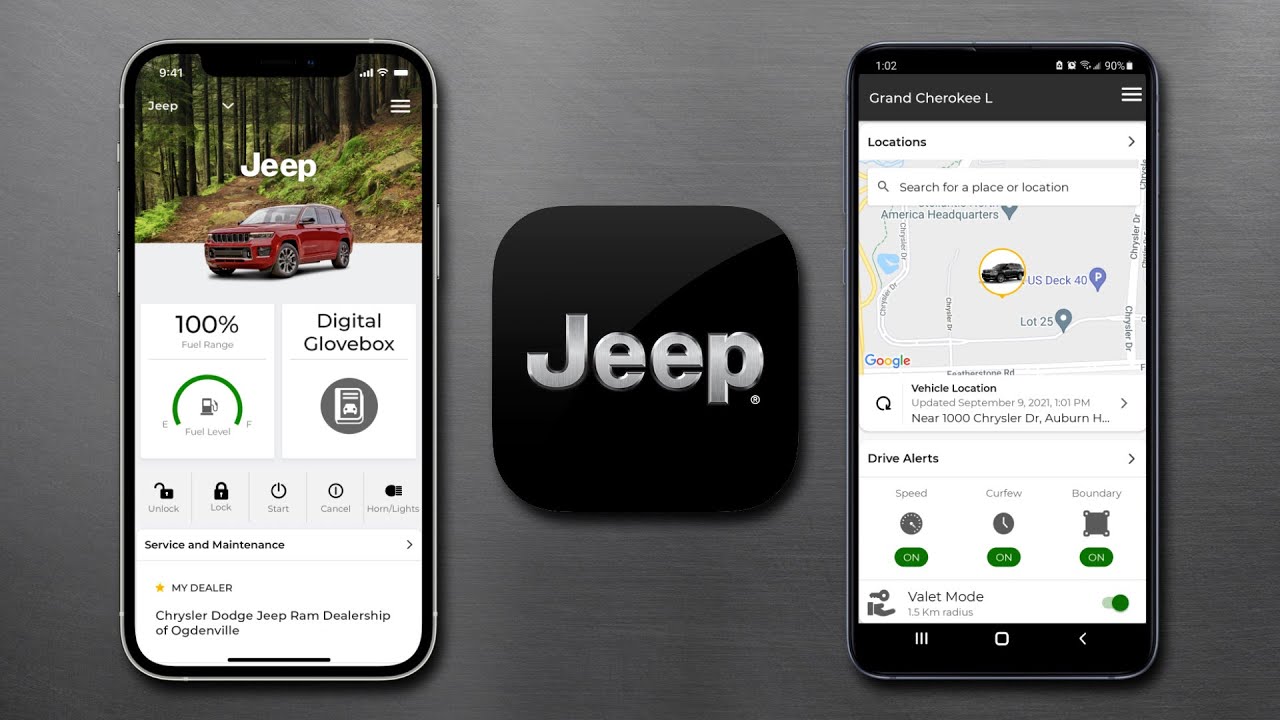
Once your Jeep is connected, you unlock a range of features:
- Remote Start/Stop: Start your engine from anywhere.
- Lock/Unlock: Secure your Jeep without keys.
- Vehicle Health Report: Get updates on battery, oil, and tire pressure.
- Find My Vehicle: Locate your Jeep on a map.
- Send Destination to Navigation: Plan routes from your phone.
Here’s a quick comparison of popular features and their benefits:
| Feature | Benefit |
|---|---|
| Remote Start | Warm/cool cabin before entering |
| Health Report | Prevent breakdowns with alerts |
| Find My Vehicle | Easy parking location |
Common Mistakes And How To Avoid Them
Many users make small errors that delay setup. Here are some mistakes and tips:
- Wrong VIN entry: Double-check every character. Common errors are swapping “O” for “0” or “I” for “1.”
- App version mismatch: Make sure your app is updated. Older versions may not show “Add Vehicle.”
- Poor photo quality: If verification fails, retake the photo in good lighting.
- Wi-Fi issues: Connect to stable internet before starting.
Surprisingly, beginners often forget to check app compatibility. For example, certain Jeep models from before 2018 may need special setup or extra hardware.
Always check your vehicle’s manual or the Jeep website for details.
Tips For Smooth Setup
- Update your app before starting. Over 60% of failed attempts are due to outdated versions.
- Register your Jeep online first. This can speed up the app process.
- Check your vehicle’s manual for QR codes or special instructions.
- If you have more than one Jeep, add all vehicles to your garage for easy access.
- Use the Help section in the app if you get stuck. The app’s FAQ is updated regularly.
For more advanced support, visit the official Jeep Owners App page.
Data: How Many Jeeps Are Connected?
According to Jeep, over 1 million vehicles are connected through the app in the US alone. Owners report a 20% increase in service visits after receiving health alerts through the app. The most used feature is remote start, especially in colder states.
Frequently Asked Questions
Can I Add More Than One Jeep To The App?
Yes, you can add multiple Jeeps to your garage. Simply repeat the steps for each vehicle using its unique VIN.
What If My Vin Is Not Recognized?
Check for typing errors first. If your VIN is correct and still not accepted, your model may not support app connectivity. Contact Jeep customer support for help.
Do I Need To Pay For App Features?
Basic features are free. Some advanced options, like remote start, may require a subscription after the trial period.
Is My Vehicle Data Safe On The Jeep App?
Jeep uses encryption and secure servers to protect your data. Always use strong passwords and keep your app updated for security.
Can I Use The App Outside The Us?
The Jeep app works in many countries, but features may vary. Check your region’s compatibility on the Jeep website.
Connecting your new Jeep to the app opens a world of smart features and better driving experiences. With careful setup, attention to detail, and these tips, you’ll enjoy the full benefits of your Jeep and stay ahead with technology.