If you own a Jeep, connecting it to the Jeep app can make your life easier. You can lock or unlock your doors, check your fuel, and even start your engine remotely. But many Jeep owners feel confused about the steps. Setting up your Jeep in the app can be quick if you know what to do. This guide will walk you through each step, highlight common mistakes, and show you how to get the most out of your Jeep app. If you follow along, you will be ready to enjoy all the smart features your Jeep offers.
What You Need Before Adding Your Jeep
Before you start, get these things ready:
- Jeep VIN (Vehicle Identification Number): Usually found on the dashboard near the windshield or inside the driver’s door.
- Jeep app installed: Download from the App Store or Google Play.
- Active internet connection: WiFi or cellular data is required.
- User account: Register in the Jeep app with your email address.
Having these items ready will prevent delays and make the process smoother.
Step-by-step Guide To Add Your Jeep
Follow these steps carefully to connect your Jeep to the app:
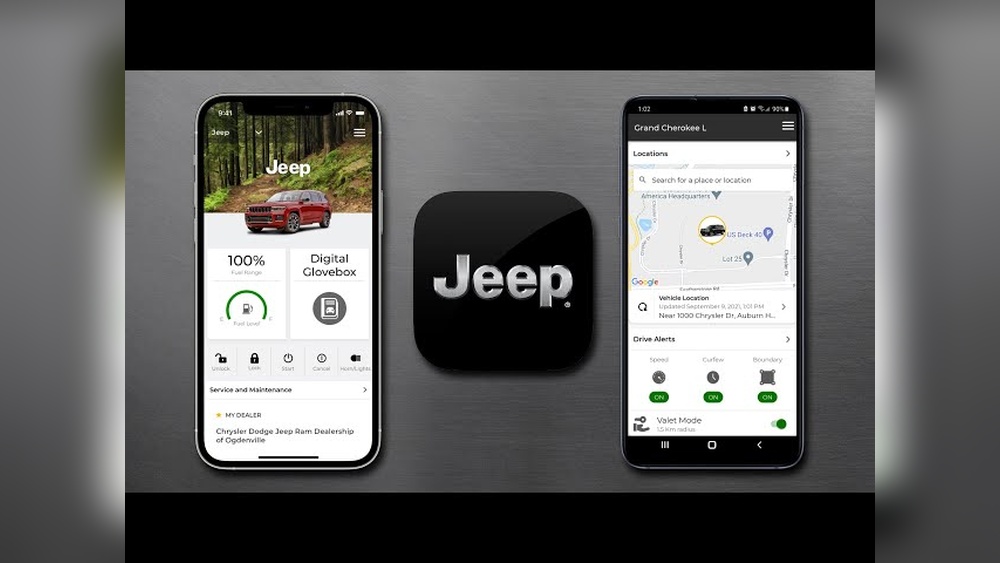
1. Download And Open The Jeep App
- Search for Jeep app in your phone’s app store.
- Install and open the app.
- Register or log in with your email.
2. Locate Your Jeep’s Vin
- Find the VIN on your Jeep’s dashboard or door frame.
- Write it down or take a photo for easy entry.
3. Start The Vehicle Setup
- In the app, look for “Add Vehicle” or “Connect Your Jeep.”
- Tap to begin the setup.
4. Enter The Vin
- Type your VIN exactly as shown.
- Double-check for errors before submitting.
5. Verify Ownership
- Some Jeeps require extra verification.
- You may need to scan a QR code from your Jeep’s infotainment screen or provide a code sent to your email.
6. Complete Connection
- Wait for the app to connect to your Jeep.
- You may see a confirmation message.
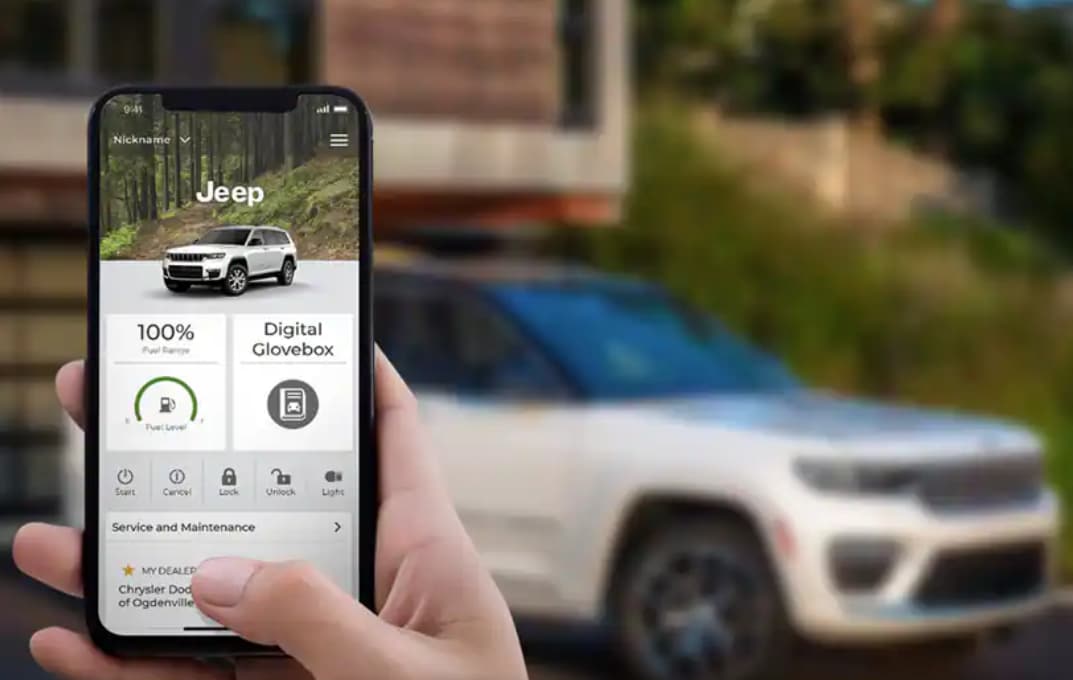
7. Enable Remote Features
- Turn on remote services like lock/unlock, engine start, or location tracking.
- Follow prompts to activate these features.
8. Set Up Notifications
- Choose alerts for maintenance, tire pressure, or battery health.
- Personalize notifications so you don’t miss important updates.
Comparing Jeep App Features By Model
Not all Jeep models offer the same features in the app. Here is a quick comparison:
| Feature | Jeep Wrangler | Jeep Grand Cherokee | Jeep Compass |
|---|---|---|---|
| Remote Start | Yes | Yes | No |
| Lock/Unlock | Yes | Yes | Yes |
| Vehicle Finder | Yes | Yes | No |
| Maintenance Alerts | Yes | Yes | Yes |
If your Jeep is older, some features may not be available. Always check your model’s compatibility.
Troubleshooting Common Problems
Sometimes adding your Jeep doesn’t work right away. Here are solutions for common issues:
Vin Not Accepted
- Re-check the VIN for mistakes.
- Make sure your Jeep is not too old; some models before 2016 may not support the app.
Connectivity Issues
- Switch to a stronger WiFi or cellular signal.
- Restart your phone and try again.
Ownership Verification Fails
- Double-check the code or QR scan.
- Contact Jeep customer support if you can’t verify.
App Not Showing Vehicle
- Log out and log back in.
- Update the app to the latest version.

Data Privacy And Security
Jeep app uses advanced encryption to keep your details safe. Your location data and vehicle info are protected. Always use a strong password for your account. Do not share your login details. If you sell your Jeep, remove it from the app to protect your privacy.
Real User Experiences
Many Jeep owners say the app saves time and reduces stress. For example, Sarah from Texas uses the app to check her tire pressure before every road trip. Mike in California likes remote start during cold mornings. According to Jeep, over 75% of new owners activate the app within the first month.
But some users report slow updates or missing features, especially on older models. You can check real reviews and updates at the official Jeep site: Jeep Connect.
Jeep App Vs. Other Car Apps
How does the Jeep app compare to other brands? Here’s a quick look:
| Brand | Remote Start | Lock/Unlock | Maintenance Alerts |
|---|---|---|---|
| Jeep | Yes (most models) | Yes | Yes |
| FordPass | Yes | Yes | Yes |
| myChevrolet | Yes | Yes | Yes |
| HondaLink | No | Yes | Yes |
The Jeep app covers most standard features but may lack advanced options like scheduling maintenance directly.
Two Insights Most Beginners Miss
- VIN accuracy is critical: Even a single wrong digit will prevent your Jeep from connecting. Many users rush and make mistakes here.
- Model year matters: Newer Jeeps get more features. Before getting excited about app controls, check your Jeep’s year and trim level.
Frequently Asked Questions
How Do I Find My Jeep’s Vin?
Your VIN is a 17-digit code. It’s located on the dashboard near the windshield or inside the driver’s side door. You can also see it on your registration papers.
What If My Jeep App Doesn’t Recognize My Vehicle?
Double-check your VIN. Make sure your vehicle is compatible. If your Jeep was made before 2016, the app may not support it. Update the app and try again.
Can I Add Multiple Jeeps To One App Account?
Yes, the Jeep app allows you to add more than one vehicle. Use the “Add Vehicle” option and repeat the setup process for each Jeep.
Are There Fees For Using The Jeep App?
Basic features are free. Some advanced options like remote start or vehicle tracking may require a subscription after the first year. Check the app or your dealer for details.
How Do I Remove My Jeep From The App?
Go to settings, select your vehicle, and choose “Remove Vehicle. ” This is important if you sell your Jeep or transfer ownership.
Connecting your Jeep to the app is a smart move. With a few careful steps, you unlock features that make driving safer and easier. Double-check your VIN, follow the prompts, and enjoy all the benefits. If you run into problems, customer support and the Jeep site have helpful resources.
This guide should help you get started and avoid mistakes so you can drive with confidence.