Connecting your phone to your Jeep is more than a convenience—it’s about safety, entertainment, and making your driving experience smoother. Many Jeep owners want to access music, navigation, hands-free calls, and apps while on the road. However, the process may look different depending on your Jeep model and the technology inside.
If you’re unsure where to start, or you want to avoid common mistakes, this guide will help you connect your phone to your Jeep quickly and confidently.
Understanding Jeep Connectivity Options
Jeep vehicles come with several ways to connect your phone. The most common methods are Bluetooth, USB, and Apple CarPlay/Android Auto. Older models may have basic Bluetooth functions, while newer ones offer advanced integrations.
Here’s a quick look at how these options compare:
| Connection Method | Supported Features | Jeep Models |
|---|---|---|
| Bluetooth | Calls, Audio Streaming | Most models (2012+) |
| USB | Charging, CarPlay/Android Auto | Models with USB ports |
| Apple CarPlay/Android Auto | Apps, Navigation, Voice Control | 2017+ with Uconnect |
Knowing which features your Jeep supports will save you time and prevent frustration. Always check your owner’s manual or the infotainment system for compatibility.
Step-by-step: Connecting Via Bluetooth
Bluetooth is the simplest way to link your phone to your Jeep. Follow these steps for a smooth pairing process:
- Activate Bluetooth on your phone. Go to Settings > Bluetooth and turn it on.
- Start your Jeep and turn on the infotainment system (often called Uconnect).
- Navigate to Bluetooth settings on your Jeep’s screen. Usually, this is under “Settings” or “Phone.”
- Select “Pair New Device”. Your Jeep will display its Bluetooth name.
- Find the Jeep’s Bluetooth name on your phone and tap to connect.
- Confirm pairing codes. Both devices will show a code—make sure they match, then accept.
- Allow access to contacts and media if prompted. This enables hands-free calls and music streaming.
Many owners forget to accept the access prompts, which blocks some features. If you have trouble, restart both devices and try again.

Connecting With Apple Carplay Or Android Auto
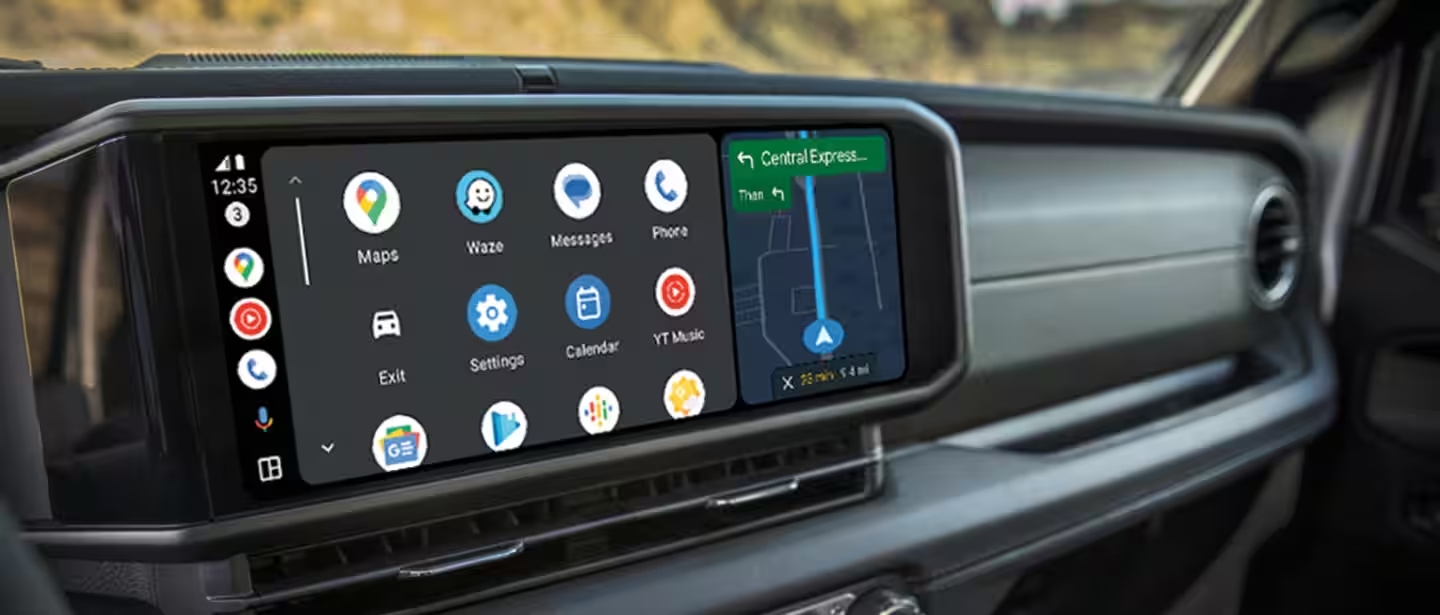
For drivers who want more than just calls and music, Apple CarPlay and Android Auto offer advanced integration. You can control apps, maps, and messages through your Jeep’s touchscreen.
Setting Up Apple Carplay
- Plug your iPhone into the Jeep’s USB port using the original cable.
- The Uconnect system should detect your phone and prompt you to enable CarPlay.
- Follow on-screen instructions and allow access on your phone.
Setting Up Android Auto
- Connect your Android phone via USB.
- The system may ask you to download or update the Android Auto app.
- Enable permissions and follow the prompts on both devices.
Some Jeep models allow wireless CarPlay or Android Auto, but this feature is usually in newer vehicles. Always use genuine cables for the best results.
Using Usb For Charging And Media
USB ports are not just for charging—they can also connect your phone for audio and data. Here’s how the ports differ:
| USB Type | Functions | Supported Models |
|---|---|---|
| USB-A | Charging, Data | Most Jeeps |
| USB-C | Fast Charging, Data | Newer models (2020+) |
| Aux Input | Audio Only | Older Jeeps |
If your Jeep has multiple ports, use the one labeled “Media” or “Smart” for phone connection. Charging-only ports won’t support CarPlay or Android Auto.
Troubleshooting Common Problems
Connecting your phone can be easy, but sometimes issues arise. Here are solutions for frequent problems:
- Bluetooth not found: Restart your phone and Jeep, and clear paired devices if needed.
- Audio not playing: Make sure media permissions are enabled and select your phone as the audio source.
- CarPlay/Android Auto not working: Use a certified cable and check for software updates.
- USB not recognized: Try another port or cable. Some ports are for charging only.
One insight many drivers overlook: updating your Jeep’s Uconnect software can fix many connection issues. Check for updates on Jeep’s official website or your dealer.
Useful Tips For Better Connectivity
- Keep your phone’s software updated—new versions fix bugs and improve compatibility.
- Limit paired devices. Too many connections can cause conflicts.
- Enable “Do Not Disturb While Driving” for safer use of hands-free features.
- Use voice commands to reduce distractions.
If you drive often, investing in a quality phone mount improves access and safety.
Jeep Compatibility By Year And Model
Jeep models evolve quickly, so compatibility can change. Here’s a summary of feature availability:
| Model Year | Bluetooth | CarPlay/Android Auto |
|---|---|---|
| 2012-2016 | Yes | No |
| 2017-2019 | Yes | Yes (wired) |
| 2020+ | Yes | Yes (wired & wireless) |
Always check your specific Jeep’s manual to confirm which features you have.
Frequently Asked Questions
How Do I Know If My Jeep Supports Apple Carplay Or Android Auto?
Check your infotainment system for a CarPlay or Android Auto icon, or consult your owner’s manual. Most 2017+ Jeep models with Uconnect support these features.
Why Does My Phone Disconnect From My Jeep?
Common reasons include low battery, interference, outdated software, or too many paired devices. Try restarting and removing old connections.
Can I Connect My Phone Wirelessly To My Jeep?
Wireless CarPlay and Android Auto are available in select Jeep models from 2020 and newer. For older models, you’ll need to connect via USB.
Yes, but always use hands-free modes and voice commands. Many Jeep systems support Google Maps, Apple Maps, and Waze for safer driving.
Where Can I Find Official Jeep Software Updates?
Visit the official Jeep Uconnect website for update information and instructions.
Connecting your phone to your Jeep opens a world of convenience and safety. Whether you use Bluetooth, USB, or CarPlay/Android Auto, following these tips will help you enjoy every drive. Always stay updated, use the right cables, and check compatibility for the best experience.