The Jeep Wrangler 2024 is famous for its rugged design, advanced technology, and comfortable interior. One feature many drivers appreciate is the ability to control the screen brightness. Whether you drive at night or in bright daylight, adjusting the screen helps you stay focused and reduces eye strain. If you’re new to this model or just want a quick guide, this article will show you how to dim the screen on your Jeep Wrangler 2024. You’ll get practical steps, tips, and answers to common questions—all explained simply.
Understanding The Display System
The Jeep Wrangler 2024 comes with the Uconnect 5 system, which includes a touchscreen display. This screen shows navigation, media, vehicle settings, and more. It’s clear and easy to use, but its brightness can sometimes be too much, especially at night.
Most Wranglers have either a 7-inch or 8. 4-inch screen. The brightness setting is not just for looks—it affects comfort and safety. A bright screen at night can distract the driver or reduce visibility outside the car. Jeep designed the system so you can control brightness quickly.
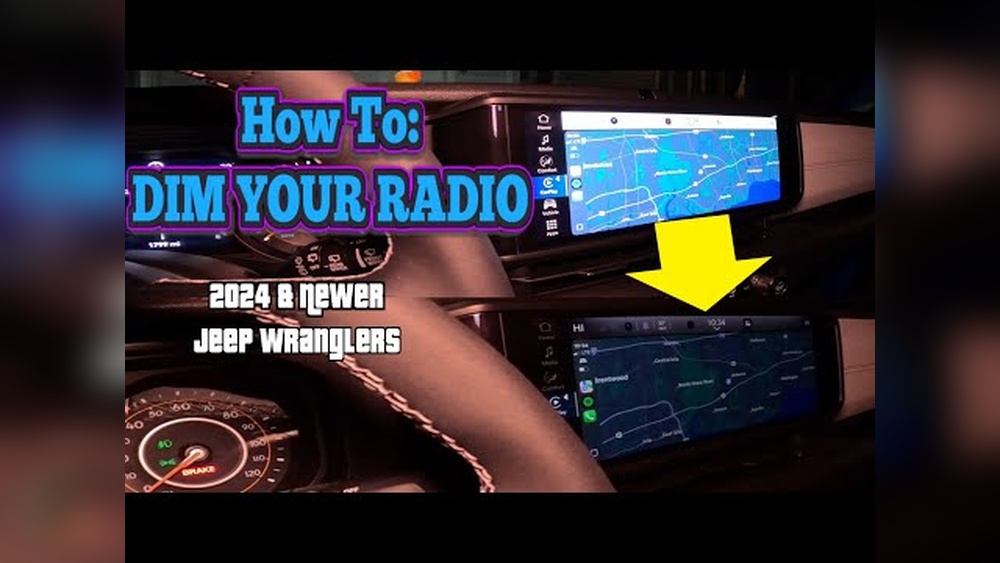
Here’s a quick look at display size options:
| Model Trim | Screen Size | Brightness Control |
|---|---|---|
| Sport | 7-inch | Manual & Automatic |
| Rubicon | 8.4-inch | Manual & Automatic |
| Sahara | 8.4-inch | Manual & Automatic |
How To Dim The Screen: Step-by-step
Dimming the screen is simple, but there are a few ways to do it. You can use physical controls or the touchscreen menu. Here’s how:
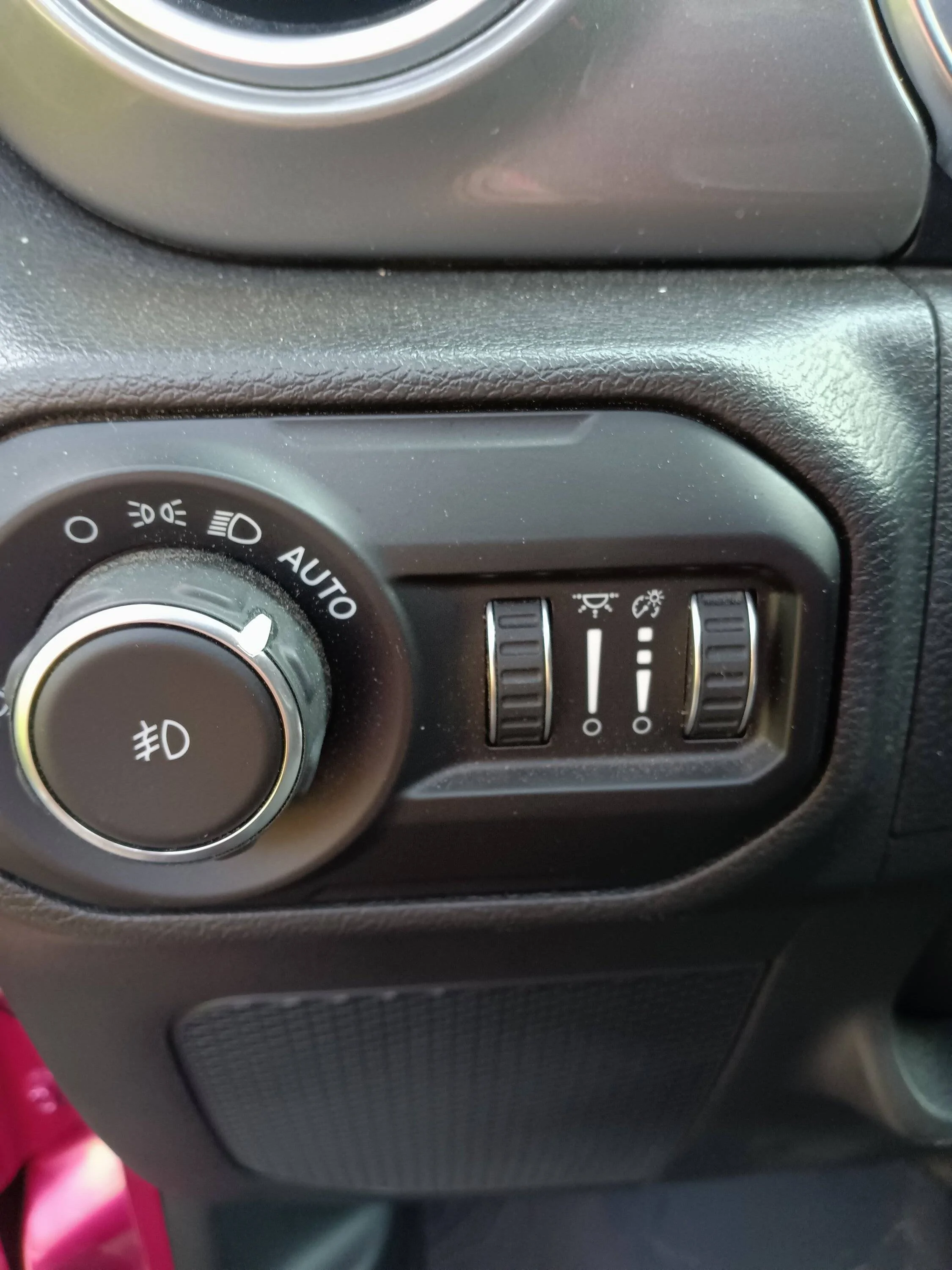
- Physical Dimmer Wheel
- Look below the headlight controls, near the steering wheel.
- Find the dimmer wheel; it’s usually labeled with a light bulb icon.
- Slide it down to dim both the instrument cluster and the center screen.
- This method dims all interior lights, including the screen.
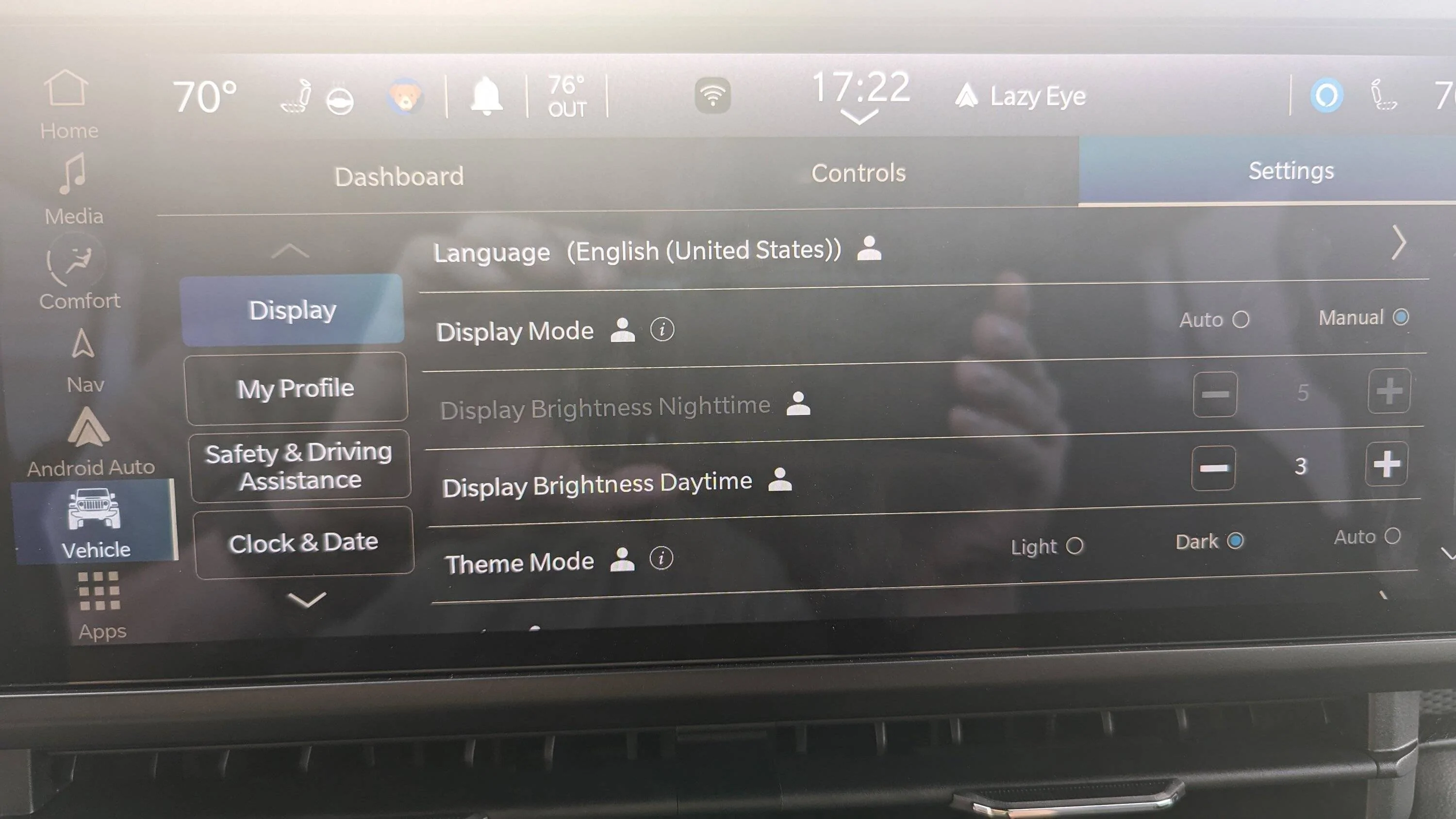
- Touchscreen Menu Settings
- Tap the Settings icon on your Uconnect screen.
- Select Display from the menu.
- Choose Brightness and adjust using the slider.
- The changes apply instantly.
- Automatic Night Mode
- When headlights turn on (either manually or automatically), the system often dims the screen.
- If you want more control, you can turn off automatic dimming in the Display settings.
Here’s a comparison of the two main methods:
| Method | Speed | Custom Control | Applies To |
|---|---|---|---|
| Dimmer Wheel | Fast | No | All interior lights |
| Touchscreen | Medium | Yes | Screen only |
Practical Tips For Dimming
Adjust For Your Eyes
Some drivers set brightness too low, making it hard to read the screen. Find a balance: dim enough for comfort, but bright enough to see details.
Use Night Mode
Night mode changes colors to darker shades and reduces glare. This is helpful for night drives or when parked in dark areas. Make sure night mode is enabled in your settings.
Avoid Common Mistakes
- Don’t forget to adjust when switching from day to night.
- Don’t set the screen so dim that you miss important alerts.
- Remember that other passengers might prefer different brightness.
Example: Night Driving
Suppose you drive home late. The bright screen can make it hard to see outside. Lower the brightness using the dimmer wheel. You’ll notice less glare and easier focus on the road.
Troubleshooting: When Screen Won’t Dim
If the screen does not respond, try these steps:
- Check Headlight Status: Automatic dimming works only when headlights are on.
- Restart Uconnect System: Turn off the engine, then restart the car.
- Update Software: Sometimes updates fix bugs in display controls.
- Reset Settings: Go to Display and select Reset to Default.
- Consult the Manual: The Jeep owner’s manual has detailed guides.
If you still have trouble, visit your dealership or check the official Jeep website for support. For detailed specs and troubleshooting, you can visit the Jeep Wrangler Official Site.
Data: How Screen Brightness Affects Driving
Studies show that excessive screen brightness at night can reduce reaction time by up to 20%. A dim screen improves focus and helps prevent distraction.
Here’s a quick data comparison:
| Screen Brightness | Driver Distraction | Reaction Time |
|---|---|---|
| High | Increased | Slower |
| Medium | Normal | Normal |
| Low | Reduced | Faster |
Frequently Asked Questions
How Do I Dim Only The Center Screen, Not The Dashboard?
Go to the Display settings on the Uconnect screen. Adjust the brightness slider. This will dim the main screen without changing dashboard lights.
Can I Set The Screen To Auto-dim With Headlights?
Yes, the auto-dim feature links to your headlights. When headlights are on, the screen dims automatically. You can turn this setting on or off in the Display menu.
What If The Screen Stays Bright At Night?
First, check if the headlights are on. Next, try adjusting with the dimmer wheel or touchscreen. If it still doesn’t work, reset the settings or update the software.
Will Dimming The Screen Affect Other Controls?
Using the dimmer wheel affects all interior lighting. Adjusting brightness in the touchscreen menu changes only the center screen. Choose the method based on your needs.
Is There A Shortcut To Dim The Screen Quickly?
The dimmer wheel is the fastest way. Slide it down, and all lights—including the screen—will dim. For more control, use the touchscreen menu, but it takes a few more steps.
The ability to dim the screen on your Jeep Wrangler 2024 is more than just a comfort feature. It helps you drive safely and enjoy your ride, day or night. Always set the brightness to match your conditions and preferences. With the simple steps and tips above, you can adjust your screen in seconds and avoid common mistakes. If you face any issues, remember that updates or manual resets often solve the problem. Enjoy your Jeep, and drive safely!