Connecting your phone to your Jeep Cherokee can make every drive more enjoyable and safe. You can play music, use navigation, and make hands-free calls. But for many owners, the process is not always clear. Modern Jeep Cherokees support Bluetooth, Apple CarPlay, and Android Auto, but the steps are different depending on your model year and phone type. This guide will walk you through everything you need to know, including common problems and smart tips that most people miss.
Understanding Your Jeep Cherokee System
Before you start, it’s important to know which system your Jeep has. Most Cherokees from 2014 onward use Uconnect for media and phone connections. Uconnect supports both Bluetooth and, in newer models (2019+), Apple CarPlay and Android Auto.
Here is a simple comparison of connection options based on model year:
| Model Year | Bluetooth | Apple CarPlay | Android Auto |
|---|---|---|---|
| 2014-2018 | Yes | No | No |
| 2019+ | Yes | Yes | Yes |
If you’re unsure of your system, check your vehicle manual or tap the media button on your dash. The display will usually show “Uconnect. ”
How To Connect Via Bluetooth
Bluetooth is the most common way to connect your phone to a Jeep Cherokee. Here’s how to do it step by step:
- Turn on your Jeep and keep it in Park.
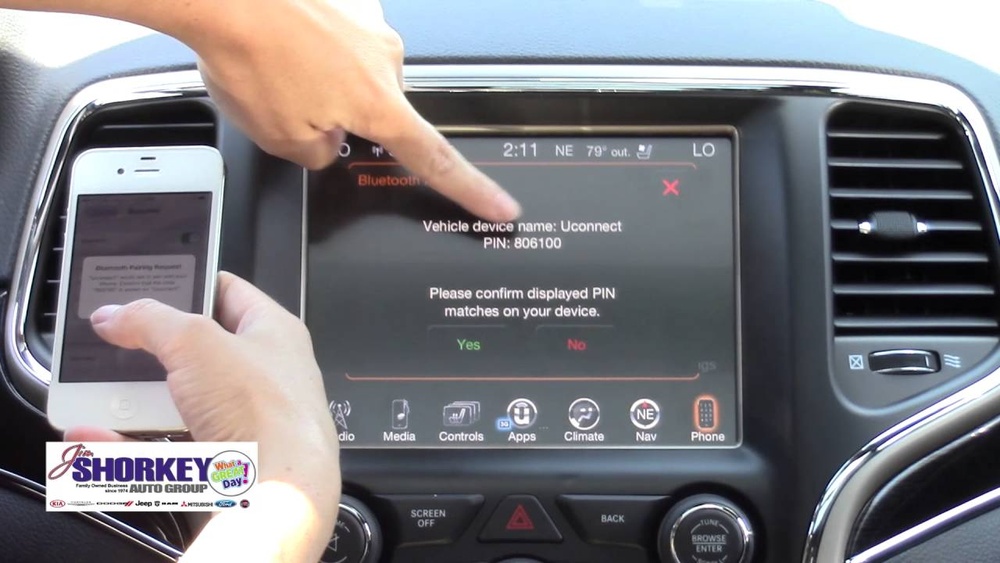
- On your Uconnect screen, tap the Phone icon.
- Select Add Device or Pair a Device.
- On your phone, go to Settings > Bluetooth and turn Bluetooth on.
- Your Jeep should appear in the list of available devices (e.g., “Uconnect”).
- Tap “Uconnect” on your phone. A code may appear on both screens. Confirm the code matches.
- Accept any permission prompts (for contacts and messages).
- The system will confirm when pairing is successful.
Tip: Make sure your phone’s software is up to date. Outdated software can cause connection issues.
Common Bluetooth Problems And Fixes
- If your phone won’t connect, try deleting the old device from Uconnect and starting fresh.
- Some phones need to be “discoverable.” Keep the Bluetooth settings screen open when pairing.
- If calls work but music does not, check the audio output on your phone (it should say Uconnect).
Using Apple Carplay And Android Auto
For 2019 and newer Jeep Cherokees, Apple CarPlay and Android Auto offer better integration. These systems let you use your favorite apps on the Uconnect screen.
Apple Carplay
- Plug your iPhone into the Jeep’s USB port using an Apple-certified cable.
- The Uconnect screen will prompt you to enable CarPlay. Tap Yes.
- Your iPhone screen will appear on the Uconnect display.
- Use Siri or the touchscreen to control calls, maps, and music.
Android Auto
- Connect your Android phone to the USB port with a quality cable.
- If you haven’t installed Android Auto, download it from the Google Play Store first.
- The Jeep screen will ask for permission. Accept all prompts.
- Your phone’s interface will show up on the Uconnect display.
Note: Wireless CarPlay and Android Auto are only available on some trims from 2021 and up.
Carplay Vs. Android Auto Features
| Feature | Apple CarPlay | Android Auto |
|---|---|---|
| Voice Assistant | Siri | Google Assistant |
| Navigation Apps | Apple Maps, Google Maps, Waze | Google Maps, Waze |
| Supported Messaging | iMessage, WhatsApp | WhatsApp, Facebook Messenger |
Pro Insight: For best performance, always use the original USB cable that came with your phone. Generic cables can cause connection drops.
Tips For A Smooth Connection
- Only one phone can connect for hands-free calling at a time. If you have multiple users, set a primary device.
- If your Jeep has trouble finding your phone, try restarting both the Uconnect system and your phone.
- Keep your phone’s Bluetooth and location turned on when using CarPlay/Android Auto.
If you get a new phone, remember to delete the old device from your Jeep’s paired devices to avoid confusion.

Updating Uconnect For Better Compatibility
Sometimes, your system needs a software update to work with the latest phones. Visit your local Jeep dealership or the official Uconnect website to check for updates. Most updates are free and can fix connection glitches.
Here’s a quick look at how to check for updates:
| Step | Action |
|---|---|
| 1 | Go to the official Jeep Uconnect website |
| 2 | Enter your VIN (vehicle identification number) |
| 3 | Download any available updates to a USB drive |
| 4 | Insert the USB into your Jeep and follow on-screen instructions |
Smart Features Most Owners Miss
Many drivers don’t realize you can set up text message alerts and voice commands through Uconnect. You can reply to texts by voice or have them read aloud. Explore the “Settings” menu for more options.
Another helpful feature is Do Not Disturb. This mode blocks notifications while driving, reducing distractions. You’ll find it in the Uconnect phone settings.
Safety Reminders
Never set up your phone connection while driving. Always park your vehicle before pairing devices. Hands-free features are designed to keep your focus on the road, but distractions can still happen.
Frequently Asked Questions
How Many Phones Can I Pair With My Jeep Cherokee?
You can pair up to seven phones with Uconnect, but only one can be active for calls and media at a time.
Can I Use Both Bluetooth And Carplay/android Auto At The Same Time?
No. When CarPlay or Android Auto is connected, it will take over both audio and calls. Bluetooth functions are paused during this time.
Why Isn’t My Jeep Finding My Phone?
Make sure Bluetooth is enabled and your phone is discoverable. If it still doesn’t work, delete old devices from Uconnect and restart both your phone and the Jeep system.
Is There A Way To Update Uconnect Myself?
Yes. You can download updates from the official Uconnect site if your vehicle supports USB updates.
What Should I Do If Calls Work But Music Doesn’t Play?
On your phone, check the audio output. Make sure it’s set to “Uconnect.” Also, confirm that media sharing is enabled in your phone’s Bluetooth settings.
Connecting your phone to your Jeep Cherokee unlocks a safer and more enjoyable driving experience. With the right steps and a few smart tips, you’ll stay connected wherever the road takes you.