Turning on the screen in your Jeep Cherokee is a simple task, but for many drivers, especially those new to modern vehicles, it can feel confusing. The touchscreen controls navigation, radio, climate, and more. If your display isn’t lighting up, or you’re unsure how to use it, this guide will help.
Whether you drive a 2014 model or a brand-new Cherokee, these steps are designed for clarity and confidence.
Understanding The Jeep Cherokee Screen
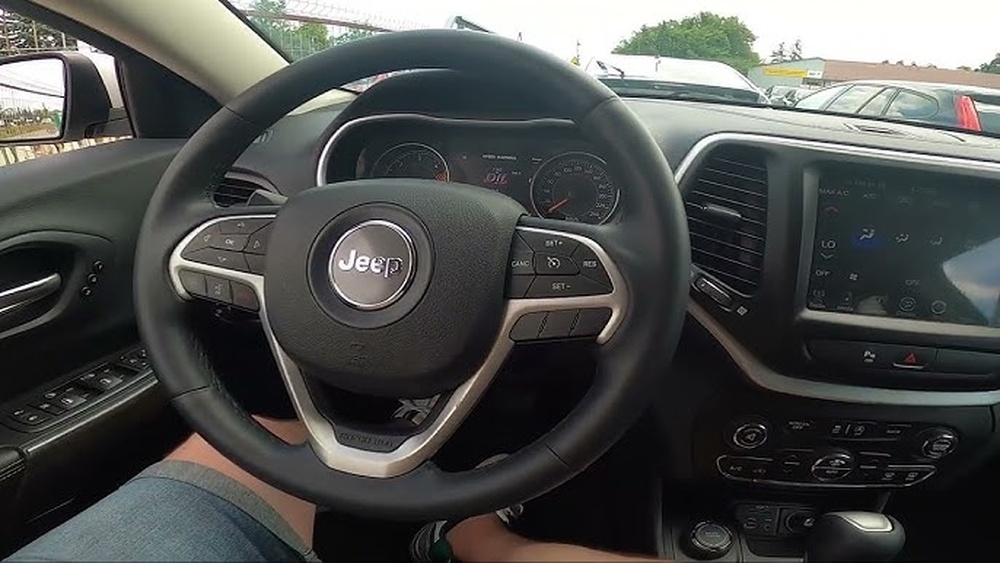
Most Jeep Cherokees from 2014 onward include the Uconnect infotainment system. This touchscreen is your main control center. Depending on your model, the screen size ranges from 5 to 8.4 inches. Newer models offer higher resolution, faster response, and more features.
Here’s a quick comparison:
| Model Year | Screen Size (inches) | Resolution | Main Features |
|---|---|---|---|
| 2014–2017 | 5–8.4 | 800×480 | Navigation, Bluetooth, Radio |
| 2018–2023 | 7–8.4 | 1024×600 | Apple CarPlay, Android Auto, Advanced Navigation |
| 2024+ | 10.1 | 1920×1080 | Wireless Connectivity, Enhanced Apps |
Non-obvious insight: The screen does not operate independently. It needs power from the ignition and sometimes the battery. If the screen won’t turn on, always check these basics before assuming a technical fault.
How To Turn On Your Jeep Cherokee Screen
The process is straightforward, but small differences exist between model years. Here’s a step-by-step guide for most models:
- Unlock your Jeep Cherokee.
- Use the key fob or manually unlock.
- Insert the key or press the start button.
- For push-to-start models, press the brake and then the button.
- Turn the ignition to the ON position.
- Older models: Turn the key.
- Newer models: Press the button once (without starting the engine).
- Wait for the Uconnect screen to boot up.
- It usually takes 5–10 seconds.
- If the screen stays off, check brightness and volume.
- The screen can appear “off” if brightness is too low or muted.
Here’s a quick reference for common screen startup methods:
| Year | Ignition Type | Screen Boot Method |
|---|---|---|
| 2014–2017 | Key | Turn key to ON |
| 2018–2023 | Push Button | Press button once (don’t start engine) |
| 2024+ | Push Button | Press button, screen auto boots |
Experience-based tip: If your screen still doesn’t turn on, try restarting the vehicle. Sometimes, software glitches can prevent the screen from booting.

Troubleshooting Common Issues
If your Jeep Cherokee screen doesn’t turn on after following the steps, there are several things you can check:
1. Check Battery Health
A weak battery may supply enough power to start the car but not the screen. Most infotainment systems need at least 12.6 volts for reliable operation.
2. Inspect Fuses
The screen is connected to specific fuses. If these blow, the screen will stay dark. In most Cherokees, the infotainment fuse is located under the hood or inside the cabin.
3. Adjust Screen Brightness
Sometimes, the screen is technically “on,” but brightness is set to zero. Look for a small brightness dial or adjust through the Uconnect settings.
4. Software Reset
Newer models have a reset option. Hold the power button (or volume and tune knobs together) for about 10 seconds. This often solves blank screen issues.
Here’s a comparison of troubleshooting methods:
| Problem | Quick Fix | Time Needed |
|---|---|---|
| Screen won’t turn on | Restart ignition | 1 minute |
| Blank screen | Adjust brightness | 30 seconds |
| Frozen screen | Soft reset | 10 seconds |
| No power | Check fuses/battery | 5–10 minutes |
Non-obvious insight: Many drivers forget that accessories plugged into the USB or 12V ports can drain the battery, causing the screen to fail during startup.
Practical Examples
Imagine you’re parked and want to use the navigation. You press the start button, but the screen doesn’t light up. First, check if the radio or other controls work. If not, restart the ignition. If still dark, try a soft reset. For persistent problems, check the fuse or battery voltage.
Another situation: you park in bright sunlight, and the screen appears off. Adjust the brightness dial or shade the screen. Sometimes, glare makes it seem like the screen isn’t working.

Useful Tips For Everyday Use
- Keep your software updated for new features and bug fixes.
- Avoid plugging in multiple devices if your battery is weak.
- Don’t use harsh cleaners on the screen; it can damage the touch layer.
- Bookmark the Uconnect manual for easy troubleshooting.
If you need further details on Uconnect systems and Jeep Cherokee features, visit the official Jeep website or Jeep Uconnect.
Frequently Asked Questions
Why Doesn’t My Jeep Cherokee Screen Turn On?
Usually, it’s due to low battery, blown fuse, or a software glitch. Always check ignition, battery voltage, and fuses before assuming a major fault.
How Can I Reset My Jeep Cherokee Touchscreen?
Hold the power button (or volume/tune knobs) for 10 seconds. This forces the system to reboot.
Is The Screen Supposed To Turn On Before Starting The Engine?
Yes, in most models, turning the ignition to the ON position powers the screen. You don’t have to start the engine.
What Should I Do If My Screen Flickers?
Flickering often means loose wiring or a software issue. Restart the system and check for updates. If it continues, visit a dealer.
Can I Upgrade The Screen In My Jeep Cherokee?
Some models allow screen upgrades. Check compatibility and wiring before buying a new unit. Upgrades can offer better resolution and features.
Turning on your Jeep Cherokee screen is simple once you know the steps. With the right approach, you can avoid common mistakes and keep your infotainment running smoothly. Always check power and settings, and if needed, try a soft reset.
These tips help you enjoy all the features your Jeep Cherokee has to offer.