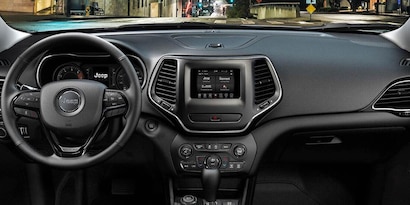
Getting your Jeep Uconnect set up is the first step to enjoying a smarter, safer driving experience. Uconnect is more than just a radio—it’s your Jeep’s central hub for navigation, hands-free calls, music streaming, and vehicle apps. Many new Jeep owners feel unsure about the setup process, but with a few clear steps, you can unlock all the features quickly. Whether you’re pairing your phone, activating Wi-Fi, or customizing settings, you’ll soon be able to use Uconnect with confidence.
Preparing Your Jeep Uconnect
Before starting, check if your Jeep model supports Uconnect. Most models from 2013 onward offer some version. Make sure your vehicle is parked safely and the engine is running or in accessory mode.
What You Need
- A compatible smartphone (Android or iPhone)
- Your Jeep’s ignition switched on
- Your vehicle’s VIN (for registration and subscriptions)
- Stable Wi-Fi or mobile data (for some features)
Initial Setup And Activation
Setting up Uconnect starts with a few basic steps. The system guides you, but knowing what to expect makes things easier.

- Turn on your Jeep and locate the Uconnect touchscreen. The main menu should appear after a few seconds.
- Tap the Settings icon. Select System, then Uconnect Registration or Activate Services.
- Enter your VIN if prompted. This links your vehicle to your Uconnect account.
- Create or log in to your Uconnect account. You may need to provide your email and a password.
- Accept the terms and conditions. Uconnect will now start connecting to available services.
Some features, like navigation or Uconnect Access, require an active subscription. Check your package to know what’s included.
Pairing Your Smartphone
Connecting your phone unlocks hands-free calling, text, and music streaming. Here’s how to pair your device:
- On your phone, turn on Bluetooth.
- On the Uconnect touchscreen, tap Phone > Add Device.
- Your Jeep should appear on your phone’s Bluetooth list. Select it.
- Confirm the pairing code matches on both screens.
- Allow access to contacts and messages for full functionality.
If you have trouble, try restarting your phone or Uconnect. Old software versions can cause pairing issues, so update your phone and Uconnect if needed.
Supported Features Comparison
Here’s a quick look at what you can do with Uconnect once your phone is connected:
| Feature | Android | iPhone |
|---|---|---|
| Hands-free calls | Yes | Yes |
| Text messaging | Yes | Limited |
| Music streaming | Yes | Yes |
| Apple CarPlay / Android Auto | Yes | Yes |
Customizing Uconnect Settings
Uconnect offers many options. Adjusting them helps make your experience safer and more comfortable.
- Audio settings: Fine-tune the equalizer, balance, and volume for music and calls.
- Display brightness: Adjust for day or night driving.
- Language preferences: Choose English, Spanish, French, or other supported languages.
- Navigation shortcuts: Set home and work addresses for quick routing.
- Safety alerts: Enable or disable lane departure, collision warnings, and other features.
Setting your home and work address can save time. Open the Navigation menu, tap Favorites, and enter your locations. Now, you can select these with one touch for fast directions.

Adding Uconnect Apps And Services
Uconnect supports extra apps like Pandora, Spotify, and Yelp. To add apps:
- Open the Uconnect App Store from the touchscreen.
- Browse available apps. Tap to install the ones you want.
- Some apps require linking accounts (like Spotify or Pandora). Follow on-screen instructions.
For advanced features like remote start, vehicle location, or Wi-Fi hotspot, you may need a Uconnect Access subscription. Prices vary, so check the official Jeep Uconnect site for details.
Troubleshooting Common Problems
Many users face setup hiccups. Here are solutions for typical issues:
- Bluetooth not pairing: Restart your phone and Uconnect. Remove old connections from your phone’s Bluetooth menu.
- Navigation not working: Check your subscription and update maps if needed.
- App issues: Update Uconnect software via the settings menu. Some apps only work with newer Uconnect versions.
- Voice commands not recognized: Speak clearly and update your Uconnect language setting.
Data Plan And Wi-fi Comparison
If your Jeep supports a Wi-Fi hotspot, you’ll need a data plan. Here’s a comparison of options:
| Provider | Monthly Cost | Data Limit |
|---|---|---|
| AT&T | $20 | Unlimited |
| Verizon | $30 | Unlimited |
| Uconnect Access | $15 | 5GB/month |
Most drivers choose unlimited data for streaming music and navigation updates.

Non-obvious Tips For Beginners
Many Jeep owners miss these helpful tricks:
- Multiple user profiles: Uconnect lets you save settings for different drivers. Each profile remembers seat position, radio, and navigation favorites.
- Software updates: Regularly check for updates in the settings menu. Updates improve security and add new features.
- Do not disturb mode: Activate this to silence calls and texts while driving, perfect for long trips.
Frequently Asked Questions
How Do I Reset Uconnect If It Freezes?
Hold the volume and tune buttons together for about 10 seconds. The system will reboot and usually fix most issues.
Can I Use Uconnect Without A Subscription?
Basic features like radio, Bluetooth, and navigation work without a subscription. For advanced services such as remote start or vehicle tracking, you need a paid plan.
How Do I Update Uconnect Software?
Go to Settings > System > Software Updates. Download and install updates if available. Sometimes, you may need a USB drive for larger updates.
Is Uconnect Compatible With Older Phones?
Uconnect works best with newer phones (iOS 12+, Android 9+). Older devices may have limited features or slower connections.
What Should I Do If My Phone Won’t Connect?
Delete the Jeep from your phone’s Bluetooth list, restart both devices, and try pairing again. If problems continue, update your phone’s software.
Setting up your Jeep Uconnect is simple once you know the steps. Take your time to explore the menus and customize your settings for the best driving experience. With Uconnect, your Jeep becomes a connected, comfortable space—ready for any adventure.