If your Uconnect system in a Jeep Cherokee 2019 is acting up, you are not alone. Many drivers face issues like freezing screens, Bluetooth glitches, or navigation errors. Resetting the system is often the fastest way to solve these problems. But the process isn’t always obvious. This guide shows you clear steps to reset your Uconnect, explains when a reset works, and shares tips to avoid common mistakes. With practical advice, you can fix issues quickly and enjoy your Jeep’s tech features again.
Understanding Uconnect In Jeep Cherokee 2019
The Uconnect system controls navigation, music, hands-free calls, and climate settings. In the 2019 Jeep Cherokee, Uconnect comes in several versions: 4, 4C, and 4C NAV. Each version offers different features, but the reset process is similar.
A glitch in Uconnect can disrupt daily driving. Problems may include:
- Touchscreen freezes
- Bluetooth won’t connect
- Navigation errors
- Audio not working
Some issues need a software update or dealer service, but many can be fixed with a simple reset.
Ways To Reset Uconnect Jeep Cherokee 2019
There are three main reset methods: soft reset, hard reset, and factory reset. Choosing the right one depends on the problem’s severity.
Soft Reset
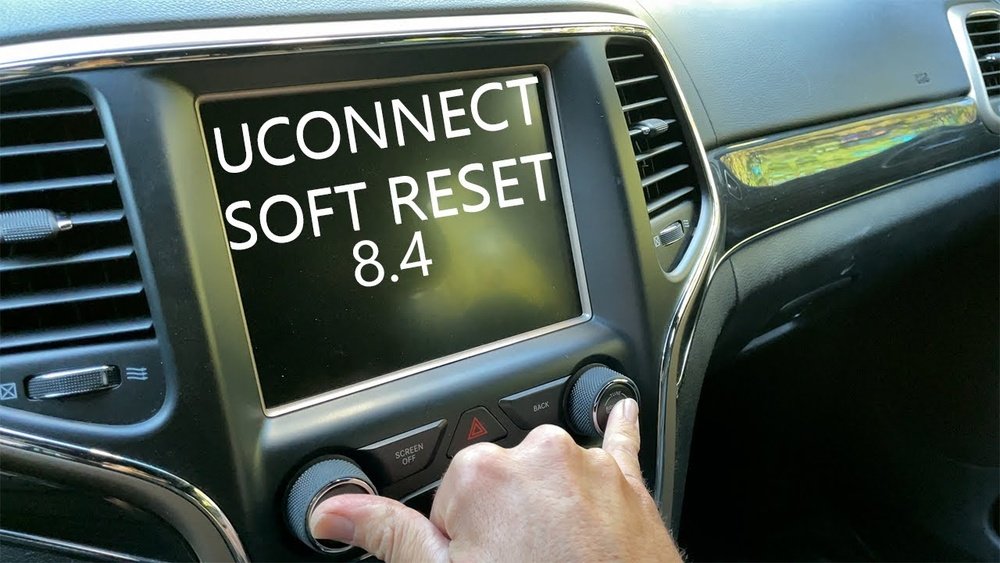
A soft reset fixes most minor issues, like frozen screens or slow response.
Steps:
- Turn the ignition on, but do not start the engine.
- Press and hold both the volume and tune buttons on the Uconnect touchscreen for about 10 seconds.
- The screen will turn off and restart. Release the buttons after the Uconnect logo appears.
This method does not erase personal data or settings.
Hard Reset
If a soft reset fails, try a hard reset. This method is more effective for persistent glitches.
Steps:
- Turn off the vehicle and remove the key.
- Wait about 5 minutes to let the system fully power down.
- Restart the vehicle and check if Uconnect works.
This process resets the system’s electronics, but does not delete user data.
Factory Reset
A factory reset erases all personal settings. Use this for serious software errors or before selling your vehicle.
Steps:
- Go to the Uconnect settings menu.
- Select Restore Settings or Factory Reset.
- Confirm the reset. The system will restart and return to default settings.
Warning: This will delete paired phones, navigation history, and customizations.

Comparing Reset Methods
To help you choose the right option, here’s a quick comparison:
| Reset Method | Issue Type | Data Loss | Ease |
|---|---|---|---|
| Soft Reset | Minor glitches | No | Easy |
| Hard Reset | Persistent errors | No | Moderate |
| Factory Reset | Serious software issues | Yes | Advanced |
Common Mistakes And How To Avoid Them
Resetting Uconnect is simple, but drivers often make mistakes:
- Not holding buttons long enough: For a soft reset, keep holding the buttons until the screen restarts.
- Doing a factory reset without backup: Always save important data before a factory reset.
- Ignoring system updates: Some bugs require a software update, not just a reset.
- Misidentifying the reset method: Use the least invasive reset first.
An overlooked detail: make sure accessories (like phone chargers) are unplugged before resetting. These can interfere with the system.

Troubleshooting After Reset
If your Uconnect is still not working after a reset, try these steps:
- Check your vehicle’s battery. Low voltage can cause system problems.
- Look for software updates in the Uconnect settings. Updates fix known bugs.
- Disconnect and reconnect paired devices (phones, tablets).
- Visit a certified Jeep dealer if issues persist.
Here’s a simple comparison of when to seek professional help:
| Issue | DIY Reset | Dealer Required |
|---|---|---|
| Frozen screen | ✔️ | |
| Bluetooth won’t pair | ✔️ | |
| System won’t turn on | ✔️ | |
| Navigation errors | ✔️ | |
| Software update failure | ✔️ |
Practical Tips For Smooth Reset
- Wait patiently: After any reset, allow the system 1-2 minutes to fully restart.
- Charge your battery: Low battery can cause slow restarts.
- Update Uconnect regularly: Check for updates every few months.
- Use official guides: For detailed instructions, refer to the Jeep owner’s manual or visit the official Jeep Uconnect site.
A non-obvious insight: Some Bluetooth issues are due to phone settings, not Uconnect. Try resetting your phone’s Bluetooth before resetting the Jeep system.

Frequently Asked Questions
How Often Should I Reset Uconnect?
Only reset Uconnect when you notice problems. Frequent resets are not necessary unless you experience repeated glitches.
A soft or hard reset does not erase navigation history. Only a factory reset will delete all saved routes and preferences.
Can I Update Uconnect Myself?
Yes, you can update Uconnect through the settings menu or by downloading updates from the Jeep website. Some updates may need dealer assistance.
What If My Screen Stays Black After Reset?
If the screen does not turn on after a reset, check the battery and fuses. If it still doesn’t work, contact a Jeep dealer for diagnosis.
Does Resetting Uconnect Fix All Problems?
Resetting fixes many software issues, but hardware faults or outdated software may need professional repair or updates.
Resetting your Jeep Cherokee 2019 Uconnect system is a straightforward process that solves most everyday tech problems. Start with the soft reset for minor issues and move to factory reset only if necessary. Remember to back up your data, check for software updates, and seek professional help for hardware failures.
With these steps, you can keep your Uconnect running smoothly and get back to enjoying your drive.