Connecting your phone to a Jeep Grand Cherokee is a simple way to enjoy music, make hands-free calls, and use navigation apps safely while driving. Whether you have a newer model with advanced technology or an older Jeep, pairing your device can improve your driving experience. In this guide, you’ll learn how to connect your phone to your Jeep Grand Cherokee, troubleshoot common problems, and discover tips to make the most of your vehicle’s connectivity.
Understanding Connectivity Options
Jeep Grand Cherokee models offer different ways to connect your phone. The most common options are Bluetooth, USB, and Apple CarPlay/Android Auto. Each method has its own benefits and limitations.
| Connection Type | Features | Supported Devices |
|---|---|---|
| Bluetooth | Hands-free calls, audio streaming | Most smartphones |
| USB | Charging, music playback, CarPlay/Android Auto | iOS & Android |
| CarPlay/Android Auto | Navigation, messaging, apps | iPhones (CarPlay), Android phones (Auto) |
Bluetooth is available in most Jeep Grand Cherokee models from 2011 onwards. Apple CarPlay and Android Auto are featured in models from 2018, but not all trims support them. Using USB connections works for charging and sometimes for playing music, depending on the model year.
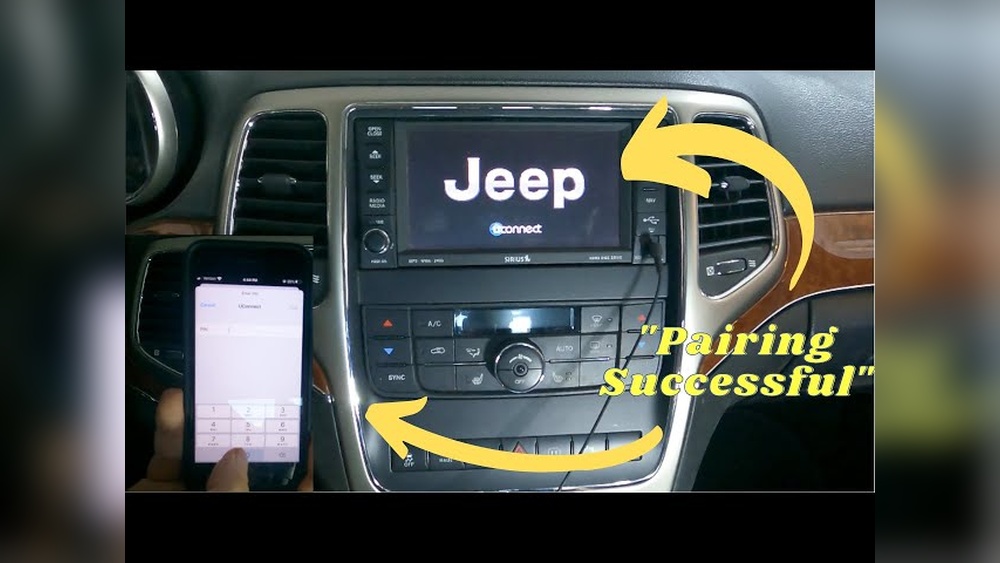
Step-by-step: Connecting Your Phone Via Bluetooth
- Start the Jeep and make sure the infotainment system is on.
- Enable Bluetooth on your phone. Go to your phone’s settings and turn on Bluetooth.
- On the Jeep touchscreen, select “Phone” or “Settings” and choose “Pair Device”.
- Your Jeep will display a list of nearby devices. Select your phone from the list.
- A passkey will appear on both your phone and the Jeep screen. Confirm the passkey matches.
- Tap “Pair” or “Connect” on your phone.
- Wait for the system to confirm the connection. Your contacts and recent calls may sync automatically.
Example: Pairing An Iphone
- Open Settings > Bluetooth on your iPhone.
- Make sure your phone is discoverable.
- Follow steps 3-7 above.
Example: Pairing An Android Device
- Go to Settings > Connections > Bluetooth on your Android phone.
- Follow the same pairing steps.
| Year | Bluetooth Available | CarPlay/Android Auto |
|---|---|---|
| 2011-2017 | Yes | No |
| 2018+ | Yes | Yes |
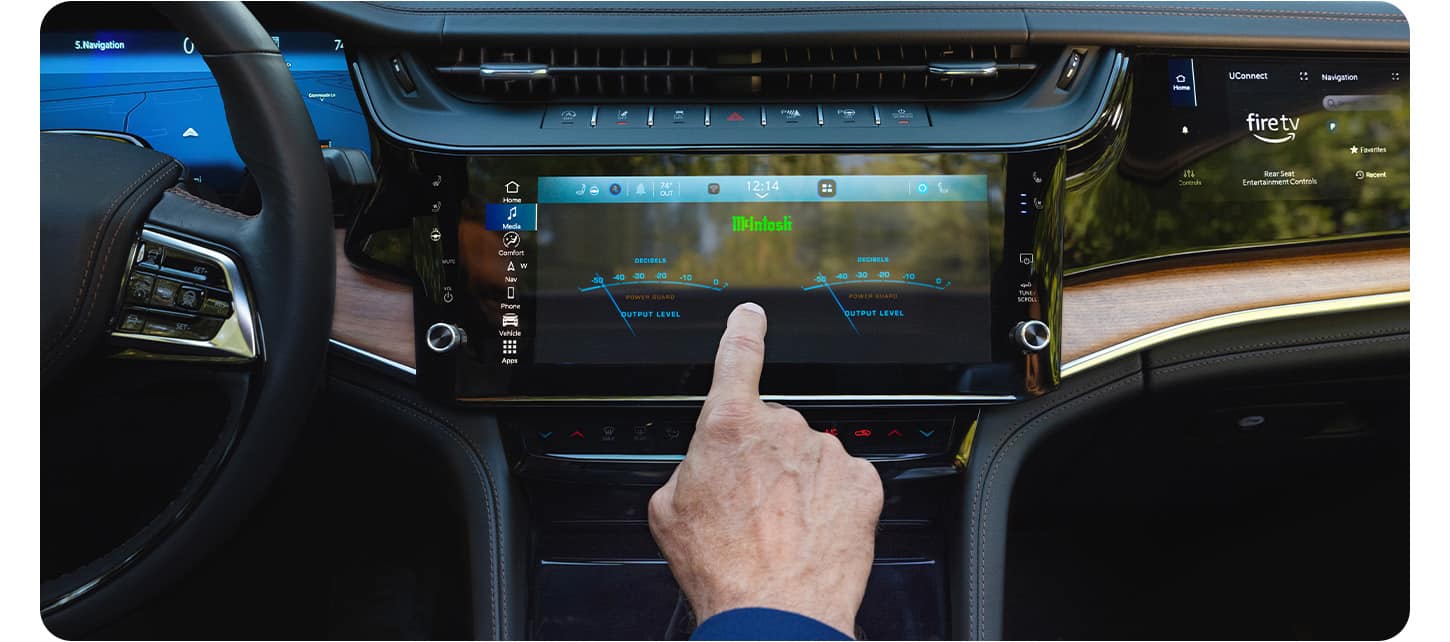
Connecting With Usb And Carplay/android Auto
For models with Apple CarPlay or Android Auto, connecting is even easier:
- Plug your phone into the Jeep’s USB port using your charging cable.
- On the infotainment screen, select CarPlay (for iPhone) or Android Auto (for Android).
- Accept any permission prompts on your phone.
- You can now access compatible apps on the Jeep’s screen.
Tips For Usb Connection
- Use the original cable for best results.
- If the system doesn’t recognize your phone, try another USB port or restart your phone.
| Connection Method | Setup Time | Hands-Free Calls | App Integration |
|---|---|---|---|
| Bluetooth | ~2 minutes | Yes | Limited |
| USB CarPlay/Android Auto | ~1 minute | Yes | Full |
Common Problems And Solutions
Connecting your phone doesn’t always go smoothly. Here are some frequent issues and how to fix them:
- Bluetooth not visible: Make sure your phone is set to visible/discoverable mode.
- Failed pairing: Restart both the phone and the Jeep system, then try again.
- Audio not playing: Check that your phone’s audio output is set to “Jeep” or “Uconnect.”
- CarPlay/Android Auto won’t start: Update your phone’s software and the Jeep’s infotainment system.
Many users forget to check for system updates. Updating your phone and Jeep software can solve many problems. Also, disconnecting other paired devices may help if your phone won’t connect.
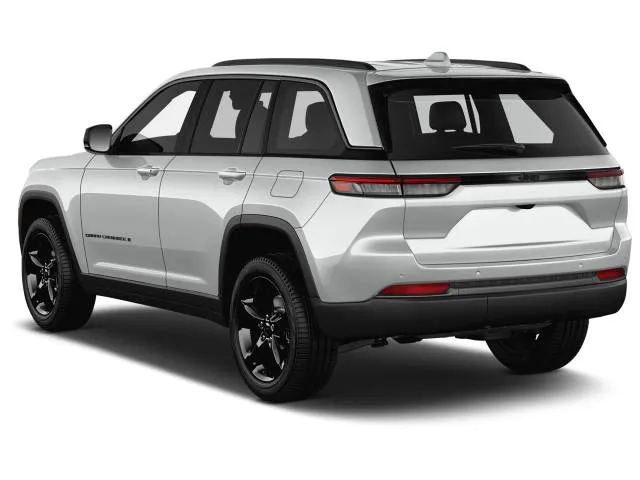
Maximizing Your Jeep Grand Cherokee Connectivity
To get the most from your Jeep’s tech features, follow these tips:
- Keep your phone’s Bluetooth and OS updated.
- Use voice commands to stay hands-free and safe.
- Adjust settings for notifications and app permissions before driving.
- For privacy, sync only the data you need.
Some drivers overlook the importance of removing old devices from the Jeep’s paired list. If you have trouble connecting, delete unused devices. This clears memory and speeds up pairing.
If your Jeep supports wireless CarPlay/Android Auto, you can connect without cables. This feature is found in recent models, but may require special setup.
Frequently Asked Questions
How Do I Know If My Jeep Grand Cherokee Supports Carplay Or Android Auto?
Check your model year and trim level. Jeep Grand Cherokees from 2018 and newer often support CarPlay and Android Auto, but not all trims have this feature. Look for the app icons on your infotainment screen or refer to your owner’s manual.
Can I Connect More Than One Phone To My Jeep Grand Cherokee?
Yes, you can pair multiple phones. However, only one device can be actively connected for calls and media at a time. Switch between devices using the pairing menu.
Why Does My Phone Disconnect From Bluetooth In The Jeep?
Common reasons include interference from other devices, outdated software, or low battery on your phone. Try restarting your phone and the Jeep’s system, and make sure your phone’s Bluetooth is up to date.
Is It Safe To Update My Jeep’s Infotainment System?
Yes, updating the system is safe and recommended. Updates fix bugs and add new features. You can get updates at a Jeep dealership or from the official Jeep website.
What Should I Do If Carplay Or Android Auto Won’t Launch?
First, check if your phone’s software is updated. Use the original USB cable and try different USB ports. If it still doesn’t work, restart both your phone and the Jeep. For persistent issues, contact your dealer or visit Jeep Uconnect for help.
Connecting your phone to your Jeep Grand Cherokee can make your trips safer and more enjoyable. With the right setup, you’ll have easy access to music, maps, and calls. Take time to check your model’s features, follow the pairing steps, and don’t hesitate to update your systems for the best experience.