If you drive a Jeep Grand Cherokee and want to use Apple CarPlay, you’re not alone. CarPlay makes your phone’s features easy to access while driving, like maps, music, and calls.
But many owners struggle to turn it on or connect it for the first time. This guide explains how to activate CarPlay step-by-step, what you need, and how to fix common problems.
You'll find practical advice, real examples, and tips that many beginners miss. Even if you have never used CarPlay before, you’ll learn how it works in your Jeep and what to do if things go wrong.

By the end, you’ll feel confident using CarPlay and making the most of its features.
What You Need For Carplay In Jeep Grand Cherokee
Before you start, check a few things:
- Your Jeep Grand Cherokee should be a 2018 model or newer. Older models don’t support CarPlay.
- You need an iPhone 5 or newer running iOS 7.1 or higher.
- Use a genuine Apple Lightning cable for wired CarPlay. Wireless CarPlay is available in newer models (2021+).
- Make sure your Uconnect system is updated.
If you don’t know which Uconnect version you have, check your vehicle manual or the screen menu. Outdated software causes connection issues.
For example, some Jeep owners discover their system is Uconnect 3, which doesn’t support CarPlay at all, so always confirm before trying to connect.
Beginners often overlook the importance of the cable. Some third-party cables can charge your phone, but may not transfer data for CarPlay.
If you notice CarPlay isn’t showing up, try switching to the original Apple cable that came with your phone.
Another detail: wireless CarPlay needs your iPhone’s Wi-Fi and Bluetooth turned on. If you have these off for battery saving, CarPlay won’t connect wirelessly, even if your Jeep model supports it.
Step-by-step: Turning On Carplay
Follow these steps to get CarPlay working:
- Start your Jeep and keep it in Park. If your Jeep is moving, some features may not work.
- Plug your iPhone into the USB port using a Lightning cable. Use the USB port closest to the center console, as this is usually the main data port.
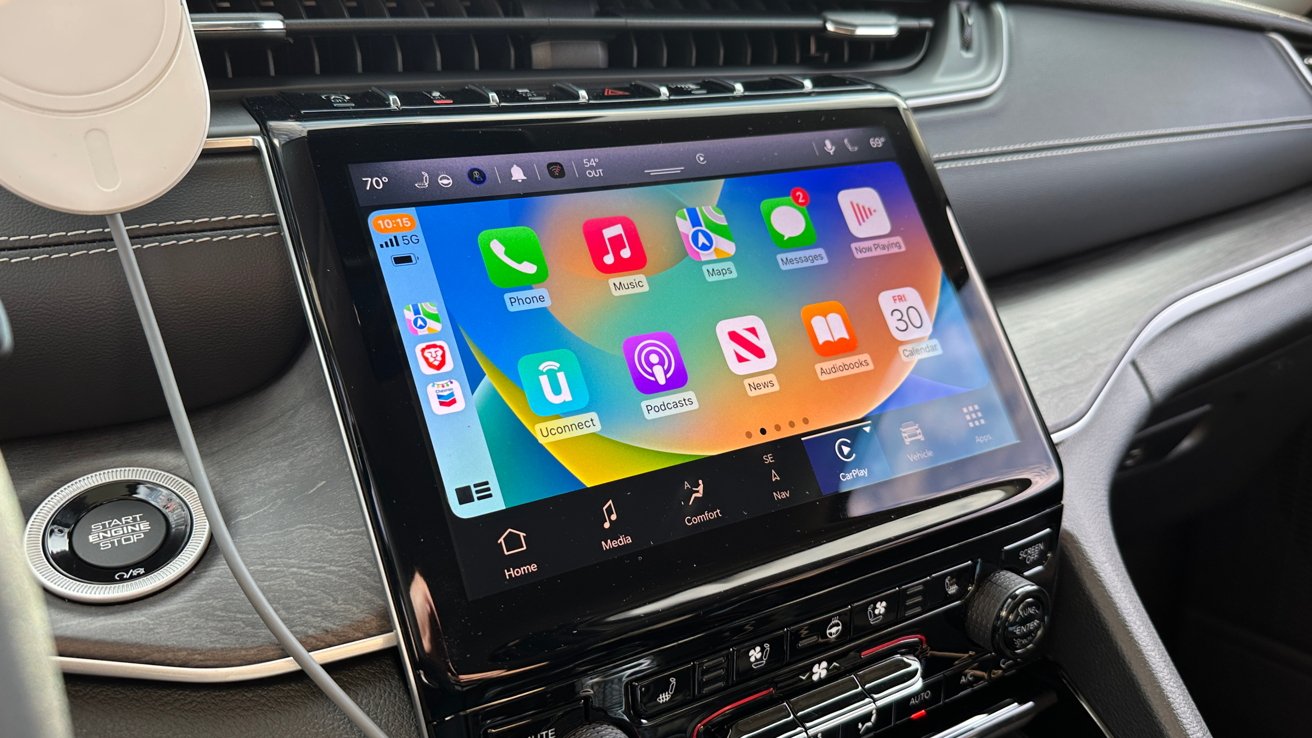
- The Uconnect screen should show a pop-up: “Would you like to use Apple CarPlay?”
- Tap Yes on the screen.
- Unlock your iPhone and allow CarPlay access if asked.
- The CarPlay interface appears on your Uconnect screen.
If you want wireless CarPlay (on 2021+ models):
- Make sure Bluetooth and Wi-Fi are enabled on your iPhone.
- On the Uconnect screen, go to “Phone” and select “Pair Device.”
- Choose your Jeep from your iPhone’s Bluetooth list.
- Accept pairing requests and allow CarPlay access.
A real-life example: Some users forget to unlock their iPhone when plugging in. The system may not recognize the device until it’s unlocked, so always check your phone screen for prompts.
Here’s a quick comparison of wired vs. wireless CarPlay:
| Type | Setup | Speed | Charging |
|---|---|---|---|
| Wired | Plug in via USB | Instant | Yes |
| Wireless | Bluetooth + Wi-Fi | Few seconds | No |
If you don’t see the CarPlay option, your Uconnect may need an update. Visit your dealer or check the official Jeep Connectivity page for help. Sometimes, a simple software update can solve connection issues that seem complicated.
Common Problems And Solutions
Many users face problems when connecting CarPlay. Here are solutions for the most frequent issues:
- CarPlay not showing up: Check if your USB cable is genuine and undamaged. Third-party cables often fail.
- Uconnect not responding: Restart your Jeep and iPhone. Sometimes, simply rebooting fixes the issue.
- CarPlay disconnects: Clean your phone’s charging port. Dust can cause dropouts.
- Wireless CarPlay won’t connect: Make sure both Bluetooth and Wi-Fi are on. Forget and re-pair your Jeep in your iPhone’s Bluetooth settings.
A less obvious tip: If CarPlay still won’t appear, try shutting off your Jeep, opening and closing the driver’s door, and then restarting. This resets the Uconnect system, which can fix hidden glitches.
Here’s a quick troubleshooting comparison:
| Problem | Solution | Extra Tip |
|---|---|---|
| No CarPlay pop-up | Check cable, update software | Try a different USB port |
| Disconnects often | Clean port, restart devices | Turn off battery saver mode |
| Wireless not found | Enable Bluetooth/Wi-Fi | Forget network, re-pair |
Some Jeep owners find that using battery saver mode on their phone blocks CarPlay. Always disable battery saver when connecting.
Useful Features Of Carplay
Once CarPlay is on, you can use:
- Apple Maps, Google Maps, or Waze for navigation.
- Messages: Listen to or reply to texts using Siri.
- Music apps: Apple Music, Spotify, Pandora, and more.
- Phone calls: Hands-free calling and voicemail.
- Calendar: See upcoming events.
- Third-party apps: Podcasts, audiobooks, and more.
For example, you can ask Siri to “Navigate to the nearest gas station,” and CarPlay will open your preferred maps app. Or, you can reply to texts just by speaking, which keeps your hands on the wheel.
Tip: Customize your CarPlay home screen. Go to Settings > General > CarPlay on your iPhone, select your Jeep, then drag apps to rearrange them. Many drivers don’t realize they can remove apps they don’t use, making the interface simpler.
Another useful feature is the ability to use split-screen mode for maps and music. This helps you see navigation directions while still controlling your tunes.
Non-obvious Insights Most Miss
- If your iPhone’s Screen Time restrictions block CarPlay, you won’t see the option. Go to Settings > Screen Time > Content & Privacy Restrictions and check “Allowed Apps.”
- After updating your iOS, re-pair your iPhone to your Jeep. New software sometimes resets CarPlay permissions.
- Not all USB ports in your Jeep support CarPlay. Try each port if one fails.
- CarPlay can drain your phone battery quickly, especially with navigation. Keep a charger handy.
Here’s another tip: If you have multiple drivers using CarPlay with different phones, set up each phone individually. The Uconnect system can remember several devices, but you need to grant permission for each one.
Keeping Carplay Up-to-date
CarPlay improves with updates. Check for Uconnect software updates every 6-12 months.
Dealers offer free updates, or you can download them from Jeep’s website. Updating your iPhone’s iOS also helps fix bugs and adds new features.
Some drivers ignore updates, but new features like improved navigation or support for more apps often arrive with these updates. Make it a habit to check for updates before long road trips.
If you notice CarPlay becoming slower or buggy, an update is often the easiest fix. You can ask your dealer to do it during regular service appointments.
Frequently Asked Questions
How Do I Know If My Jeep Grand Cherokee Supports Carplay?
If your Jeep Grand Cherokee is 2018 or newer, it supports CarPlay. Look for the Uconnect 4 or newer system with a touchscreen. If you’re unsure, look for the CarPlay logo near your USB port or in your system settings.
Can I Use Android Auto Instead Of Carplay?
Yes, Uconnect supports both Android Auto and CarPlay. Use a compatible Android phone and connect via USB or wireless (for newer models). You can switch between platforms depending on which phone you use.
What Apps Work With Carplay In My Jeep?
You can use navigation apps, music streaming, messaging, calendar, podcasts, and audiobooks. Only apps approved by Apple appear in CarPlay. For example, WhatsApp and Audible work, but some games and video apps do not.
Is Carplay Safe To Use While Driving?
CarPlay is designed for safe driving. It minimizes distractions, offers voice controls, and large icons. Still, always pay attention to the road. Remember, you can use Siri for almost any function so you don’t need to touch the screen while driving.
How Do I Update Carplay Or Uconnect?
Update your iPhone’s iOS in Settings. For Uconnect, visit your dealer or check the Jeep website for instructions.
Updates fix bugs and improve features. If you’re unsure, your dealer can check your Uconnect version during routine maintenance.
Activating CarPlay in your Jeep Grand Cherokee is simple once you know the steps and avoid common mistakes. With the right cable, updated systems, and a few smart tips, you can enjoy a connected, safer driving experience.
If problems persist, your dealer or Jeep’s website offer extra support.
Many drivers say CarPlay makes everyday driving easier, safer, and more enjoyable.