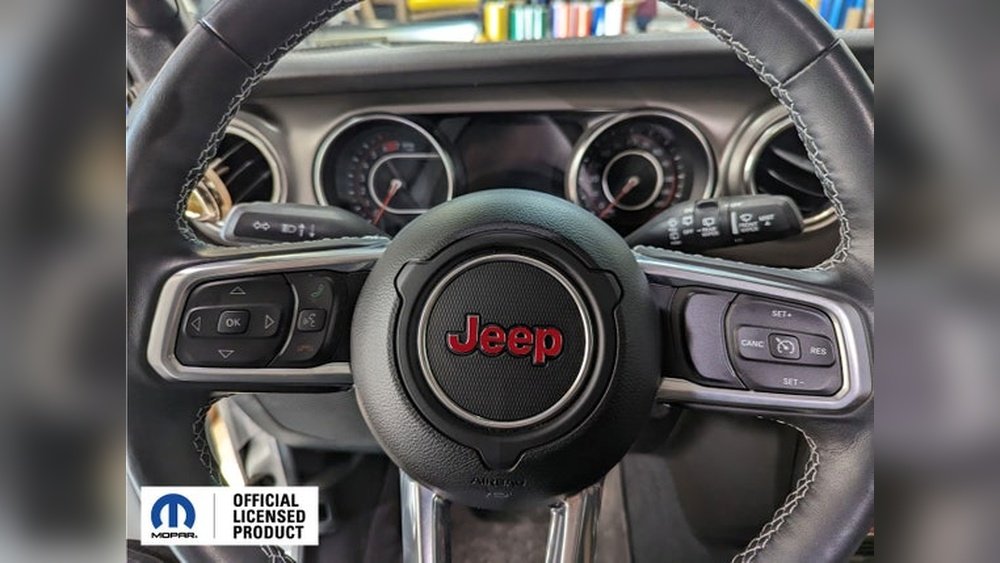
If your Jeep’s navigation system starts acting up, it can quickly turn a smooth drive into a frustrating experience.
Whether your maps won’t load, the screen freezes, or the system forgets your saved locations, knowing how to reset the navigation system can save you time and stress.
This guide will walk you through the main reset methods, explain when and why you might need them, and offer tips to avoid common pitfalls.
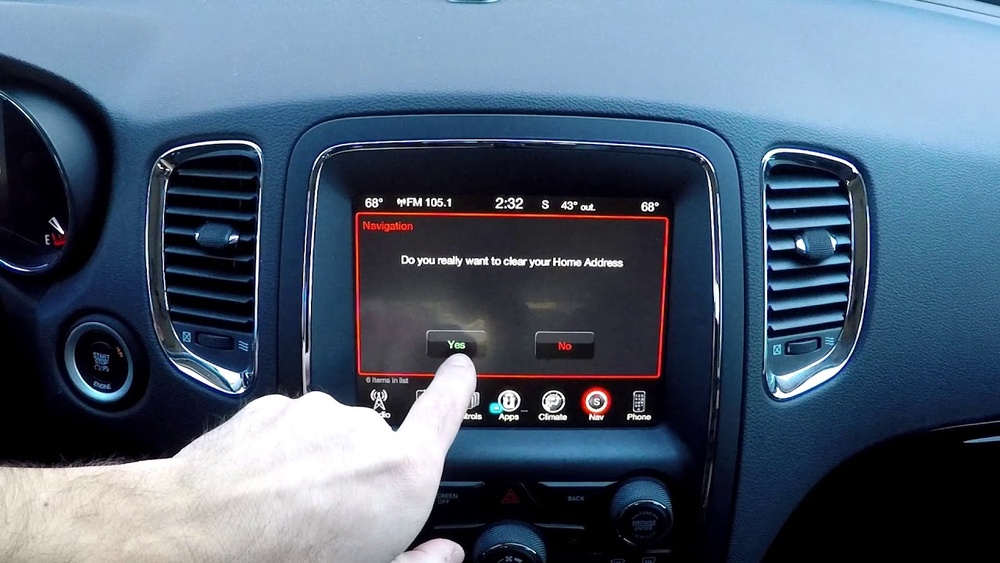
Not every glitch means you need a full reset. Sometimes, a simple power cycle (turning your car off and on) can fix minor bugs. However, in some cases, a reset is essential. Here are the most common situations:
- System freezes: The touch screen stops responding.
- Incorrect navigation: The system gives wrong directions or fails to update routes.
- Missing data: Saved addresses or previous destinations disappear.
- Bluetooth or audio failures: Connectivity drops or sound issues occur.
Resetting the system is often the quickest way to restore normal operation, especially after a software update or battery replacement.
Jeep vehicles come with different navigation interfaces, depending on the model and year. The two main systems are Uconnect and the older MyGIG system.
| System Name | Common Models | Release Years |
|---|---|---|
| Uconnect 4/5 | Cherokee, Grand Cherokee, Wrangler | 2017–present |
| MyGIG | Older Jeep models | 2008–2016 |
Knowing your system type is important because the reset process can be different.
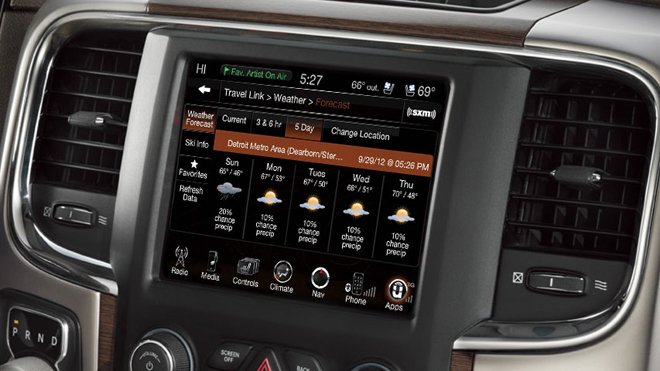
Basic Reset: The Soft Reset Method
A soft reset is like restarting your smartphone. It doesn’t erase saved data but helps solve minor glitches.
- Turn on your Jeep and keep it in Park.
- Press and hold the volume knob and the tune (or browse/enter) knob at the same time.
- Hold both knobs for about 10 seconds.
- The screen will go black, then the Jeep logo will appear as the system restarts.
This method works for most Uconnect systems (especially Uconnect 4 and 5). If your system is older or doesn’t respond, try the next method.
Hard Reset: Restoring Factory Settings
A hard reset (factory reset) clears all user data and settings. Use this only if soft resets fail or if you plan to sell your vehicle.
- From the main navigation screen, tap Settings.
- Scroll down to System Information or Restore Settings.
- Select Reset to Factory Defaults (or similar).
- Confirm your choice. The system will restart and return to original settings.
Important: Factory reset erases saved addresses, paired devices, and personalized options. Make a note of anything important before starting.
| Reset Type | Data Loss | When to Use |
|---|---|---|
| Soft Reset | No | Minor glitches, freezing |
| Hard Reset | Yes | Major errors, before selling |

If your Jeep has the older MyGIG system, the reset process is different:
- Press and hold the navigation and phone buttons together for about 10 seconds.
- Wait for the screen to go blank and then show the Jeep logo.
- For a full factory reset, you may need to enter the engineering menu. This step is more technical—usually not recommended unless you’re comfortable with advanced menus.
If you’re unsure, check your owner’s manual or visit the Jeep official support site for specific steps.
Common Issues After Reset
After a reset, some users find the system still has problems. Here’s what to check:
- Maps not updating: Make sure your system is connected to Wi-Fi or a USB drive with updated map data.
- Bluetooth pairing fails: Delete old devices from your phone, then try pairing again.
- Lost presets: You’ll need to re-enter favorite addresses and radio stations.
One insight many owners miss: If the system keeps freezing after multiple resets, the problem could be a low car battery or a faulty SD card. Check these before seeking dealer help.
Extra Tips For A Smooth Reset
- Disconnect any USB drives or SD cards before starting a reset.
- Wait until the vehicle is fully stopped and in Park.
- Do not turn off the ignition during the reset process.
- For newer models, keeping the system software updated reduces the need for frequent resets.
If you want deeper details on system updates, Jeep’s official Software Update Guide explains the process.
Frequently Asked Questions
Look for the system’s name on the home screen or in the owner’s manual. Most Jeeps from 2017 onward use Uconnect, while models before that may use MyGIG.
A soft reset does not affect map data. A hard (factory) reset will erase personalized settings, but built-in maps usually stay unless the system is re-flashed.
First, check your car battery’s health and the SD card (if used for maps). Weak batteries or faulty storage can cause repeated system errors.
It’s not safe. Always stop your vehicle and put it in Park before resetting to prevent distractions and ensure the process completes correctly.
Most resets can be done yourself. If the screen stays black or the system won’t boot, professional help may be necessary to check for hardware faults.
Resetting your Jeep navigation system isn’t difficult once you know the right steps. With these methods, you can solve most common problems and enjoy a smoother driving experience.
Always keep a record of your favorite locations and keep your system updated to avoid repeated issues.
If you notice persistent problems, don’t hesitate to get expert support sometimes a deeper hardware check is the best solution.