Pairing your iPhone with your Jeep Wrangler can make driving safer and more enjoyable. You get hands-free calling, easy access to your music, and voice commands with Apple’s Siri. Many Wrangler drivers find the process confusing, though, especially with different model years and technology options.
This guide will help you connect your iPhone to your Jeep Wrangler with confidence, using clear steps and practical advice.
Why Pair Your Iphone To Your Jeep Wrangler?
Connecting your iPhone to your Jeep’s system isn’t just about convenience. It helps you keep your hands on the wheel and your eyes on the road. You can answer calls, listen to your favorite playlists, and use GPS navigation, all through your car’s speakers.
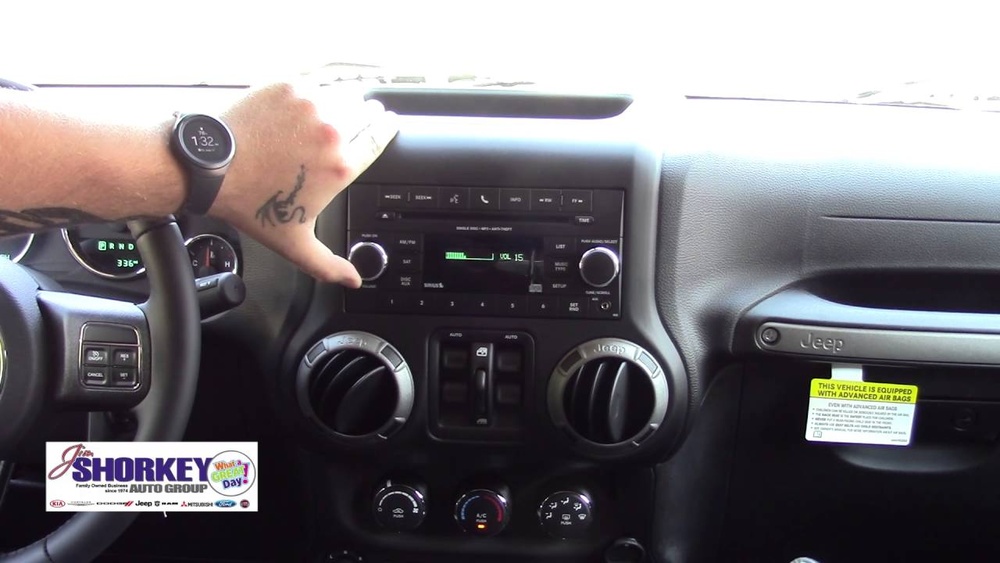
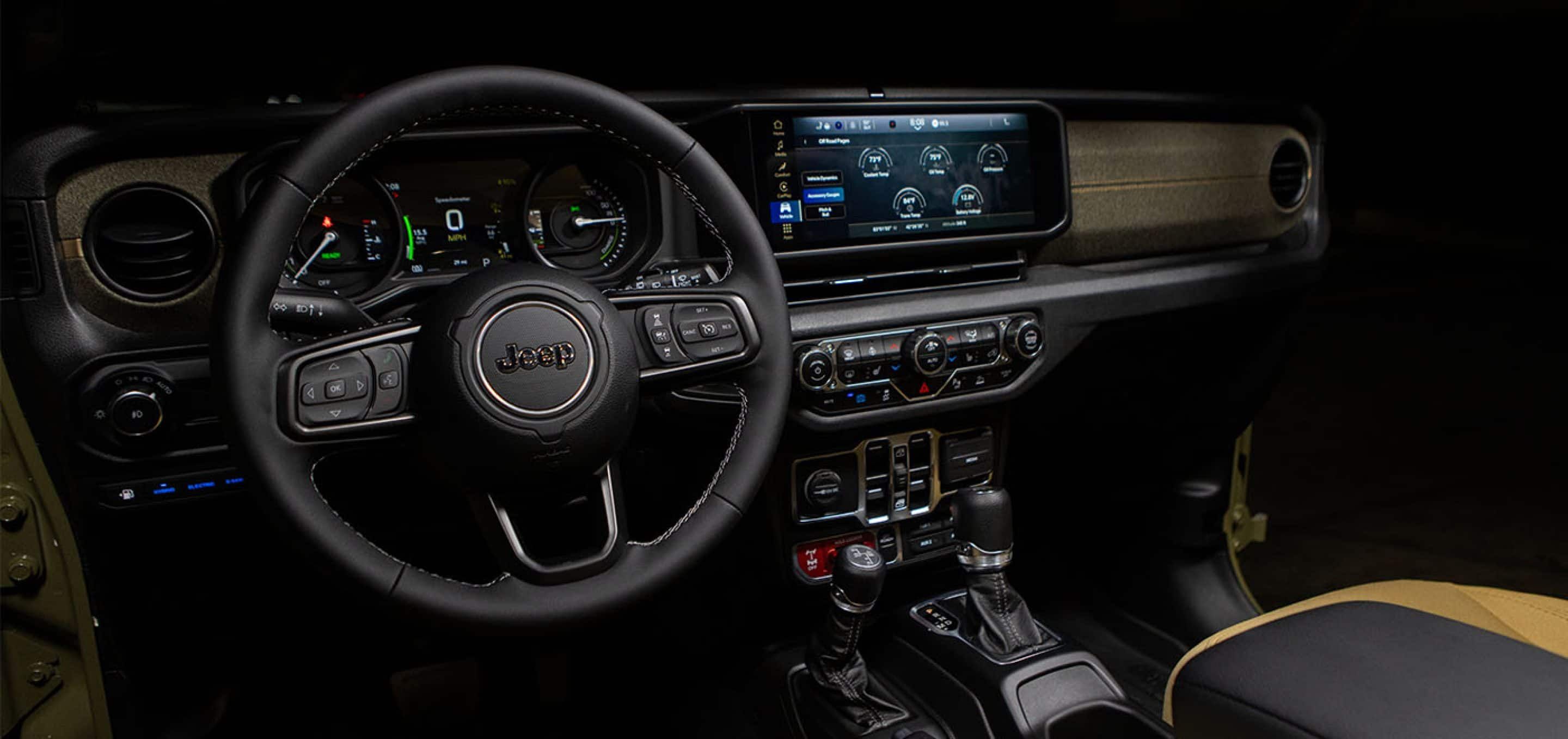
Newer Jeep Wranglers (especially models from 2017 onward) come with Uconnect, Jeep’s infotainment system. Uconnect supports Bluetooth and, in many cases, Apple CarPlay. Older Wranglers may only have basic Bluetooth. Knowing what your Jeep offers is the first step.
Preparing Your Devices
Before you start, check a few things:
- Your iPhone should have the latest iOS update installed.
- Make sure Bluetooth is enabled on your iPhone.
- Your Jeep Wrangler should be in “Park” with the engine running or in accessory mode.
- Remove old phone connections from your Jeep’s system if you had problems pairing before.
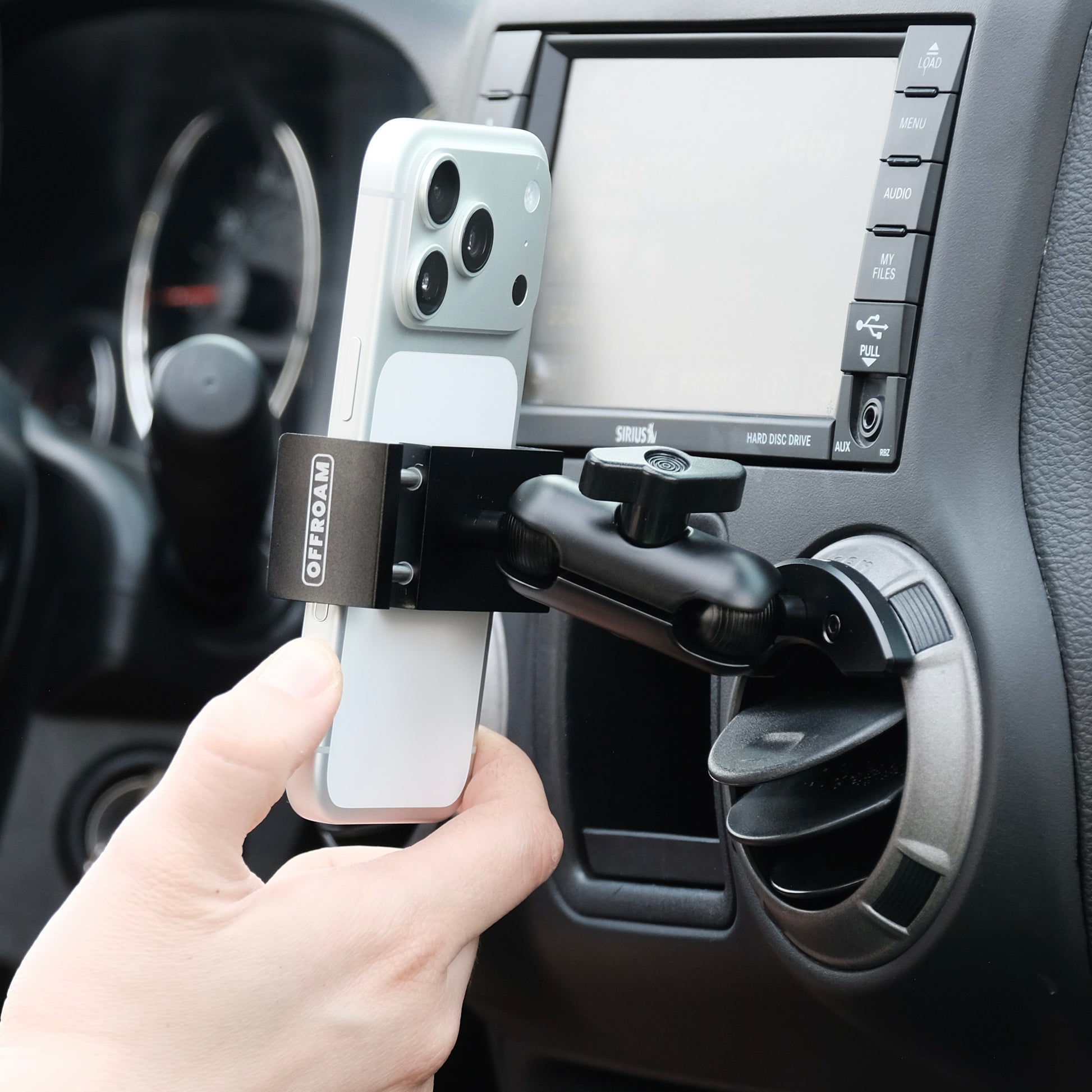
Steps To Pair Iphone To Jeep Wrangler Via Bluetooth
Bluetooth is the standard way to connect your iPhone to most Jeep Wranglers. Here’s how you do it:
- On your Jeep’s touchscreen, press the ‘Phone’ or ‘Media’ button.
- Select ‘Add Device’ or ‘Pair Device’ on the Uconnect screen.
- On your iPhone, go to Settings > Bluetooth and turn Bluetooth ON.
- Under “Other Devices,” you should see your Jeep (it might appear as “Uconnect” or “Jeep”).
- Tap the Jeep device name on your iPhone.
- A PIN will appear on both your iPhone and Jeep screen. Confirm that they match.
- Accept any prompts to allow contacts and favorites to sync. This gives you hands-free calling.
If pairing fails, restart both your car’s system and your iPhone. Try the steps again.
Using Apple Carplay In Your Jeep Wrangler
If your Wrangler supports Apple CarPlay, you can access iPhone features through your dashboard screen.
Wired Carplay
Many Wranglers require a USB cable for CarPlay. Here’s what to do:
- Plug your iPhone into the Wrangler’s USB port using an Apple-certified cable.
- A CarPlay icon should appear on your Jeep’s Uconnect screen.
- Tap the icon to launch CarPlay.
- You may see a prompt on your iPhone to “Allow CarPlay with Jeep.” Tap “Allow.”
Wireless Carplay
Some new Jeep Wranglers (mainly 2021 and up) support wireless CarPlay. The steps are:
- On your Jeep screen, go to ‘Phone’ > ‘Pair Device’.
- On your iPhone, open Settings > General > CarPlay.
- Select your Jeep from the list of available cars.
- Follow the prompts to complete setup.
If you’re not sure if your Jeep has wireless CarPlay, check your owner’s manual or the Jeep website.
Comparing Bluetooth And Apple Carplay
Connecting methods have different features. Here’s a quick comparison:
| Feature | Bluetooth | Apple CarPlay |
|---|---|---|
| Music Streaming | Yes | Yes |
| Hands-Free Calling | Yes | Yes |
| Access to Apps | Limited | Full (Maps, Messages, etc.) |
| Voice Commands (Siri) | Limited | Full Siri |
| Wireless Option | Yes | Only on newer models |
Common Issues And How To Fix Them
Pairing doesn’t always work perfectly. Here are some problems drivers face and how to solve them.
- Jeep not showing up on iPhone: Turn Bluetooth OFF and ON again on both devices. Restart your Jeep’s Uconnect system.
- Connection drops frequently: Check for iOS or Uconnect updates. Try a different USB cable for CarPlay.
- Contacts not syncing: On your iPhone, go to Bluetooth settings, tap the ‘i’ next to your Jeep device, and enable “Sync Contacts.”
- No sound: Make sure your Jeep’s audio system is set to the correct source (Bluetooth or CarPlay).
Tips For A Better Connection
- Use an Apple-certified USB cable for wired CarPlay to avoid disconnects.
- Delete old devices from your Jeep’s paired device list if you reach the limit (often 5–7 devices).
- If you lease or share your Jeep, unpair your phone before returning or selling the car.
- Keep your iPhone’s software and your Jeep’s Uconnect system up to date.
Uconnect And Car Compatibility
Jeep Wranglers have different Uconnect systems based on model year and trim. Here’s a quick look:
| Model Year | Uconnect Version | CarPlay Support |
|---|---|---|
| 2012-2016 | Uconnect 3.0/5.0 | No |
| 2017-2018 | Uconnect 7.0/8.4 | Yes (some trims) |
| 2019-2024 | Uconnect 4/5 | Yes (most trims) |
Non-obvious tip: Some aftermarket radios support CarPlay, even if your Jeep didn’t come with it. Check compatibility before buying.
Safety Considerations
Using your iPhone while driving is only safe if you keep distractions low. Use voice commands with Siri for texting or navigation. Avoid handling your phone directly.
Frequently Asked Questions
Can I Connect More Than One Iphone To My Jeep Wrangler?
You can pair multiple phones, but only one can be connected for hands-free features at a time. To switch phones, disconnect the current device and select the new one from the Jeep’s device list.
Why Doesn’t My Jeep Support Apple Carplay?
Older Wrangler models (before 2017) often lack CarPlay hardware. You may need a software update or an aftermarket system. Check with your dealer or the official Jeep site.
How Do I Update Uconnect For Better Iphone Compatibility?
Go to the Jeep Uconnect website, enter your VIN, and see if updates are available. Follow their instructions, and use a USB drive to install updates.
Does Bluetooth Pairing Drain My Phone’s Battery?
Bluetooth uses very little power. Streaming music or using GPS can drain your battery faster, especially if your phone isn’t plugged in.
Where Can I Find More Details Or Help?
For official instructions and troubleshooting, visit the Jeep Uconnect page.
Pairing your iPhone to your Jeep Wrangler helps you drive safer and enjoy your favorite features on the go. With the right setup, you can focus on the road while staying connected. If you ever run into issues, review these steps, and you’ll be back on track in no time.