Navigating with confidence is essential, especially in today’s busy world. The Jeep Grand Cherokee navigation system is designed to help you reach your destination with ease. Whether you’re a new owner or just want to understand your SUV’s tech better, this guide will show you how to use the navigation system step by step. You’ll also learn helpful tips, common mistakes, and how to solve basic issues on your own.
Before you begin your journey, it’s important to get familiar with the main features of your Grand Cherokee’s navigation system. Most modern models use the Uconnect infotainment system, which comes with an easy-to-use touchscreen.
First, start your vehicle and let the main screen load. The navigation button usually appears at the bottom or side of the display. Tap this icon to open the map view. You’ll see your current location, nearby roads, and points of interest.
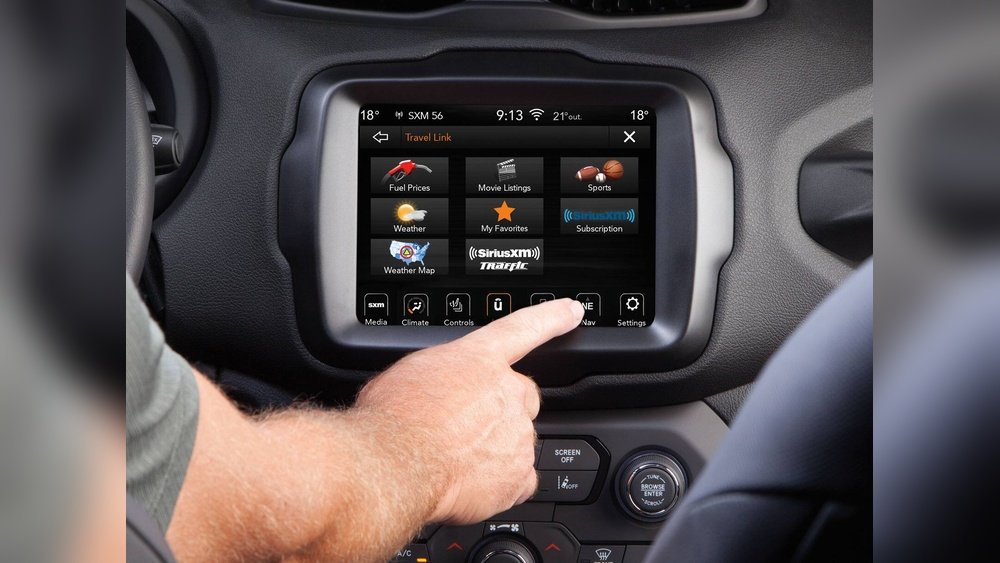
If your Jeep is a newer model, you may have additional features like voice control, real-time traffic updates, and 3D mapping. Take a few minutes to explore the home screen, settings, and basic map controls before driving.
Entering A Destination
Setting your destination is a simple process, but there are a few ways to do it:
- Touchscreen Input: Tap the “Where To?” or “Search” button. Enter the address, city, or point of interest using the on-screen keyboard. As you type, suggestions will appear, making it faster to select your destination.
- Voice Commands: Press the voice button on your steering wheel and say, “Navigate to [address or place].” Speak clearly and wait for confirmation. This is especially useful when you’re already driving.
- Saved Locations: You can save home, work, or favorite places for quick access. Tap “Favorites” or “Saved” in the menu and select your desired location.
After choosing your destination, the system will calculate routes. Pick your preferred route—fastest, shortest, or avoiding tolls—and tap “Go. ” The map will display the route, estimated travel time, and distance.

Customizing Route Preferences
The Grand Cherokee’s navigation lets you adjust how you travel. You can avoid toll roads, highways, or ferries by going into Navigation Settings. Here’s a quick comparison of the main options:
| Preference | What It Does | When to Use |
|---|---|---|
| Fastest Route | Chooses the quickest way | When time matters |
| Shortest Route | Uses the least distance | To save on mileage |
| Avoid Tolls | Bypasses toll roads | To save money |
| Avoid Highways | Uses local streets | For scenic drives |
To change preferences, tap “Settings” in the navigation menu, then select your options. Make sure to check these before every long trip.
Once your route is set, the system will guide you with both visual and voice directions. You’ll see arrows for upcoming turns, the distance to your next move, and estimated arrival time.
Lane guidance is especially helpful on highways. It shows which lane you should be in for exits or merges. Some models also offer junction views, displaying detailed images of complicated interchanges.
If you want to change your route while driving, tap the screen and select a new destination or a detour option. The system quickly recalculates, so you don’t have to stop or pull over.
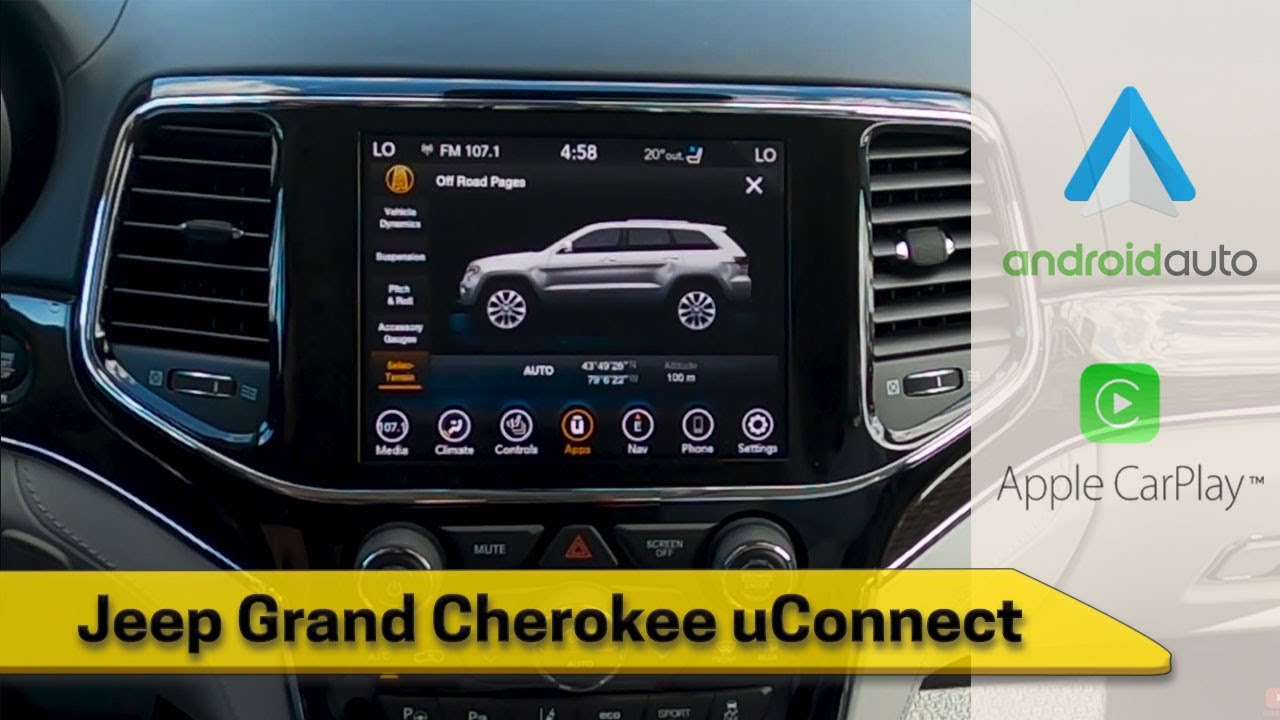
Real-time Traffic And Map Updates
One major advantage of the Grand Cherokee’s navigation is its ability to update you about real-time traffic. This feature can help you avoid accidents, roadwork, or heavy congestion.
Traffic updates rely on an active SiriusXM subscription or a connected smartphone. If you notice a red or yellow line on your route, that means there’s a delay. The system will often suggest alternate routes automatically.
For the most accurate maps, keep your system updated. Jeep releases new maps every 1–2 years. You can check for updates via the Uconnect website or your dealer. Outdated maps are a common reason for wrong directions.
Common Mistakes And How To Avoid Them
Many drivers make small errors that can affect their navigation experience:
- Not updating maps: Outdated software may miss new roads or locations.
- Ignoring voice guidance: Relying only on the screen can be distracting; use both.
- Entering incomplete addresses: Always include street number, city, and ZIP for best results.
- Not checking settings: Accidentally avoiding highways or tolls can lead to much longer routes.
Here’s a quick reference of mistakes and solutions:
| Mistake | How to Fix |
|---|---|
| Map not up to date | Install latest update |
| No voice directions | Check volume and guidance settings |
| Wrong route selected | Review preferences before starting |
Many drivers overlook the importance of map updates and audio settings. Even experienced users sometimes drive for months with old maps or muted voice guidance.
Practical Tips For Everyday Use
- Preview your route: Look at the full route before you start to avoid surprises.
- Use the split-screen mode if available. This lets you see both the map and audio controls.
- Save frequent destinations like your workplace, school, or gym for faster setup.
- Zoom in and out with pinch gestures or the +/– buttons to get a better view of your route.
- Lock the screen orientation if you prefer landscape or portrait mode for easier viewing.
As a non-obvious tip, consider practicing with the navigation system while parked. Try entering destinations, adjusting settings, and starting guidance before you hit the road. This builds confidence and helps you find features you might miss while driving.
Sometimes, things don’t work as expected. Here’s how to handle common issues:
- System won’t start: Turn off your vehicle, wait a few minutes, and restart.
- GPS signal lost: Move your vehicle away from tunnels, garages, or tall buildings.
- Screen freezes: Hold the power button on the Uconnect system for 10–15 seconds to reset.
If these steps don’t work, contact your Jeep dealer or check the official Uconnect support page for more help.

Frequently Asked Questions
Download the latest map update from the Uconnect website or ask your dealer for help. You may need a USB drive and your vehicle’s VIN.
Yes, newer Grand Cherokees support both. Connect your smartphone via USB, and you can use apps like Google Maps or Apple Maps on the display.
Double-check the spelling, city, and ZIP code. If you still can’t find it, your maps may be outdated or the address is too new.
Is Real-time Traffic Available Without A Subscription?
No, you need a SiriusXM Traffic subscription or a connected smartphone for live traffic updates.
Yes, tap the volume icon during guidance or adjust the settings in the navigation menu to mute or lower the voice prompts.
With the right knowledge, the Jeep Grand Cherokee navigation system becomes a powerful tool for safe and stress-free driving. Take time to explore its features, keep it updated, and practice using it before long trips. With these tips, you’ll get the most from your SUV’s technology every time you drive.