Connecting your smartphone or other devices to the Uconnect system in a Jeep 2016 is easier than most people think. Whether you want to stream music, use hands-free calling, or access navigation, Uconnect makes your driving experience safer and more enjoyable. But many Jeep owners get confused by the steps, Bluetooth settings, or differences between Uconnect versions. This guide will break everything down, step by step, so you can connect quickly and avoid common mistakes.
Understanding Uconnect In Jeep 2016
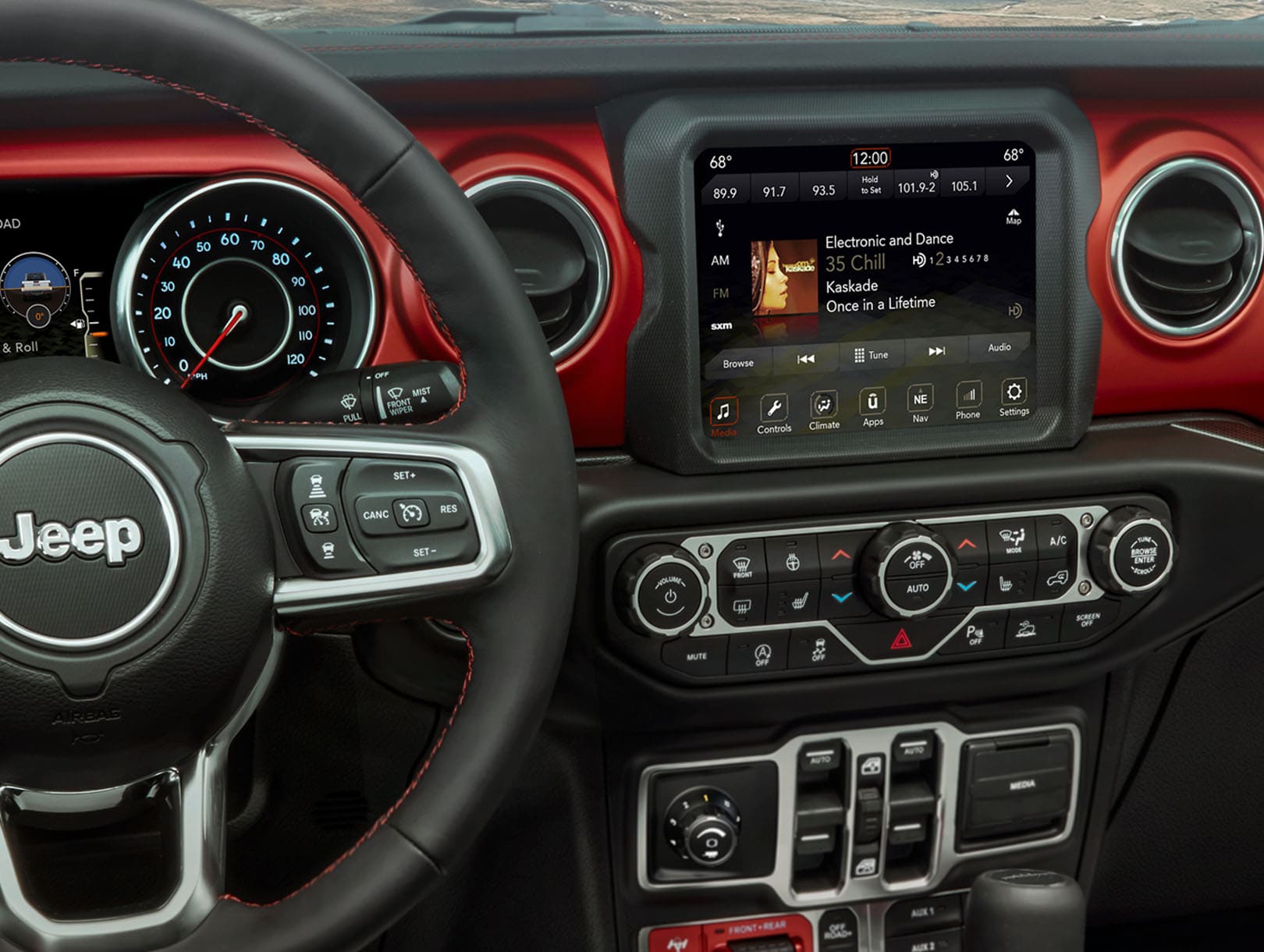
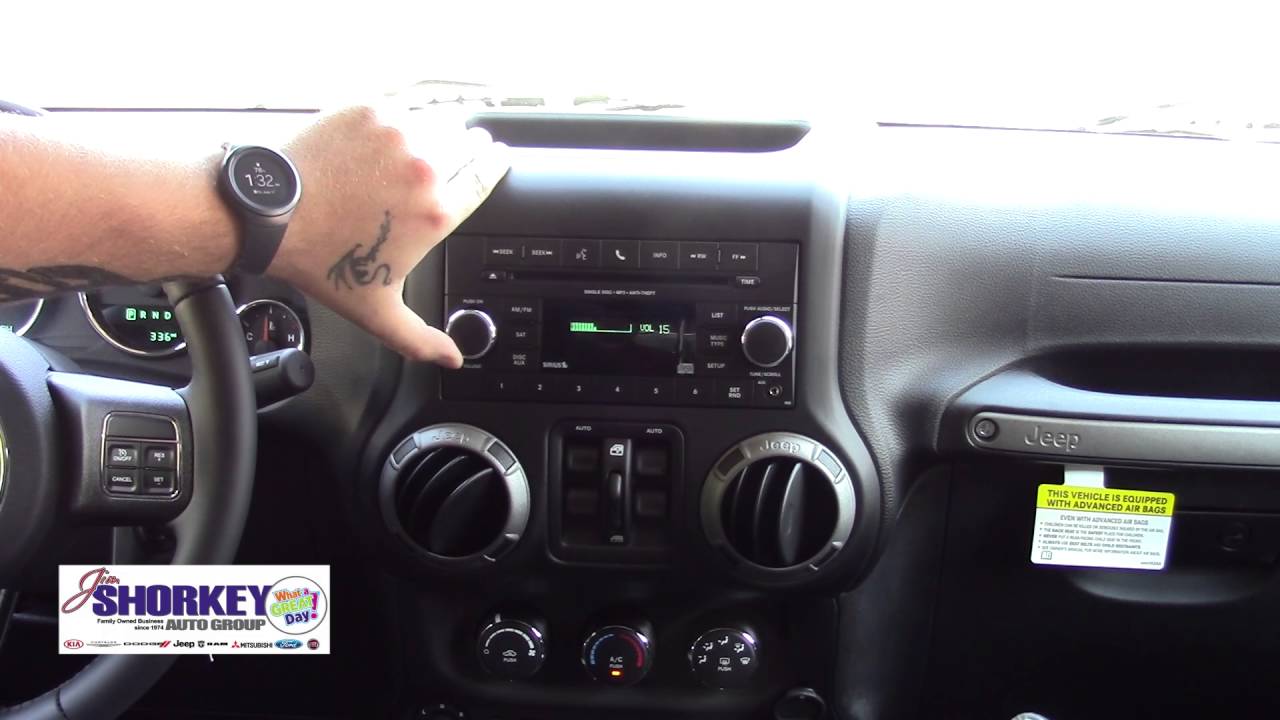
Uconnect is Chrysler’s infotainment system, used in many Jeep models. In 2016, you’ll likely find either Uconnect 5.0, 8.4, or 8.4 NAV. Each version offers Bluetooth, voice command, media playback, and navigation features. Before connecting, check which Uconnect version your Jeep has. Here’s a quick comparison:
| Uconnect Version | Screen Size | Key Features |
|---|---|---|
| 5.0 | 5-inch | Bluetooth, basic media, voice command |
| 8.4 | 8.4-inch | Bluetooth, advanced media, navigation (optional) |
| 8.4 NAV | 8.4-inch | Bluetooth, navigation, premium media |
Knowing your Uconnect version helps you follow the correct steps and find the right menus.
Preparing Your Device
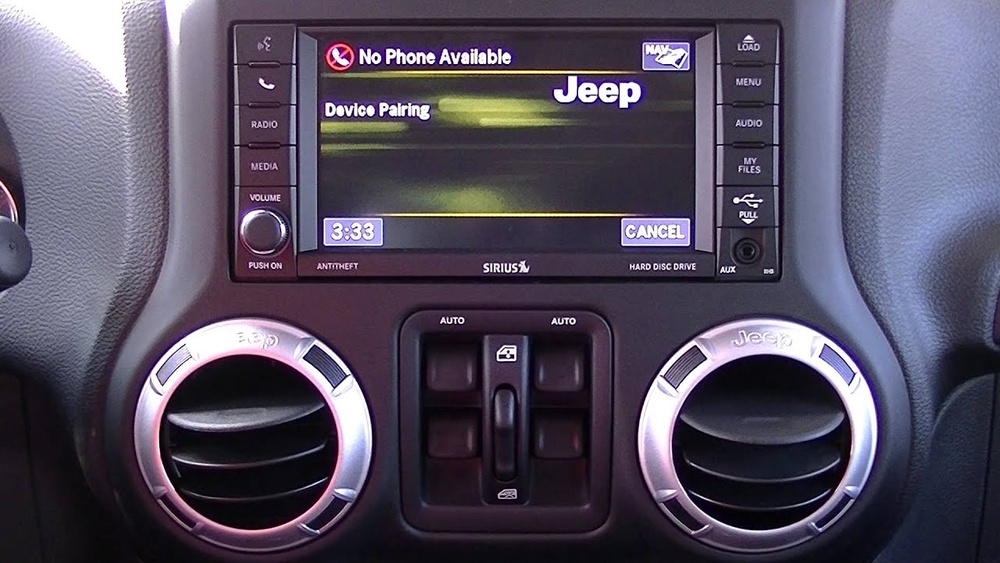
Before connecting, make sure your phone or device is ready. Here’s what you should check:
- Bluetooth is ON: Go to your phone’s settings and turn on Bluetooth.
- Device visibility: Set your phone to “discoverable” or “visible” so Uconnect can find it.
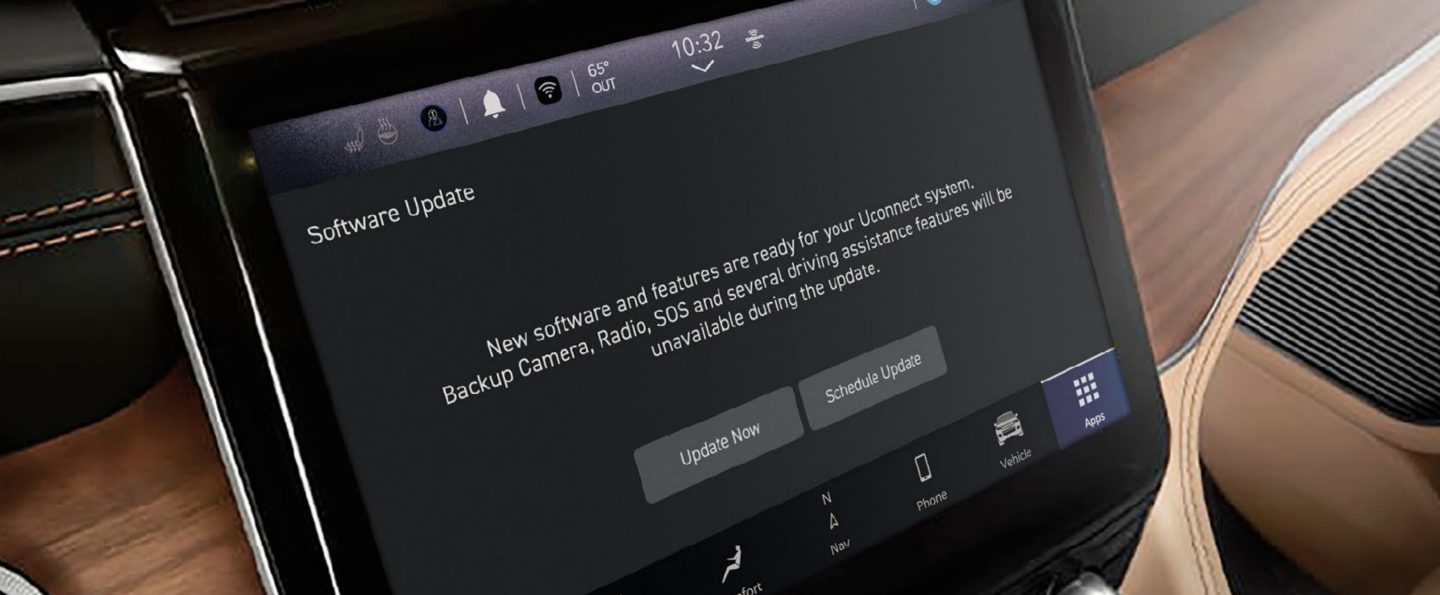
- Update your software: Both the phone and Uconnect should have the latest software updates. Outdated versions can cause pairing issues.
Some users forget to update their device or miss the “discoverable” step, which prevents successful pairing.
Step-by-step: Connecting To Uconnect Jeep 2016
Follow these steps to connect your device to the Uconnect system:
- Start your Jeep and keep it in “Park.”
- On the Uconnect touchscreen, press the Phone button.
- Select “Add Device” or “Pair New Device.”
- On your phone, find “Uconnect” in the Bluetooth devices list.
- Tap “Uconnect” and wait for the pairing prompt.
- Confirm the pairing code matches on both screens.
- Accept any prompts on your phone to sync contacts or media.
- Wait for the connection to finish. Your phone should show “Connected.”
If your phone doesn’t connect, restart both the phone and Uconnect, then repeat the steps.
Troubleshooting Connection Problems
Even after following the steps, problems can happen. Here are two issues beginners often miss:
- Multiple paired devices: If you have more than one phone paired, Uconnect may not connect automatically to the one you want. Delete unused devices in Uconnect’s settings.
- Interference from other Bluetooth signals: Wi-Fi routers, other cars, or even wearable devices can cause interference. Move away from crowded areas if you have trouble.
Using Uconnect Features After Connecting
Once your device is connected, you can use many features:
- Hands-free calling: Make and answer calls using steering wheel controls or voice command.
- Stream music: Play songs from apps like Spotify or Apple Music.
- Send texts: Some phones allow sending texts with voice command.
- Navigation: If your Uconnect has navigation, your phone can help with route updates and traffic.
Here’s a quick feature comparison:
| Feature | Uconnect 5.0 | Uconnect 8.4/8.4 NAV |
|---|---|---|
| Hands-free Calling | Yes | Yes |
| Music Streaming | Basic | Advanced |
| Texting | Limited | Full support |
| Navigation | No | Yes (optional) |
Practical Tips For A Smooth Connection
Getting the connection right the first time is possible with these tips:
- Disconnect unused devices: Too many paired devices confuse Uconnect.
- Keep your phone charged: Low battery can affect Bluetooth performance.
- Restart after updates: If you update Uconnect or your phone, restart both before pairing again.
- Use official cables for USB connections: If you want to connect via USB for Apple CarPlay or Android Auto, always use the cable from your phone manufacturer.
Many users skip these steps, leading to frustrating connection issues.
Common Mistakes And How To Avoid Them
Here are mistakes Jeep owners often make:
- Pairing while driving: Always pair your device when parked for safety.
- Ignoring software updates: Updates fix bugs and improve compatibility.
- Not checking for duplicate devices: If two phones have similar names, Uconnect may connect to the wrong one.
- Forgetting to enable contacts and media sharing: Accept these prompts during pairing for full functionality.
A quick data snapshot:
| Problem | How Often | Quick Fix |
|---|---|---|
| Pairing fails | 30% of new users | Restart device/Uconnect |
| Wrong phone connects | 15% of cases | Delete unused devices |
| No audio | 10% of users | Allow media sharing |
Frequently Asked Questions
How Do I Know Which Uconnect Version My Jeep Has?
Check the main menu on your Uconnect screen. The screen size and menu options help identify if it’s Uconnect 5.0, 8.4, or 8.4 NAV. You can also check your owner’s manual.
Can I Connect More Than One Phone To Uconnect?
You can pair multiple phones, but only one will be active at a time. To switch, go to “Paired Devices” and select the phone you want.
Why Does Uconnect Fail To Connect Sometimes?
Most connection failures happen due to software updates, interference, or too many paired devices. Restarting and updating your devices often solves this.
Is Uconnect Compatible With Android Auto And Apple Carplay?
Some Jeep 2016 models with Uconnect 8.4 support Android Auto and Apple CarPlay via USB. Check your Jeep specs or visit the official Jeep Uconnect page for details.
What Should I Do If I Cannot Hear Audio After Connecting?
Make sure media sharing is enabled on your phone during pairing. If audio still doesn’t work, check the volume settings on both your phone and Uconnect.
Connecting to Uconnect in a Jeep 2016 is simple once you know the right steps. With careful preparation, troubleshooting tips, and awareness of common mistakes, you can enjoy hands-free calling, music, and navigation easily. Remember to keep devices updated and remove unused pairings for best results.
For more help, the official Jeep Uconnect support can guide you through advanced features and updates.